
How to Increase Virtual Machine Disk Size in VMware
Original Article: https://woshub.com/increase-virtual-disk-vmware/
Increase the Size of VM Disk (VMDK) in VMware
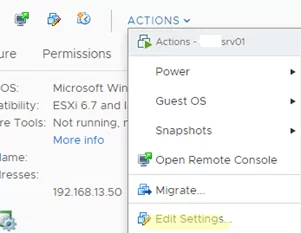
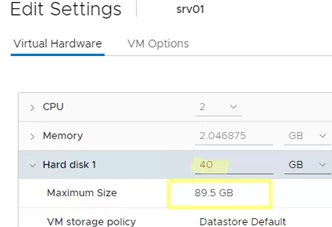
For example, you have a virtual machine with a single virtual hard disk file (vmdk) of 40GB, and you plan to increase this virtual disk size to 50GB.
You can also use the VMware PowerCLI module cmdlets to increase the size of the virtual machine VMDK disk. Install the PowerCLI module on your Windows or Linux computer:Install-Module -Name VMware.PowerCLI
Connect to your vCenter server or ESXi host:
Connect-VIServer hostname
Run the following command to expand the virtual disk:
Get-HardDisk VMTest1 | where {$_.Name -eq "hard disk 1"} | Set-HardDisk -CapacityGB 50 -ResizeGuestPartition -Confirm:$false
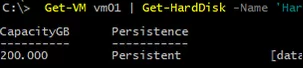
Then you can use the Invoke-VMScript cmdlet to extend a partition in the guest operating system:
Invoke-VMScript -VM VMTest1 -ScriptText "echo select vol c > c:\diskpart.txt && echo extend >> c:\diskpart.txt && diskpart.exe /s c:\diskpart.txt" -GuestUser $guestUser -GuestPassword $guestPass -ScriptType BAT
Don’t forget to terminate the PowerShell management session once you’re done:
Disconnect-VIserver -Confirm:$false
Now that you have increased the virtual disk size in the VMware console, you need to extend the partition in the guest OS
Extend a Partition in a Windows Virtual Machine
You must start the Disk Management console (Computer Management-> Storage-> Disk Management) and run the Rescan Disk command for the guest Windows OS to see the additional space.
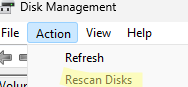
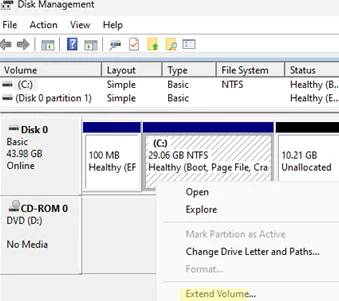
Next, select the partition you want to extend and click Extend Volume.
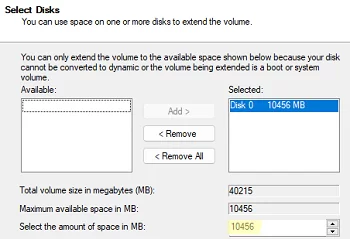
Specify how many MB of unallocated space you want to add to the selected Windows partition (in the field Select the amount of space in MB).
Now click Next -> Finish and check if your C drive has been successfully extended.
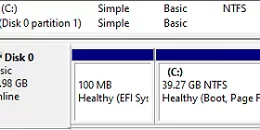
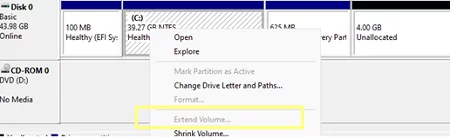
In that case, you won’t be able to extend your C: drive unless you delete or move the Recovery partition to the end of the drive. We have described this procedure in the article Extend Volume option is grayed out in Windows.
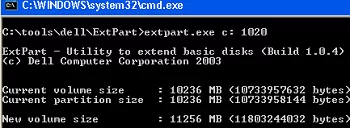
Windows XP and Windows Server 2003 don’t support the online extension of the system C: volume. You can use Dell’s ExtPart tool to expand the system partition without rebooting.
To extend the system partition in Windows 2003/XP, copy the tool to the guest operating system and run it with the following parameters:
extpart.exe c: 1020
, where c: is the name of the volume you want to extend, and 1020 is the size (in MB) you want to extend the disk by.
You can also extend the offline VM disc partition in other ways:
How to Extend Partition in Linux Virtual Machine?
Now let’s look at how to expand the disk partition if you have a Linux family guest operating system installed in your virtual machine.
The first thing to do is to make sure that Linux sees the new disk size. To start a rescan, run the command:
$ echo 1>/sys/class/block/sdd/device/rescan
Use the cfdisk tool to show the available virtual hard disk space:
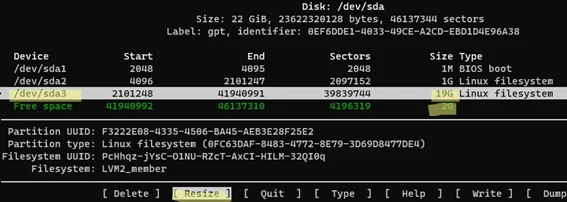
$ sudo cfdisk
This example shows that the /dev/sda drive has 2 GB of free space. Select the partition you want to extend (which is /dev/sda3 in this example) and chose Resize from the bottom menu.
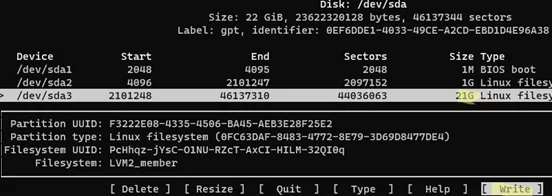
Then click Write to apply the changes to the partition.
In my case, I need to extend the partition in an Ubuntu 22.04 LTS virtual machine. By default, this version of Ubuntu is installed on LVM volume:
$ sudo lsblk
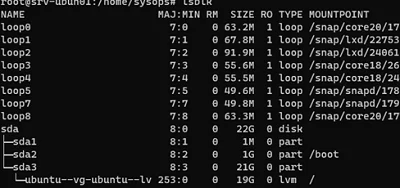
Before you can extend an LVM volume, you need to increase the physical volume (PV):
$ sudo pvresize /dev/sda3
Once that’s done, you can extend the logical volume (we’ll use all the free space available):
$ sudo lvextend -l +100%FREE /dev/mapper/ubuntu--vg-ubuntu--lv

The next step is extending the file system:
$ sudo resize2fs /dev/mapper/ubuntu--vg-ubuntu--lv
Check free disk space in Linux:
$ df -h

If you do not have LVM volumes, you can use the parted tool to extend partitions in Linux:
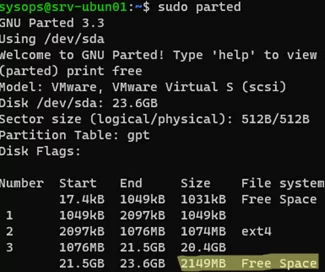
$ sudo parted
Let’s check how much unallocated space you have on the disk:
print free
As you can see, Free Space = 2149MB
To extend the /dev/sda3 partition, run:
resizepart 3
Specify a new partition size (in this example, we need to specify the End size from the Free Space block):
End? [21.5GB]? 23.6G
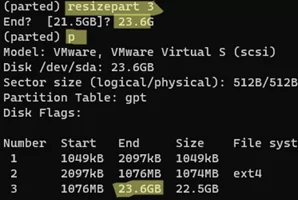
Then exit the parted:
quit
All that remains is to grow an ext4/3/2 file system.
$ sudo resize2fs /dev/sda3