
Restict Access to OnlyOffice Document Server to Nextcloud Users Only
ONLYOFFICE Document Server can use a token generated using the JSON Web Tokens (JWT) standard in order to secure the connection and restrict access the the OnlyOffice Document server which by default is accessible to everyone.
- Edit the /etc/onlyoffice/documentserver/local.json
filefile:
sudo vi /etc/onlyoffice/documentserver/local.json"token": {
"enable": {
"request": {
"inbox": false,
"outbox": false
},
"browser": false"token": {
"enable": {
"request": {
"inbox": true,
"outbox": true
},
"browser": true"secret": {
"inbox": {
"string": "secret"
},
"outbox": {
"string": "secret"
},
"session": {
"string": "secret""secret": {
"inbox": {
"string": "ThisisTheSecret"
},
"outbox": {
"string": "ThisisTheSecret"
},
"session": {
"string": "ThisisTheSecret"- Save the file and restart the services:
sudo supervisorctl restart all
- Go in Nextcloud under Settings --> ONLYOFFICE and click on Advanced server settings. In the Secret key field enter the THESECRET token you created earlier and click the Save button (Figure 1).
Figure 1
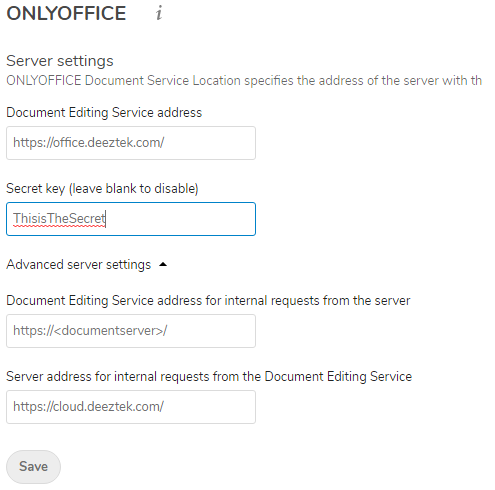
- Click the “Save” button, you should get the following message on top of the Nextcloud window (Figure 2):
Figure 2
