How to create a rule to move [Suspected Spam] messages to Junk Folder
Login to your webmail and click the  icon on the top left (Figure 1):
Figure 1

Next, click on Mail --> Filters --> and then click on CREATE FILTER (Figure 2):
Figure 2

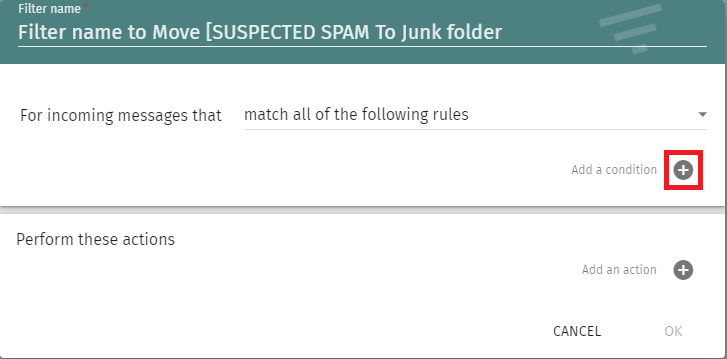
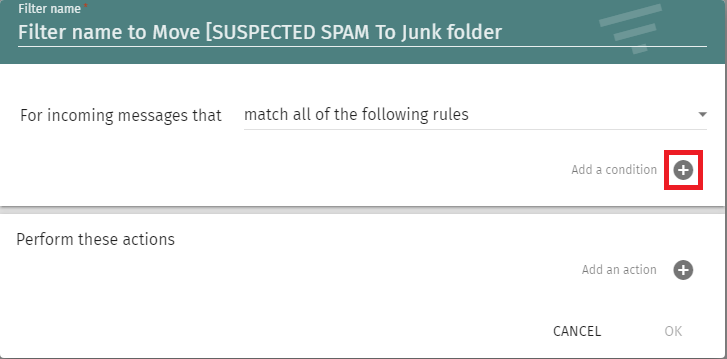
In filter window, set the Filter name to Move [SUSPECTED SPAM To Junk folder and click the  icon next to Add a condition (Figure 3):
Figure 3
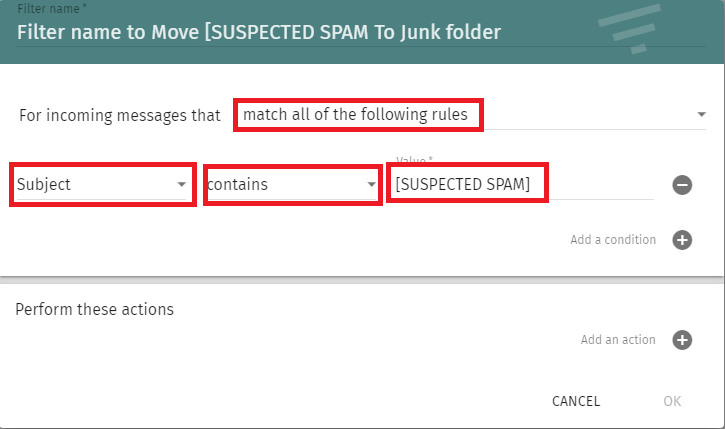
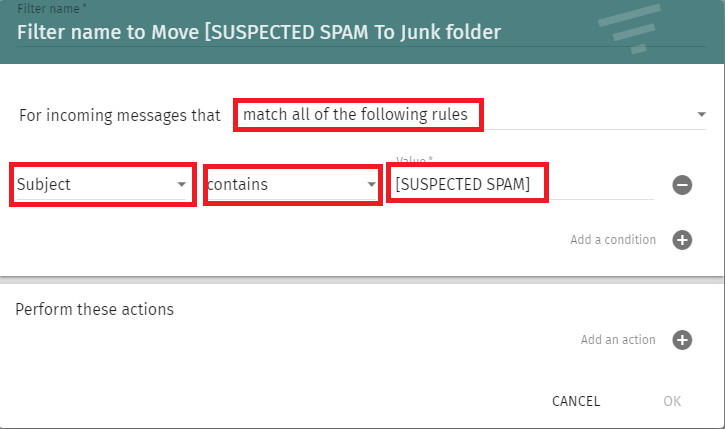
Ensure you set the rule to Subject --> contains and set the value to [SUSPECTED SPAM] (Figure 4):
Figure 4
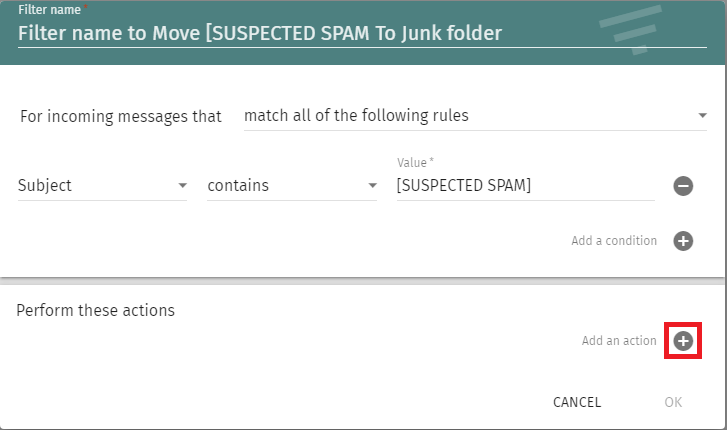
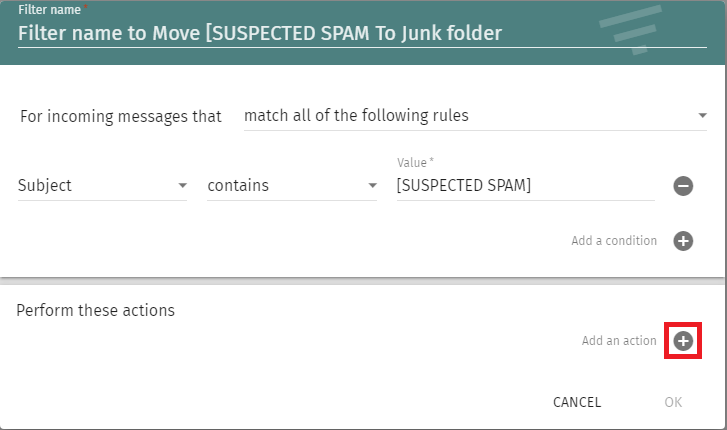
Next, click on the icon next to Add an action (Figure 5):
Figure 5
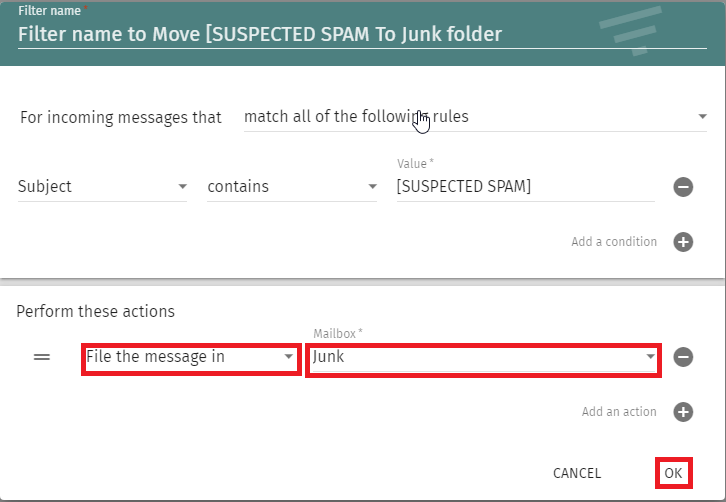
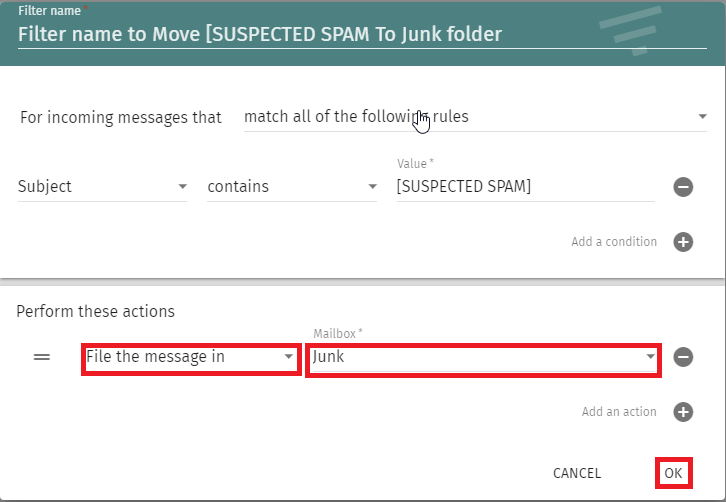
Under the Perform these actions section, set the action drop-down to File the message in and the Mailbox drop-down to Junk and click the OK button (Figure 6):
Figure 6
Back in the FILTERS section, ensure you click on the  icon to save the filter (Figure 7):
Figure 7


 icon on the top left (Figure 1):


 icon next to Add a condition (Figure 3):
 icon to save the filter (Figure 7):
