
User Console Login
First Time User Console Login
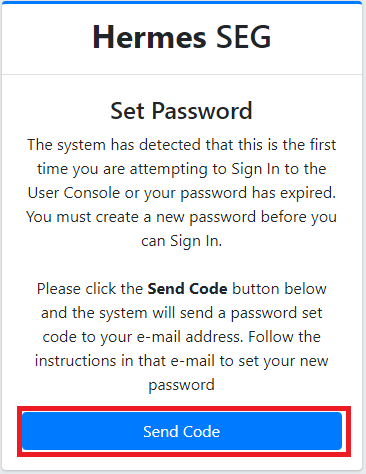
- The first time you access the User Self-Service Portal, you will be prompted to Set Password. Click on the Send Code button (Figure 1).
Figure 1
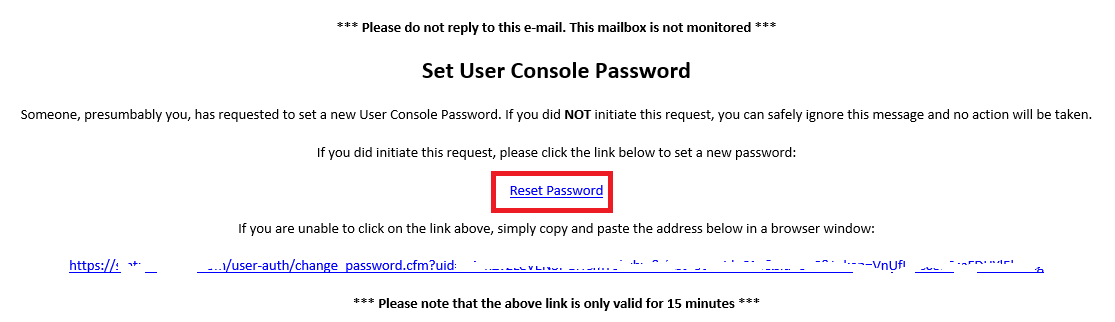
- The system will send a Set User Console Password message to your e-mail address. Click on the Reset Password link in the e-mail (Figure 2):
Figure 2
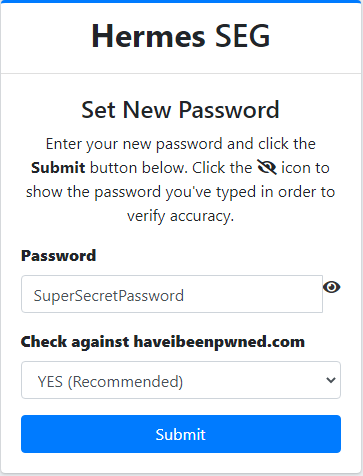
- In the Set New Password page, enter a new password (at least 8 characters), ideally leave the Check against haveibeenpwned.com drop-down set to YES and click the Submit button (Figure 3):
Figure 3
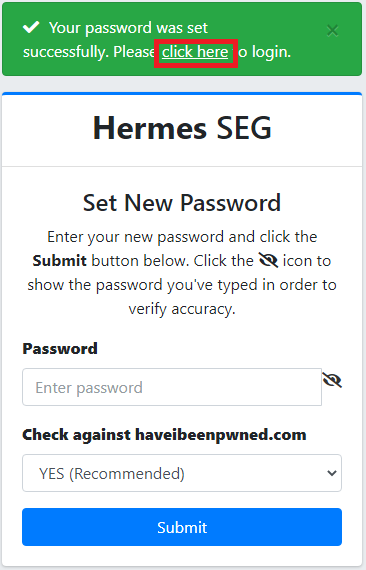
- After successfully setting the password, click on the click here link located on the top of the window to login
to the User Console(Figure 4) oralternatively,alternatively use one of the links inthea Hermes Secure Email Gateway Daily Quarantine Report or a Hermes Secure Email Gateway Scheduled Quarantine Report.
Figure 4
User Portal Login
Login to the User Self-Service Portal as follows:
- Verify your email address appears in the Email Address field (this field cannot be modified).
- Enter your password in the Password field.
- Click on the
LogonSign Inbutton.
Figure 31

Forgot Password to the User Self-Service PortalConsole
If you forgot the password to the User Self-Service Portal, you can reset it by following the instructions below:
- Click on the Forgot Password?
topbottom right of the UserSelf-Service PortalConsole Login page (Figure 4).
- Click on the Forgot Password?
Figure 41
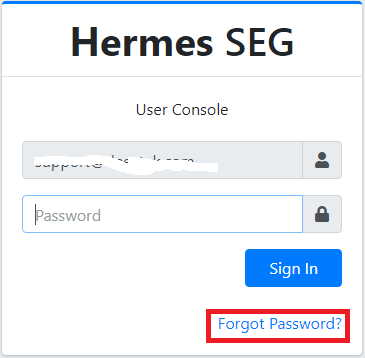
- The system will re-direct you to
thetheForgot User Self-Serive PortalReset PasswordFrom that page, clickClick onthethe Send Code button (Figure52).
Figure 52
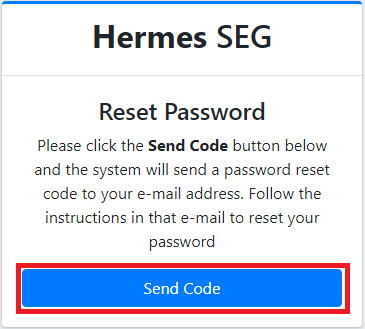
After clicking theSend Codebutton, theThe system will sendan email withaspecialSetcodeUser Console Password message to yourmailbox ande-mailre-directaddress.youClicktoonthetheForgotUser Self-Service PortalReset PasswordCodepagelink in the e-mail (Figure62).:
Figure 62
Check your mailbox for an email withIn thesubjectYourSetHermesNewSEGPasswordUserpage,Self-ServiceenterPortalaCode.newOpenpassword (at least 8 characters), ideally leave theemailCheckandagainstlookhaveibeenpwned.comfordrop-downaset to10-digitYESalphanumeric code (Figure 7).
Figure 7
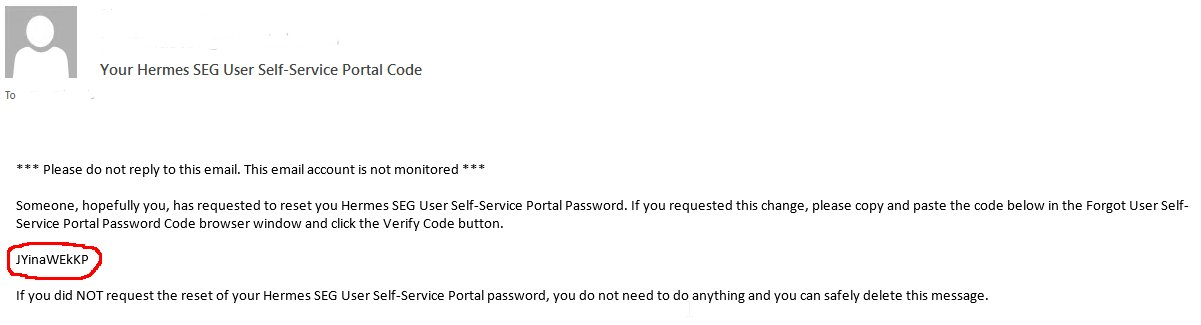
Figure 83
IfAfteryousuccessfullyenteredsetting thecorrectpassword,code,click on thesystemclickwillhereresetlinkUserlocatedSelf-ServiceonPortalthePasswordtopandofsendthe window to login (Figure 4) or alternatively use one of the links in aconfirmation email about your password reset to your mailbox.
Figure 94