
Virtual Recipients
Virtual Recipients are recipients that are not directly mapped to recipient mailboxes. For example, if you have an Internal Recipient joe@domain.tld but you also want the email address joe.smoe@domain.tld to deliver email to joe@domain.tld, you would set up a virtual address of joe.smoe@domain.tld to deliver to joe@domain.tld. Please note, Virtual Recipients are not only limited to Hermes SEG Internal Recipients. You can also create a Virtual Recipient to deliver email to an outside email address not handled by Hermes SEG. In the above example, we can easily setup joe.smoe@domain.tld to deliver to someone@gmail.com.
Note: Any email destined for a virtual recipient are NOT processed by the Bayes Spam Filter. In other words, email will not be checked for spam.
Create Virtual RecipientRecipient(s)
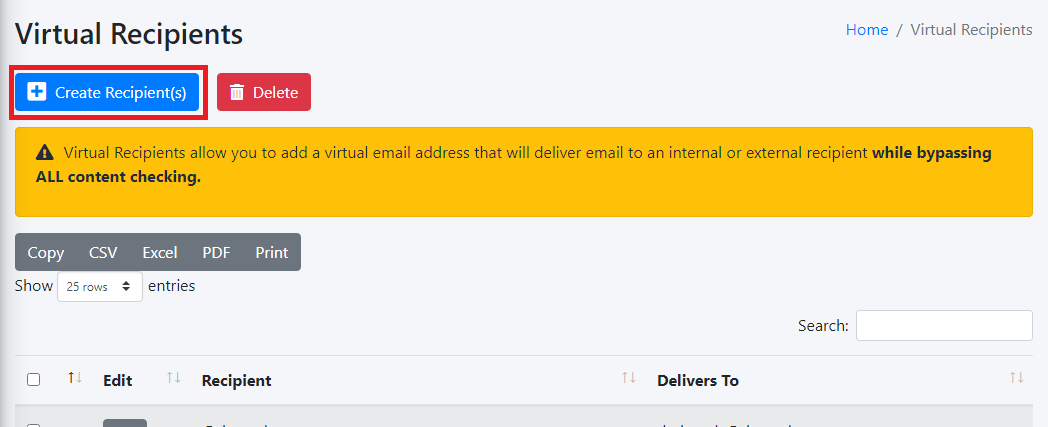
- Click on the Create Recipient(s) button (Figure 1).
Figure 1
icon.
- On the
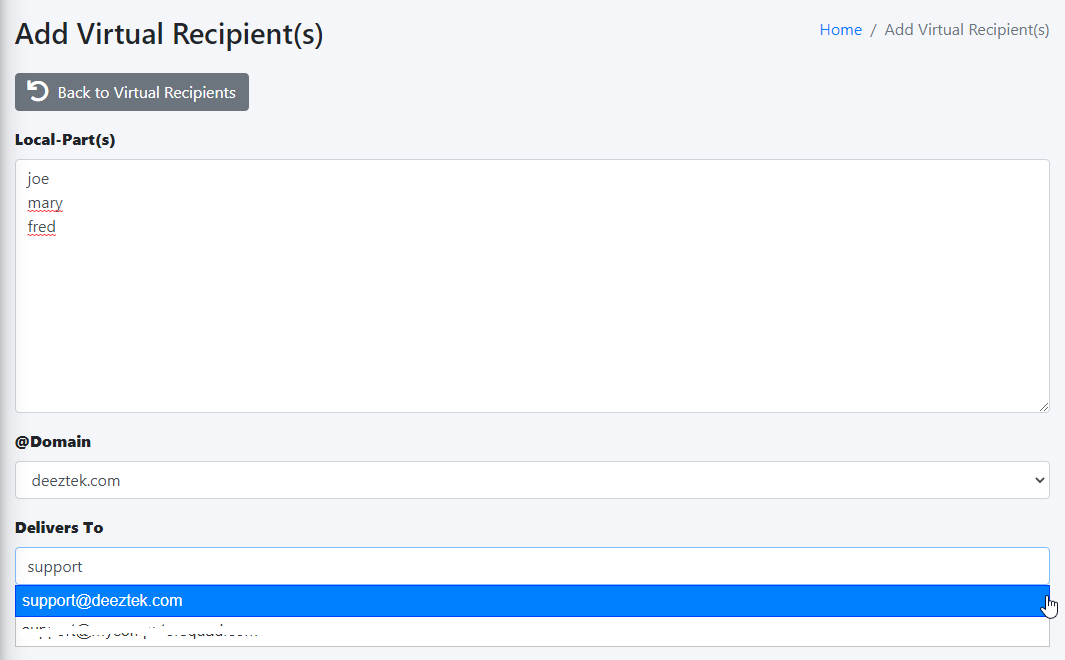
CreateAdd VirtualRecipientRecipient(s) page, underthetheVirtualLocal-Part(s)virtual@symboladdressof an e-mail address). You can also leave the Local-Part(s) field empty if you wish tocreateforwardwithoutantheentiredomain part.domain. - Under
thethe @Domainassociate the virtual email address with.use. - Under the Delivers to
enterstart typing theemaile-mail address of an existinginternalInternal Recipient and the system will show a drop-down listing of Internal Recipients matching the e-mail address you are typing or enter an externalrecipient.email address. - Click the
CreateSubmit button(Figure 1).
Figure 1

Figure 2
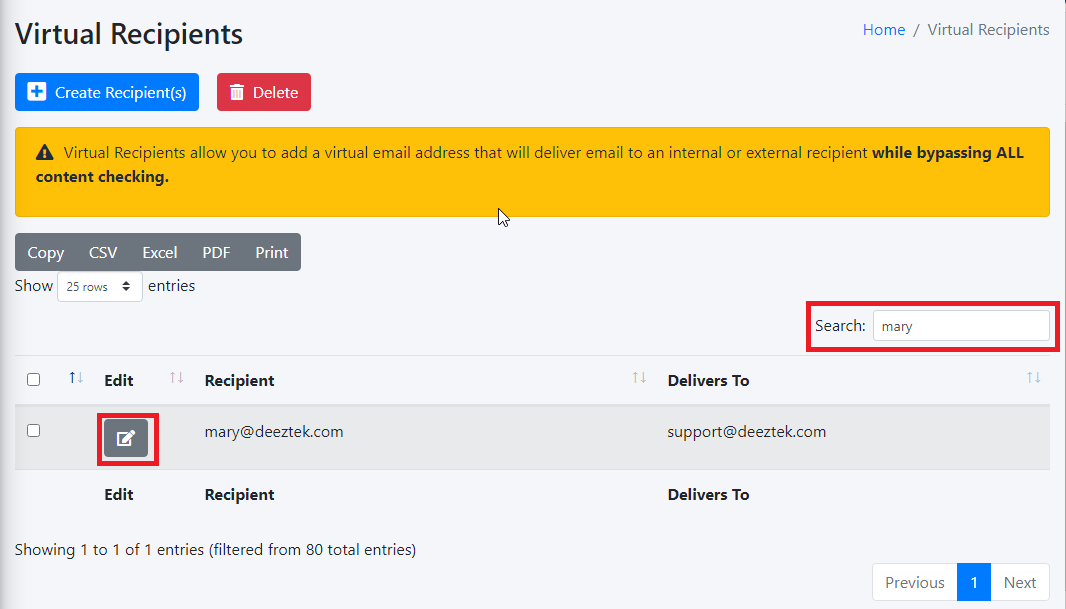
Edit Virtual Recipient
 button next to the virtual recipient (Figure 3).
Figure 3
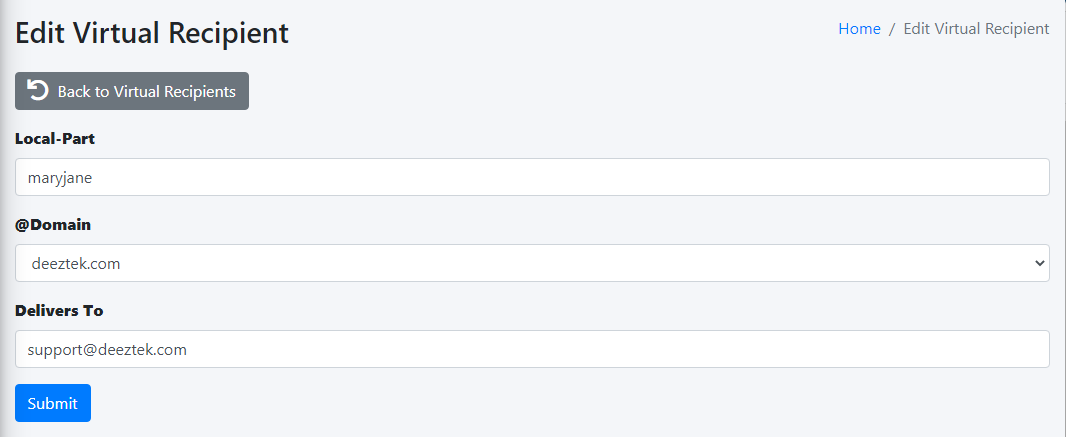
On the Edit Virtual Recipient page, make the necessary changes and click the Submit button (Figure 4).
Figure 4
Delete Virtual RecipientRecipient(s)
Note:

Figure 5
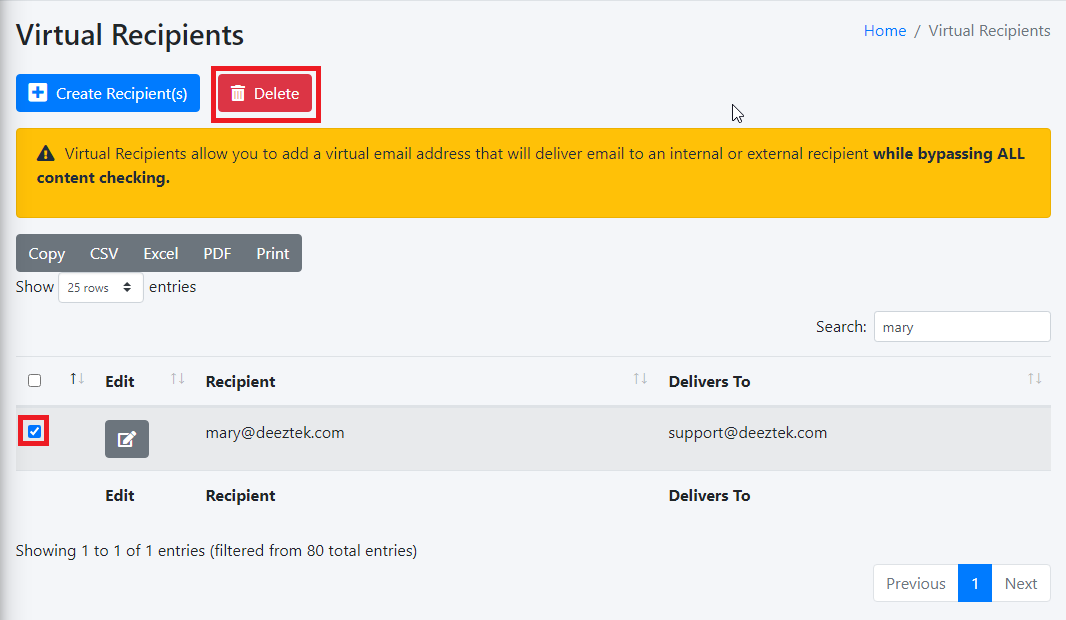
On the Delete Recipient(s) confirmation page, click the Yes button to delete the recipient or No to cancel (Figure 6)
Figure 6
