
Message History
Hermes SEG keeps a log and a copy of each email message it sends and receives for archiving purposes. The number of log entries and actual messages the system keeps depends on the amount of storage space available on the system. The system automatically starts purging the oldest email logs and email messages once the internal storage reaches 95% capacity.
For a low to medium traffic system, an email archive of up to 5 years is possible assuming that no Email Archive job has been setup in order to free up space. If an email Archive job has been setup, the email archive can become virtually unlimited since the email messages will be stored off the local storage.
Message History Date/Time Range and Message Results Limit
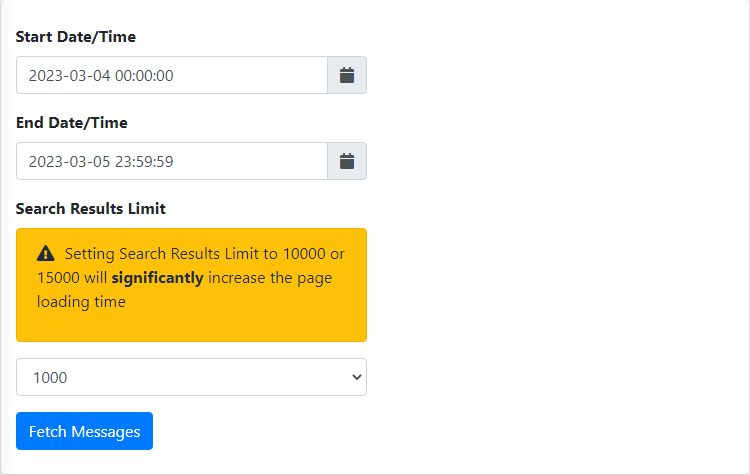
- By default, Message History displays the latest 1000 messages from the day before to the current day. Please note that if your system has processed more than 1000 messages during that time period, the displayed messages will not necessarily encompass that entire date/time rage. The date/time range as well as the number of messages to be displayed can be adjusted by setting the Start Date/Time, End Date/Time, Search Results Limit fields and clicking the Fetch Messages button (Figure 1). Please note setting the Search Results Limit to 10000 or 15000 messages will significantly increase the page loading time. It's best to have approximate dates and times if you wish to search for specific messages.
Figure 1
SortingSort Messages
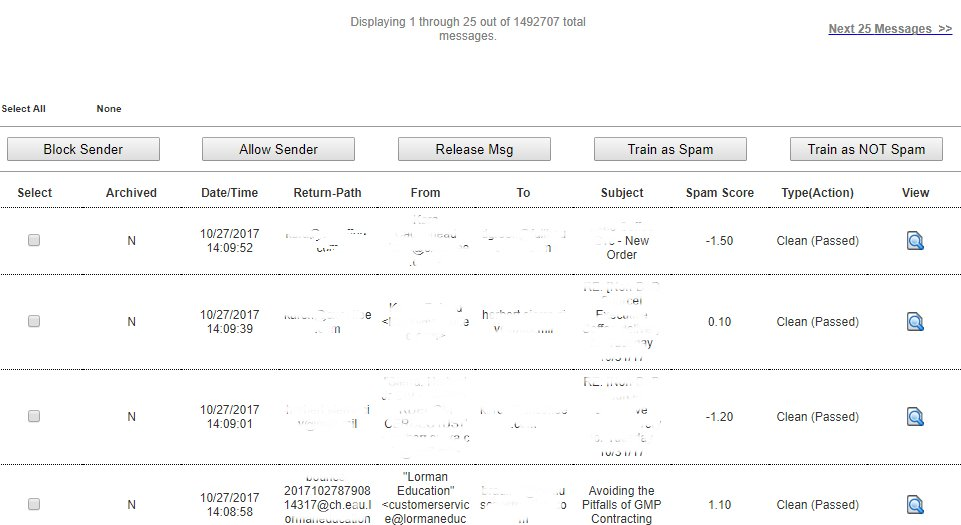
You can sort messages by ascending or descending values by simply clicking the Archived, Date/Time, Sender IP, Return-Path, From, To, Subject, Score, Type and Action headers of the message results (Figure 2).
Figure 2

Searching
Search Messages
You can search email messages by Date/Time Range, the From field, the Return-Path field, the To field, the Subject field and you can also search in the body or a header of a message.
Searching by DATE/TIME
Searching by DATE/TIME allows you to search for messages that were received/sent between the dates and times you specify.
Figure 4

Figure 5

Searching by FROM, RETURN-PATH, TO, SUBJECT
Searching by FROM, RETURN-PATH, TO or SUBJECT allows you to search for messages that match the search criteria you specify in the From field, Return-Path field, the To field or the Subject field of a mesage.
Figure 6

Figure 7
Searching by BODY/HEADERS
Searching by the BODY/HEADERS allows you to search for messages that match the search criteria you specify in the body or the headers of messages. The search Criteria can be any keyword or phrase.
Search results for BODY/HEADERS searches are limited to a maximum of 500 entries.
While a BODY/HEADERS search is in progress, no other BODY/HEADER searches can be performed, however, other types of search by Date/Time Range, From, To and Subject field can still be performed.
Please note that BODY/HEADERS searches are limited to messages stored locally on the appliance. Any messages that have been archived outside the appliance will not be searched.
Figure 8

Figure 9

Figure 10
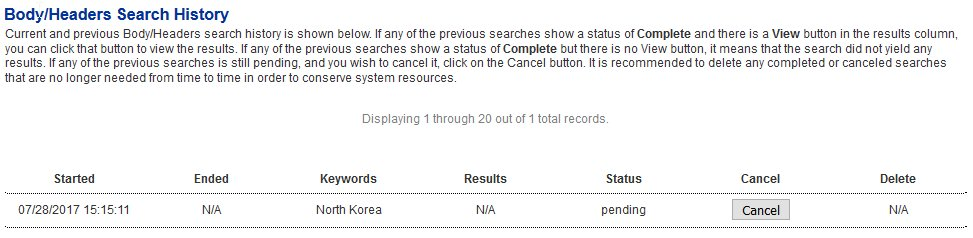
Figure 11
Figure 12
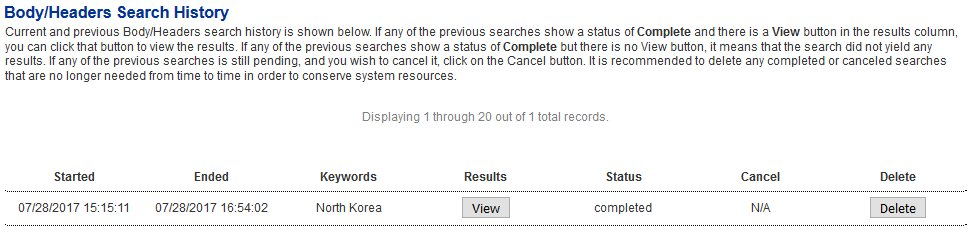
Figure 13
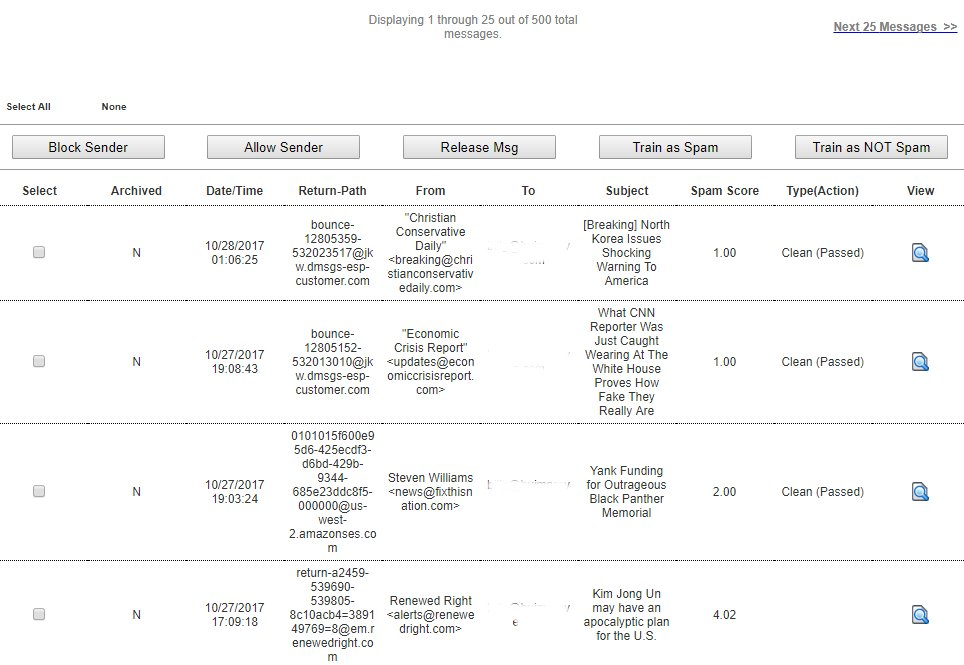
Figure 14
Release Email Messages to Internal Recipient Mailboxes
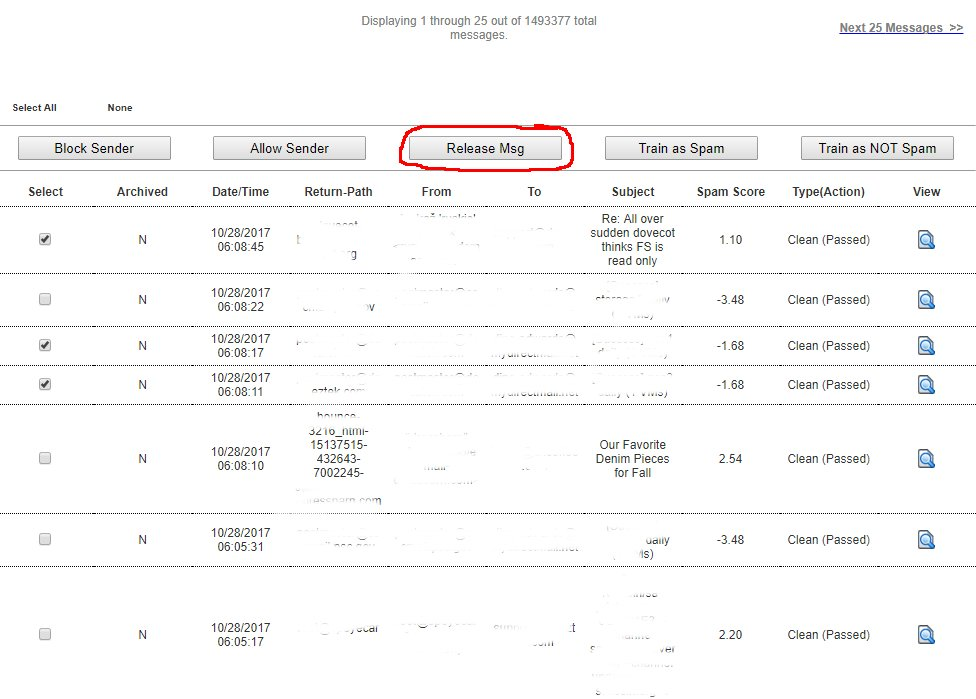
Releasing messages will instruct the sytem to deliver the messages selected to the intended Internal Recipient mailbox. This action can be performed for any type of message regardless if the message was inititally quarantined. This is useful for releasing lost email back to users or releasing quarantined messages that were never delivered to the user's mailbox.
The system can ONLY release messages stored in local storage. Messages that have been archived to external storage via an Archive Job cannot be released. They can only be viewed and/or downloaded.
When you click on Release Msg button the system will NOT display a loading message like normal (Figure 15) and the system may appear unresponsive. However, please be patient while your system processes the request before trying a different request. Some requests involving lots of messages may take a while to process.
Figure 15
Figure 16
Create Block & Allow Sender Rules
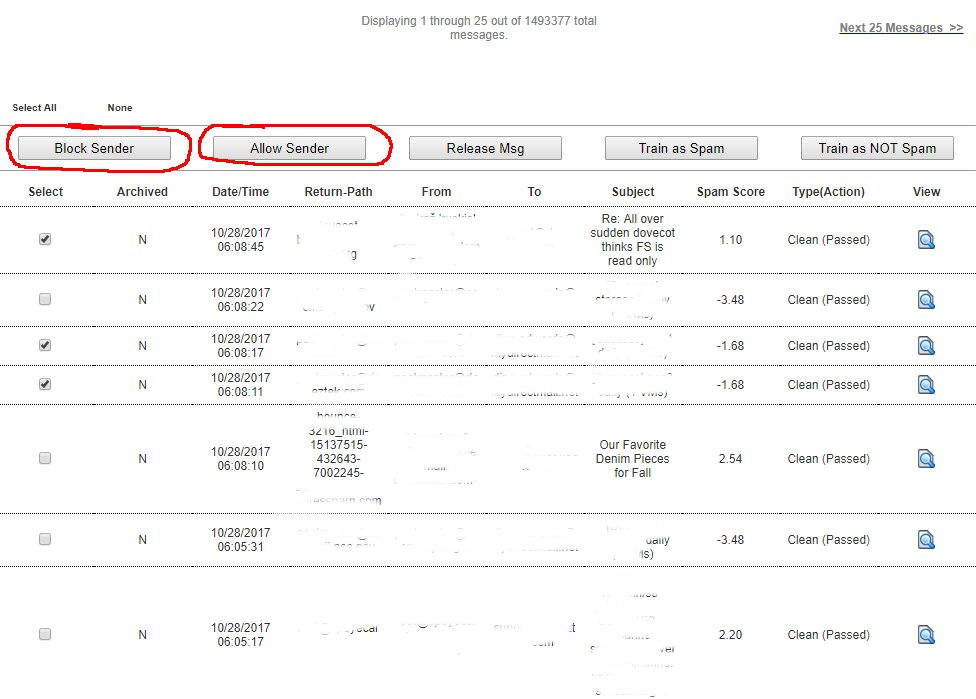
Block/Allow rules should NOT be used as a method of spam control. Spam should be handled by training the Bayes Filter instead. Legitimate mass marketing email campaigns should be handled by unsubscribing from those campaigns.
When you click on Block Sender or the Allow Sender buttons the system will NOT display a loading message like normal (Figure 17) and the system may appear unresponsive. However, please be patient while your system processes the request before trying a different request. Some requests involving lots of messages may take a while to process.
Figure 17
Figure 18
Note, that most marketing/spam email campaigns will auto generate the From email address each time they send out emails. An auto generated email address will look similar to the example below:
d-3-2492042-40004013-2-1-us2-c2bf84fa@aflac-onlineservices.com
In this example, each time an email goes out from this email campaign, the string before the @ (d-3-2492042-40004013-2-1-us2-c2bf84fa) will always be different while the domain string after the @ (aflac-onlineservices.com) will remain the same. Therefore, creating a block/allow rule using the From email address is pointless since the Block/Allow rule you previously created will not fire next time an email from this marketing campaign gets received since the string before the @ will be different. In these cases, it's recommended to navigate to Content Checks --> Sender Check Bypass and follow the instructions under the Add Domain Sender Check Bypass to Internal Recipient section in order to create a rule by using the domain string after the @ (aflac-onlineservices.com).
Train the Bayes Database
The Bayes Database needs to be initially trained with at least 200 spam messages before it becomes enabled. The more you train the Bayes Database the more accurate it becomes, however anything over 5000 messages does not seem to improve accuracy.
You can check if the Bayes Database is enabled by running the following command in a command prompt:
spamassassin -D --lint 2>> sa.txt
Next, list the contents of sa.txt:
cat sa.txt
If you see an entry similar to the one below, this indicates that the Bayes Database is disabled and it needs to be trained further before it becomes enabled. In the example below, the Bayes Database needs to be trained with 189 additional spam messages ( 200-11=189):
debug: bayes: Not available for scanning, only 11 spam(s) in
Bayes DB < 200
You should NEVER use legitimate mass marketing emails to train the Bayes Database as Spam. Inversely, you should NEVER use spam emails to train the Bayes Database as non-spam. These actions will corrupt the Bayes Database and lead to the system misidentifying spam and non-spam emails. Additionally, you should avoid training the Bayes Database with forwarded spam emails.
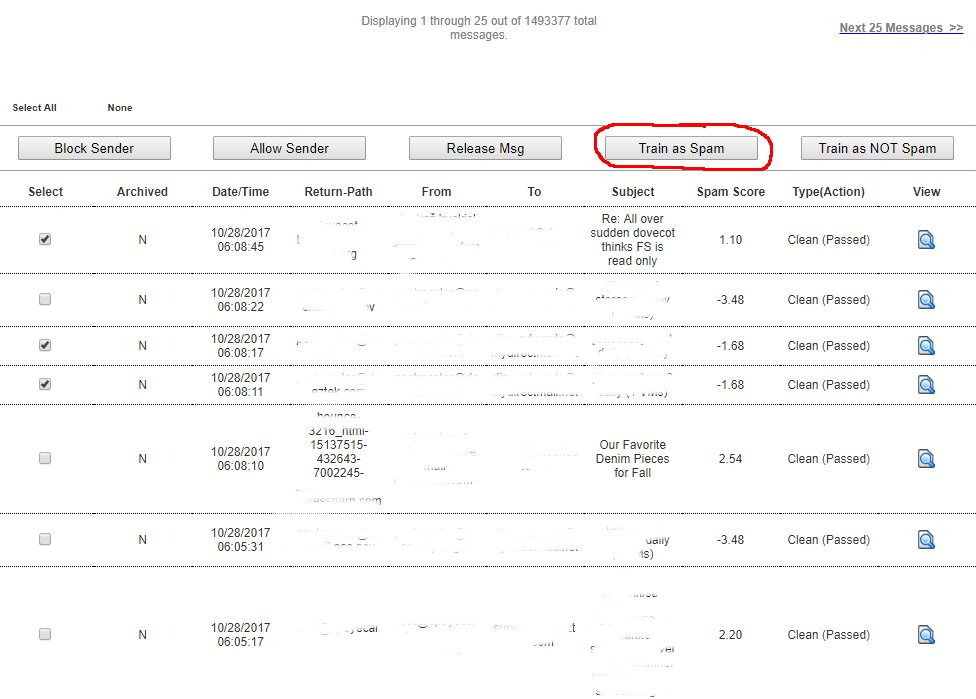
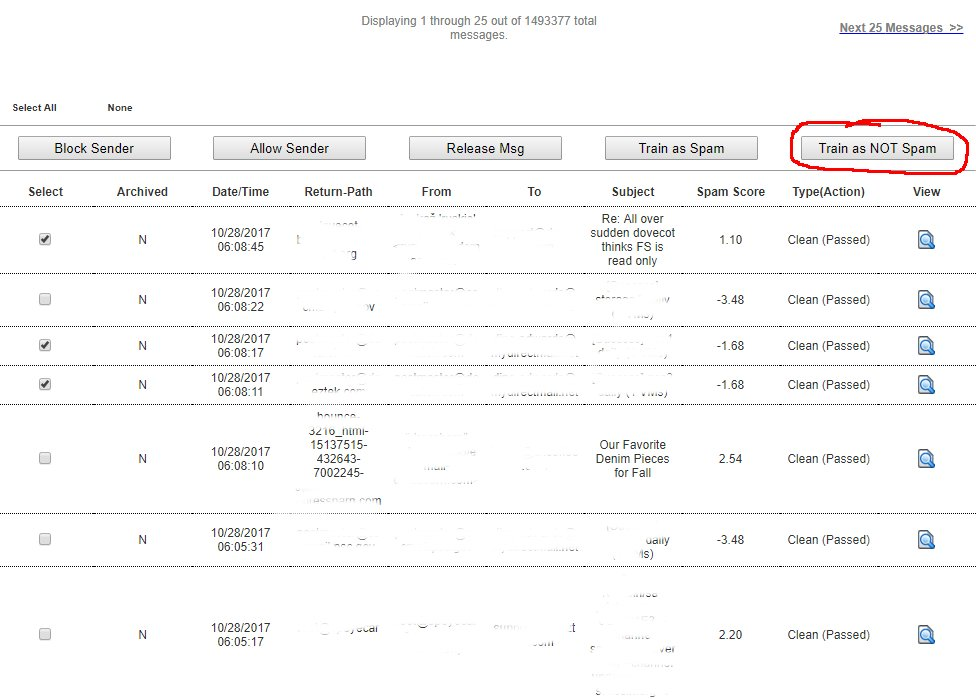
When you click on the Train as Spam or the Train as NOT Spam buttons the system will NOT not display a loading message like normal (Figure 19) and the system may appear unresponsive. However, please be patient while your system processes the request before trying a different request. Some requests involving lots of messages may take a while to process.
Figure 19
Train as Spam
Figure 20
Train as NOT Spam
Figure 21
View & Download Email Messages

When viewing a message, the system automatically disables links and any external content automatically.
Figure 22
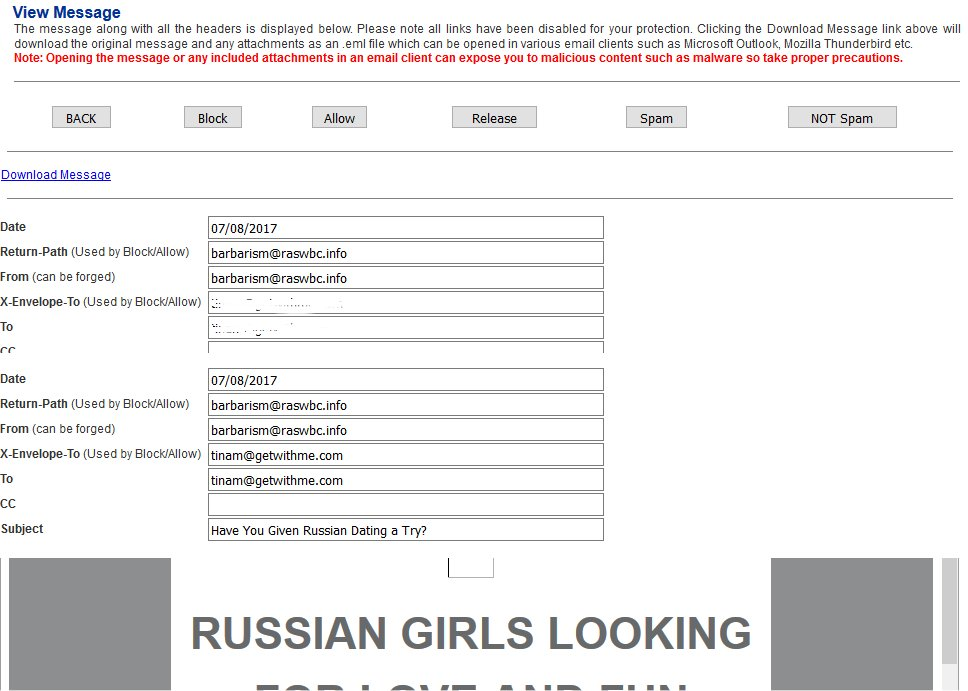
Command Buttons - This section contains the following 6 buttons:
Figure 23

Download Message - Clicking on the Download Message link will allow you to download the message in .eml format which can be opened by an email client such as Outlook (Figure 24).
Use extreme care when downloading messages and/or opening attachments within messages since they may contain malware.
Figure 24
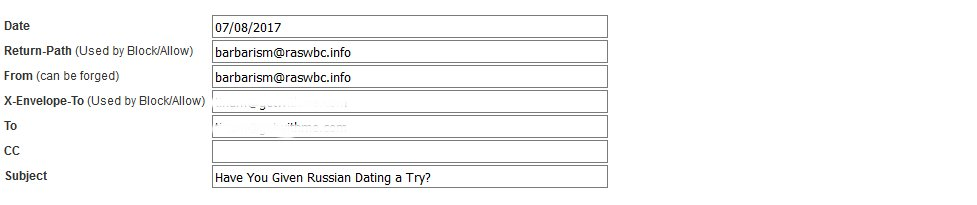
Message Details - This section shows the following headers of the message:
Figure 25
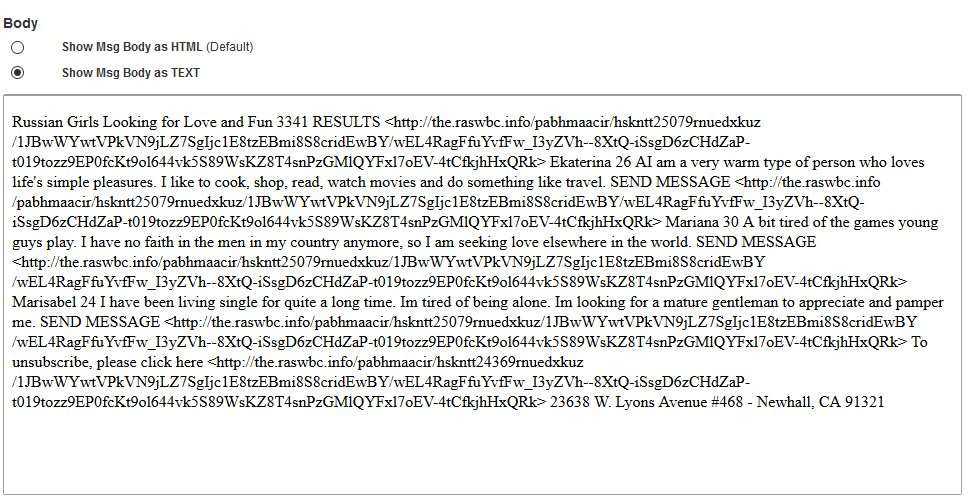
Message Body - This section shows the content inside the body of a message. The body section has two modes to display the body of a message:
Figure 26
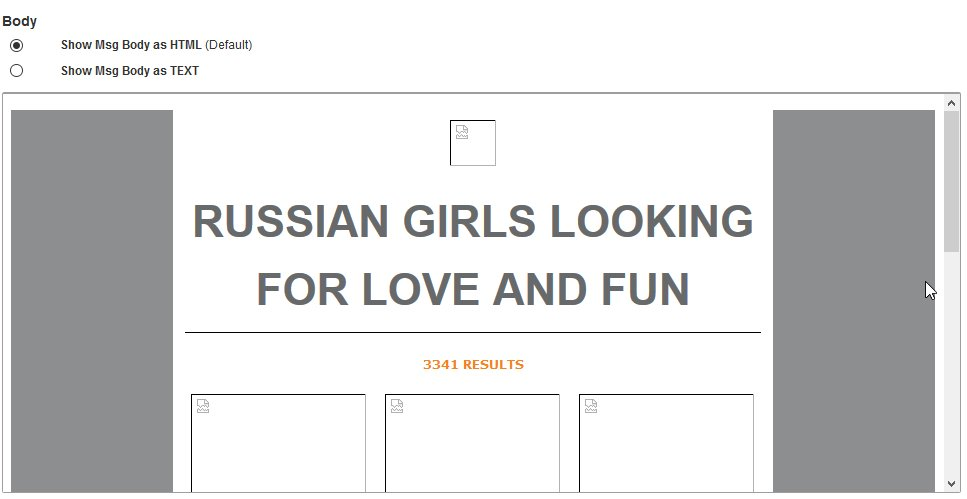
If the message body is blank, the message may not contain HTML elements, in that case try clicking on the Show Msg Body as Text selection.
Figure 27
Message Headers - This section shows the message headers which can contain a lot of useful information such as spam score, the antispam filter tests that it scored, the sending email server IP address etc. (Figure 283).
Figure 283
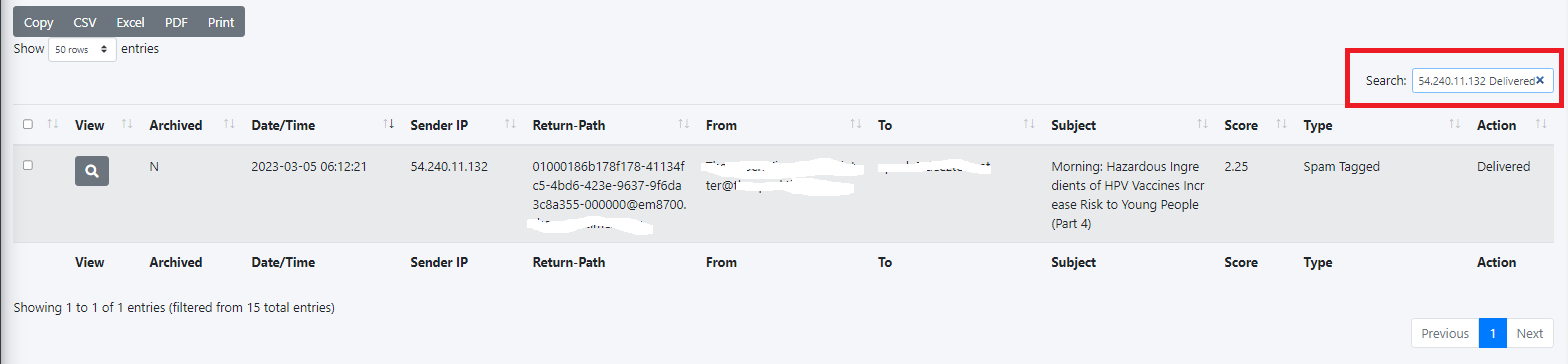
Message Actions