# Zabbix
# Configure Zabbix Docker
### Configure Zabbix Server to point to zabbix-agent container
- Navigate to **Monitoring --> Hosts -->Zabbix Server --> Configuration** (**Figure 1**)
**Figure 1**
- Clear **127.0.0.1** from IP address field
- Enter **zabbix-agent** in the **DNS name** field
- Set **Connect to** field to **DNS**
- Click the **Update** button (**Figure 2**)
**Figure 2**
### Configure Zabbix Server Timezone
Edit /opt/zabbix-docker/.env\_web uncomment the following line:
```
#PHP_TZ=Europe/Riga
```
Navigate to [http://php.net/manual/en/timezones.php](http://php.net/manual/en/timezones.php "http://php.net/manual/en/timezones.php") locate your local timezone and set PHP\_TZ to it, for example for American Eastern you would set it to the following:
```
PHP_TZ=America/New_York
```
### Configure Zabbix Server Server Name
Edit /opt/zabbix-docker/.env\_web and set the following line:
```
ZBX_SERVER_NAME=Composed installation
```
to a server name that you like (Example: ZBX\_\*SERVER\_\*NAME=Widgets, Inc)
### Configure Zabbix Auto Discover
- Navigate to **Configuration --> Actions -->Actions Drop-down --> Discovery actions** (**Figure 3**)
**Figure 3**
- Ensure you have already configured notifications under **Administration --> Media types**.
- Click the **Disabled** link under the **Status** column in the R**eport problems to Zabbix administrators** item in order to change the status to **Enabled** (**Figure 6**).
**Figure 6**
### Enable Zabbix FreeNAS Monitoring
- On FreeNAS server enable **SNMP** by going to **Services --> SNMP** and set it to **Running** and **Start Automatically** and enable **SSH** by going to **Services --> SSH** and set it to **Running** and **Start Automatically** (**Figure 7**).
**Figure 7**
- On FreeNAS server, under **Services**, click on **SSH --> Actions** and ensure **Log in as root with password** and **Allow password authentication** checkboxes are checked and click the **Save** button (**Figure 8**).
**Figure 8**
- On FreeNAS server, under **Services**, click on **SNMP --> Actions** and note the **Community** string (default is **public**) or change as required and optionally set the **Log Level** to **Info** if you wish to get more information out of FreeNAS and click the **Save** button (**Figure 9**).
**Figure 9**
- Using WinSCP or scp download the following file from the FreeNAS server:
```
/usr/local/share/snmp/mibs/FREENAS-MIB.txt
```
- Upload the **FREENAS-MIB.txt** file to the Zabbix Docker server in the following directory:
```
/opt/zabbix-docker/zbx_env/var/lib/zabbix/mibs
```
- Restart the Zabbix docker stack:
```
cd /opt/zabbix-docker && docker-compose down
cd /opt/zabbix-docker && docker-compose up -d
```
- On the Zabbix server navigate to **Administration --> General --> GUI drop-down --> Macros** (**Figure 10**)
**Figure 10**
- Ensure the **Value** field of the **{$SNMP\_COMMUNITY}** Macro is set to **public** or whatever value you set the FreeNAS Community string from above and click the **Update** button (**Figure 11**).
**Figure 11**
- Using a web browser download the following templates from Zabbix Share:
###### SNMP Intefaces discovery
[https://share.zabbix.com/official-templates/snmp-devices/snmp-interfaces-discovery](https://share.zabbix.com/official-templates/snmp-devices/snmp-interfaces-discovery "https://share.zabbix.com/official-templates/snmp-devices/snmp-interfaces-discovery")
###### SNMP Interfaces discovery
[https://share.zabbix.com/official-templates/snmp-devices/snmp-processors-discovery](https://share.zabbix.com/official-templates/snmp-devices/snmp-processors-discovery "https://share.zabbix.com/official-templates/snmp-devices/snmp-processors-discovery")
###### SNMP Generic
[https://share.zabbix.com/official-templates/snmp-devices/snmp-generic](https://share.zabbix.com/official-templates/snmp-devices/snmp-generic "https://share.zabbix.com/official-templates/snmp-devices/snmp-generic")
###### FreeNAS 11 SNMP
[https://share.zabbix.com/storage-devices/freenas/freenas-11](https://share.zabbix.com/storage-devices/freenas/freenas-11 "https://share.zabbix.com/storage-devices/freenas/freenas-11")
- On the Zabbix server navigate to **Configuration --> Templates --> Import** and import each of the templates you downloaded above ensuring the **Rules** are set like below before each import (**Figure 12**):
**Figure 12**
- On the Zabbix server navigate to **Configuration --> Hosts --> Create Host**
- In the **Host** tab, fill out the **Host name**, **groups** and **interfaces** where 1**92.168.xxx.xxx** is the IP of your FreeNAS host (**Figure 13**)
**Figure 13**
- In the **Templates** tab, ensure you link the **Template Module ICMP Ping** and the **Template SNMP FREENAS 11** templates and click the **Update** button (**Figure 14**)
**Figure 14**
- Wait 10-15 minutes before Zabbix starts pulling data from the FreeNAS server. If successful, **Monitoring --> Hosts** should show the FreeNAS server listed with **SNMP** turned green (**Figure 15**)
**Figure 15**
### Enable Zabbix VMware Monitoring
Original Guide URL:
[https://bestmonitoringtools.com/vmware-monitoring-with-zabbix-esxi-vcenter-vm-vsphere/](https://bestmonitoringtools.com/vmware-monitoring-with-zabbix-esxi-vcenter-vm-vsphere/ "https://bestmonitoringtools.com/vmware-monitoring-with-zabbix-esxi-vcenter-vm-vsphere/")
- Enable (Remove the # from front of each line) on the following entries in **/opt/zabbix-docker/.env\_srv** and save the file:
```
ZBX_STARTVMWARECOLLECTORS=3
ZBX_VMWAREFREQUENCY=60
ZBX_VMWAREPERFFREQUENCY=60
ZBX_VMWARECACHESIZE=128M
ZBX_VMWARETIMEOUT=120
```
Restart the Zabbix docker stack:
```
cd /opt/zabbix-docker && docker-compose down
cd /opt/zabbix-docker && docker-compose up -d
```
- Navigate to **Configuration --> Hosts --> Create Host**
- In the **Host** tab, fill out the **Host name** of your Vcenter/VMware server, and select **groups**. Do not fill out the IP address field, leave it to default **127.0.0.1** (**Figure 16**)
**Figure 16**
- Click the **Macros** tab and then click **Inherited and host macro**s button.
- Click the **Change** link next to each of the following fields and fill out the value of each field with the Password, URL (https://vcenter/sdk) and Username of your Vcenter/VMware server and click the **Add** button (**Figure 18**):
```
{$VMWARE.PASSWORD}
{$VMWARE.URL}
{$VMWARE.USERNAME}
```
**Figure 18**
- VMware/Vcenter discovery can take hours to complete.
- Navigate to **Configuration --> Templates.** In the **Name** field enter **Template Vm Vmware** and click the **Apply** button to locate the **Template Vm Vmware** template (**Figure 19**):
**Figure 19**
- On the **Discovery rules** screen, click on the **Enabled** link on the **Discover Vmware VMs** entry to change the status to **Disabled** (**Figure 21**):
**Figure 21**
- On the **Trigger prototype** screen, in the **Name** field enter the following:
```
Free space is less than 5% on datastore "{#DATASTORE}"
```
- In the **Severity** field set it to **High**
- In the **Expression** field enter the following:
```
{Template VM VMware:vmware.datastore.size[{$VMWARE.URL},{#DATASTORE},pfree].max(15m)}<5
```
- Click the **Add** button (**Figure 24**):
**Figure 24**
# Install Zabbix Agent Ubuntu
### Ubuntu 22.04
```
wget https://repo.zabbix.com/zabbix/5.0/ubuntu/pool/main/z/zabbix-release/zabbix-release_5.0-2+ubuntu22.04_all.deb
```
```
dpkg -i zabbix-release_5.0-2+ubuntu22.04_all.deb
```
```
apt-get update
```
```
apt-get install zabbix-agent
```
### Ubuntu 20.04
```
wget https://repo.zabbix.com/zabbix/5.0/ubuntu/pool/main/z/zabbix-release/zabbix-release_5.0-1%2Bfocal_all.deb
```
```
dpkg -i zabbix-release_5.0-1+focal_all.deb
```
```
apt-get update
```
```
apt-get install zabbix-agent
```
### Ubuntu 18.04
```
wget https://repo.zabbix.com/zabbix/5.0/ubuntu/pool/main/z/zabbix-release/zabbix-release_5.0-1%2Bbionic_all.deb
```
```
dpkg -i zabbix-release_5.0-1+bionic_all.deb
```
```
sudo apt update
```
```
apt-get install zabbix-agent
```
### Configure Zabbix Agent for Passive Checks
Edit the zabbix configuration file:
```
sudo vi /etc/zabbix/zabbix_agentd.conf
```
Set the following parameter according to your environment:
```
Server=192.168.100.51
```
save the file and close
Restart and enable zabbix agent service
```
sudo systemctl restart zabbix-agent
```
```
sudo systemctl enable zabbix-agent
```
Start/stop/check status of zabbix agent service:
```
sudo systemctl start zabbix-agent
sudo systemctl stop zabbix-agent
sudo systemctl status zabbix-agent
```
### Configure Zabbix Agent for Active Checks
Edit the zabbix configuration file:
```
sudo vi /etc/zabbix/zabbix_agentd.conf
```
Set the following parameters according to your environment:
```
ServerActive=192.168.100.51
Hostname=zabbix.fosstechnix.local
```
save the file and close
Restart and enable zabbix agent service
```
sudo systemctl restart zabbix-agent
```
```
sudo systemctl enable zabbix-agent
```
Start/stop/check status of zabbix agent service:
```
sudo systemctl start zabbix-agent
sudo systemctl stop zabbix-agent
sudo systemctl status zabbix-agent
```
### Configure TLS with PSK
Edit the zabbix configuration file:
```
sudo nano /etc/zabbix/zabbix_agentd.conf
```
Set the following parameters where **unique\_psk\_identity** is some unique value for the agent you are configuring. I can be anything as long as it's unique for this host:
```
TLSConnect=psk
TLSAccept=psk
TLSPSKIdentity=unique_psk_identity
TLSPSKFile=/etc/zabbix/zabbix_agentd.psk
```
save the file and close
Run the following command to generate a psk file using the path and name specified in the **TLSPSKFile** parameter from above:
```
openssl rand -hex 32 | sudo tee /etc/zabbix/zabbix_agentd.psk
```
Note the generated random string as you will need it to configure the agent on the Zabbix server under the **Configuration --> Hosts --> Host -->Encryption** tab.
Start/stop/check status of zabbix agent service:
```
sudo systemctl start zabbix-agent
sudo systemctl stop zabbix-agent
sudo systemctl status zabbix-agent
```
# Zammad Monitoring with Zabbix
### Zammad Configuration
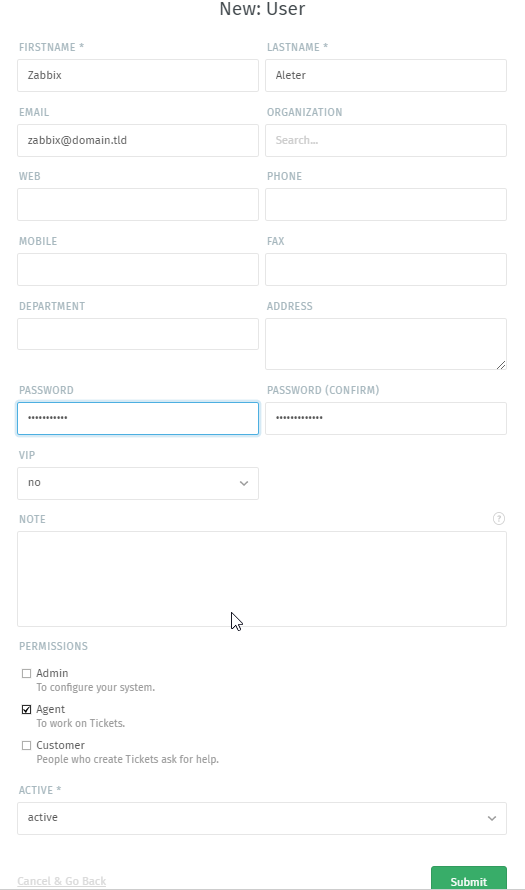
Click on **Settings --> Users --> New User** and create a new user for Zabbix by filling out **FIRSTNAME**, **LASTNAME**, **EMAIL, PASSWORD** and setting the **PERMISSIONS** to **Agent** (**Figure 1**):
**Figure 1**
[](https://docs.deeztek.com/uploads/images/gallery/2020-12/image-1609102694405.png)
Once the user is created, locate the user, click the 3 dots under **ACTIONS** column and click on **View from user's perspective** option from the corresponding menu (**Figure 2**):
**Figure 2**
[](https://docs.deeztek.com/uploads/images/gallery/2020-12/image-1609102424908.png)
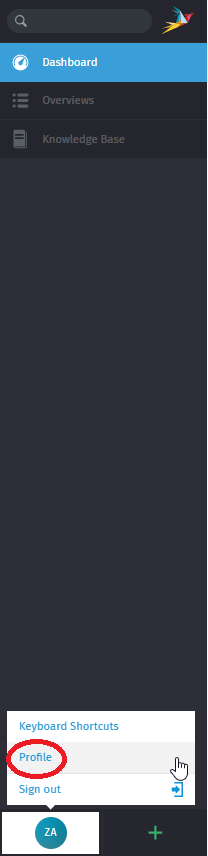
Click the user's initials on the bottom left of the screen and click on the **Profile** option from the corresponding menu (**Figure 3**):
**Figure 3**
[](https://docs.deeztek.com/uploads/images/gallery/2020-12/image-1609102893415.png)
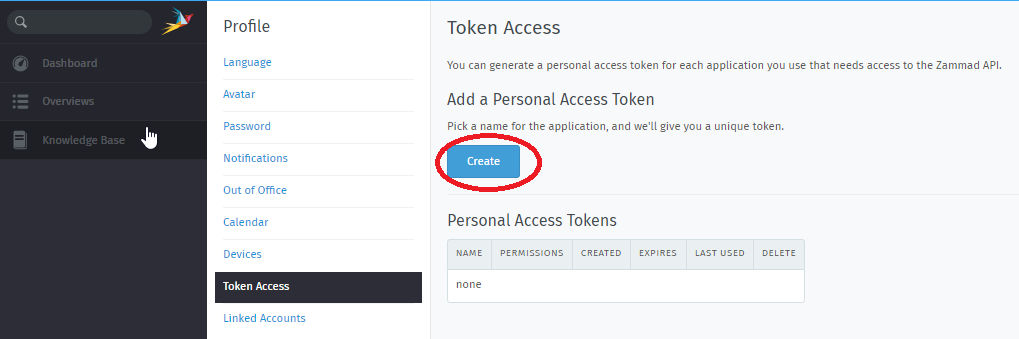
Under the Profile section, click **Token Access --> Create** (**Figure 4**):
**Figure 4**
[](https://docs.deeztek.com/uploads/images/gallery/2020-12/image-1609103031468.png)
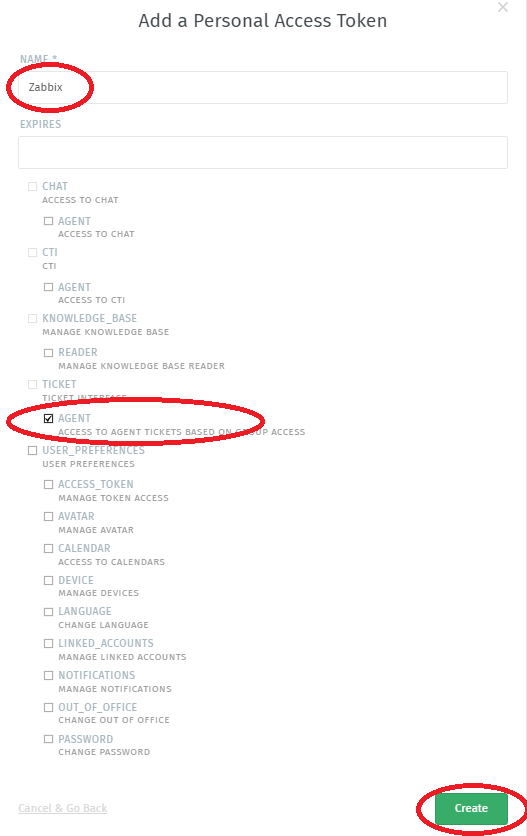
In the **Add a Personal Access Token** window, in the name field enter **Zabbix**, check **AGENT** under TICKET and click the **Create** button (**Figure 5**):
**Figure 5**
[](https://docs.deeztek.com/uploads/images/gallery/2020-12/image-1609103192887.png)
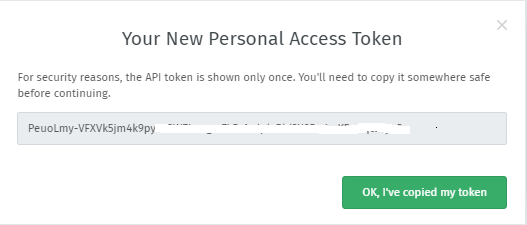
On the resulting **Your New Personal Access Token** window, ensure you copy the token and click the **OK, I've copied my token** button (**Figure 6**):
**Figure 6**
[](https://docs.deeztek.com/uploads/images/gallery/2020-12/image-1609103319054.png)
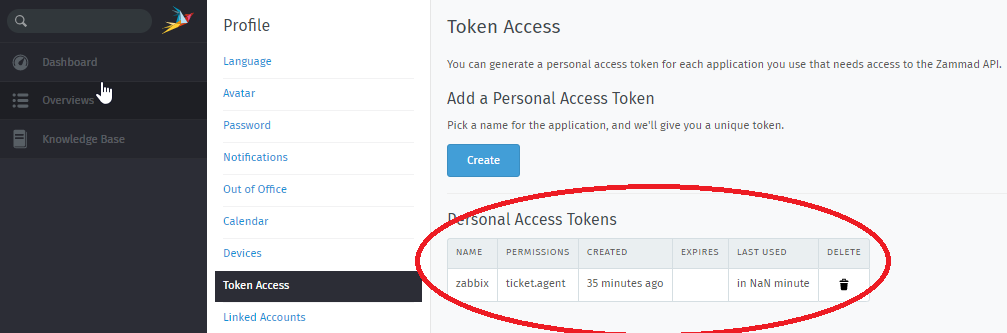
In the **Token Access** page, under the **Personal Access Tokens** you should see the following entry (**Figure 7**):
**Figure 7**
[](https://docs.deeztek.com/uploads/images/gallery/2020-12/image-1609103581508.png)
### Zabbix Configuration
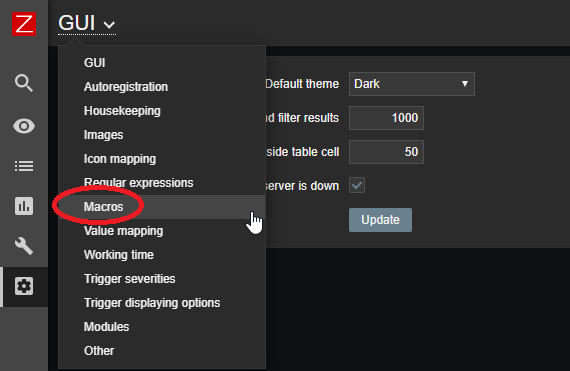
Click on **Administration --> General -->GUI --> Macros** (**Figure 8**):
**Figure 8**
[](https://docs.deeztek.com/uploads/images/gallery/2020-12/image-1609103782860.png)
Under the **Macros** page, click on the **Add** link to add a new Macro (**Figure 9**):
**Figure 9**
[](https://docs.deeztek.com/uploads/images/gallery/2020-12/image-1609153549502.png)
In the new Macro entry enter **{$ZABBIX.URL}** in the **Macro** field, enter the URL to the Zabbix serverand in the **Value** field and click the **Update** button below (**Figure 10**):
**Figure 10**
[](https://docs.deeztek.com/uploads/images/gallery/2020-12/image-1609153726997.png)
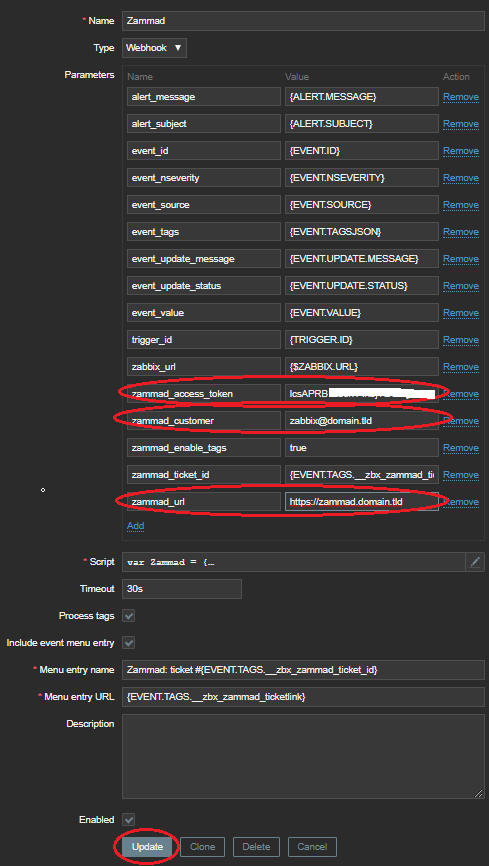
Click on **Administration --> Media Types --> Zammad**. In the **zammad\_access\_token** field enter the Personal Access Token you created earlier the Zammad, in the **zammad\_url** field enter the the URL to your Zammad installation, in the **zammad\_customer** field enter the e-mail address of the Zammad user you created earlier and click the **Update** button (**Figure 11**):
**Figure 11**
[](https://docs.deeztek.com/uploads/images/gallery/2020-12/image-1609156308393.png)
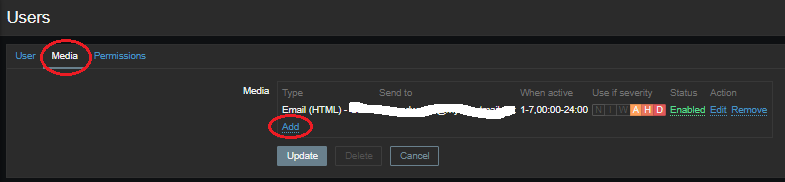
Click on **Administration --> Users --> Zabbix-User** (where Zabbix-User is a user already created in Zabbix). Once in the User page, click on **Media** and then click the **Add** button (**Figure 12**):
**Figure 12**
[](https://docs.deeztek.com/uploads/images/gallery/2020-12/image-1609156851653.png)
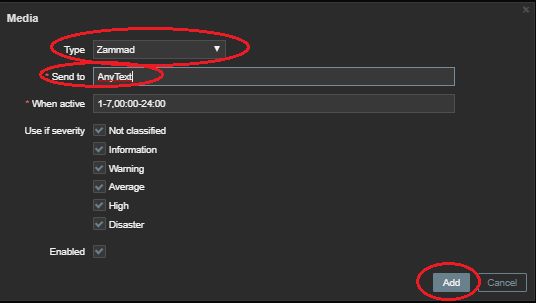
In the **Media** window, in the **Type** field, select **Zammad**, in the **Send to** field enter **AnyText** (this field is not used but it's required to be filled in) and click the **Add** button (**Figure 13**):
**Figure 13**
[](https://docs.deeztek.com/uploads/images/gallery/2020-12/image-1609156997108.png)
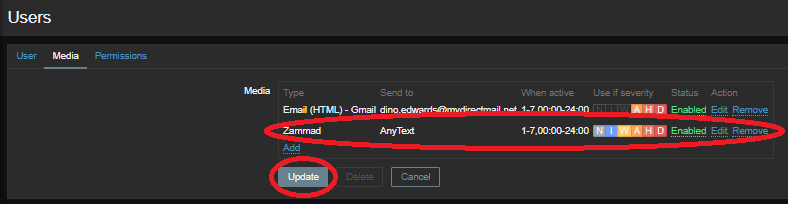
Back in **Users --> Media** , you should see the newly added **Zammad** media type. Ensure you click the **Update** button to save your changes (Figure 14):
**Figure 14**
[](https://docs.deeztek.com/uploads/images/gallery/2020-12/image-1609157186553.png)
# Docker Container Monitoring With Zabbix
Credit **Dmitry Lambert** Original URL: https://blog.zabbix.com/docker-container-monitoring-with-zabbix/20175/
## Importing the official Docker template
[](https://docs.deeztek.com/uploads/images/gallery/2022-06/image-1655138759513.png)
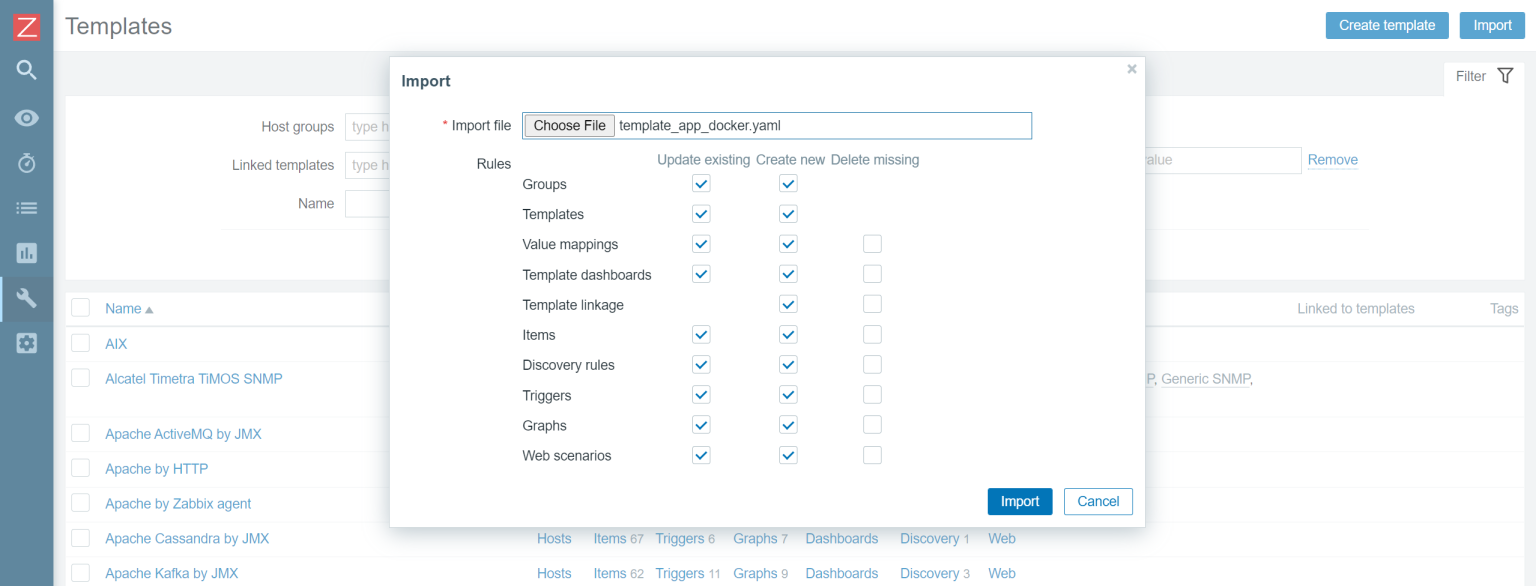
**Importing the Docker by Zabbix agent 2 template**Since we will be using the official *Docker by Zabbix agent 2* template, first, we need to make sure that the template is actually available in our Zabbix instance. The template is available for **Zabbix versions 5.0, 5.4, and 6.0**. If you cannot find this template under *Configuration – Templates*, chances are that you haven’t imported it into your environment after upgrading Zabbix to one of the aforementioned versions. Remember that Zabbix does not modify or import any templates during the upgrade process, so we will have to import the template manually. If that is so, simply [download the template](https://docs.deeztek.com/attachments/13) and import it into your Zabbix instance by using the Import button in the *Configuration – Templates* section.
## Installing and configuring Zabbix agent 2
Before we get started with configuring our host, we first have to install Zabbix agent 2 and configure it according to the template guidelines. Follow the steps in [the download section of the Zabbix website](https://www.zabbix.com/download) and install the zabbix-agent2 package. Feel free to use any other agent deployment methods if you want to (like compiling the agent from the source files).
## Plugin specific Zabbix agent 2 configuration
Zabbix agent 2 provides plugin-specific configuration parameters. Mostly these are optional parameters related to a specific plugin. You can find the full list of plugin-specific configuration parameters in [the Zabbix documentation](https://www.zabbix.com/documentation/current/en/manual/appendix/config/zabbix_agent2). In the newer versions of Zabbix agent 2, the plugin-specific parameters are defined in separate plugin configuration files, located in */etc/zabbix/zabbix\_agent2.d/plugins.d/*, while in older versions, they are defined directly in the *zabbix\_agent2.conf* file.
Before we move on to Zabbix frontend, I would like to point your attention to the Docker socket file permission – the zabbix user needs to have access to the Docker socket file. The zabbix user should be added to the docker group to resolve the following error messages.
```
[Docker] cannot fetch data: Get http://1.28/info: dial unix /var/run/docker.sock: connect: permission denied
```
```
ZBX_NOTSUPPORTED: Cannot fetch data.
```
You can add the zabbix user to the Docker group by executing the following command:
```
usermod -aG docker zabbix
```
## Configuring the docker host
[](https://docs.deeztek.com/uploads/images/gallery/2022-06/image-1655138784079.png)
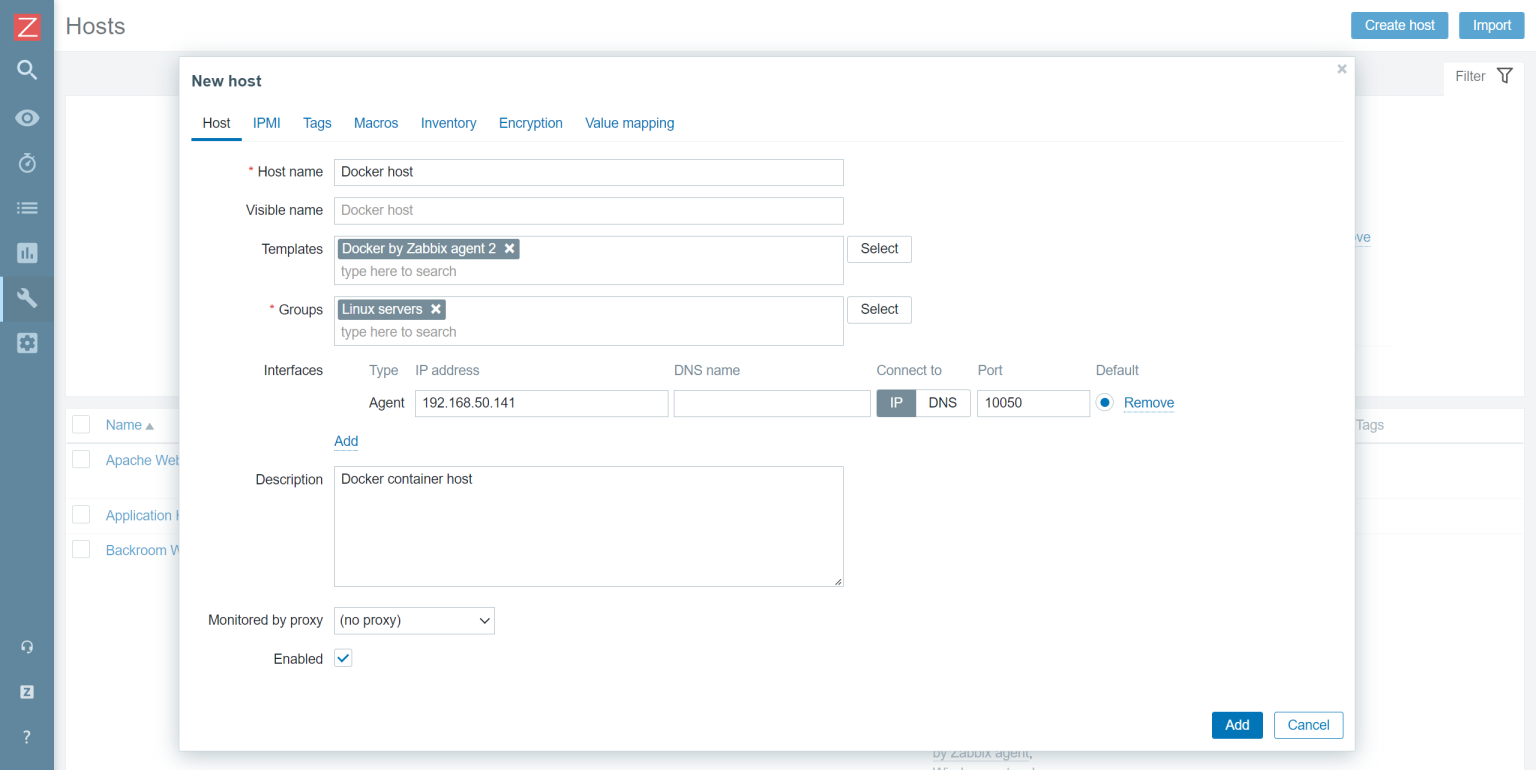
**Configuring the host representing our Docker environment**After importing the template, we have to create a host which will represent our Docker instance. Give the host a name and assign it to a Host group – I will assign it to the Linux servers host group. Assign the *Docker by Zabbix agent 2* template to the host. Since the template uses Zabbix agent 2 to collect the metrics, we also have to add an agent interface on this host. The address of the interface should point to the machine running your Docker containers. Finish up the host configuration by clicking the Add button.
## *Docker by Zabbix agent 2* template
[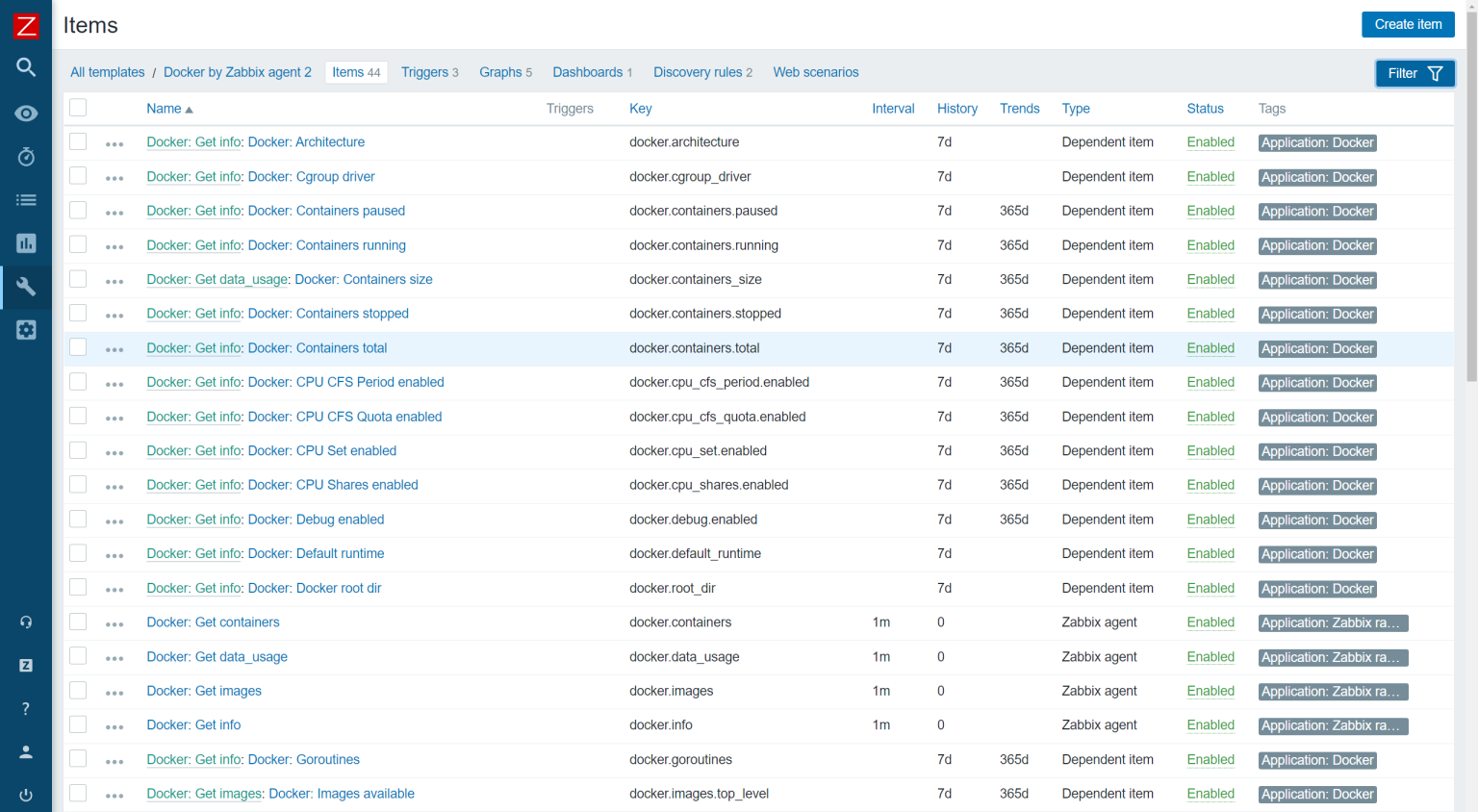](https://docs.deeztek.com/uploads/images/gallery/2022-06/image-1655138802822.png)
**Regular docker template items**The template contains a set of regular items for the general Docker instance metrics, such as the number of available images, Docker architecture information, the total number of containers, and more.
[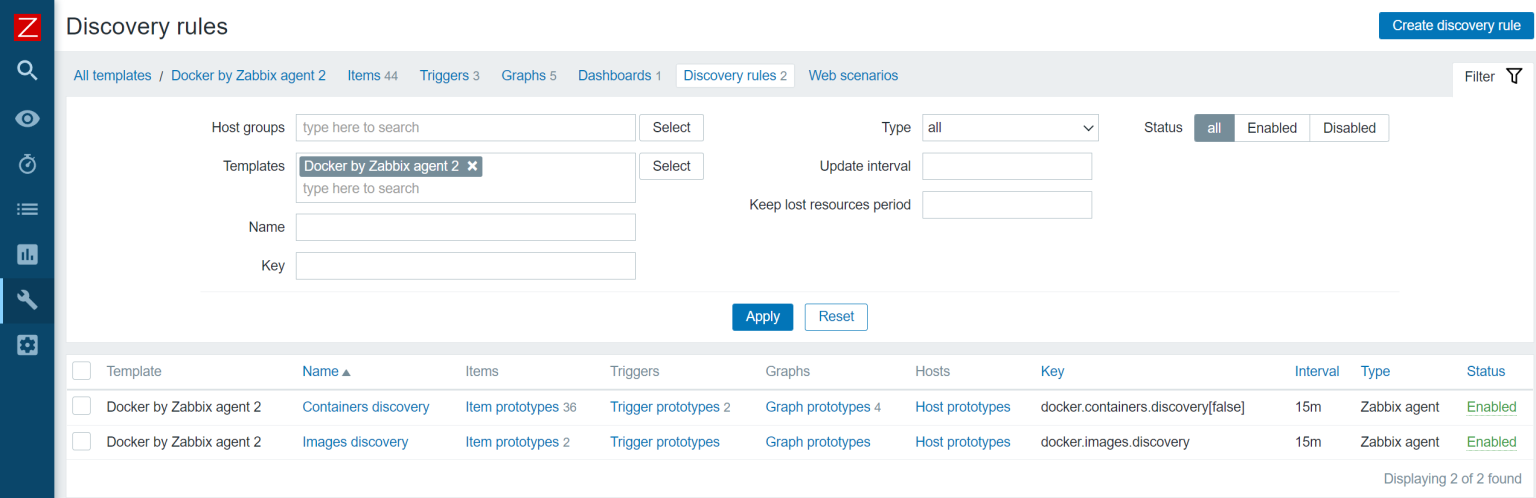](https://docs.deeztek.com/uploads/images/gallery/2022-06/image-1655138816577.png)
**Docker template Low-level discovery rules**On top of that, the template also gathers container and image-specific information by using low-level discovery rules.
Once Zabbix discovers your containers and images, these low-level discovery rules will then be used to create items, triggers, and graphs from prototypes for each of your containers and images. This way, we can monitor container or image-specific metrics, such as container memory, network information, container status, and more.
[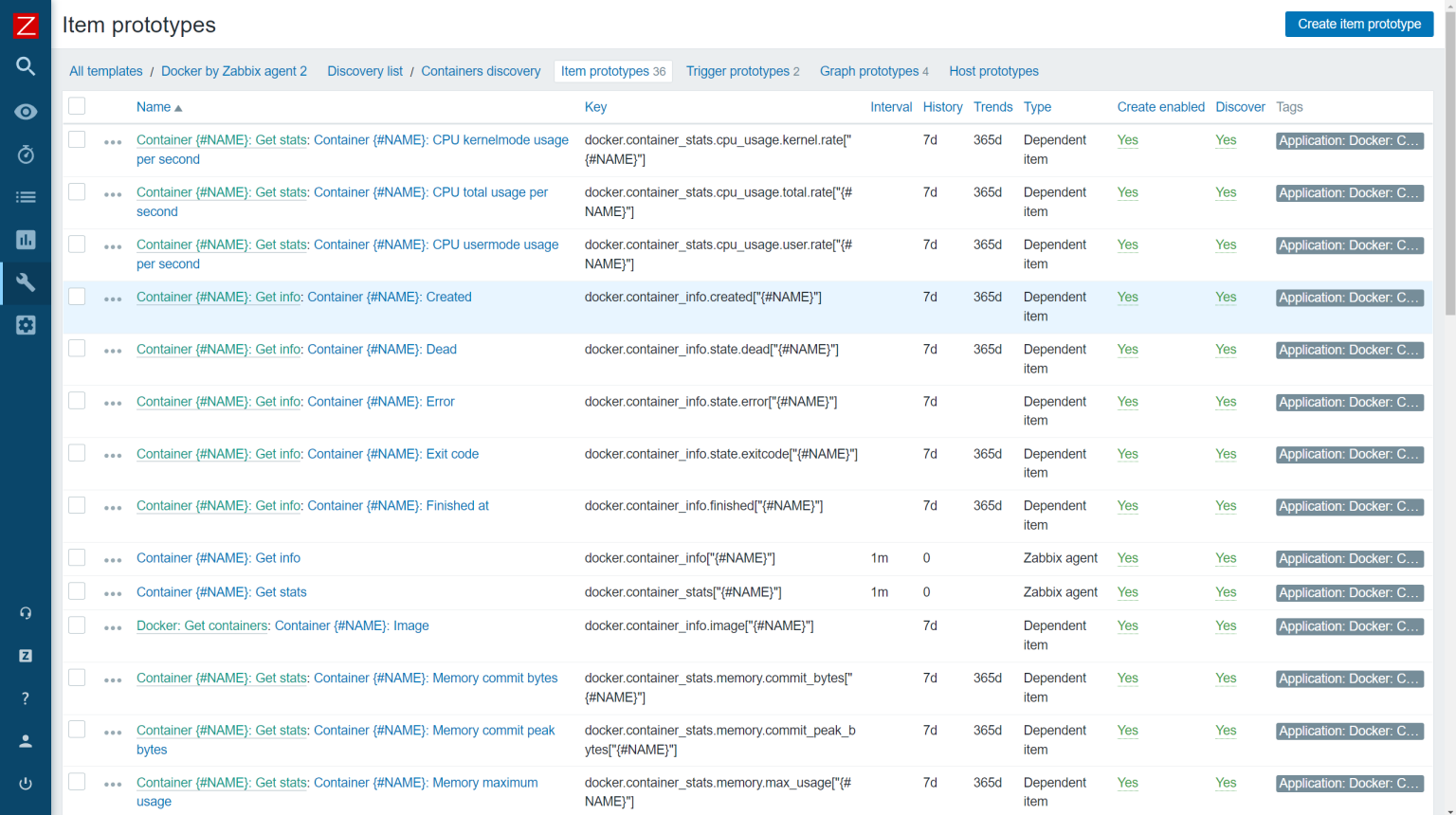](https://docs.deeztek.com/uploads/images/gallery/2022-06/image-1655138831571.png)
**Docker templates Low-level discovery item prototypes**## Verifying the host and template configuration
To verify that the agent and the host are configured correctly, we can use Zabbix get command-line tool and try to poll our agent. If you haven’t installed Zabbix get, do so on your Zabbix server or Zabbix proxy host:
```
dnf install zabbix-get
```
Now we can use *zabbix-get* to verify that our agent can obtain the Docker-related metrics. Execute the following command:
```
zabbix_get -s docker-host -k docker.info
```
Use the *-s* parameter to specify your agent host’s host name or IP address. The *-k* parameter specifies the item key for which we wish to obtain the metrics by polling the agent with Zabbix get.
```
zabbix_get -s 192.168.50.141 -k docker.info
{"Id":"SJYT:SATE:7XZE:7GEC:XFUD:KZO5:NYFI:L7M5:4RGO:P2KX:QJFD:TAVY","Containers":2,"ContainersRunning":2,"ContainersPaused":0,"ContainersStopped":0,"Images":2,"Driver":"overlay2","MemoryLimit":true,"SwapLimit":true,"KernelMemory":true,"KernelMemoryTCP":true,"CpuCfsPeriod":true,"CpuCfsQuota":true,"CPUShares":true,"CPUSet":true,"PidsLimit":true,"IPv4Forwarding":true,"BridgeNfIptables":true,"BridgeNfIP6tables":true,"Debug":false,"NFd":39,"OomKillDisable":true,"NGoroutines":43,"LoggingDriver":"json-file","CgroupDriver":"cgroupfs","NEventsListener":0,"KernelVersion":"5.4.17-2136.300.7.el8uek.x86_64","OperatingSystem":"Oracle Linux Server 8.5","OSVersion":"8.5","OSType":"linux","Architecture":"x86_64","IndexServerAddress":"https://index.docker.io/v1/","NCPU":1,"MemTotal":1776848896,"DockerRootDir":"/var/lib/docker","Name":"localhost.localdomain","ExperimentalBuild":false,"ServerVersion":"20.10.14","ClusterStore":"","ClusterAdvertise":"","DefaultRuntime":"runc","LiveRestoreEnabled":false,"InitBinary":"docker-init","SecurityOptions":["name=seccomp,profile=default"],"Warnings":null}
```
In addition, we can also use the low-level discovery key – *docker.containers.discovery\[false\]* to check the result of the low-level discovery.
```
zabbix_get -s 192.168.50.141 -k docker.containers.discovery[false]
[{"{#ID}":"a1ad32f5ee680937806bba62a1aa37909a8a6663d8d3268db01edb1ac66a49e2","{#NAME}":"/apache-server"},{"{#ID}":"120d59f3c8b416aaeeba50378dee7ae1eb89cb7ffc6cc75afdfedb9bc8cae12e","{#NAME}":"/mysql-server"}]
```
We can see that Zabbix will discover and start monitoring two containers – *apache-server* and *mysql-server.* Any agent low-level discovery rule or item can be checked with Zabbix get.
## Docker template in action
[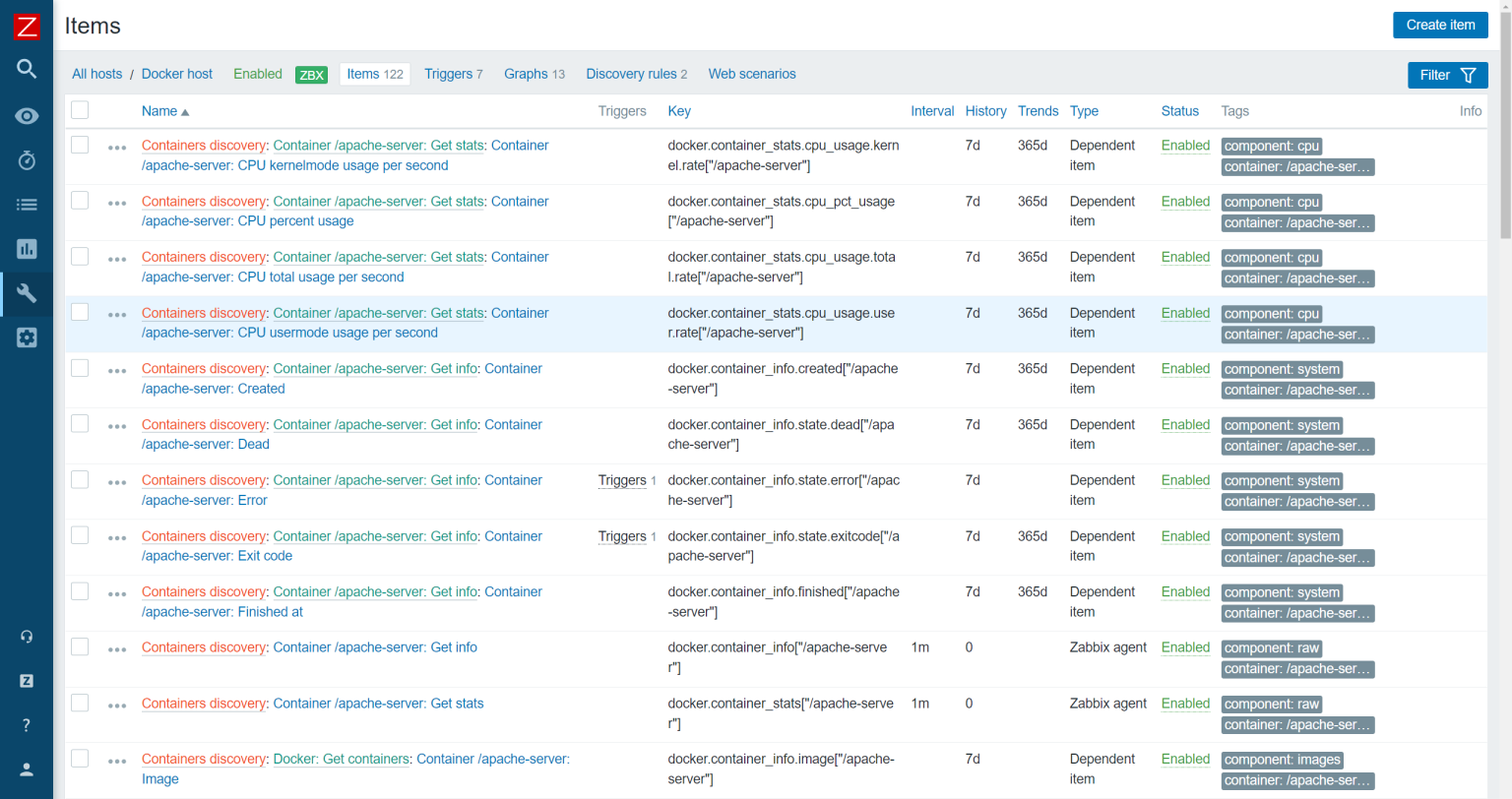](https://docs.deeztek.com/uploads/images/gallery/2022-06/image-1655138848644.png)
**Discovered items on our Docker host**Now that we have configured our agent and host, applied the Docker template, and verified that everything is working, we should be able to see the discovered entities in the frontend.
[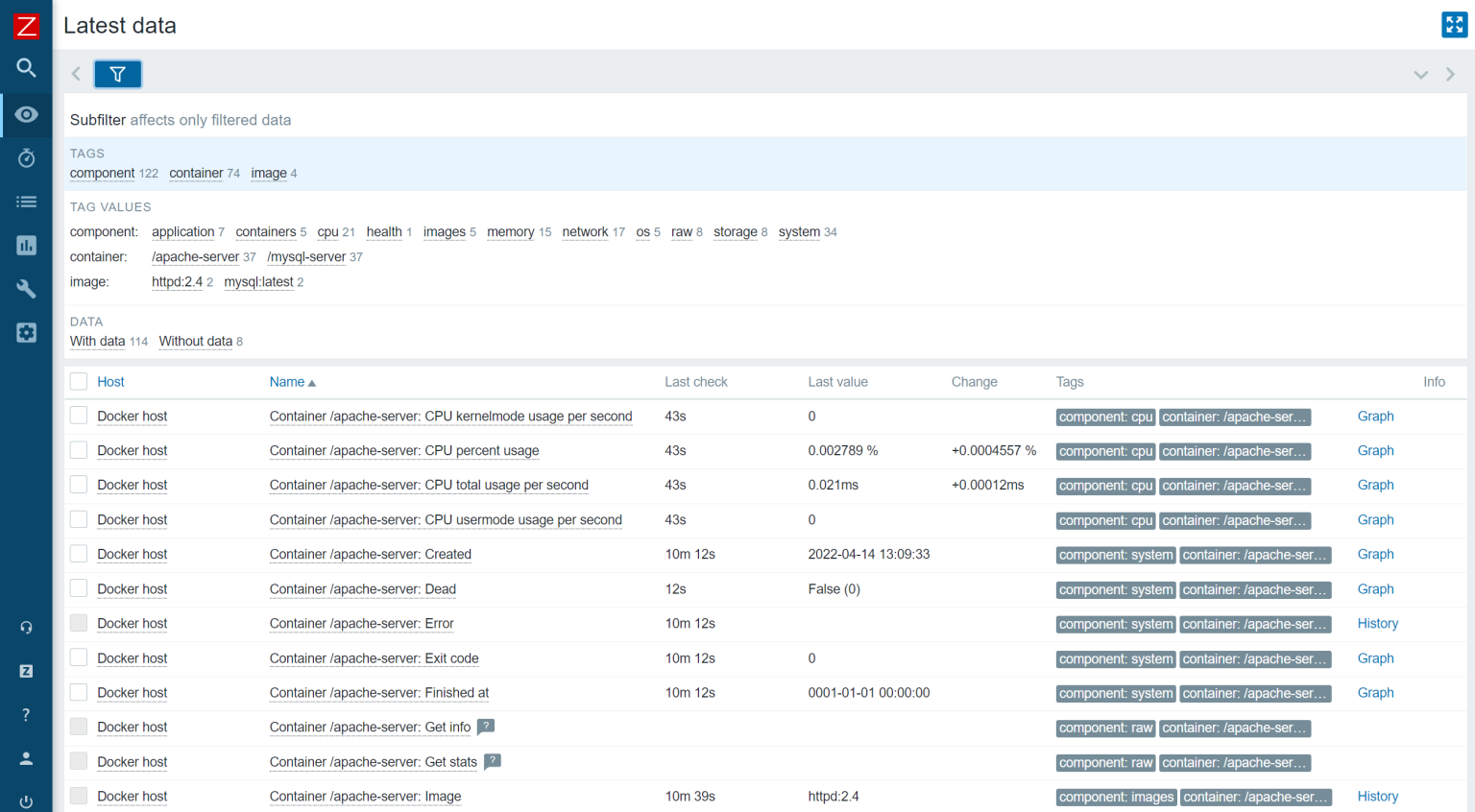](https://docs.deeztek.com/uploads/images/gallery/2022-06/image-1655138862290.png)
**Collected Docker container metrics**In addition, our metrics should have also started coming in. We can check the *Latest data* section and verify that they are indeed getting collected.
[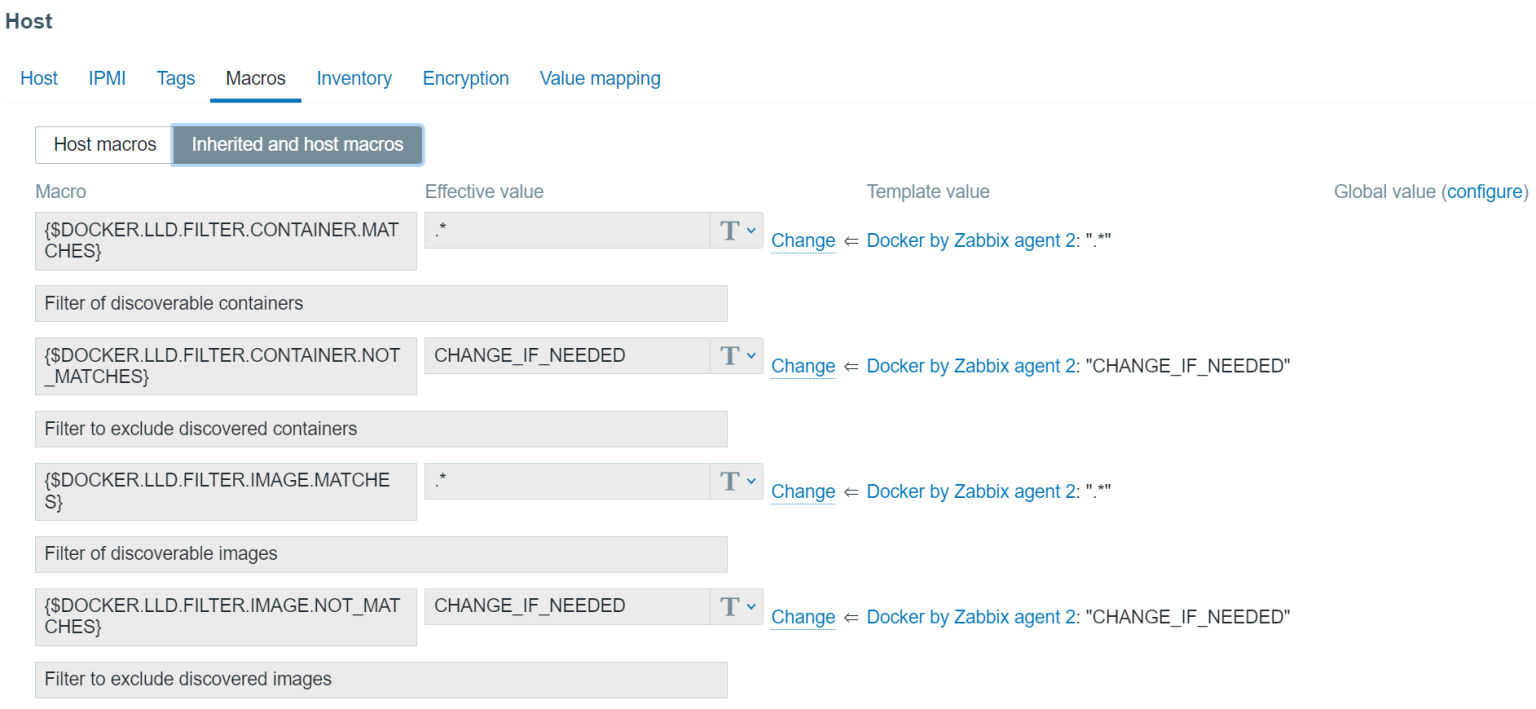](https://docs.deeztek.com/uploads/images/gallery/2022-06/image-1655138875928.png)
**Macros inherited from the Docker template**Lastly, we have a few additional options for further modifying the template and the results of our low-level discovery. If you open the *Macros* section of your host and select *Inherited and host macros*, you will notice that there are 4 macros inherited from the Docker template. These macros are responsible for filtering in/out the discovered containers and images. Feel free to modify these values if you wish to filter in/out the discovery of these entities as per your requirements.
Notice that the container discovery item also has one parameter, which is defined as *false* on the template:
- *docker.containers.discovery\[false\] –* Discover only running containers
- *docker.containers.discovery\[true\] –* Discover all containers, no matter their state.
# Truenas Monitoring with Zabbix
#### Enable SNMP on Truenas Host
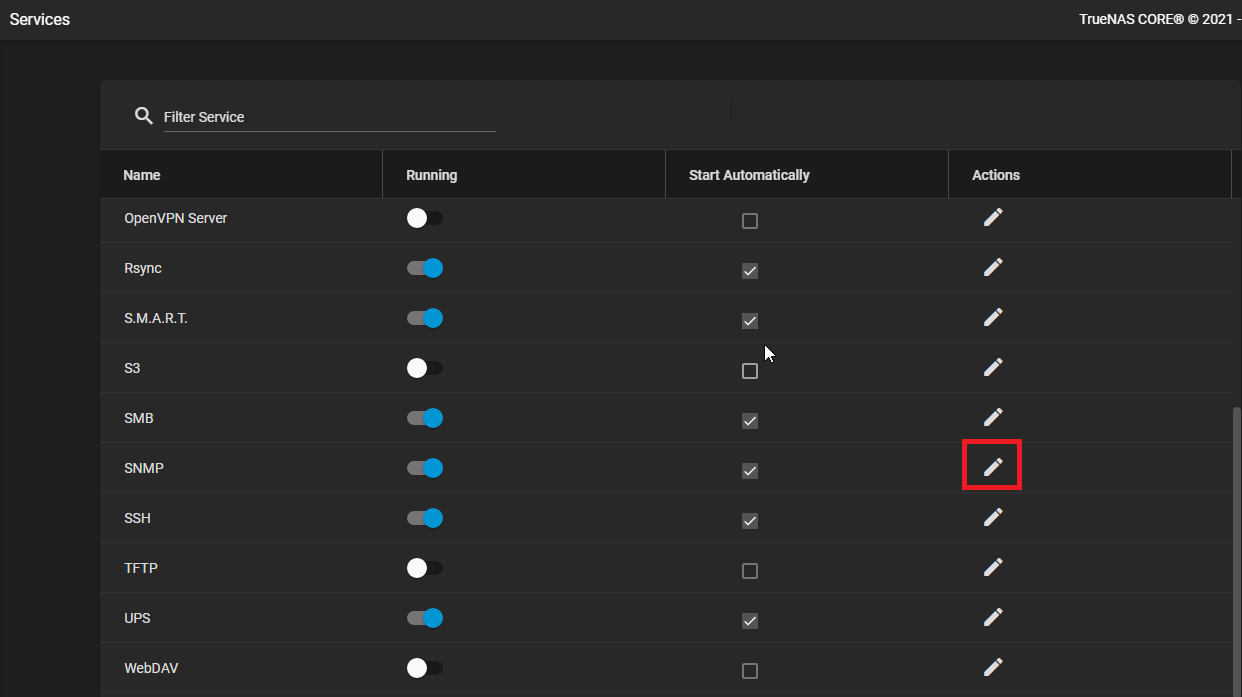
- On your Truenas host navigate to **Services**.
- Locate the **SNMP** service and click the [](https://docs.deeztek.com/uploads/images/gallery/2022-06/image-1655139228288.png) icon (**Figure 1**).
**Figure 1**
[](https://docs.deeztek.com/uploads/images/gallery/2022-06/image-1655139299516.png)
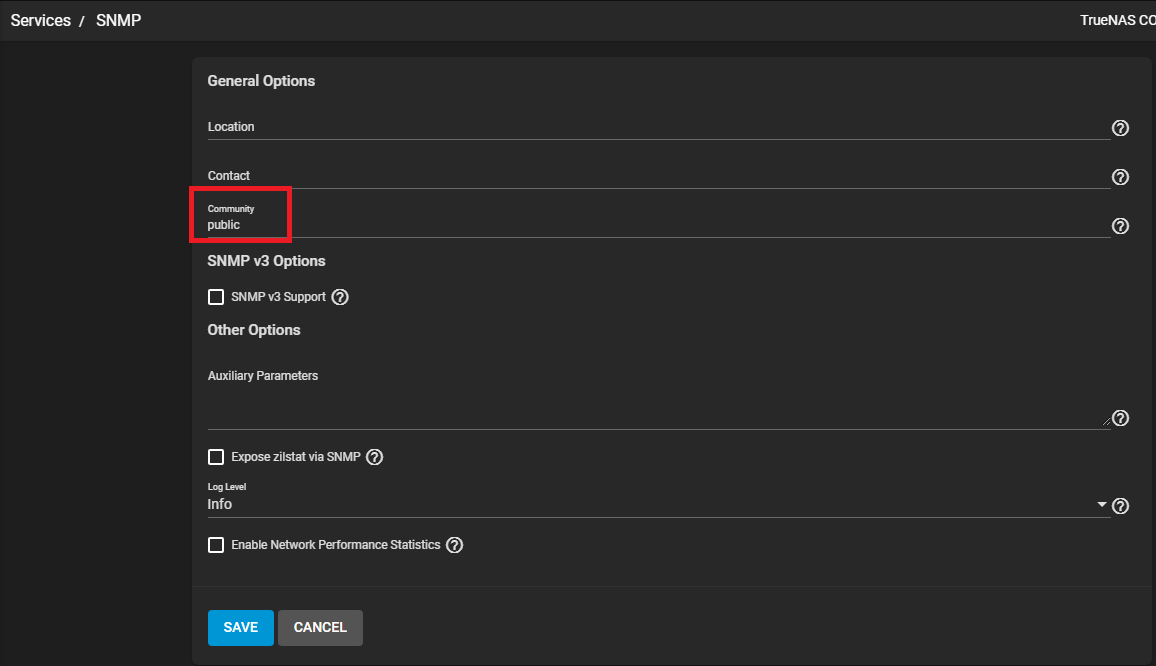
- Take note of the **Community** value which by default should be set to **public** (**Figure 2**) and click the CANCEL button to go back to **Services**.
**Figure 2**
[](https://docs.deeztek.com/uploads/images/gallery/2022-06/image-1655139392612.png)
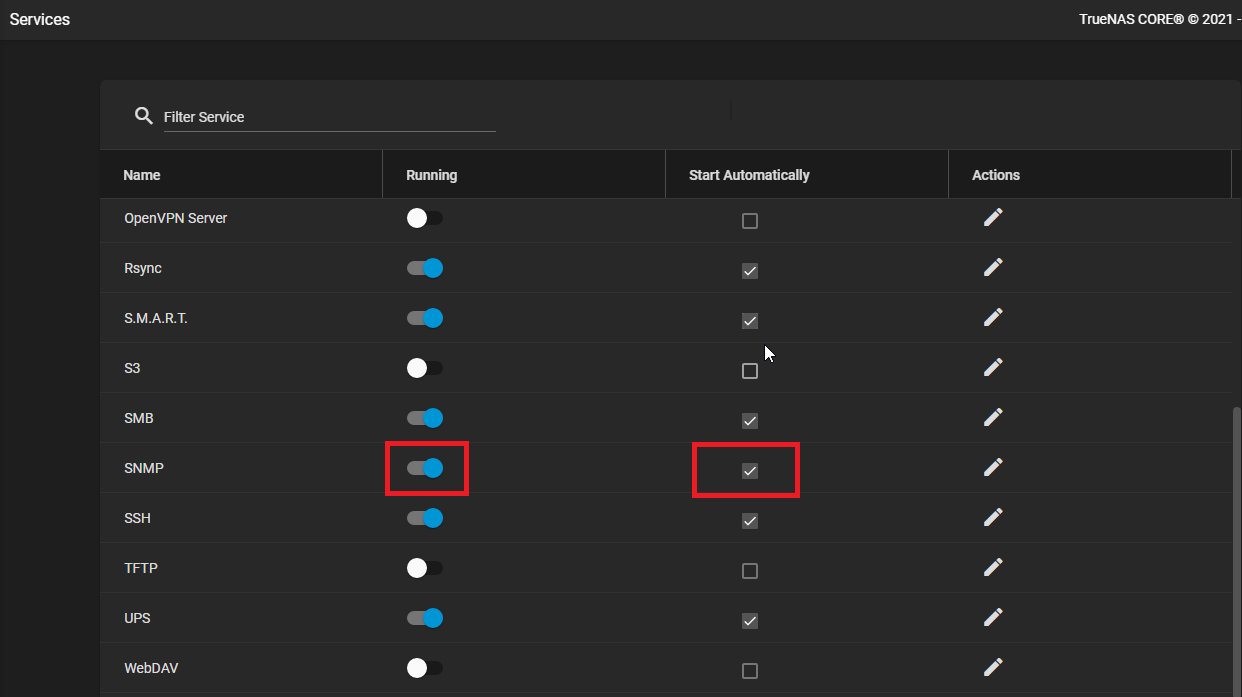
- Back in the **Services** page, on the **SNMP** service, ensure the **Start Automatically** is checked and slide the **Running** slider to the right so that it turns blue to indicate the service is running (**Figure 3**).
**Figure 3**
[](https://docs.deeztek.com/uploads/images/gallery/2022-06/image-1655139531183.png)
#### Download the the FREENAS-MIB Definitions File from your Truenas Host
- On your Truenas host navigate to **Services**.
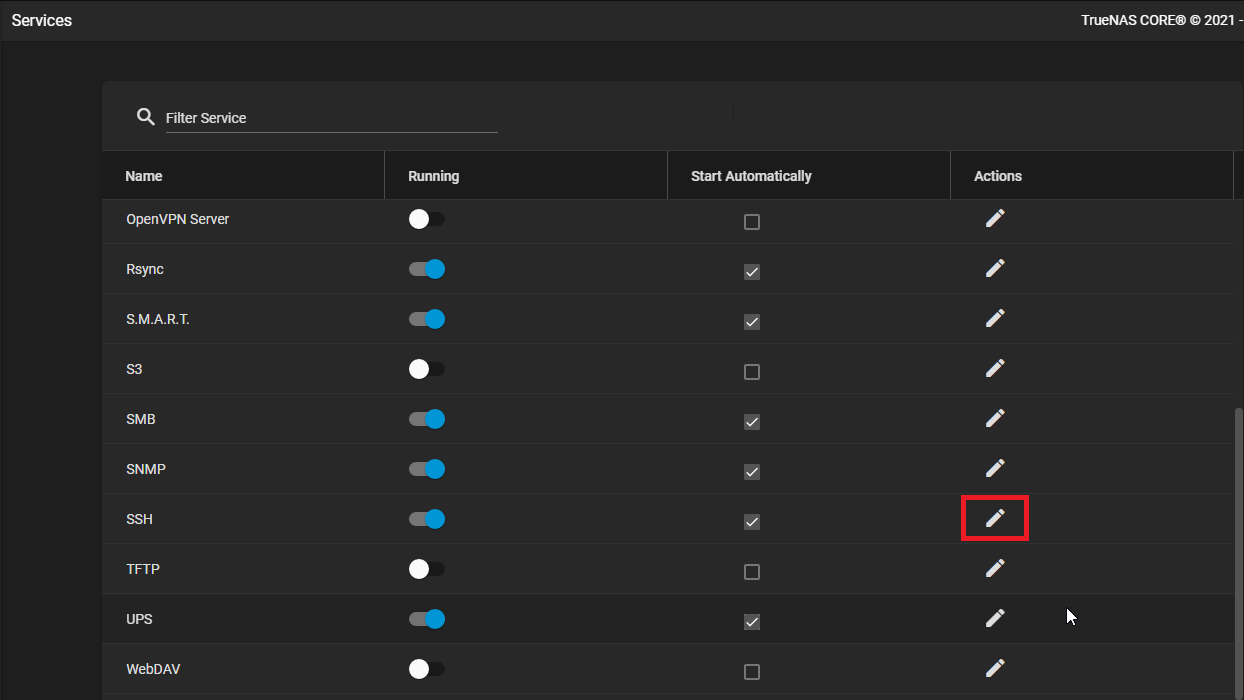
- Locate the **SSH** service and click the [](https://docs.deeztek.com/uploads/images/gallery/2022-06/image-1655139228288.png) icon (**Figure 4**).
**Figure 4**
[](https://docs.deeztek.com/uploads/images/gallery/2022-06/image-1655146333104.png)
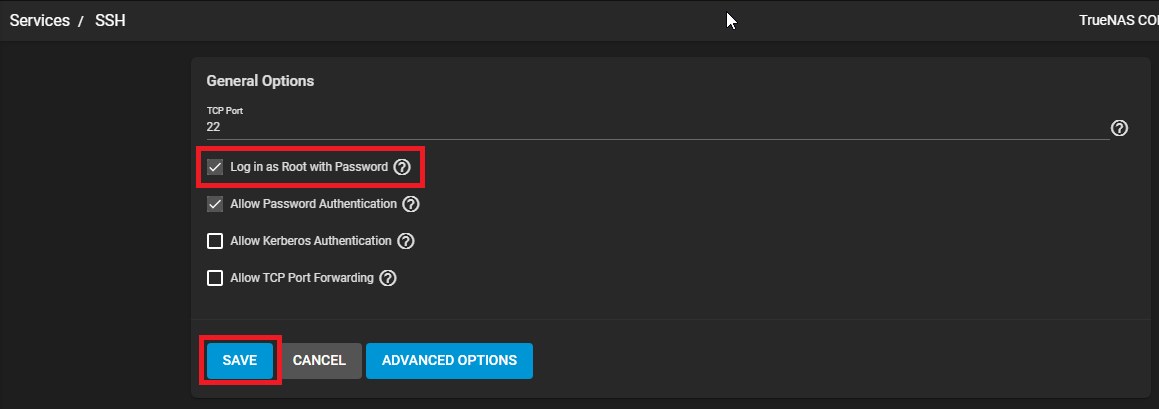
- Place a checkmark on the Log in as **Root with Password** checkbox and click the **SAVE** button (**Figure 5**).
**Figure 5**
[](https://docs.deeztek.com/uploads/images/gallery/2022-06/image-1655146431089.png)
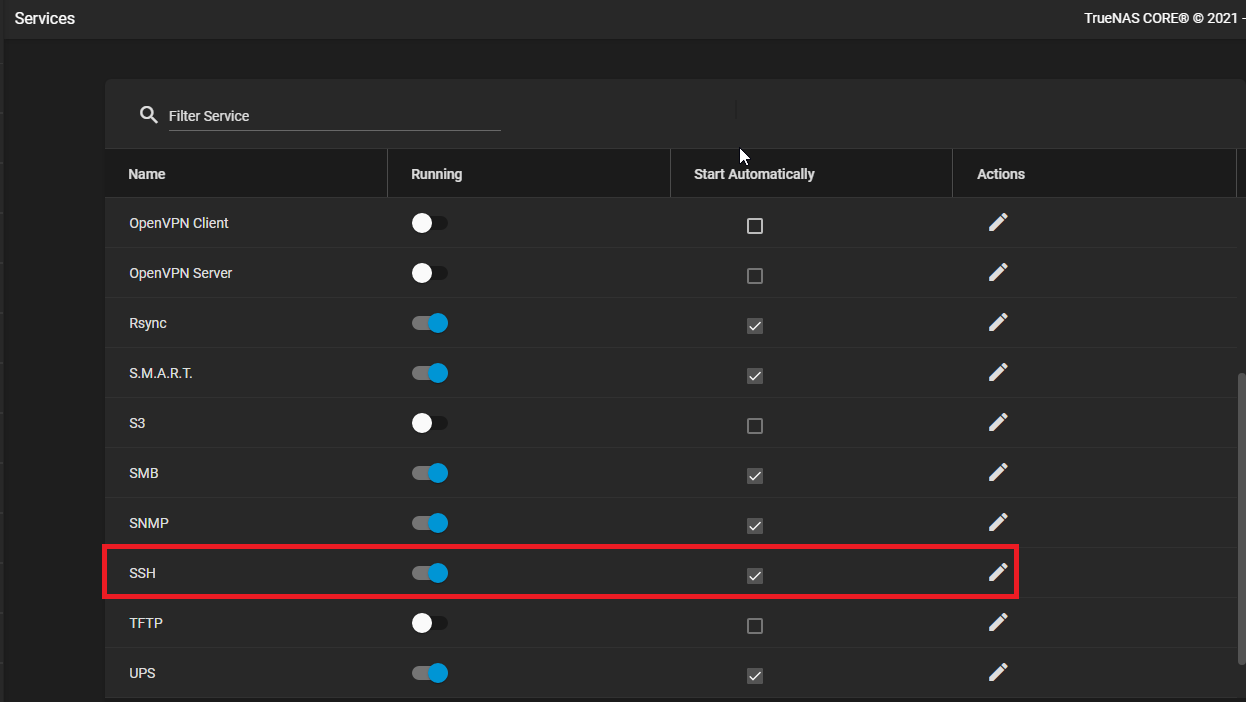
- Back in the **Services** page, on the **SSH** service, ensure the **Start Automatically** is checked and slide the **Running** slider to the left to stop the SSH service and then slide back to the right so that it turns blue to indicate the service is running (this ensures the new SSH settings we set take effect (**Figure 6**).
**Figure 6**
[](https://docs.deeztek.com/uploads/images/gallery/2022-06/image-1655146784737.png)
- Using [Winscp](https://winscp.net) or any tool of your choice, login to your Truenas host using the SCP protocol, navigate to **/usr/local/share/snmp/mibs/** and download **FREENAS-MIB.txt** to your computer.
#### Copy the the FREENAS-MIB Definitions File to your Zabbix Server
- Using [Winscp](https://winscp.net) or any tool of your choice, login to your Zabbix Server host using the SCP protocol and copy the **FREENAS-MIB.txt** file you downloaded from your Truenas host above to the **/var/lib/zabbix/mibs/** directory. If you have deployed Zabbix server on docker, the directory would be **/path-to-zabbix-docker/zbx\_env/var/lib/zabbix/mibs/**.
- Restart your Zabbix server.
#### Import the SNMP Freenas 11 Template into Zabbix Server
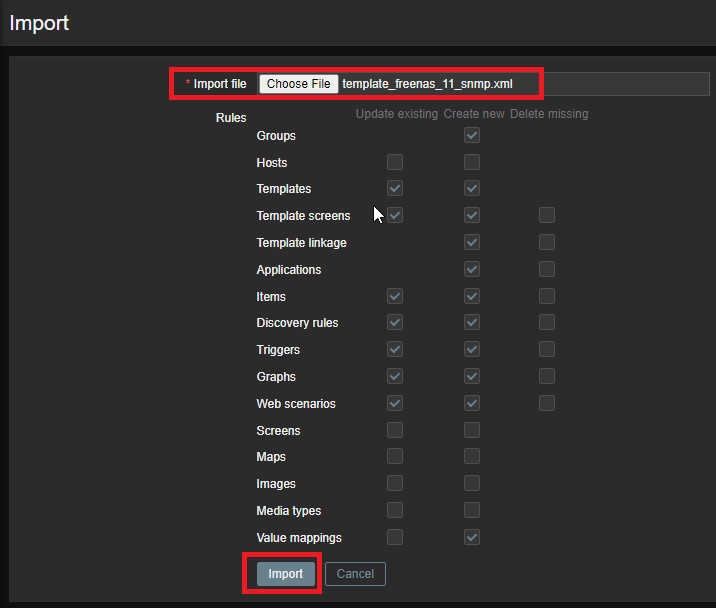
- Download the **[template\_freenas\_11\_snmp.xml](https://docs.deeztek.com/attachments/11)** template from this article or download it from the **[Zabbix Community Templates](https://github.com/zabbix/community-templates/tree/main/Storage_Devices/FreeNAS/template_freenas_11_snmp)** Github page.
- On your Zabbix server navigate to **Configuration ---> Templates --> Import.**
- On the **Import** page, click the **Choose File** button and navigate to the location of the downloaded **template\_freenas\_11\_snmp.xml** file and click **Open**.
- Back to the **Import** page, click the **Import** button (**Figure 7**).
**Figure 7**
[](https://docs.deeztek.com/uploads/images/gallery/2022-06/image-1655145250022.png)
#### Add Truenas Host to Zabbix server
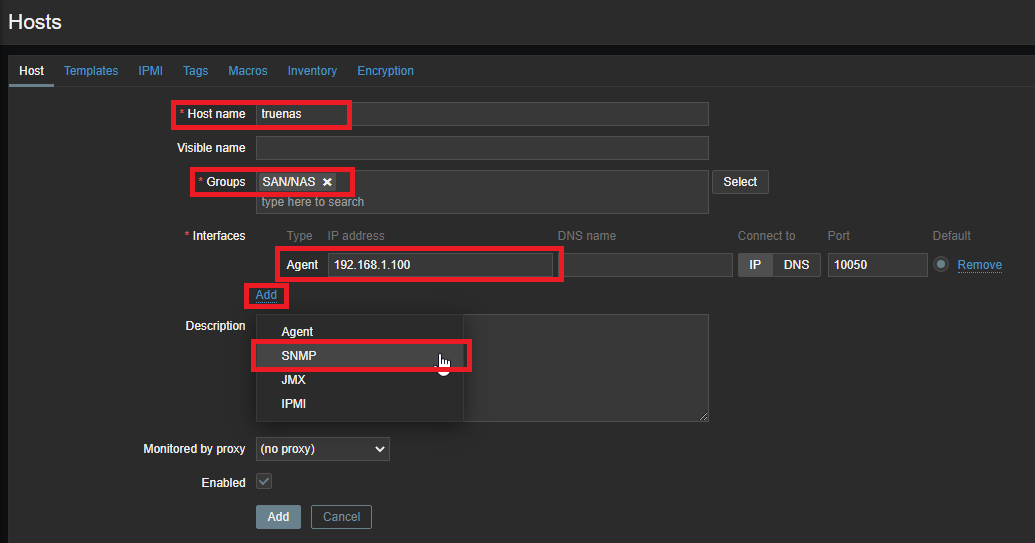
- On your Zabbix server navigate to **Configuration ---> Host ---> Create Host.**
- In the **Host name** field enter the name of your Truenas host
- Set the **Groups** field to a an existing group or create a new one.
- In the **Interfaces** section add the IP address of your Truenas host in the **Agent IP address** field
- Click the **Add** link and in the resultant menu select the **SNMP** option (**Figure 8**).
**Figure 8**
[](https://docs.deeztek.com/uploads/images/gallery/2022-06/image-1655144525187.png)
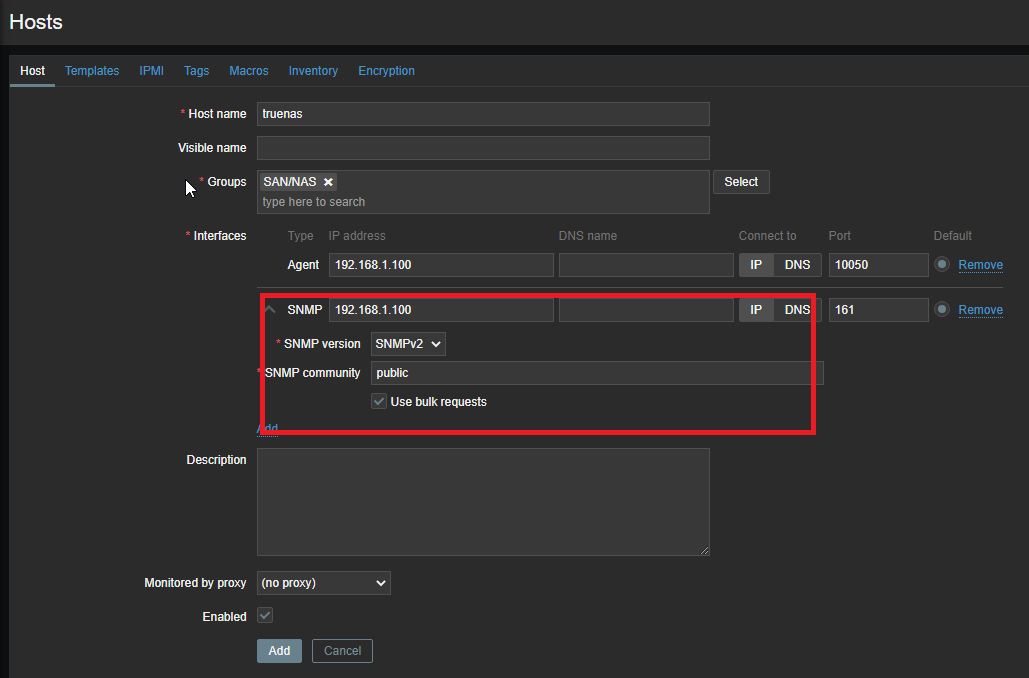
- In the **SNMP** field enter the IP address of your Truenas host again.
- Ensure the **SNMP version** field is set to **SNMPv2.**
- In the **SNMP community** field enter the community value you got from the Truenas SNMP service above (Default: **public**) (**Figure 9**).
**Figure 9**
[](https://docs.deeztek.com/uploads/images/gallery/2022-06/image-1655144810693.png)
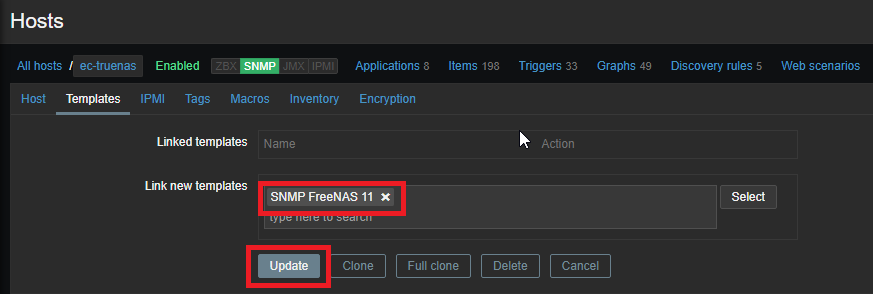
- Click the **Templates** link on top of the screen, in the **Link new templates** section, search and select the **SNMP FreeNAS 11** template you imported earlier and then click the **Update** button (**Figure 10**).
**Figure 10**
[](https://docs.deeztek.com/uploads/images/gallery/2022-06/image-1655147921858.png)
- Navigate to **Monitoring --> Hosts**, locate the Truenas host you just added and click the **Latest data** link and wait for data to start appearing. It may take a few minutes.
# Exclude Windows Services from Autodiscover in Zabbix 6.4
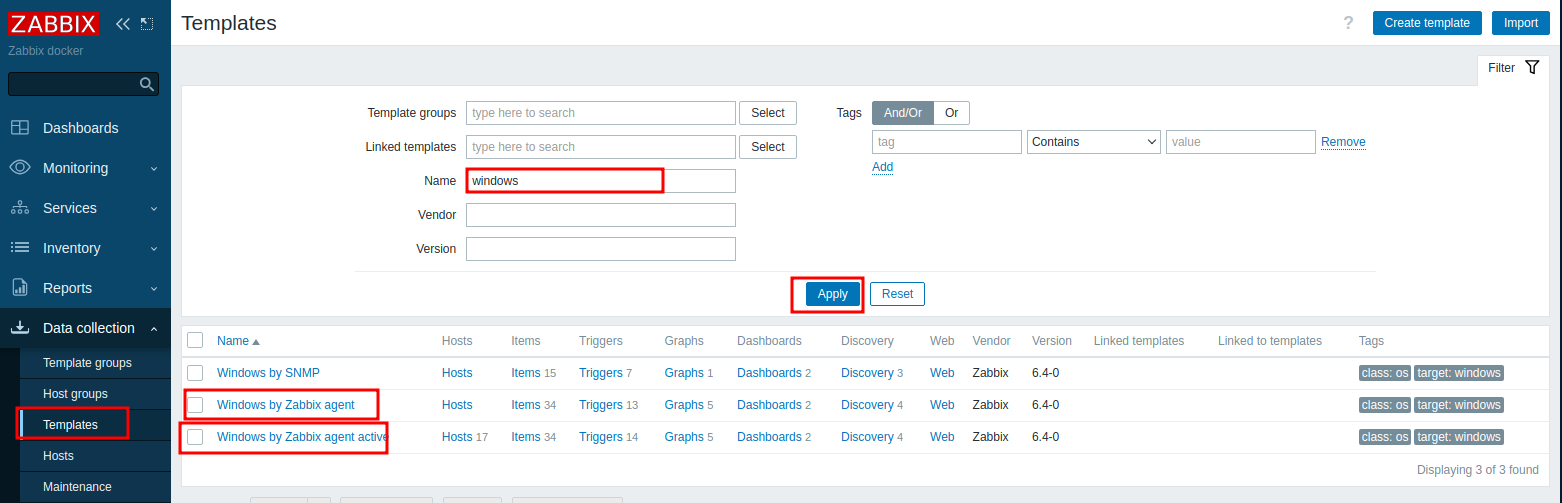
Navigate to **Data collection ---> Templates**. In the **Templates** page, enter **Windows** in the **Name** field and click the **Apply** button. In the results listing, click on **Windows by Zabbix agent**.
[](https://docs.deeztek.com/uploads/images/gallery/2024-04/5J7image.png)
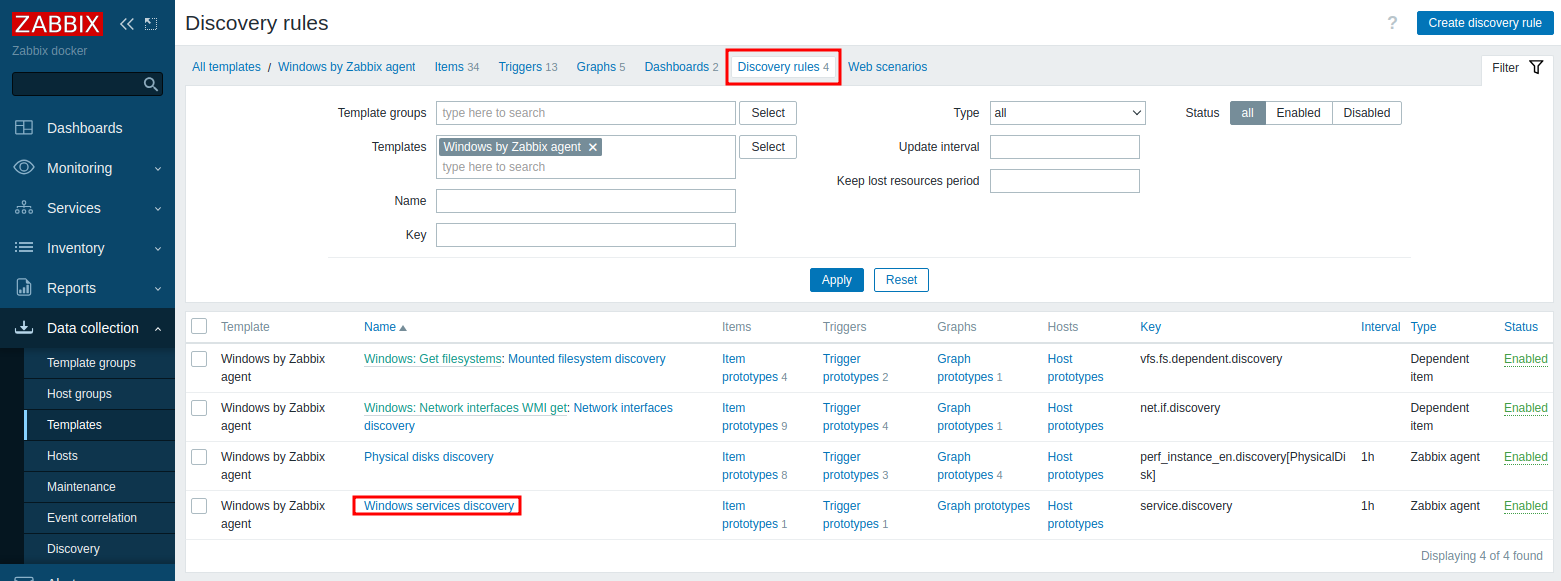
Next, click on **Discovery** rules tab and then click on **Windows services discovery**.
[](https://docs.deeztek.com/uploads/images/gallery/2024-04/0e5image.png)
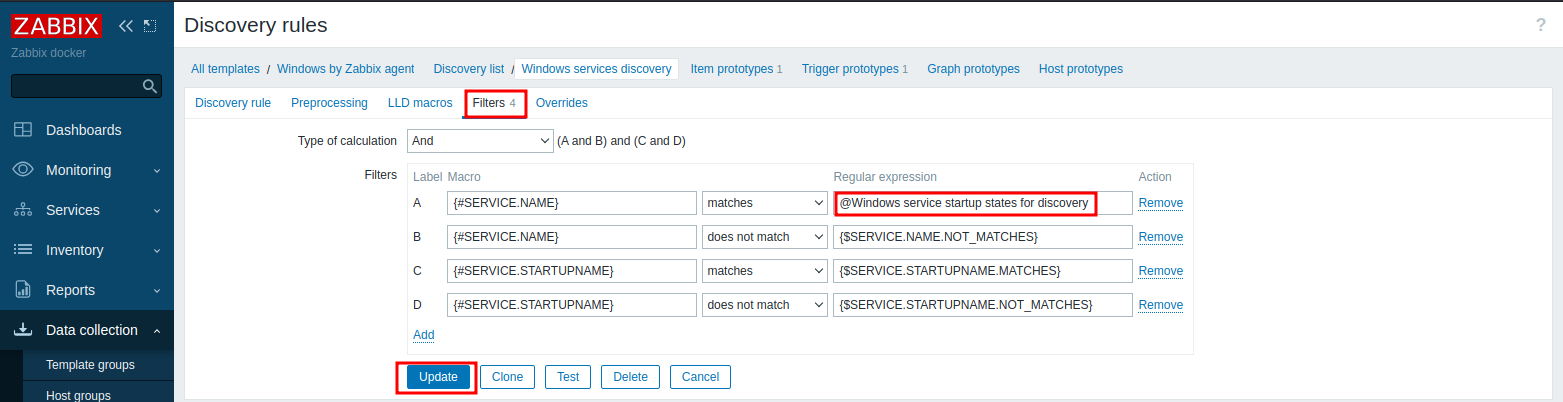
Next, click on **Filters** and then set the **Label A** Macro **Regular expression** field to **@Windows service startup states for discovery** and click the Update button.
[](https://docs.deeztek.com/uploads/images/gallery/2024-04/LD1image.png)
Repeat the procedure above for the Windows by **Zabbix Agent Active**.
Next, navigate to Administration ---> General ---> Regular Expressions. In the Regular Expressions page, click on Windows service names for discovery.
[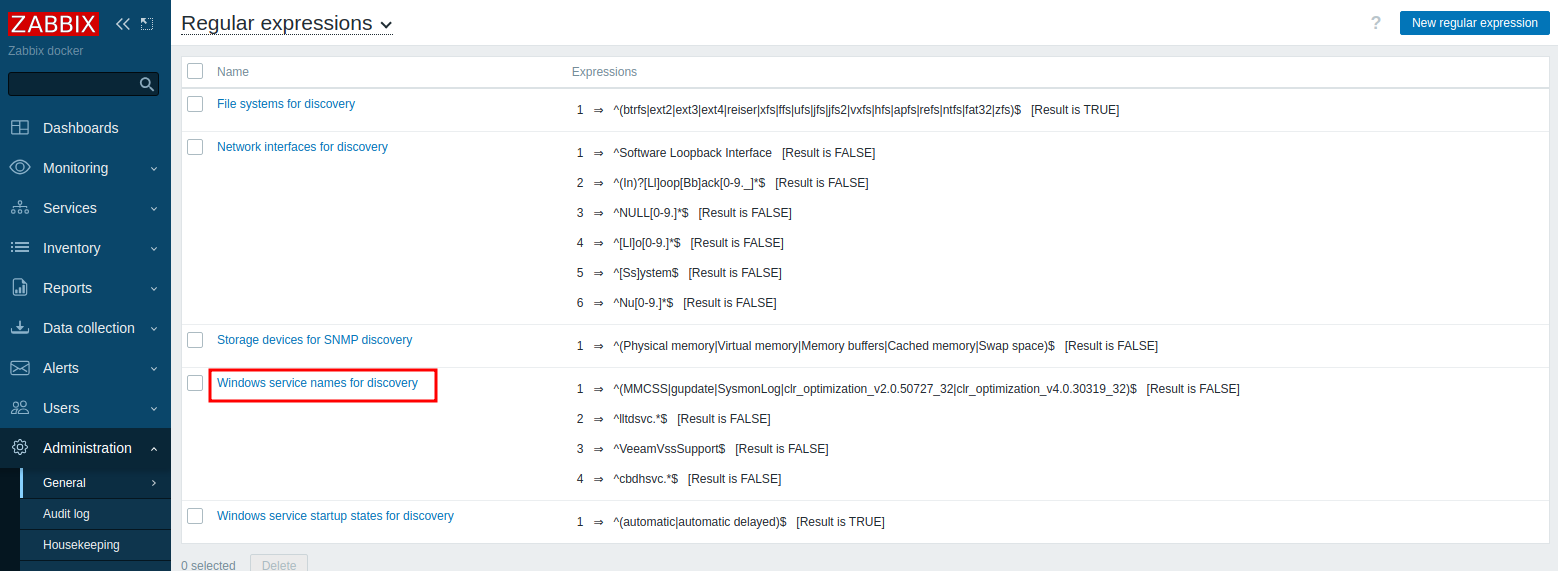](https://docs.deeztek.com/uploads/images/gallery/2024-04/ji0image.png)
In the **Regular Expressions** page, click on **Add**, set the Expression type drop-down to **Result is FALSE** and in the expression field enter the service name you wish to exclude between a **^** and **$** characters. (For example for the VeeamVssSupport service enter **^VeeamVssSupport$**), check the **Case sensitive** box if necessary. Continue adding lines for each service you wish to exclude and click the **Update** button once finished. If you wish to use a wildcard expression for a service name, enter **.\*** at the end of the service name. (Ex: **^ServiceName.\*$**).
[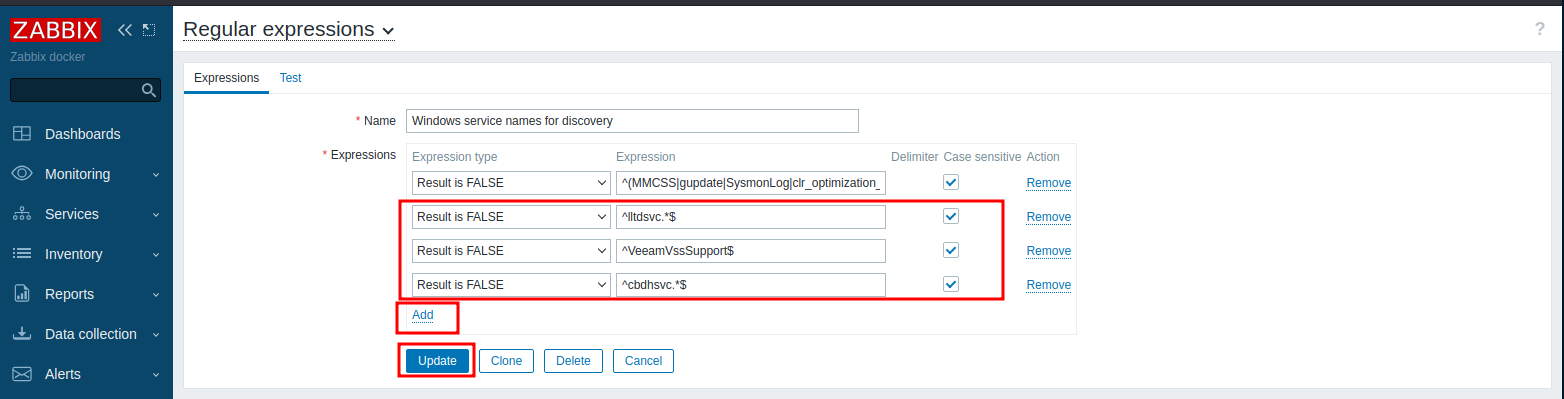](https://docs.deeztek.com/uploads/images/gallery/2024-04/4Gzimage.png)
Please note that if you exclude Windows services from Autodiscover AFTER the host has already been added to Zabbix, the service names will still show up as alarms in Zabbix. You must navigate to **Data collection ---> Hosts**, locate and click on the Host(s) in question, click on **Unlink and clear** next to the **Windows by Zabbix** agent template and click the **Update** button. Then, click on the Host(s) in question again and click on **Delete** and then re-add the Host(s) as necessary.