Credit: [Avram Piltch, Les Pounder](https://www.tomshardware.com/how-to/bypass-windows-11-tpm-requirement)
1. **Boot off of your Windows 11 install disk**. If you don't have one, see our story on [how to download Windows 11](https://www.tomshardware.com/how-to/clean-install-windows-11). The first screen should ask you to choose the language of your install (which will probably be correct). Figure 1 [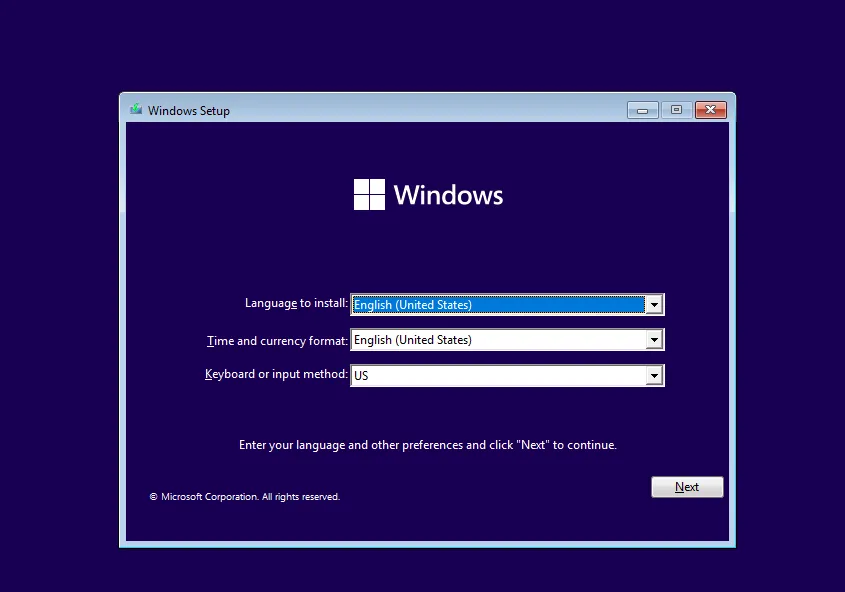](https://docs.deeztek.com/uploads/images/gallery/2025-01/image.png) **Hit SHIFT + F10** to launch the command prompt. [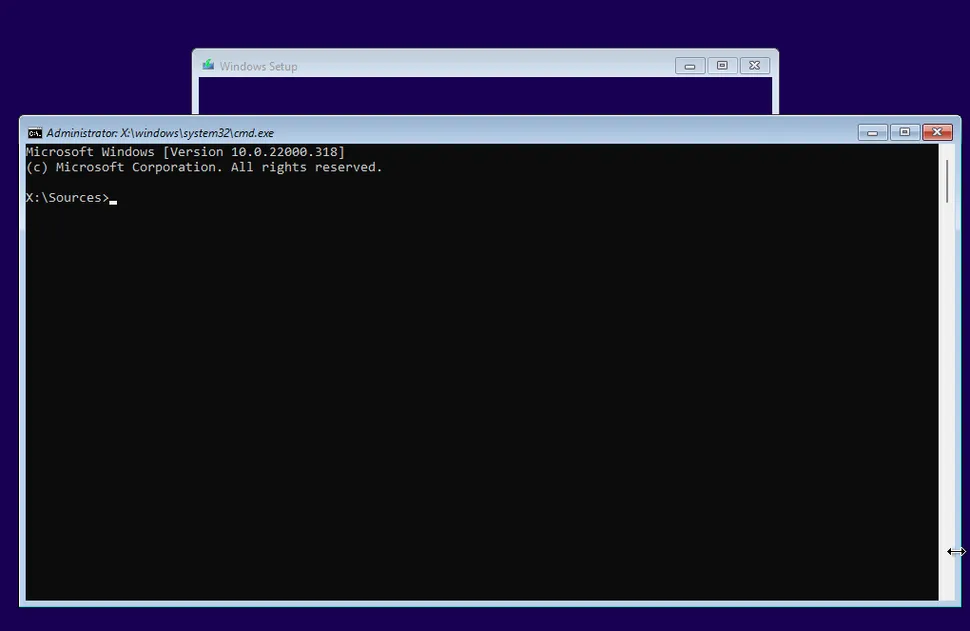](https://docs.deeztek.com/uploads/images/gallery/2025-01/7Qjimage.png) 3\. **Type regedit** and hit Enter to launch registry editor. [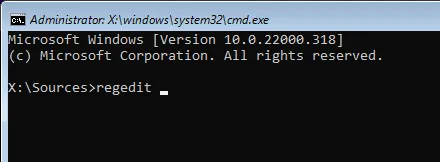](https://docs.deeztek.com/uploads/images/gallery/2025-01/mcJimage.png) 4\. **Navigate to** ***HKEY\_LOCAL\_MACHINE\\SYSTEM\\Setup.*** [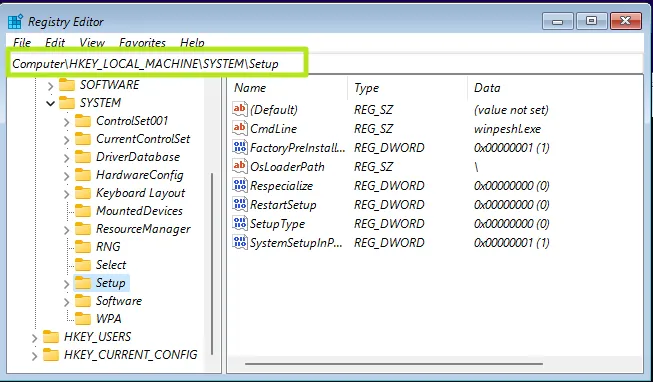](https://docs.deeztek.com/uploads/images/gallery/2025-01/STwimage.png) 5\. **Create a new registry key under Setup** and **name it** ***LabConfig.*** To create a registry key, right click in the right window pane and select New->Key. Then enter the key name. [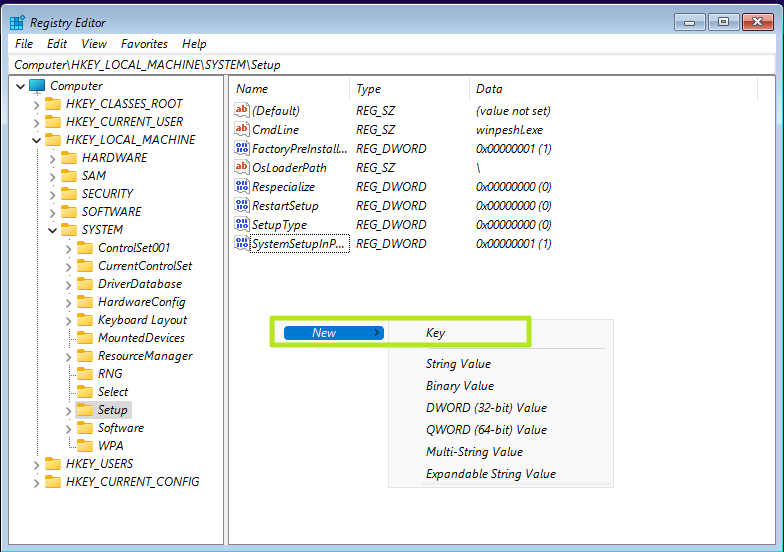](https://docs.deeztek.com/uploads/images/gallery/2025-01/d1Vimage.png) 6\. Within LabConfig, **create DWORDs values called** ***BypassTPMCheck*** **and** ***BypassSecureBootCheck*** and **set each to 1**. To create a new DWORD value, right click in the right window and select new DWORD (32-bit) Value then name the key, double click to open it and set it to 1. [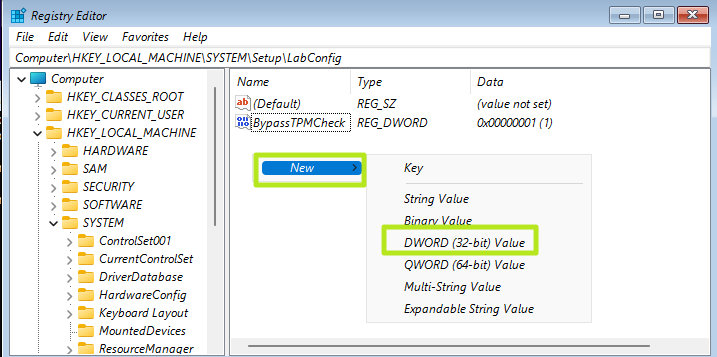](https://docs.deeztek.com/uploads/images/gallery/2025-01/UKlimage.png) If you also want to bypass the RAM requirement, **add a DWORD values for** ***BypassRAMCheck***. 7\. **Close regedit** and the **command prompt**. You should be able to continue with your Windows 11 installation as normal. # Enable Windows Directory Services Restore Mode (DSRM) Boot with Windows Boot CD/ISO and when you see **Install now**, click on **Repair your computer → Troubleshoot → Command Prompt.** - Find the Windows volume (usually `C:`): - `dir C:\Windows` to confirm it exists. - Tell Windows to boot into **Directory Services Restore Mode** (DSRM) on the next boot: - `bcdedit /set {default} safeboot dsrepair` Close the Command Prompt and reboot the machine. On next boot, the DC should start in **Directory Services Restore Mode**. Log on using the **DSRM password** you set when promoting the DC (local, not domain). Enter the username as .\\\\Administrator. Once you’ve fixed whatever issues and want normal startup again: - From an elevated Command Prompt inside Windows on that DC, run: - `bcdedit /deletevalue {default} safeboot` Then reboot; it will go back to normal DC mode.