# Ubuntu

# Install and Configure OpenVPN Client

### Install OpenVPN client

```
apt install openvpn -y

```

### Manually connect to OpenVPN server

- Generate .ovpn file on OpenVPN server and copy to OpenVPN client machine
- Run the command below to connect:

```
openvpn --config client.ovpn

```

### Automatically connect to OpenVPN server

- Generate .ovpn file on OpenVPN server and copy to OpenVPN client machine under /etc/openvpn directory as a .conf file. For example, if you have a my-server.ovpn file you would run the following command:

```
cp my-server.ovpn /etc/openvpn/my-server.conf

```

- Create credentials file in /etc/openvpn/my-server-creds.txt

```
vi /etc/openvpn/my-server-creds.txt

```

- Enter the username and password each one in a separate line like below:

```
openvpn_username
somepassword

```

- Save the file
- Edit /etc/openvpn/my-server.conf file:

```
vi /etc/openvpn/my-server.conf

```

- Locate the **auth-user-pass** line in the file and add the credentials file filename next to it like below:

```
...
auth-user-pass my-server-creds.txt
...

```

- Save the file
- Edit /etc/default/openvpn:

```
vi /etc/default/openvpn

```

- Uncomment the following line (remove the **\#** from the front) :

```
AUTOSTART="all"

```

- Save the file
- Restart the OpenVPN service on the OpenVPN client:

```
systemctl restart openvpn

```

- Reboot the OpenVPN Client server and ensure it connects automatically

# Install and Configure Fail2Ban on Ubuntu 18.04

Installing fail2ban can be done with a single command:

```
sudo apt-get install -y fail2ban
```

When that command finishes, fail2ban is ready to go. You'll want to start and enable the service with the commands:

```
sudo systemctl start fail2ban
```

```
sudo systemctl enable fail2ban
```

**Configuring a jail**

Next we're going to configure a jail for SSH login attempts. In the */etc/fail2ban* directory, you'll find the jail.conf file. Do not edit this file. Instead, we'll create a new file, jail.local by copying the jail.conf to it, and override any similar settings in jail.conf. Our new jail configuration will monitor */var/log/auth.log*, use the fail2ban sshd filter, set the SSH port to 22, and set the maximum retry to 3. To do this, issue the command:

```
sudo cp /etc/fail2ban/jail.conf /etc/fail2ban/jail.local
```

locate the \[sshd\] section, and edit to match the following contents:

```
[sshd]
enabled = true
port = 22
filter = sshd
logpath = /var/log/auth.log
maxretry = 3
bantime = 604800 # ban for 7 days
```

Next, locate and uncomment the ignoreip variable and set it as below where 192.xxx.xxx.xxx is your IP address. Enter multiple addresses and/or networks separated by a space:

```
ignoreip = 127.0.0.1/8 ::1 192.xxx.xxx.xxx
```

Save and close that file. Restart fail2ban with the command:

```
sudo systemctl restart fail2ban
```

At this point, if anyone attempts to log into your Ubuntu Server via SSH, and fails three times, they will be prevented from entry, by way of iptables blocking their IP Address.

**Testing and unbanning**

You can test to make sure the new jail works by failing three attempts at logging into the server, via ssh. After the third failed attempt, the connection will hang. Hit \[Ctrl\]+\[c\] to escape and then attempt to SSH back into the server. You should no longer be able to SSH into that server from the IP address you were using.

You can then unban your test IP address with the following command:

```
sudo fail2ban-client set sshd unbanip IP_ADDRESS
```

where IP\_ADDRESS is the banned IP Address.

You should now be able to log back into the server with SSH.

# Install and Configure PureFTPd Ubuntu 18.04

Install the PureFTPd :

```
sudo apt-get install pure-ftpd -y
```

Edit **/etc/inetd.conf** file and comment out (add a # at the start of) the line containing **ftp** if such an entry exists:

```
sudo vi /etc/inetd.conf
```

Edit **/etc/default/pure-ftpd-common** and verify the **STANDALONE\_OR\_INETD=standalone** entry is set:

```
sudo vi /etc/default/pure-ftpd-common
```

Add a "ftpgroup" in the system:

```
sudo groupadd ftpgroup
```

Add a "ftpuser" user in the system:

```
sudo useradd -g ftpgroup -d /dev/null -s /etc ftpuser
```

Add a virtual PureFTPd user. I'm going to use "joe" as an example:

```
sudo pure-pw useradd joe -u ftpuser -d /name/of/directory
```

where **/name/of/directory** is the directory where you want user **joe** to have FTP access. This directory is where user **joe** is going to be locked in once they log on the server with FTP. Whether you create a directory for **joe** to have access or you use an existing directory, ensure the user/group **ftpuser/ftpgroup** you created earlier is the owner of that directory as follows:

```
chown -R ftpuser:ftpgroup /name/of/directory
```

Now, create the PureFTPd virtual user database:

```
sudo pure-pw mkdb
```

Create the following symbolic links for PureFTPd to funtion properly:

```
sudo ln -s /etc/pure-ftpd/pureftpd.passwd /etc/pureftpd.passwd
sudo ln -s /etc/pure-ftpd/pureftpd.pdb /etc/pureftpd.pdb
sudo ln -s /etc/pure-ftpd/conf/PureDB /etc/pure-ftpd/auth/PureDB
```

Ensure that the file **/etc/pure-ftpd/conf/UnixAuthentication** file only contains the word **no**:

```
sudo vi /etc/pure-ftpd/conf/UnixAuthentication
```

Restart PureFTPd before changes take effect:

```
sudo /etc/init.d/pure-ftpd restart
```

### Configure PureFTPd Options

PureFTPd on Ubuntu/Debian distros use the pure-ftpd-wrapper which will parse any properly named file in the "/etc/pure-ftpd/conf" directory and read the values and in turn pass to the pure-ftpd daemon. This eliminates the need editing long configuration files. There are a lot of files that can be placed in the "/etc/pure-ftpd/conf" directory for different configuration options, but I'm only going to concentrate on a handful. For a complete list of all the files refer to the following [<u>http://manpages.ubuntu.com/manpages/har ... per.8.html</u>](http://manpages.ubuntu.com/manpages/hardy/man8/pure-ftpd-wrapper.8.html) link.

#### Passive Mode Port Range

Passive mode can be enabled by simply issuing the following from the command line for setting a range of 30000 through 31000:

```
echo  30000 31000 > /etc/pure-ftpd/conf/PassivePortRange
```

#### Bind to specific address and port number

If you wish to set PureFTPd to listen to a specific port number, issue the following from the command line. In this example we set port number "666" as the FTP port:

```
echo 192.168.xxx.xxx,666 > /etc/pure-ftpd/conf/Bind
```

#### Disable name resolution in PureFTPd

I highly recommend you set this option in PureFTPd. This will disable the server trying to resolve the client's hostname. If it's not set, the server will sometimes throw a 425 Invalid Address given errors. Setting this option will fix those errors as well as speed up logins.

```
echo 'yes' > /etc/pure-ftpd/conf/DontResolve
```

#### Set passive IP in PureFTPd

If you are behind a NAT, it’s recommended you set the public IP address of your PureFTPd server as follows:

```
echo '1.2.3.4' > /etc/pure-ftpd/conf/ForcePassiveIP
```

#### Enable TLS on PureFTPd

The FTP protocol in general is very insecure. The username/passwords are sent using clear text and the data transfers are also insecure. Enabling TLS will allow you to secure your FTP sessions to include the username/passwords as well as the data transfers.

Install OpenSSL:

```
sudo apt-get install openssl -y
```

If you want to accept plain AND TLS sessions, issue the following on the command line:

```
echo 1 > /etc/pure-ftpd/conf/TLS
```

If you want to accept TLS sessions ONLY, issue the following on the command line:

```
echo 2 > /etc/pure-ftpd/conf/TLS
```

##### Create the SSL certificate for TLS

Create a "private" directory under "/etc/ssl/" if one doesn't exist yet:

```
mkdir /etc/ssl/private
```

Generate a self-signed certificate as follows:

```
openssl req -x509 -nodes -days 7300 -newkey rsa:2048 -keyout /etc/ssl/private/pure-ftpd.pem -out /etc/ssl/private/pure-ftpd.pem
```

Fill in the certificate information as required.

For 3rd party SSL certificates, enter the private key and corresponding chain certs in the following order inside /etc/ssl/private/pure-ftpd.pem:

```
-----BEGIN RSA PRIVATE KEY-----

(Private Key)

-----END RSA PRIVATE KEY-----

-----BEGIN CERTIFICATE-----

(Primary SSL certificate)

-----END CERTIFICATE-----

-----BEGIN CERTIFICATE-----

(Intermediate certificate)

-----END CERTIFICATE-----

-----BEGIN CERTIFICATE-----

(Root certificate)

-----END CERTIFICATE-----
```

### Troubleshooting

You may see the following warning when trying to connect to your PureFTPd server:

```
[WARNING] Can't login as [joe]: account disabled
"Sorry, but I can't trust you" 
[WARNING] Can't login as [joe]: account disabled (uid < 1021)
```

These two warnings occur if your system set the UserID (UID) and/or GroupID (GID) associated with the ftpuser user are below 1000. To see what the current values are, type the following at a shell:

```
id ftpuser
```

Should output similar to below:

```
uid=572(ftpuser) gid=972(ftpgroup) groups=972(ftpgroup)
```

The actual numbers don't matter much, but they should be equal or higher than 1000 for PureFTPd to be happy. To fix the UserID (UID) portion, open a shell and type:

```
sudo usermod -u 1021 -p -U ftpuser
```

To fix the GroupID (GID):

```
sudo groupmod -g 1021 ftpgroup
```

Additionally, you can set the MinUID that PureFTPd expects by setting the following:

```
echo  1021 > /etc/pure-ftpd/conf/MinUID
```

Ensure to restart the Pure-FTPD daemon:

```
systemctl restart pure-ftpd
```

### Manage PureFTPd Users

The commands below are for performing common tasks with the PureFTPd user database. This assumes that **username** is the PureFTPd virtual user you are managing, **ftpuser** is the system user you are associating the virtual user with and **/name/of/directory** is the directory you want that virtual user to have access.

Remember that after every change in the PureFTPd database, you MUST commit the changes by typing **sudo pure-pw mkdb** and always make sure that **ftpuser/ftpgroup** are the owners of whatever directory you want that user to have access:

#### Add Users:

```
sudo pure-pw useradd username -u ftpuser -d /name/of/directory
```

#### Change User Password:

```
sudo pure-pw passwd username
```

#### Show User Details:

```
sudo pure-pw show username
```

#### Delete user:

```
sudo pure-pw userdel username
```

#### Update PureFTPd Virtual User Database:

```
sudo pure-pw mkdb
```

# How To Setup a Firewall with UFW on an Ubuntu and Debian Cloud Server

### **What is UFW?**

UFW, or Uncomplicated Firewall, is a front-end to iptables. Its main goal is to make managing your firewall drop-dead simple and to provide an easy-to-use interface. It’s well-supported and popular in the Linux community—even installed by default in a lot of distros. As such, it’s a great way to get started securing your sever.

### **Before We Get Started**

First, obviously, you want to make sure UFW is installed. It should be installed by default in Ubuntu, but if for some reason it’s not, you can install the package using aptitude or apt-get using the following commands:

```
sudo aptitude install ufw
```

or

```
sudo apt-get install ufw
```

### **Check the Status**

You can check the status of UFW by typing:

```
sudo ufw status
```

Right now, it will probably tell you it is inactive. Whenever ufw is active, you’ll get a listing of the current rules that looks similar to this:

**Status: active**

**To Action From**

**-- ------ ----**

**22 ALLOW Anywhere**

### **Using IPv6 with UFW**

If your VPS is configured for IPv6, ensure that UFW is configured to support IPv6 so that will configure both your IPv4 and IPv6 firewall rules. To do this, open the UFW configuration with this command:

```
sudo vi /etc/default/ufw
```

Then make sure "IPV6" is set to "yes", like so:

```
IPV6=yes
```

Save and quit. Then restart your firewall with the following commands:

```
sudo ufw disable
```

```
sudo ufw enable
```

Now UFW will configure the firewall for both IPv4 and IPv6, when appropriate.

### **Set Up Defaults**

One of the things that will make setting up any firewall easier is to define some default rules for allowing and denying connections. UFW’s defaults are to deny all incoming connections and allow all outgoing connections. This means anyone trying to reach your cloud server would not be able to connect, while any application within the server would be able to reach the outside world. To set the defaults used by UFW, you would use the following commands:

```
sudo ufw default deny incoming
```

and

```
sudo ufw default allow outgoing
```

Note: if you want to be a little bit more restrictive, you can also deny all outgoing requests as well. The necessity of this is debatable, but if you have a public-facing cloud server, it could help prevent against any kind of remote shell connections. It does make your firewall more cumbersome to manage because you’ll have to set up rules for all outgoing connections as well. You can set this as the default with the following:

```
sudo ufw default deny outgoing
```

### **Allow Connections**

The syntax is pretty simple. You change the firewall rules by issuing commands in the terminal. If we turned on our firewall now, it would deny all incoming connections. If you’re connected over SSH to your cloud server, that would be a problem because you would be locked out of your server. Let’s enable SSH connections to our server to prevent that from happening:

```
sudo ufw allow ssh
```

As you can see, the syntax for adding services is pretty simple. UFW comes with some defaults for common uses. Our SSH command above is one example. It’s basically just shorthand for:

```
sudo ufw allow 22/tcp
```

This command allows a connection on port 22 using the TCP protocol. If our SSH server is running on port 2222, we could enable connections with the following command:

```
sudo ufw allow 2222/tcp
```

### **Other Connections We Might Need**

Now is a good time to allow some other connections we might need. If we’re securing a web server with FTP access, we might need these commands:

```
sudo ufw allow www
```

```
sudo ufw allow 80/tcp 
```

```
sudo ufw allow ftp
```

```
sudo ufw allow 21/tcp
```

You mileage will vary on what ports and services you need to open. There will probably be a bit of testing necessary. In addition, you want to make sure you leave your SSH connection allowed.

### **Port Ranges**

You can also specify port ranges with UFW. To allow ports 1000 through 2000, use the command:

```
sudo ufw allow 1000:2000/tcp
```

If you want UDP:

```
sudo ufw allow 1000:2000/udp
```

### **IP Addresses**

You can also specify IP addresses. For example, if I wanted to allow connections from a specific IP address (say my work or home address), I’d use this command:

```
sudo ufw allow from 192.168.255.255
```

### **Denying Connections**

Our default set up is to deny all incoming connections. This makes the firewall rules easier to administer since we are only selectively allowing certain ports and IP addresses through. However, if you want to flip it and open up all your server’s ports (not recommended), you could allow all connections and then restrictively deny ports you didn’t want to give access to by replacing “allow” with “deny” in the commands above. For example:

```
sudo ufw allow 80/tcp
```

would allow access to port 80 while:

```
sudo ufw deny 80/tcp
```

would deny access to port 80.

### **Deleting Rules**

There are two options to delete rules. The most straightforward one is to use the following syntax:

```
sudo ufw delete allow ssh
```

As you can see, we use the command “delete” and input the rules you want to eliminate after that. Other examples include:

```
sudo ufw delete allow 80/tcp
```

or

```
sudo ufw delete allow 1000:2000/tcp
```

This can get tricky when you have rules that are long and complex.

A simpler, two-step alternative is to type:

```
sudo ufw status numbered
```

which will have UFW list out all the current rules in a numbered list. Then, we issue the command:

```
sudo ufw delete [number]
```

where “\[number\]” is the line number from the previous command.

### **Turn It On**

After we’ve gotten UFW to where we want it, we can turn it on using this command (remember: if you’re connecting via SSH, make sure you’ve set your SSH port, commonly port 22, to be allowed to receive connections):

```
sudo ufw enable
```

You should see the command prompt again if it all went well. You can check the status of your rules now by typing:

```
sudo ufw status
```

or

```
sudo ufw status verbose
```

for the most thorough display.

To turn UFW off, use the following command:

```
sudo ufw disable
```

### **Reset Everything**

If, for whatever reason, you need to reset your cloud server’s rules to their default settings, you can do this by typing this command:

```
sudo ufw reset
```

# How to Install and Configure KVM on Ubuntu 18.04 LTS

**Original How-To URL:** [https://www.linuxtechi.com/install-configure-kvm-ubuntu-18-04-server/](https://www.linuxtechi.com/install-configure-kvm-ubuntu-18-04-server/)

**KVM** (Kernel-based Virtual Machine) is an open source full virtualization solution for Linux like systems, KVM provides virtualization functionality using the virtualization extensions like **Intel VT** or AMD-V**. Whenever we install KVM on any linux box then it turns it into the hyervisor by loading the kernel modules like **kvm-intel.ko**( for intel based machines) and **kvm-amd.ko** ( for amd based machines).

KVM allows us to install and run multiple virtual machines (Windows &amp; Linux). We can create and manage KVM based virtual machines either via **virt-manager** graphical user interface or **virt-install** &amp; **virsh** cli commands.

In this article we will discuss how to install and configure **KVM hypervisor** on Ubuntu 18.04 LTS server. I am assuming you have already installed Ubuntu 18.04 LTS server on your system. Login to your server and perform the following steps.

### Verify Whether your system support hardware virtualization

Execute below egrep command to verify whether your system supports hardware virtualization or not,

```
egrep -c '(vmx|svm)' /proc/cpuinfo
```

```
1
```

If the output is greater than 0 then it means your system supports Virtualization else reboot your system, then go to BIOS settings and enable VT technology.

Now Install “**kvm-ok**” utility using below command, it is used to determine if your server is capable of running hardware accelerated KVM virtual machines

```
sudo apt install cpu-checker
```

Run kvm-ok command and verify the output,

```
sudo kvm-ok
```

```
INFO: /dev/kvm exists
```

KVM acceleration can be used

### Install KVM and its required packages

Run the below apt commands to install KVM and its dependencies

```
sudo apt update
```

```
sudo apt install qemu qemu-kvm libvirt-bin  bridge-utils  virt-manager
```

Once the above packages are installed successfully, then your local user (In my case linuxtechi) will be added to the group libvirtd automatically.

### Start &amp; enable libvirtd service

Whenever we install qemu &amp; libvirtd packages in Ubuntu 18.04 Server then it will automatically start and enable libvirtd service, In case libvirtd service is not started and enabled then run beneath commands,

```
sudo service libvirtd start
```

```
sudo update-rc.d libvirtd enable
```

Now verify the status of libvirtd service using below command,

```
service libvirtd status
```

Output would be something like below:

[![2020_11_17_14_13_01_Ubuntu_Files_Deeztek_LLC_Cloud_Vivaldi.png](https://docs.deeztek.com/uploads/images/gallery/2020-11/scaled-1680-/2020-11-17-14-13-01-ubuntu-files-deeztek-llc-cloud-vivaldi.png)](https://docs.deeztek.com/uploads/images/gallery/2020-11/2020-11-17-14-13-01-ubuntu-files-deeztek-llc-cloud-vivaldi.png)

### Configure Network Bridge for KVM virtual Machines

Network bridge is required to access the KVM based virtual machines outside the KVM hypervisor or host. In Ubuntu 18.04, network is managed by netplan utility, whenever we freshly installed Ubuntu 18.04 server then netplan file is created under **/etc/netplan/.** In most of the hardware and virtualized environment, netplan file name would be “**50-cloud-init.yaml**” or “**01-netcfg.yaml”, to configure static IP and bridge, netplan utility will refer this file.

As of now I have already configured the static IP via this file and content of this file is below:

Let’s add the network bridge definition in this file:

***network:***  
 ***ethernets:***  
 ***ens33:***  
 ***addresses: \[192.168.0.51/24\]***  
 ***gateway4: 192.168.0.1***  
 ***nameservers:***  
 ***addresses: \[192.168.0.1\]***  
 ***dhcp4: no***  
 ***optional: true***  
 ***version: 2***

````

```
sudo vi /etc/netplan/50-cloud-init.yamlnetwork:
```

***version: 2***  
 ***ethernets:***  
 ***ens33:***  
 ***dhcp4: no***  
 ***dhcp6: no***

 ***bridges:***  
 ***br0:***  
 ***interfaces: \[ens33\]***  
 ***dhcp4: no***  
 ***addresses: \[192.168.0.51/24\]***  
 ***gateway4: 192.168.0.1***  
 ***nameservers:***  
 ***addresses: \[192.168.0.1\]***

As you can see we have removed the IP address from interface(ens33) and add the same IP to the bridge ‘**br0**‘ and also added interface (ens33) to the bridge br0. Apply these changes using below netplan command,

```
sudo netplan apply
```

If you want to see the debug logs then use the below command,

```
sudo netplan --debug  apply
```

Now Verify the bridge status using following methods:

```
sudo networkctl status -a
```

```
ifconfig
```

### Creating Virtual machine with virt-manager

There are two ways to create virtual machine:

- virt-manager (GUI utility)
- virt-install command (cli utility)

Start the virt-manager by executing the beneath command,

```
sudo virt-manager
```

- Create a new virtual machine
- Click on forward and select the ISO file, in my case I am using RHEL 7.3 iso file.
- Click on Forward
- In the next couple of windows, you will be prompted to specify the RAM, CPU and disk for the VM.
- Now Specify the Name of the Virtual Machine and network,
- Click on Finish

Now follow the screen instruction and complete the installation,

### Creating Virtual machine from CLI using virt-install command

Use the below virt-install command to create a VM from terminal, it will start the installation in CLI, replace the name of the VM, description, location of ISO file and network bridge as per your setup.

```
sudo virt-install  -n DB-Server  --description "Test VM for Database"  --os-type=Linux  --os-variant=rhel7  --ram=1096  --vcpus=1  --disk path=/var/lib/libvirt/images/dbserver.img,bus=virtio,size=10  --network bridge:br0 --graphics none  --location /home/linuxtechi/rhel-server-7.3-x86_64-dvd.iso --extra-args console=ttyS0
```

# Installing NUT (Network UPS Tools) on Ubuntu 18.04 LTS

**Original How-To URL:** [https://zackreed.me/installing-nut-on-ubuntu/](https://zackreed.me/installing-nut-on-ubuntu/)

### Install Nut

```
apt-get install nut
```

### Edit /etc/nut/ups.conf

```
vi /etc/nut/ups.conf
```

### Paste the foollowing at the bottom. Mine’s an APC-1500, so I’ve set it to a recognizable name (apc-1500)

```
[apc-1500]
driver = usbhid-ups
port = auto
```

### Create the following directories and reboot machine

```
mkdir /var/run/nut
```

```
chown root:nut /var/run/nut
```

```
chmod 770 /var/run/nut
```

### Start NUT

```
upsdrvctl start
```

### Should give the following output

```
Network UPS Tools - UPS driver controller 2.4.3
Network UPS Tools - Generic HID driver 0.34 (2.4.3)
USB communication driver 0.31
Using subdriver: APC HID 0.95

```

### Setup NUT to listen on Port 3493

```
vi /etc/nut/upsd.conf
```

### Add the following lines where &lt;IPADDRESS&gt; is the IP of your machine

```
LISTEN 127.0.0.1 3493
LISTEN ::1 3493
LISTEN <IPADDRESS> 3493
```

### Set the mode

Edit /etc/nut/nut.conf:

```
vi /etc/nut/nut.conf
```

Enter the following:

```
MODE=netserver
```

### Start the network data server

```
upsd
```

### Check the status

```
upsc apc-1500@localhost ups.status
```

### Should output the following

```
OL
```

OL means your system is running On Line power. If you want to see all the info, try this instead

```
upsc apc-1500@localhost
```

Should output the following

```
...

battery.charge: 100

battery.charge.low: 10

battery.charge.warning: 50

battery.date: 2054/00/39

battery.mfr.date: 2008/10/20

---
```

### Disable the beeper if needed

```
upscmd apc beeper.disable
```

### Setup users to access the info and make changes.

```
vi /etc/nut/upsd.users
```

### Add monitor master user and a monitor slave user for remote machines

```
[monuser]

        password = PASSWORD_REPLACE

        actions = SET FSD

        instcmds = ALL

        upsmon master

        # or upsmon slave

[monuserslave]

        password = slave

        upsmon slave
```

### Reload upsd

```
upsd -c reload
```

### Setup upsmon for our machine

```
vi /etc/nut/upsmon.conf
```

### Paste the following

```
MONITOR apc-1500@localhost 1 local_mon PASSWORD_REPLACE master
```

### Setup Nut in standalone mode

```
vi /etc/nut/nut.conf
```

### Paste the following

***MODE=standalone***

***Start NUT***

***service nut start***

### Setting up a Client (Slave) Computer

Install NUT

```
apt-get install nut
```

#### **Edit /etc/nut/nut.conf**

vi /etc/nut/nut.conf

#### **Paste the following**

MODE=netclient

#### **Set your upsmon.conf to match the setup for your monuserslave above and the ip address of your master nut-server**

vi /etc/nut/upsmon.conf

#### **Paste the following where &lt;IPADDRESS&gt; is the ip of your NUT Server and &lt;PASSWORD&gt; is the password of your monuserslave password from above**

MONITOR apc-1500@&lt;IPADDRESS&gt; 1 monuserslave &lt;PASSWORD&gt; slave

#### **Restart your nut-client**

service nut-client restart

#### **Test with the following command where &lt;IPADDRESS&gt; is the IP of your NUT server**

upsc apc-1500@&lt;IPADDRESS&gt;

#### **Should output the following**

Init SSL without certificate database

battery.charge: 100

battery.charge.low: 10

battery.charge.warning: 50

battery.date: 2054/00/39

battery.mfr.date: 2008/10/20

battery.runtime: 156

battery.runtime.low: 360

battery.type: PbAc

battery.voltage: 26.7

battery.voltage.nominal: 24.0

device.mfr: American Power Conversion

device.model: Back-UPS RS 1500 LCD

device.serial: 8B0843R44379

device.type: ups

driver.name: usbhid-ups

driver.parameter.pollfreq: 30

driver.parameter.pollinterval: 2

driver.parameter.port: auto

driver.version: 2.6.4

driver.version.data: APC HID 0.95

driver.version.internal: 0.37

input.sensitivity: medium

input.transfer.high: 139

input.transfer.low: 88

input.voltage: 122.0

input.voltage.nominal: 120

ups.beeper.status: disabled

ups.delay.shutdown: 20

ups.firmware: 839.H7 .D

ups.firmware.aux: H7

ups.load: 29

ups.mfr: American Power Conversion

ups.mfr.date: 2008/10/20

ups.model: Back-UPS RS 1500 LCD

ups.productid: 0002

ups.realpower.nominal: 865

ups.serial: 8B0843R44379

ups.status: OL LB

ups.test.result: No test initiated

ups.timer.reboot: 0

ups.timer.shutdown: -1

ups.vendorid: 051d

# Upgrade php 7.3 Ubuntu 18.04 LTS

#### Since Ubuntu 18.04 comes with php 7.2, you must install from the ppa:ondrej repository:

```
sudo add-apt-repository ppa:ondrej/php
sudo apt update
sudo apt install php7.3
```

#### Install all the existing php 7.2 modules on php 7.3:

```
sudo apt install $(apt list --installed | grep php7.2- | cut -d'/' -f1 | sed -e 's/7.2/7.3/g')
```

#### Remove old PHP version:

```
apt purge php7.2 php7.2-common
```

#### If running Apache disable existing Apache php7.2 mod:

```
a2dismod php7.2
```

#### Enable Apache php7.3 mod:

```
a2enmod php7.3
```

#### Restart Apache:

```
systemctl restart apache2
```

# Setup NTP Server using NTPd on Ubuntu 20.04/18.04

<p class="callout info">Credit: [cr00t](https://kifarunix.com/author/cr00t/)</p>

In this tutorial, you will learn how to install and setup NTP server using NTPd on Ubuntu 20.04/18.04. [Network Time Protocol](http://www.ntp.org/) is a networking protocol that is used to synchronize system clocks on a network. NTP uses clock stratum scheme to enable access to correct time sources. The *stratums* are numbered from 0 to 15, where the devices at stratum 0 are highly accurate time-keeping hardware devices and the latter is true. The *stratums* usually have NTP clients. An NTP client can also be configured as a server in a customized environment.<span class="ezoic-adpicker-ad" id="bkmrk--0"></span><span class="ezoic-ad" id="bkmrk--1"></span>

This guide will cover on how to install and setup NTP server using NTPd on ubuntu 20.04/18.04. NTP daemon ( ntpd ) is an NTP client program.

NTP client employs a server-client architecture where NTP clients synchronize time from NTP server(s).

<div id="bkmrk-"></div>## Setup NTP Server using NTPd on Ubuntu 20.04/18.04

### Run System Update

Before you can install and setup NTP Server using NTPd on Ubuntu 20.04/18.04, you need to update your package cache in order to install the latest version of *ntp*.<span class="ezoic-adpicker-ad" id="bkmrk--2"></span><span class="ezoic-ad ezoic-adl" id="bkmrk--3"></span>

```wp-block-code
sudo apt update -y
```

### Install NTPd on Ubuntu 20.04/18.04

Once the update is done, proceed to install NTP daemon on Ubuntu 20.04/18.04. The ntpd daemon is provided by the *ntp* package.

To check if *ntp* package is installed on Ubuntu 18.04/20.04 run the command:<span class="ezoic-adpicker-ad" id="bkmrk--4"></span><span class="ezoic-ad" id="bkmrk--5"></span>

```wp-block-code
 dpkg -l ntp
```

If the package is not installed you will get output similar to:

```wp-block-code
dpkg-query: no packages found matching ntp
```

The *ntp* package is available on the default Ubuntu 18.04 and Ubuntu 20.04 repositories.

Install *ntp* on Ubuntu 20.04/18.04 by running the command:

```wp-block-code
sudo apt install ntp -y
```

Verify that that *ntp* package has been installed successfully by checking the version number:<span class="ezoic-adpicker-ad" id="bkmrk--6"></span><span class="ezoic-ad" id="bkmrk--7"></span>

```wp-block-code
sntp --version
```

Output:

```wp-block-code
sntp 4.2.8p12@1.3728-o (1)
```

### Running NTPd on Ubuntu 20.04/18.04

After installation NTP is started and enabled to start at boot time:

```wp-block-preformatted
systemctl status ntp
```

```wp-block-code
● ntp.service - Network Time Service
     Loaded: loaded (/lib/systemd/system/ntp.service; enabled; vendor preset: e>
     Active: active (running) since Sun 2020-10-11 20:09:21 EAT; 55min ago
       Docs: man:ntpd(8)
   Main PID: 567 (ntpd)
      Tasks: 2 (limit: 585)
     Memory: 1.5M
     CGroup: /system.slice/ntp.service
             └─567 /usr/sbin/ntpd -p /var/run/ntpd.pid -g -u 127:133

Onk 11 20:10:28 computers-VirtualBox ntpd[567]: Soliciting pool server 162.159.>
Onk 11 20:10:29 computers-VirtualBox ntpd[567]: Soliciting pool server 160.119.>
Onk 11 20:10:29 computers-VirtualBox ntpd[567]: Soliciting pool server 162.159.>
...
```

### Setup NTP Server using NTPd on Ubuntu 20.04/18.04

#### Configure NTP Server on Ubuntu 20.04/18.04

NTP daemon *(ntpd)* main configuration file is `/etc/ntp.conf`. The file is configured to enable NTP server to fetch the correct time from NTP servers of higher stratum such as ***pool.ntp.org***. The ***pool*** directive in the file enables setting of NTP time servers (pool) to use.

`sudo vim /etc/ntp.conf`<span class="ezoic-adpicker-ad" id="bkmrk--8"></span>

```wp-block-code
# Specify one or more NTP servers.

# Use servers from the NTP Pool Project. Approved by Ubuntu Technical Board
# on 2011-02-08 (LP: #104525). See http://www.pool.ntp.org/join.html for
# more information.
pool 0.ubuntu.pool.ntp.org iburst
pool 1.ubuntu.pool.ntp.org iburst
pool 2.ubuntu.pool.ntp.org iburst
pool 3.ubuntu.pool.ntp.org iburst

# Use Ubuntu's ntp server as a fallback.
pool ntp.ubuntu.com
```

By default NTP on Ubuntu 20.04/18.04 uses *ubuntu* pool time servers from the NTP servers ***pool.ntp.org*** as seen from the above output. A list of time servers can be found at [NTP Public Pool Time Servers](http://www.pool.ntp.org/en/) where one can choose which timeserver to use according to their timezone. For example to use *ke.pool.ntp.org* pool:

First comment out the default ubuntu pool timeservers:

```wp-block-code
...
# more information.
#pool 0.ubuntu.pool.ntp.org iburst
#pool 1.ubuntu.pool.ntp.org iburst
#pool 2.ubuntu.pool.ntp.org iburst
#pool 3.ubuntu.pool.ntp.org iburst

# Use Ubuntu's ntp server as a fallback.
#pool ntp.ubuntu.com
...
```

To add up servers from the *ke.pool.ntp.org* pool add the following entry on the configuration file:

```wp-block-code
...
#Use kenyan pool
pool 0.ke.pool.ntp.org iburst
pool 1.ke.pool.ntp.org iburst
pool 2.ke.pool.ntp.org iburst
pool 3.ke.pool.ntp.org iburst
...
```

***TIP:*** *Setting the pool as pool.ntp.org allows the system to determine the nearest time servers to use.*<span class="ezoic-adpicker-ad" id="bkmrk--9"></span><span class="ezoic-ad" id="bkmrk--10"></span>

***iburst*** option in the configuration file changes the initial interval of polls to a NTP server in order to speed up the initial synchronization.

#### Configure Access Control for NTP Server (Optional)

NTP server can optionally be configured to only allow specific NTP client connections to query them using the ***restrict*** directive in the `/etc/ntp.conf` configuration file which uses the syntax:

```wp-block-code
restrict address [mask mask] [other options]
```

This access control can be used to limit access to NTP service to particular LAN. For instance to only allow connections from the network 192.168.56.0/24, define the network address by appending the line:

```wp-block-code
restrict 192.168.56.0 mask 255.255.255.0 nomodify notrap
```

Where:

- ***nomodify*** options prevents any changes to the configuration.
- ***notrap*** option prevents ntpdc control message protocol traps.

More about restrict and other command options can be read on **`man ntp.conf`**.

Save the configuration file and restart NTP server for the changes to take effect.<span class="ezoic-adpicker-ad" id="bkmrk--11"></span><span class="ezoic-ad" id="bkmrk--12"></span>

```wp-block-code
 sudo systemctl restart ntp
```

Check the status of NTP service

```wp-block-code
 systemctl status ntp
```

Output:

```wp-block-code
 ntp.service - Network Time Service
     Loaded: loaded (/lib/systemd/system/ntp.service; enabled; vendor preset: enabled)
     Active: active (running) since Tue 2020-10-20 19:05:15 EAT; 1min 0s ago
       Docs: man:ntpd(8)
    Process: 8428 ExecStart=/usr/lib/ntp/ntp-systemd-wrapper (code=exited, status=0/SUCCESS)
   Main PID: 8446 (ntpd)
      Tasks: 2 (limit: 1111)
     Memory: 1.0M
     CGroup: /system.slice/ntp.service
             └─8446 /usr/sbin/ntpd -p /var/run/ntpd.pid -g -u 127:133
Onk 20 19:05:20 null1-VirtualBox ntpd[8446]: Soliciting pool server 162.159.200.123
Onk 20 19:05:21 null1-VirtualBox ntpd[8446]: Soliciting pool server 162.159.200.1
Onk 20 19:05:22 null1-VirtualBox ntpd[8446]: Soliciting pool server 160.119.216.206
Onk 20 19:05:23 null1-VirtualBox ntpd[8446]: Soliciting pool server 160.119.216.197
Onk 20 19:05:24 null1-VirtualBox ntpd[8446]: Soliciting pool server 160.119.216.202
Onk 20 19:05:29 null1-VirtualBox ntpd[8446]: Soliciting pool server 160.119.216.197
Onk 20 19:05:29 null1-VirtualBox ntpd[8446]: Soliciting pool server 2606:4700:f1::1
Onk 20 19:05:37 null1-VirtualBox ntpd[8446]: Soliciting pool server 91.189.94.4
```

Confirm NTP service is set to start at boot time:

```wp-block-code
sudo systemctl is-enabled ntp
```

```wp-block-preformatted
enabled
```

If disabled, enable it by running the command below;

```wp-block-preformatted
sudo systemctl enable ntpd
```

### Verify System time

Check NTP time after afew seconds.

```wp-block-code
ntptime 
```

Output:

```wp-block-code
tp_gettime() returns code 0 (OK)
  time e3398bfb.b241700c  Tue, Oct 20 2020 19:16:59.696, (.696311693),
  maximum error 78688 us, estimated error 5216 us, TAI offset 37
ntp_adjtime() returns code 0 (OK)
  modes 0x0 (),
  offset 251.894 us, frequency -11.169 ppm, interval 1 s,
  maximum error 78688 us, estimated error 5216 us,
  status 0x2001 (PLL,NANO),
  time constant 6, precision 0.001 us, tolerance 500 ppm,
```

### Configure Firewall

If Ubuntu UFW is enabled allow UDP port 123. NTP clients connect to NTP server on that particular port.

```wp-block-code
sudo ufw allow from any to any port 123 proto udp
```

You can as well allow NTP queries from specific Network;

```wp-block-code
sudo ufw allow from 192.168.56.0/24 to any port 123 proto udp
```

### Verify NTP Time Service

Verify NTP server by checking the NTP server connection to NTP peers by running the command;<span class="ezoic-adpicker-ad" id="bkmrk--13"></span><span class="ezoic-ad" id="bkmrk--14"></span>

```wp-block-preformatted
ntpq -p
```

```wp-block-code
     remote           refid      st t when poll reach   delay   offset  jitter
==============================================================================
 0.ke.pool.ntp.o .POOL.          16 p    -   64    0    0.000    0.000   0.000
 1.ke.pool.ntp.o .POOL.          16 p    -   64    0    0.000    0.000   0.000
 2.ke.pool.ntp.o .POOL.          16 p    -   64    0    0.000    0.000   0.000
 3.ke.pool.ntp.o .POOL.          16 p    -   64    0    0.000    0.000   0.000
 ntp.ubuntu.com  .POOL.          16 p    -   64    0    0.000    0.000   0.000
-time.cloudflare 10.45.8.5        3 u  122  256  377   54.091    8.013  63.504
-time.cloudflare 10.45.8.5        3 u  153  256  161   54.158    8.587  40.443
+ntp0.icolo.io   160.119.216.202  3 u    8  128  377   16.850    4.389   0.586
*ntp1.icolo.io   146.64.8.7       2 u   82  128  375   16.379    4.501   1.584
+ntp2.icolo.io   146.64.8.7       2 u   65  128  377   16.524    4.709   0.742
```

### Synchronizing Client’s Time with NTP Server

Now that the NTP server is configured, it is high time to configure clients to synchronize their clocks with the NTP server.<span class="ezoic-adpicker-ad" id="bkmrk--15"></span><span class="ezoic-ad" id="bkmrk--16"></span>

#### Synchronizing using systemd timesyncd NTP

In an Ubuntu system, an NTP Client**, `systemd-timesyncd.service,`** is running by default which can be used to set NTPd as a NTP client.

Edit the file **`/etc/systemd/timesyncd.conf`** and add the address for your NTP server by adding such an entry at the end of the file:

```wp-block-preformatted
vim /etc/systemd/timesyncd.conf
```

```wp-block-code
NTP=192.168.56.103
```

Where `192.168.56.103` is the IP address of configured NTP server.

Restart *systemd-timesyncd* NTP client service:

```wp-block-code
sudo systemctl status systemd-timesyncd
```

Confirm the status of status that it is now synchronized with the configured NTP server.

```wp-block-code
 systemctl status systemd-timesyncd
```

Output:

```wp-block-code
  Loaded: loaded (/lib/systemd/system/systemd-timesyncd.service; enabled; vendor preset: enabled)
   Active: active (running) since Tue 2020-10-20 20:02:49 EAT; 3s ago
     Docs: man:systemd-timesyncd.service(8)
 Main PID: 4466 (systemd-timesyn)
   Status: "Synchronized to time server 192.168.56.103:123 (ntp.kifarunix.com)."
    Tasks: 2 (limit: 667)
   CGroup: /system.slice/systemd-timesyncd.service
           └─4466 /lib/systemd/systemd-timesyncd

...
```

#### Using `ntpdate` to Synchronize Client Systems’ Time

Optionally the `ntpdate` command can be used to manually synchronize client system time with NTP server. This guide uses Ubuntu 18.04 as the client.

##### Step 1: Install ntpdate

Install `ntpdate` package, if not already installed.

```wp-block-code
sudo apt install ntpdate -y
```

**NOTE:** Ensure that Client and NTP Server can communicate. You can use nc command to verify NTP server port connection.

##### Step 2: Use ntpdate Command to Query Time Service

The `ntpdate` command can be uses to query time service from an NTP server by running the command:

```wp-block-code
sudo ntpdate 192.168.56.103
```

The output shows the time offset between the two systems.

```wp-block-code
20 Oct 20:31:54 ntpdate[5053]: adjust time server 192.168.56.103 offset 0.001313 sec
```

#### Synchronize time Automatically Using NTP

NTP client can automatically be configured to query NTP server by using the NTPd daemon.

##### Step 1: Install NTP

```wp-block-code
sudo apt install ntp -y
```

##### Configure NTPd Client

On Ubuntu 18.04 NTP service is set to run by default after installation. First check if the client is synchronized with NTP:

```wp-block-code
timedatectl
```

The output will show if the system clock is synchronized or not.

```wp-block-code
 Local time: Qib 2020-10-20 19:41:59 EAT
                  Universal time: Qib 2020-10-20 16:41:59 UTC
                        RTC time: Qib 2020-10-20 16:35:32
                       Time zone: Africa/Nairobi (EAT, +0300)
       System clock synchronized: yes
systemd-timesyncd.service active: no
                 RTC in local TZ: no
```

If the system time is synchronized, disable the time synchronization by running the command:

```wp-block-code
sudo timedatectl set-ntp off
```

***TIP:*** *To toggle time synchronization back on:* *`sudo timedatectl set-ntp on`*

To configure the NTP client to synchronize time from your NTP server, edit the ntp configuration file:

```wp-block-code
 sudo vim /etc/ntp.conf 
```

Replace public NTP pool servers with your server.

```wp-block-code
#pool 0.ubuntu.pool.ntp.org iburst
#pool 1.ubuntu.pool.ntp.org iburst
#pool 2.ubuntu.pool.ntp.org iburst
#pool 3.ubuntu.pool.ntp.org iburst

pool 192.168.56.103 iburst
```

Ideally the server can be added without commenting out the default NTP servers by making it the preferred reference clock using the **prefer** option:

```wp-block-code
pool 192.168.56.103 prefer iburst
```

Save the configuration file and restart ntp.

```wp-block-code
 sudo systemctl restart ntp
```

The client is now successfully configured to sychronize system time with NTP server. This can be verified by running the command:

```wp-block-preformatted
ntpq -p
```

```wp-block-code
     remote           refid      st t when poll reach   delay   offset  jitter
==============================================================================
 192.168.56.103  .POOL.          16 p    -   64    0    0.000    0.000   0.000
*192.168.56.103  160.119.216.202  3 u   24   64    1    0.768   16.118   1.355
```

From the output we can see NTP server (192.168.56.103) as the time synchronization host/source in the queue.

Confirm NTP service is set to start at boot time:

```wp-block-code
systemctl is-enabled ntp
```

To enable NTP service to start at boot time, just in case is not enabled, then you would run the command:

```wp-block-code
systemctl enable ntp
```

Great, your NTP Clients should now be able to query the time services from your NTP Server. This brings us to the end of the guide on how install and setup NTP Server using NTPd on Ubuntu 20.04/18.04.

# Ubuntu Add and Delete Users

### Add User

Enter the following command:

```
sudo adduser jsmoe
```

You will be prompted to create a Unix Password:

```
Enter new UNIX password:
Retype new UNIX password:
```

Next, you will be prompted to provide user information, you can either enter the information or press Enter to bypass:

```
Changing the user information for jsmoe
Enter the new value, or press ENTER for the default
        Full Name []: Joe Smoe
        Room Number []:
        Work Phone []:
        Home Phone []:
        Other []:
```

Next, you will be prompted to verify the provided information is correct, press **y** to save:

```
Is the information correct? [Y/n] y
```

### Give User Root Access

Enter the following command:

```
sudo usermod -G sudo jsmoe
```

### Delete User

Enter the following command to delete user:

```
sudo deluser jsmoe
```

Enter the following command to delete user and user home directory:

```
sudo deluser --remove-home jsmoe
```

# Install and Configure xmrig for Monero XMR Crypto Mining

<p class="callout warning">Ensure you have created and activated an account on [https://minergate.com. ](https://minergate.com)You will need your minergate.com UserID before proceeding.</p>

### Install and Configure xmrig

Create a directory for xmrig under /opt:

```
mkdir /opt/xmrig
```

Download attached [xmrig-linux.zip](https://docs.deeztek.com/attachments/7) and extract to the **/opt/xmrig** directory you created above:

```
unzip xmrig-linux.zip -d /opt/xmrig
```

Edit /opt/xmrig/config.json file and under the following section:

<div id="bkmrk-%22pools%22%3A-%5B-%7B-%22algo%22%3A">```
"pools": [<br></br>        {<br></br>            "algo": null,<br></br>            "coin": null,<br></br>            "url": "xmr.pool.minergate.com:45700",<br></br>            "user": "12345678",<br></br>            "pass": "x",<br></br>            "rig-id": null,<br></br>            "nicehash": false,<br></br>            "keepalive": false,<br></br>            "enabled": true,<br></br>            "tls": false,<br></br>            "tls-fingerprint": null,<br></br>            "daemon": false,<br></br>            "socks5": null,<br></br>            "self-select": null<br></br>        }<br></br>    ],
```

</div>set the **123456** in the **"user": "12345678"** section to your Minergate.com UserID.

Make /opt/xmrig/xmrig executable:

```
chmod +x /opt/xmrig/xmrig
```

Move the **xmrig.service** file that was included in the xmrig-linux.zip file to /etc/systemd/system:

```
mv /opt/xmrig/xmrig.service /etc/systemd/system/
```

### Configure CPU Quota

Adjust the CPU Quota that xmrig will use on your system by editing the **/etc/systemd/system/xmrig.service** file:

```
vi /etc/systemd/system/xmrig.service
```

Insert the following line:

```
CPUQuota=50%
```

after the following line:

```
ExecStart=/opt/xmrig/xmrig --config=/opt/xmrig/config.json --log-file=/opt/xmrig/xmrig.log
```

So the whole service looks like below:

```
[Unit]
Description=XMRig Monero Miner
After=network.target

[Service]
User=xmrig
Group=xmrig

StandardOutput=journal
StandardError=journal

ExecStart=/opt/xmrig/xmrig --config=/opt/xmrig/config.json --log-file=/opt/xmrig/xmrig.log
CPUQuota=50%

Restart=always

[Install]
WantedBy=multi-user.target
```

Adjust the percentage from the default **50%** to a level appropriate for your system.

Save the **/etc/systemd/system/xmrig.service** file.

### Create User for xmrig

Create a user for xmrig:

```
sudo adduser xmrig
```

Set a password for the xmrig user and answer the resultant prompts

Give xmrig user root privileges:

```
usermod -G sudo xmrig
```

### Configure Logging

Create **/opt/xmrig/xmrig.log** file:

```
touch /opt/xmrig/xmrig.log
```

Set **/opt/xmrig/xmrig.log** file permissions:

```
chmod 664 /opt/xmrig/xmrig.log
```

Set **/opt/xmrig/xmrig.log** file owner to the xmrig user created earlier:

```
chown xmrig:xmrig /opt/xmrig/xmrig.log
```

### Enable and Start xmrig Service

Enable the xmrig service:

```
sudo systemctl enable --now xmrig
```

Start the xmrig service:

```
sudo systemctl restart xmrig
```

Ensure xmrig service has started:

```
systemctl status xmrig
```

If the service is started, the output should be similar to below:

```
● xmrig.service - XMRig Monero Miner
   Loaded: loaded (/etc/systemd/system/xmrig.service; enabled; vendor preset: enabled)
   Active: active (running) since Fri 2021-02-19 21:17:30 UTC; 11min ago
 Main PID: 7516 (xmrig)
    Tasks: 14 (limit: 4915)
   CGroup: /system.slice/xmrig.service
           └─7516 /opt/xmrig/xmrig --config=/opt/xmrig/config.json --log-file=/opt/xmrig/xmrig.log

```

View xmrig service logs:

```
journalctl -u xmrig
```

View xmrig logs:

```
tail -f /opt/xmrig/xmrig.log
```

# Upgrade Ubuntu 20.04 Linux Kernel

#### Verify Installed Kernel Version

Type the following command in command line to view currently installed Kernel version:

```
sudo uname -r
```

Should output output similar to below:

```
5.4.0-80-generic
```

#### Download latest Kernel Version

Navigate to the [kernel-ppa](https://kernel.ubuntu.com/~kernel-ppa/mainline/) website and then click on the **latest** Kernel version (at the time of this writing v5.15, adjust as necessary) (**Figure 1**).

**Figure 1**

[![image-1635951641068.png](https://docs.deeztek.com/uploads/images/gallery/2021-11/scaled-1680-/image-1635951641068.png)](https://docs.deeztek.com/uploads/images/gallery/2021-11/image-1635951641068.png)

Next click on your platform version (most likely **amd64**) (**Figure 2**).

**Figure 2**

[![image-1635951870776.png](https://docs.deeztek.com/uploads/images/gallery/2021-11/scaled-1680-/image-1635951870776.png)](https://docs.deeztek.com/uploads/images/gallery/2021-11/image-1635951870776.png)

Using wget download the following files (adjust file names to your version and date) (**Figure 3**):

```
wget linux-headers-<VERSION-NO>_<VERSION-NO.<DATE>_all.deb
wget linux-image-unsigned-<VERSION-NO>-generic_<VERSION-NO>.<DATE>_amd64.deb
wget linux-modules-<VERSION-NO>-generic_<VERSION-NO>.<DATE>_amd64.deb
```

**Figure 3**

[![image-1635952033801.png](https://docs.deeztek.com/uploads/images/gallery/2021-11/scaled-1680-/image-1635952033801.png)](https://docs.deeztek.com/uploads/images/gallery/2021-11/image-1635952033801.png)

#### Install latest Kernel version

From the directory where you downloaded all the Kernel .deb files from above, run the following command:

```
sudo dpkg -i *.deb
```

Once installation is finished, reboot your computer and check that the Kernel has been upgraded by running the following command again:

```
sudo uname -r
```

# Freeing Inode Usage

<p class="callout info">Credit [Michat Dabrowski](https://www.baeldung.com/linux/free-inode-usage)</p>

### Introduction

In Unix-like systems, inodes are data structures that describe files and directories. The number of possible inodes is limited and set during partition creation. That means we can run out of them and be unable to create any new files, even if we have space on the device. In this tutorial, we’ll learn how to prevent this situation and how to deal with it if it happens.

### Why inodes Are Limited

Each inode contains crucial information about its file, like its attributes and disk block locations. This data is necessary for the system to use the file. In file systems from the family of extended file systems, the default for Linux-based systems, inodes are stored in a fixed-sized table. The size of this table is decided upon the creation of the partition and can’t be changed later.

Other file systems (for example, APFS used on macOS) don’t use fixed-sized tables but, instead, use other data structures like B-trees. Thus, the number of possible inodes is much more flexible. It’s still limited by how big an index can be stored in a 64-bit integer (or 32-bit on older file systems), but that’s a limit that’s hard to hit.

### Check and Free inodes

  
We can check the available inodes using the df command:

```
$ df -i
Filesystem     512-blocks      Used  Available Capacity iused      ifree %iused  Mounted on
/dev/disk1s5s1  489620264  46865488   34089872    58%  568975 2447532345    0%   /
/dev/disk2s1   1953456384 727555584 1225900800    38% 2842014    4788675   37%   /Volumes/T7
```

  
The “iused” column tells us the number of used inodes, “ifree” gives us the number of free inodes, and the “%iused” column tells us the percentage of used inodes.

Unfortunately, there is no way to free inodes other than deleting files we don’t need. The problem is that we sometimes don’t know where to look for files that drain the inode limit. One way to tackle this is to sort directories by the number of files in them. By doing so, we can quickly locate problematic directories.

We can achieve that by listing all the files, selecting only the first directory in the path, and then counting how many occurrences of each directory we have:

```
$ sudo find . -xdev -type f | cut -d "/" -f 2 | sort | uniq -c | sort -n
...
1585 Documents
6979 Downloads
7168 Pictures
113659 .nvm
669666 Library
980996 Projects
```

  
As we can see, we store the highest number of files in the “Projects” directory. At this moment, we can decide to investigate further or take some action like deleting files or moving that directory to some other drive.

# Install and Configure SSTP Client Ubuntu 22.04

Introduction

This guide is tailored to connect Ubuntu 22.04 using SSTP VPN client to SoftEther SSTP clone server. It may work for Windows SSTP VPN Server but it hasn't been tested on that.

Install SSTP client on Gnome based Ubuntu

Ensure your package repo is up-to-date:

apt-get install update

Install SSTP client and the SSTP Network Manager extension:

apt-get install network-manager-sstp sstp-client

Configure SSTP Client

On the upper-right hand corner of your screen, click on the

[![image.png](https://docs.deeztek.com/uploads/images/gallery/2025-01/scaled-1680-/9Jkimage.png)](https://docs.deeztek.com/uploads/images/gallery/2025-01/9Jkimage.png)
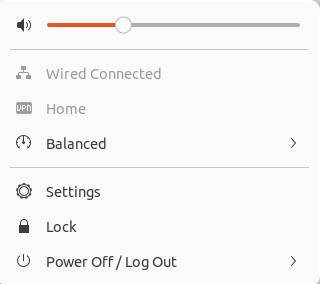
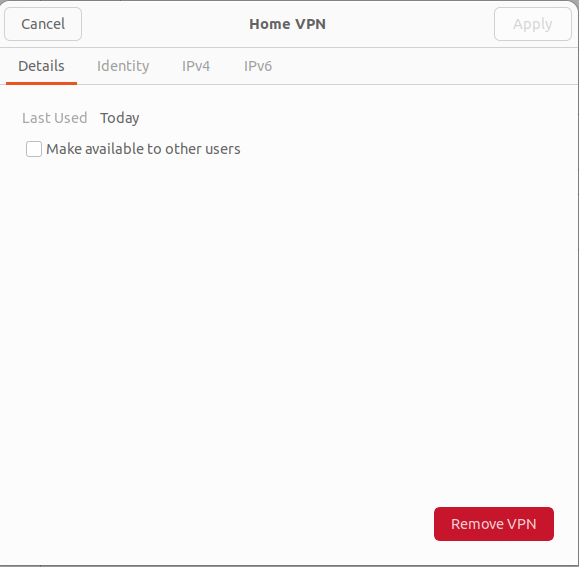
Start the network manger by either typing the following command in the CLI:

nm-connection-editor

[![image.png](https://docs.deeztek.com/uploads/images/gallery/2025-01/scaled-1680-/ZnCimage.png)](https://docs.deeztek.com/uploads/images/gallery/2025-01/ZnCimage.png)
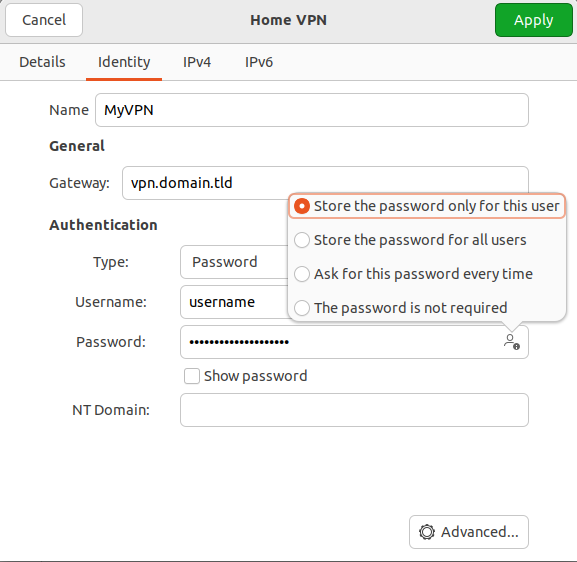
[![image.png](https://docs.deeztek.com/uploads/images/gallery/2025-01/scaled-1680-/rIrimage.png)](https://docs.deeztek.com/uploads/images/gallery/2025-01/rIrimage.png)
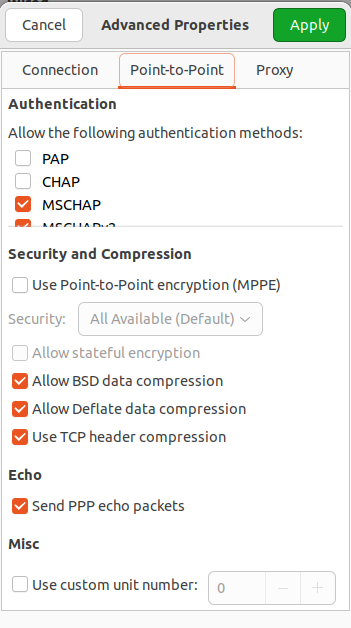
[![image.png](https://docs.deeztek.com/uploads/images/gallery/2025-01/scaled-1680-/5Hvimage.png)](https://docs.deeztek.com/uploads/images/gallery/2025-01/5Hvimage.png)
[![image.png](https://docs.deeztek.com/uploads/images/gallery/2025-01/scaled-1680-/UZoimage.png)](https://docs.deeztek.com/uploads/images/gallery/2025-01/UZoimage.png)
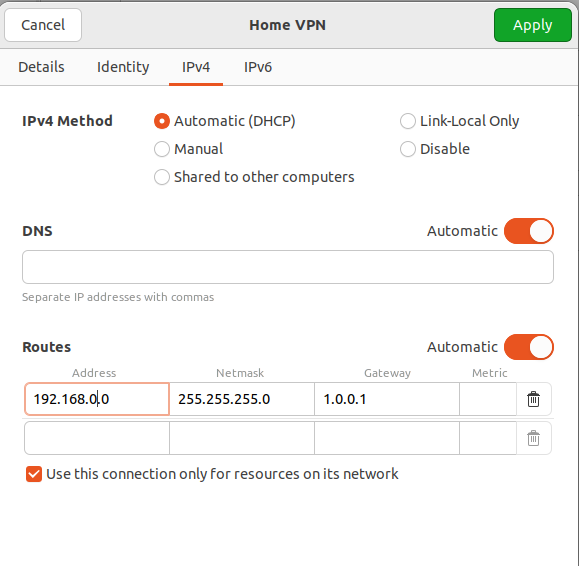
[![image.png](https://docs.deeztek.com/uploads/images/gallery/2025-01/scaled-1680-/0wfimage.png)](https://docs.deeztek.com/uploads/images/gallery/2025-01/0wfimage.png)
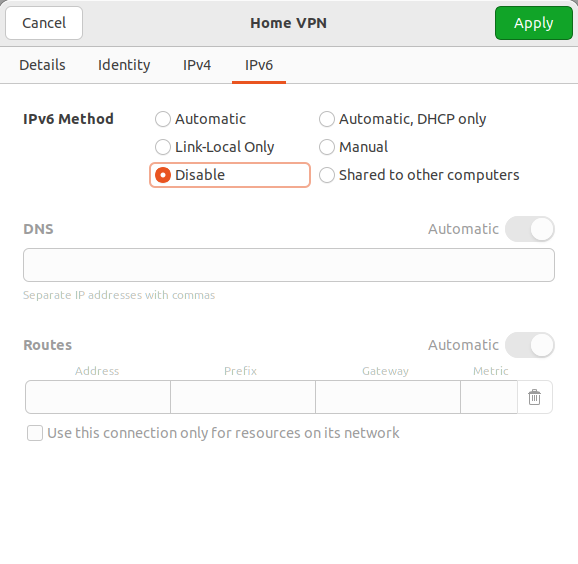
```
[connection]
id=Home
uuid=0ab361d5-a0d2-4e6f-9083-e58bfbf8e18c
type=vpn
autoconnect=false
permissions=user:dedwards:;
timestamp=1736267330

[vpn]
connection-type=password
gateway=homevpn.deeztek.com
ignore-cert-warn=yes
lcp-echo-failure=5
lcp-echo-interval=30
password-flags=1
refuse-chap=yes
refuse-eap=no
refuse-mschap=no
refuse-mschapv2=no
refuse-pap=yes
tls-ext=yes
tls-verify-key-usage=no
user=dedwards
service-type=org.freedesktop.NetworkManager.sstp

[ipv4]
method=auto
never-default=true
route1=192.168.30.0/24,1.0.0.1

[ipv6]
addr-gen-mode=stable-privacy
method=disabled

[proxy]

```