Softether VPN
- Softether VPN Remote Access with Duo Multi-Factor Authentication (MFA)
- Install Softether VPN client on Linux Script
Softether VPN Remote Access with Duo Multi-Factor Authentication (MFA)
This guide assumes you have a working Softether VPN server configured for remote access along with Active Directory for remote user authentication and a Duo account with your users and their mobile devices pre-enrolled and the Duo app pre-installed and configured for your Duo account.
Please note this MFA implementation ONLY works by utilizing the Duo Mobile app Push Notifications.
If you don't have a Duo account, you can sign up for a free trial on the Duo website. Additionally, you also need to deploy a Duo Authentication Proxy server on your network using Linux or Windows.
This guide specifically focuses on a Duo Authentication Proxy on Linux but it can be easily adapted to a Windows based installation.
If you need to deploy a Softether VPN server you can take a look at our docker compose example to deploy using Docker, Traefik as the reverse proxy and Lets Encrypt support.
Configure Softether Application in Duo Admin Panel
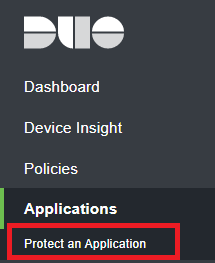
- Login to your Duo Admin Panel and navigate to Applications --> Protect and Application (Figure 1).
Figure 1
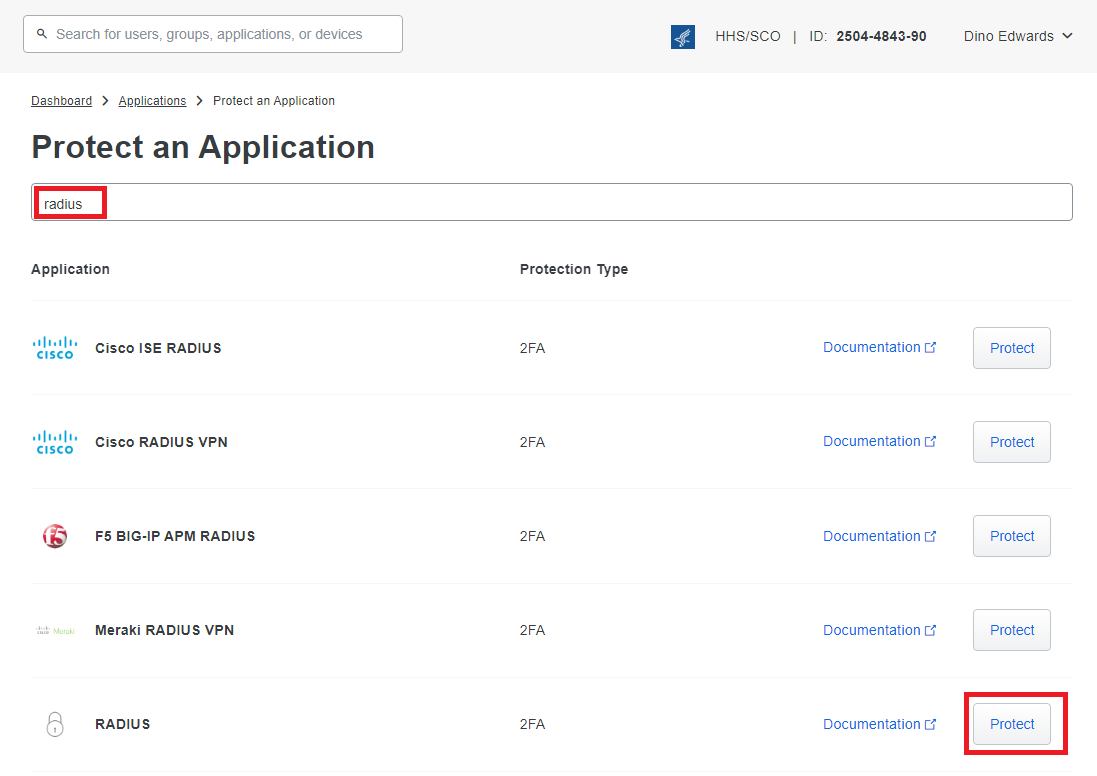
- In the Protect an Application page, enter radius in the Filter by keywords field and click the Protect button to the right of the RADIUS application from the resultant list (Figure 2).
Figure 2
- In the RADIUS application page, copy the Integration key, Secret Key and the API hostname to be used later in the configuration of the Duo Authentication Proxy (Figure 3).
Figure 3

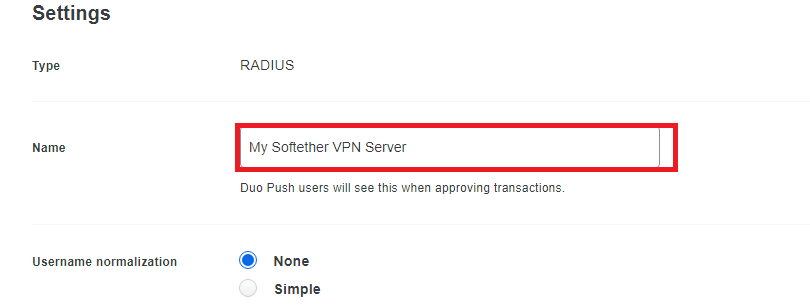
- Optionally, you can scroll down to the Settings section of the RADIUS application and set the Name to a name specific to your environment (Figure 4).
Figure 4
- Ensure you click the Save button on the very bottom of the RADIUS application page.
Create an AD service account to enumerate users in Active Directory
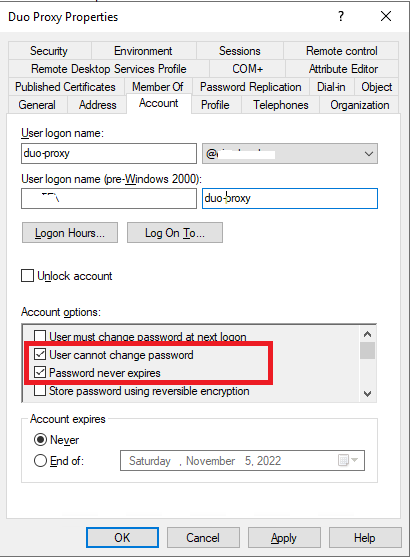
- The service account should NOT have any special permissions. membership only in the Domain Users group should be sufficient unless you have special security considerations in your AD environment. The account should have User cannot change password and Password never expires checked in the Account tab of the user properties (Figure 5).
Figure 5
Configure Duo Authentication Proxy
The Duo Authentication Proxy integrates with the Duo cloud to perform Duo push notifications, integrates with Active Directory to perform user authentication and it also serves as a RADIUS server which Softether utilizes to authenticate users. You could use a separate RADIUS server to integrate with Active Directory and configure Duo Authentication Proxy with it but that's outside the scope of this guide.
If you followed the Duo Authentication Proxy - Reference New Proxy Install for Linux, the proxy gets installed in the /opt/duoauthproxy directory by default. If you did a custom installation, adjust the paths below as necessary.
- Edit the /opt/duoauthproxy/conf/authproxy.cfg file:
vi /opt/duoauthproxy/conf/authproxy.cfg- Delete any existing entries and insert the following entries instead, substituting all the entries enclosed within the Less-Than/Greater-Than <> symbols with the actual data from your environment. The <RADIUS_SHARED_SECRET> is simply a random string of upper/lower case letters and numbers that will be used as a secret string between your Softether VPN server and the Duo Authentication Proxy. We recommend at least a 20 character string. Refer to the Duo Authentication Proxy - Reference for details on the client configuration options below, in particular how to configure the failmode option for your needs and adding additional Active Domain Controllers.
[ad_client]
host=<AD_DOMAIN_CONTROLLER>
service_account_username=<AD_DUO_SERVICE_ACCOUNT_USERNAME>
service_account_password=<AD_DUO_SERVICE_ACCOUNT_PASSWORD>
search_dn=DC=DOMAIN,DC=TLD

[radius_server_auto]
ikey=<DUO_INTEGRATION_KEY>
skey=<DUO_SECRET_KEY>
api_host=<DUO_API_HOSTNAME>
radius_ip_1=<SOFTETHER_VPN_SERVER_IP>
radius_secret_1=<RADIUS_SHARED_SECRET>
failmode=safe
client=ad_client
port=1812
Configure Softether VPN Server
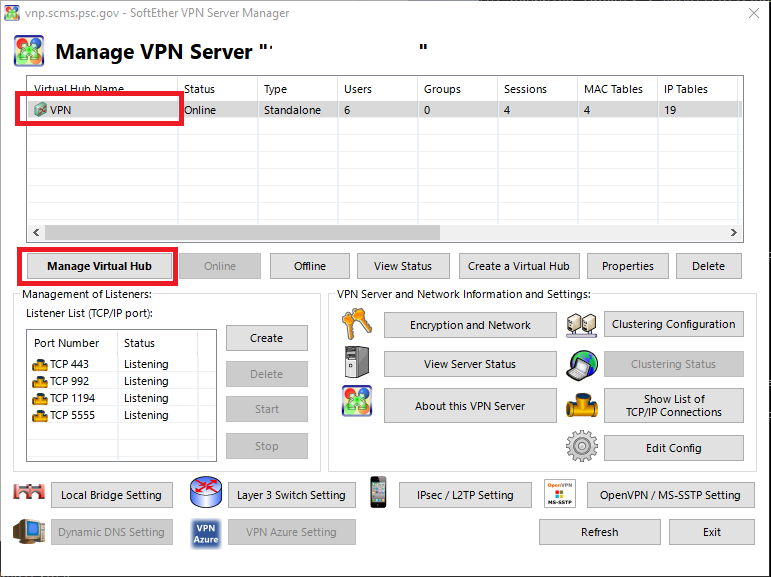
- Connect to your Softether VPN Server, select the appropriate hub and click the Manage Virtual Hub button (Figure 6).
Figure 6
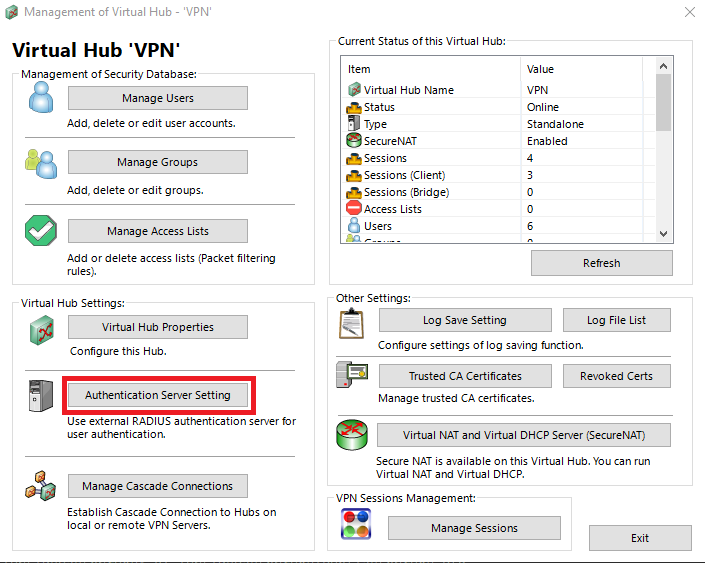
- In the Management of Virtual Hub window, click the Authentication Server Setting button (Figure 7).
Figure 7
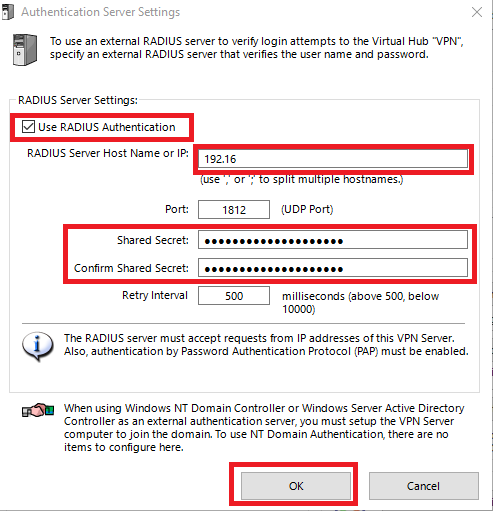
- In the Authentication Server Settings window, check the Use RADIUS Authentication, enter the IP address or host name of your Duo Authentication Proxy server in the RADIUS Server Hostname or IP field, enter and confirm the <RADIUS_SHARED_SECRET> you generated from above in the Shared Secret and Confirm Shared Secret fields and click the OK button (Figure 8).
Figure 8
Configure Softether VPN Server Users
When adding users in Softether VPN server to authenticate using Duo MFA, the username that you are adding in Softether VPN MUST match an existing username in the Duo Admin panel.
- Back in the Management of Virtual Hub window, click on the Manage Users button (Figure 9).
Figure 9

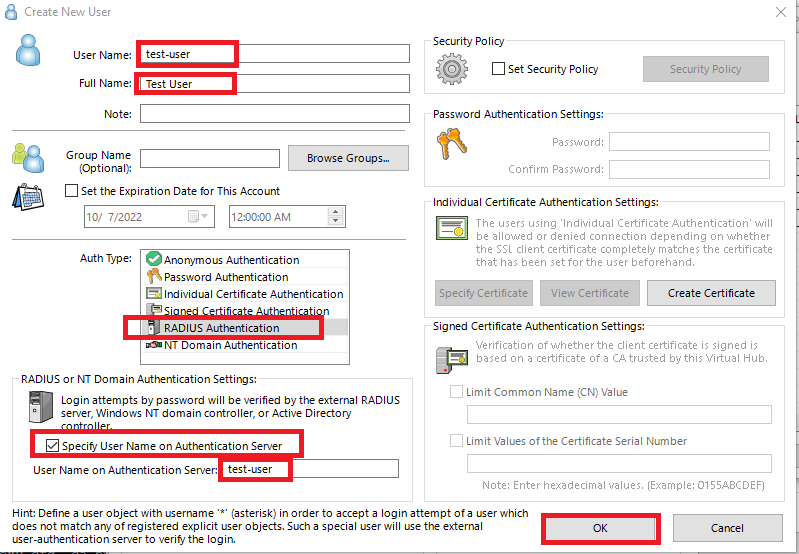
- In the Manage Users window, click New and in the Create New User window, fill in the User Name field, the Full Name field, ensure you set the Auth Type field to RADIUS Authentication, check the Specify User Name on Authentication Server field and enter the username of the user as it appears in Active Directory in the User Name on Authentication Server field and click the OK button (Figure 10).
Figure 10
If everything is setup correctly, when this user connects to your Softether VPN they should be prompted by the Duo app on their mobile device to approve the login. There is a hard coded limit of 10 seconds for Softether to wait for authentication to complete. The user must approve the Duo MFA prompt within those 10 seconds or authentication will fail.
Install Softether VPN client on Linux Script
Save the following into a install-softether-vpnclient.sh file and ensure you make it executable (chmod +x install-softether-vpn-client.sh:
#!/usr/bin/env bash
#
# install-softether-client.sh — relocate a built SoftEther VPN *Client* into
# /usr/local/vpnclient, symlink binaries onto PATH, and install a systemd unit.
#
# Usage:  sudo ./install-softether-client.sh /path/to/built/vpnclient
#         (the folder that contains: vpnclient, vpncmd, hamcore.se2)
#
set -euo pipefail

SRC="${1:-}"
DEST="/usr/local/vpnclient"

[ -n "$SRC" ] || { echo "Usage: sudo $0 /path/to/built/vpnclient"; exit 1; }
[ "$(id -u)" -eq 0 ] || { echo "Run with sudo."; exit 1; }

# Validate the source has the pieces that must stay together
for f in vpnclient vpncmd hamcore.se2; do
  [ -e "$SRC/$f" ] || { echo "ERROR: '$SRC' is missing $f — point me at the built vpnclient dir."; exit 1; }
done

echo ">> Installing $SRC -> $DEST"
if [ -e "$DEST" ]; then
  echo ">> $DEST exists; stopping any running client and backing it up."
  "$DEST/vpnclient" stop 2>/dev/null || true
  mv "$DEST" "${DEST}.bak.$(date +%s 2>/dev/null || echo old)" 2>/dev/null || rm -rf "$DEST"
fi

cp -a "$SRC" "$DEST"
chown -R root:root "$DEST"
chmod 700 "$DEST/vpnclient" "$DEST/vpncmd"
chmod 600 "$DEST/hamcore.se2"

echo ">> Symlinking binaries onto PATH (symlinks resolve real path, so hamcore is still found)"
ln -sf "$DEST/vpncmd"    /usr/bin/vpncmd
ln -sf "$DEST/vpnclient" /usr/bin/vpnclient

echo ">> Installing systemd unit: softether-vpnclient.service"
cat > /etc/systemd/system/softether-vpnclient.service <<UNIT
[Unit]
Description=SoftEther VPN Client
After=network-online.target
Wants=network-online.target

[Service]
Type=forking
ExecStart=$DEST/vpnclient start
ExecStop=$DEST/vpnclient stop
Restart=on-failure
RestartSec=3

[Install]
WantedBy=multi-user.target
UNIT

systemctl daemon-reload
systemctl enable --now softether-vpnclient

sleep 2
echo ">> Verifying..."
if vpncmd localhost /CLIENT /CMD About >/dev/null 2>&1; then
  echo "OK — vpncmd can reach the running client service."
  echo "   vpncmd  -> $(readlink -f "$(command -v vpncmd)")"
  systemctl --no-pager --property=ActiveState,SubState show softether-vpnclient | sed 's/^/   /'
else
  echo "WARN: client service not reachable yet. Check: systemctl status softether-vpnclient"
fi
Download the Softether VPN Client for LInux from https://www.softether.org/5-download/ and extract it to a directory of your choice. Then run the script you created above as root (sudo) and point it to the "/vpnclient/ directory of your extracted download:
install-softether-vpnclient.sh /Downloads/softether-vpnclient-v4.44-9807-rtm-2025.04.16-linux-x64-64bit/vpnclient