# pfsense
# pfsense 2.4 with Always-On Load Balanced OpenVPN Connections
Following this guide will allow you to create always-on load-balanced OpenVPN connections to your favorite VPN provider and force all your Internet traffic through the OpenVPN connections.
This guide was developed using [Newshosting VPN](https://www.newshosting.com/vpn/) account. The information contained will probably work with most other VPN providers with little or no modifications.
This guide is written for the privacy conscious who do not want their activities monitored by their ISP or other entities since the OpenVPN traffic is encrypted.
**This guide is NOT written in order to assist you in conducting nefarious activities on the Internet undetected. A simple VPN connection is not enough to completely hide your digital tracks. Be warned!!**
### Import VPN Provider CA Certificate
1. Obtain the CA Certificate from the VPN Provider.
2. Navigate to **System --> Cert. Manager**.
3. Click the **Add** button.
4. Under the **Descriptive name** field, enter a description for the CA certificate your are importing.
5. Under the **Certificate data**, paste the certificate contents including the **-----BEGIN CERTIFICATE-----** and the ***-----END CERTIFICATE-----*** parts.
6. Click the **Save** button (**Figure 1**).
**Figure 1**
.jpg)
### Create OpenVPN client connections
1. Navigate to **VPN --> OpenVPN --> Clients.**
2. Click the **Add** button.
3. In the **Server Mode** field, ensure **Peer to Peer (SSL/TLS)** is selected.
4. In the **Protocol** field, select either **UDP on IPv4 Only** or **TCP on IPv4** **Only** depending on your VPN provider's requirements. Most of the time, UDP on port 1194 is used.
5. In the **Device mode** field, ensure **tun - Layer 3 Tunnel Mode** is selected.
6. In the **Interface** field, ensure **WAN** is selected.
7. In the **Server host or address field**, enter the address to your VPN provider's OpenVPN server.
8. In the **Server port** field, enter the port number to your VPN provider's OpenVPN server (most likely 1194).
9. In the **Description** field, enter a description for this connection if desired (**Figure 2)**.
**Figure 2**
.jpg)
10. In the **Username** field, enter the username for your VPN Provider.
11. In the **Password** field, enter the password for your VPN Provider.
12. Ensure the **Use a TLS Key** field is **unchecked**.
13. In the **Peer Certificate Authority** field, ensure you select the CA that you created in the **import VPN Provider CA Certificate** section above.
14. In the **Client Certificate** field, ensure that **None (Username and/or Password required)** is selected. Please note that this field may need to be adjusted to your VPN provider's requirements, however most of the VPN providers I've used, Username/Password has been sufficient.
15. In the **Encryption Algorithm** field, select the highest encryption that your VPN provider supports. I've used **AES-256-CBC (256 bit key, 128 bit block)** with no problems (**Figure 3**).
**Figure 3**
.jpg)
10. Ensure the **Enable NCP** field is **unchecked**.
11. In the **Auth digest algorithm** field, select the auth digest algorithm supported by your VPN provider. I've used **SHA256 (256-bit)** with no problems.
12. In the **Hardware Crypto** field, ensure **No Hardware Crypto Acceleration** is selected (**Figure 4**).
**Figure 4**
.jpg)
10. In the **Compression** field, ensure that **Adaptive LZO Compression \[Legacy style, comp-lzo adaptive\]** is selected.
11. Ensure **Don't add or remove routes** field is **checked**.
12. In the **Custom options** field, paste the following options (**Figure 5**):
```
persist-key;
persist-tun;
persist-remote-ip;
resolv-retry infinite;
```
**Figure 5**
.jpg)
22. Click the **Save** button.
23. Create additional OpenVPN client connections as needed.
### Verify OpenVPN Client Connections are Up
1. Navigate to **Status --> OpenVPN**. Under the **Client Instance Statistics** section, you should be able to see the connections you created and ideally if configured correctly, the status for each connections should be **up** (**Figure 6**).
**Figure 6**
**.jpg)**
### Assign Interfaces to each OpenVPN Connection
1. Navigate to **Interfaces --> Assignments**.
2. Next to the **Available network ports** field, select each of the OpenVPN connections you created earlier from the **Network port** drop-down field and click the **Add** button to assign the network port. The OpenVPN connections are named **ovpncX** where **X** is number assigned by the system. In this example, I created two OpenVPN connections and they are named **ovpnc4 for newshosting.com OpenVPN 1** connection and **ovpnc5 for newshosting.com OpenVPN 2** connection (**Figure 7**).
**Figure 7**
.jpg)
3. Assign all the OpenVPN connections you created and you will end up with your OpenVPN connections having been assigned an **OPTX** interface name where **X** is a number assigned by the system. Ensure you click the **Save** button at the bottom of the screen to save your changes. (**Figure 8**).
**Figure 8**
.jpg)
9. Next, click on each of the **OPTX** interfaces that were assigned to your OpenVPN connections and you will be re-directed to the **Interfaces / OPTX** configuration page where X is the interface number assigned by the system.
10. Ensure the **Enable** field is checked.
11. In the **Description** field enter a name for this connection (Ex: **NewsHostingOpenVPN1**).
12. Ensure **IPv4 Configuration Type** is set to None.
13. Ensure **IPv6 Configuration Type** is set to None (**Figure 9**).
**Figure 9**
.jpg)
14. Click the **Save** button at the bottom of the page and then click the **Apply Changes** that appears on the top of the page after clicking the Save button.
15. Navigate back to **Interfaces --> Assignments** and repeat **Steps 9 through 14** from above to assign the rest of the OpenVPN connections.
16. In the end you should end up with a listing like below under **Interfaces -->Assignments** (**Figure 10**).
**Figure 10**
.jpg)
### Create OpenVPN Gateway Group
In this section, we are going to be creating a Gateway Group that's going to include all the OpenVPN gateways that were automatcially created by the system when we assigned the OpenVPN connections to Interfaces in the previous section. Using this method, we willl be having more than one connection available for load balancing as well as failover in case one of the OpenVPN connections goes down. You will notice below that we will give both OpenVPN gateways the same priority (Tier 1) which will effectively create a load-balanced connection using multiple OpenVPN gateways.
1. Navigate to **System --> Routing** and ensure the **Gateways** tab is selected. You should be able to **IPv4** gateways, denoted by a **\_VPNV4** suffix and **IPv6** gateways, denoted by a **\_VPNV6** suffix entries for each interface you assigned to an OpenVPN connection from the section above. (**Figure 11**).
**Figure 11**
.jpg)
2. Next, click on the **Gateway Groups** tab and then click the **Add** button **(Figure 12**).
**Figure 12**
.jpg)
3. You will be re-directed to the **Edit Gateway Group Entry** page
4. In the **Group Name** field, enter a name for your Gateway Group (Ex: OpenVPNGatewayGroup).
5. Under the **Gateway Priority** section, ensure your **main WAN gateway is set to Never**.
6. Ensure all the *OpenVPN IPv4 gateways denoted with a \_VPNV4 suffix are set to Tier 1*. **Ensure that any OpenVPN IPv6 gateways denoted with a \_VPNV6 suffix are NOT set to Tier 1 and if necessary be set to Never just like the main WAN gateway.**
7. Ensure the **Trigger Level** field is set to Member down
8. Optionally, enter a description in the **Description** field.
9. Click the **Save** button (**Figure 13**).
**Figure 13**
.jpg)
10. You will be re-directed back to **Gateway Groups** page where the you will be able to see the Gateway Group you just created. Click on the **Apply Changes** button on the top of the page to apply your changes (**Figure 14**).
**Figure 14**
.jpg)
### Create Firewall Rules
In this section, we are going to create a floating firewall rule to Reject any LAN outbound packets that are tagged as **NO\_WAN\_OUTBOUND** and then we are going to create a LAN rule that will tag all traffic as **NO\_WAN\_OUTBOUND** as well as use the OpenVPNGatewayGroup we created in the section above as the default gateway for that traffic. Using this method, we are going to ensure that ALL LAN traffic will ONLY go through the OpenVPN connections.
1. Navigate to **Firewall --> Rules** and ensure the **Floating** tab is selected. (**Figure 15**).
**Figure 15**
.jpg)
2. Click the Add button with the down arrow on the bottom of the page to add a rule to the end of the list (**Figure 16**).
**Figure 16**
.jpg)
3. You will be re-directed to the **Edit firewall Rule** page.
4. In the **Action** field ensure **Reject** is selected.
5. In the **Interface** field ensure the **WAN** interface is selected.
6. In the **Direction** field ensure **out** is selected.
7. In the **Address Family** ensure **IPv4** is selected.
8. In the **Protocol** field ensure **Any** is selected(**Figure 17**).
**Figure 17**
.jpg)
9. In the **Log** field, check the Log packets that are handled by this rule.
10. In the **Description** field, enter the following description: **Reject Packets tagged with NO\_WAN\_OUTBOUND**.
11. In the **Advanced Options** field, click **Display Advanced** button (**Figure 18**).
**Figure 18**
.jpg)
12. Clicking the Advanced Options button from the previous step, will display the Advanced Options section.
13. In the **Tagged** field, enter the following: **NO\_WAN\_OUTBOUND** (**Figure 19**)**.** Ensure you make a note of the **NO\_WAN\_OUTBOUND** tag because we are going to be using it in LAN rule we are going to be creating next.
**Figure 19**
.jpg)
14. Click the **Save** button at the bottom of the page.
15. You will be re-directed back to the **Floating** rules tab page.
16. Click on the **Apply Changes** button on the top of the page to apply the changes (**Figure 20**).
**Figure 20**
.jpg)
17. Next click on the **LAN** tab (**Figure 21**).
**Figure 21**
.jpg)
18. Click the Add button with the down arrow on the bottom of the page to add a rule to the end of the list (**Figure 22**).
**Figure 22**
.jpg)
19. You will be re-directed to the **Edit firewall Rule** page.
20. In the **Action** field ensure **Pass** is selected.
21. In the **Disabled** field ensure **Disable this rule** is **Unchecked**.
22. In the **Interface** field ensure the **LAN** interface is selected.
23. In the **Address Family** ensure **IPv4** is selected.
24. In the **Protocol** field ensure **Any** is selected (**Figure 23**).
**Figure 23**
.jpg)
25. Under the **Source** section, in the **Source** field, ensure **LAN net** is selected.
26. Under the **Destination** section, in the **Destination** field, ensure **any** is selected.
27. Under the **Extra Options** section, in the **Log** field, ensure **Log packets that are handled by this rule** is checked.
28. Under the **Extra Options** section, in the **Description** field, enter a description for this rule (Ex: Allow LAN to any via VPN Only).
29. Under the **Extra Options** section, in the **Advanced Options** field, click the **Display Advanced** button (**Figure 24**).
**Figure 24**
.jpg)
30. Clicking the Advanced Options button from the previous step, will display the Advanced Options section.
31. Under the **Advanced Options** section, in the **Tag** field, enter **NO\_WAN\_OUTBOUND** (**Figure 25**).
**Figure 25**
.jpg)
32. Under the A**dvanced Options** section, in the **Gateway** field, ensure the **OpenVPNGatewayGroup** gateway is selected (**Figure 26**).
**Figure 26**
.jpg)
32. Click the **Save** button at the bottom of the page.
33. You will be re-directed back to the **LAN** rules tab page.
34. Click on the **Apply Changes** button on the top of the page to apply the changes (**Figure 27**).
**Figure 27**
.jpg)
### Create a Rule to Bypass OpenVPN Connections
If you have a need for certain IPs inside your LAN to bypass the OpenVPN connections and go through the WAN gateway like normally, you would simply create a LAN rule and place it **ABOVE** the **Allow LAN to any via VPN Only** rule we created above.
1. Navigate to **Firewall --> Aliases** and ensure **IP** tab is selected (**Figure 28**).
**Figure 28**
.jpg)
2. Click the **Add** button at the bottom of the page.
3. You will be re-directed to the **Firewall / Aliases / Edit** page.
4. Under the **Properties** section, in the **Name** field, enter a name for this alias (Ex: **Outbound\_Direct\_NO\_VPN**). Ensure you take note of the alias name you assigned because we are going to use it in the LAN rule we will be creating below.
5. Under the **Properties section**, in the **Type** field, ensure **Host(s)** is selected (**Figure 29**).
**Figure 29**
.jpg)
2. Under the **Host(s)** section, enter any LAN IPs (one per line) that you want to bypass the OpenVPN connections (You can add more lines by clicking the **Add Host** button at the bottom of the page).
3. When finished, click the **Save** button at the bottom of the page (**Figure 30**).
**Figure 30**
.jpg)
4. You will be re-directed back to the **Aliases IP** tab page.
5. Click on the **Apply Changes** button on the top of the page to apply the changes (**Figure 31**).
**Figure 31**
.jpg)
4. Next, navigate to **Firewall --> Rules** and ensure the **LAN** tab is selected. (**Figure 32**).
**Figure 32**
.jpg)
2. Click the Add button with the up arrow on the bottom of the page to add a rule to the top of the list (**Figure 33**).
**Figure 33**
**.jpg)**
19. You will be re-directed to the **Edit firewall Rule** page.
20. In the **Action** field ensure **Pass** is selected.
21. In the **Disabled** field ensure **Disable this rule** is **Unchecked**.
22. In the **Interface** field ensure the **LAN** interface is selected.
23. In the **Address Family** ensure **IPv4** is selected.
24. In the **Protocol** field ensure **Any** is selected.
25. Uder the **Source** section, in the **Source** field, ensure **Single host or alias** is selected and then enter the name of the alias you created above (**Outbound\_Direct\_NO\_VPN**).
26. Under the **Destination** section, in the **Destination** field, ensure **any** is selected (**Figure 34**).
**Figure 34**
****
25. Under the **Extra Options** section, in the **Log** field, ensure **Log packets that are handled by this rule** is checked.
26. Under the **Extra Options** section, in the **Description** field, enter a description for this rule (Ex: Allow LAN to any rule NO VPN) (**Figure 35**).
**Figure 35**
****
27. Click the **Save** button at the bottom of the page.
28. You will be re-directed back to the **LAN** rules tab page.
29. Click on the **Apply Changes** button on the top of the page to apply the changes (**Figure 36**).
**Figure 36**
.jpg)
# PfSense, HAProxy, SoftEther VPN
### Introduction
This guide was written in order to assist in setting up HAProxy in PfSense in order to route SSL (443) traffic to either a SoftEther SSL VPN server or a webserver listening on port 443 based on SNI. In actuality, any SSL VPN server will suffice, however SoftEther VPN is the server of choice in this example.
### Software Used
- PfSense Version 2.4.4
- HAProxy Version 17-1.7.11\_1 for PfSense
### Install HAProxy in Pfsense
1. In the PfSense Web GUI, click on **System --> Package Manager --> Available Packages**.
2. Locate the **haproxy** package, click on the **Install** button and wait for the installation to complete.
3. After **haproxy** succesfully installs, click on **Services --> HAProxy --> Backend**
### Add SoftEther VPN Backend
1. In the **Backend** tab, click the Add button.
2. In the **Edit HAProxy Backend server pool** page set the following:
- In the **Name** field, enter a name Ex: SoftEtherVPN.
- In the **Server list** section, click the down arror icon  to add a new server entry.
- In the **Mode** field ensure **active** is selected
- In the **Name** field enter a name Ex: SoftEtherVPN
- In the **Forwardto** field ensure **Address+Port** is selected
- In the **Address** field enter the IP address of your SoftEther VPN Server Ex: 192.168.0.100
- In the **Port** field enter **443**
- Ensure **Encrypt(SSL)** is **unchecked**
- Ensure **SSL checks** is **unchecked**
- Ensure **Weight** is empty
- Scroll down to the **Health checking** section and ensure **None** is selected in the **Health check method** field
- Click the **Save** button at the bottom of the page (**Figure 1**)
**Figure 1**
.png)
### Add Webserver Backend
1. Back the **Backend** tab, click the Add button.
2. In the **Edit HAProxy Backend server pool** page set the following:
- In the **Name** field, enter a name Ex: Webserver.
- In the **Server list** section, click the down arrow icon  to add a new server entry.
- In the **Mode** field ensure **active** is selected
- In the **Name** field enter a name Ex: Webserver
- In the **Forwardto** field ensure **Address+Port** is selected
- In the **Address** field enter the IP address of your SoftEther VPN Server Ex: 192.168.0.200
- In the **Port** field enter **443**
- Ensure **Encrypt(SSL)** is **unchecked**
- Ensure **SSL checks** is **unchecked**
- Ensure **Weight** is empty
- Scroll down to the **Health checking** section and ensure **None** is selected in the **Health check method** field
- Click the **Save** button at the bottom of the page (**Figure 2**)
**Figure 2**
.png)
14. Back in the **Backend** tab, click on the **Apply Changes** button (**Figure 3**)
**Figure 3**
.png)
### Add Frontend
1. Click on **Services --> HAProxy --> Frontend**
2. Click the **Add** button
3. In the **Edit HAProxy Frontend** page set the following:
- In the **Name** field enter a friendlyname Ex: widgetsinc-frontend
- Ensure the **Status** field is set to **Active**
- Under the **External Address --> Table** section, ensure the **Listen Address** field is set to **WAN address (IPv4)**
- Ensure the **Type** field is set to **ssl /https(TCP mode)**
- Under the **External Address --> Table** section, ensure the **Port** field is set to **443**
- Under the **External Address --> Table** section, ensure the **SSL Offloading** field is **unchecked**
- Under the **External Address --> Table** section, ensure the **Advanced** field is **empty**
- Under the **Type** section, ensure **ssl/https(TCP mode)** is selected
- Under the **Default backend, access control lists and actions --> Access Control lists** section, click the down arrow icon  to add an ACL entry for the SoftEther VPN Server
- In the **Name** field enter a name for this ACL Ex: SoftetherACL
- In the **Expression** field ensure **Server Name Indication TLS extension matches** is selected
- Ensure the **CS** field is unchecked
- Ensure the **Not** field is unchecked
- In the **Value** field, enter the FQDN to reach your SoftEther VPN server Ex: vpn.domain.tld
- Again, click the down arrow icon  to add an ACL entry for the Webserver
- In the **Name** field enter a name for this ACL Ex: WebserverACL
- In the **Expression** field ensure **Server Name Indication TLS extension matches** is selected
- Ensure the **CS** field is unchecked
- Ensure the **Not** field is unchecked
- In the **Value** field, enter the FQDN to reach your Webserver Ex: www.domain.tld
- Under the **Default backend, access control lists and actions --> Actions** section, click the down arrow icon  to add an action for the SoftEther VPN ACL we created above
- In the **Action** field, ensure **Use Backend** is selected and ensure the SoftetherVPN backend we created earlier is selected
- In the **Condition acl names** field, enter the ACL name you set for the Softether ACL Ex: SoftetherACL
- Again, click the down arrow icon  to add an action for the Webserver ACL we created above
- In the **Action** field, ensure **Use Backend** is selected and ensure the Webserver backend we created earlier is selected
- In the **Condition acl names** field, enter the ACL name you set for the Webserver ACL Ex: WebserverACL (**Figure 4**)
**Figure 4**
.png)
### Enable HAProxy
1. Click on **Services --> HAProxy --> Settings**
2. Under **General Settings --> Enable HAProxy** field is checked
3. In the **General Settings --> Maximum Connections** field, enter the number of connections per process Ex: 1000
4. Click the **Save** button on the bottom of the page (**Figure 5**)
**Figure 5**
.png)
5. Back in the **Settings** tab, click on the **Apply Changes** button (**Figure 6**)
**Figure 6**
### .png)
### Add Firewall Rule
1. Click on **Firewall --> Rules**
2. Click the **Add** button
3. n the **Edit Firewall Rule** page set the following:
- Ensure the **Interface** field is set to **WAN**
- Ensure the **Address Family** field is set to **IPv4**
- Ensure the **Protocol** field is set to **TCP**
- Under the **Source** section, ensure **Source** field is set to **any**
- Under the **Destination** section, ensure **Destination** is set to **WAN address**
- Under the **Destination** section, ensure **Destination Port Range From** is set to **HTTPS (443)** and **To** is set **HTTPS (443)**
- Under **Extra Options** section, set the **Description** field
- Click the **Save** button at the bottom of the page (**Figure 7**)
**Figure 7**
.png)
4. Back in the **Firewall/ Rules / Wan** tab, click on the **Apply Changes** button (**Figure 8**)
**Figure 8**
**.png)**
### Install Service Watchdog in PfSense
This setup has the potential to expose the PfSense Web GUI to the Internet if the HAProxy service ever fails. In order to mitigate this issue, it's a good idea to install the Service Watchdog package in PfSense so that it can monitor the HAProxy service and start it automatically if it ever fails. Alternatively, you can [change the PfSense Web GUI to another port other than 443](https://www.netgate.com/docs/pfsense/firewall/remote-firewall-administration.html).
1. In the PfSense Web GUI, click on **System --> Package Manager --> Available Packages**.
2. Locate the **Service\_Watchdog** package, click on the **Install** button and wait for the installation to complete.
3. After **Service\_Watchdog** succesfully installs, click on **Services --> Service Watchdog**
4. Click on the **Add New Service** button
5. In the A**dd Service to Monitor** page, in the **Service to Add** field, select **haproxy: TCP/HTTP(S) Load Balancer** from the drop-down and click the **Add** button (**Figure 9**)
**Figure 9**

### If you are NOT using HAProxy on PfSense
If you are trying to implement HAProxy standalone i.e. not part of PfSense, below is the configuration generated by the PfSense package. Hopefully it will assist someone in their own HAProxy implementation. Ensure you change **widgetsinc-frontend**, **PUBLIC\_IP\_ADDRESS**, **vpn.domain.tld** and **www.domain.tld** to fit your needs.
```
global
maxconn 1000
stats socket /tmp/haproxy.socket level admin
uid 80
gid 80
nbproc 1
hard-stop-after 15m
chroot /tmp/haproxy_chroot
daemon
server-state-file /tmp/haproxy_server_state
frontend widgetsinc-frontend
bind PUBLIC_IP_ADDRESS:443 name PUBLIC_IP_ADDRESS:443
mode tcp
log global
timeout client 30000
tcp-request inspect-delay 5s
acl SoftetherACL req.ssl_sni -i vpn.domain.tld
acl WebserverACL req.ssl_sni -i www.domain.tld
tcp-request content accept if { req.ssl_hello_type 1 }
use_backend SoftetherVPN_ipvANY if SoftetherACL
use_backend Webserver_ipvANY if WebserverACL
backend SoftetherVPN_ipvANY
mode tcp
id 100
log global
timeout connect 30000
timeout server 30000
retries 3
server SoftEtherVPN 192.168.0.100:443 id 101
backend Webserver_ipvANY
mode tcp
id 102
log global
timeout connect 30000
timeout server 30000
retries 3
server Webserver 192.168.0.200:443 id 103/
```
# Setup WireGuard Site to Site VPN Tunnel on pfsense 2.7.2
This guide was inspired by [Marcus Rath](https://blog.matrixpost.net/set-up-wireguard-site-to-site-vpn-on-pfsense/)
### Introduction
This guide will walk you through setting up a WireGuard site to site VPN tunnel on pfsense 2.7.2. For this guide we assume **Site A** with a **network subnet of 192.168.1.0/24**, **Site B with a network subnet of 192.168.24.0/24** and a **Tunnel Subnet of 10.10.12.0/30**. Obviously adjust these settings to your specific needs.
Ensure that the **Tunnel Subnet** you choose does NOT overlap with any other network subnets currently in use in your network environment.
### Install WireGuard Package on Both Sites
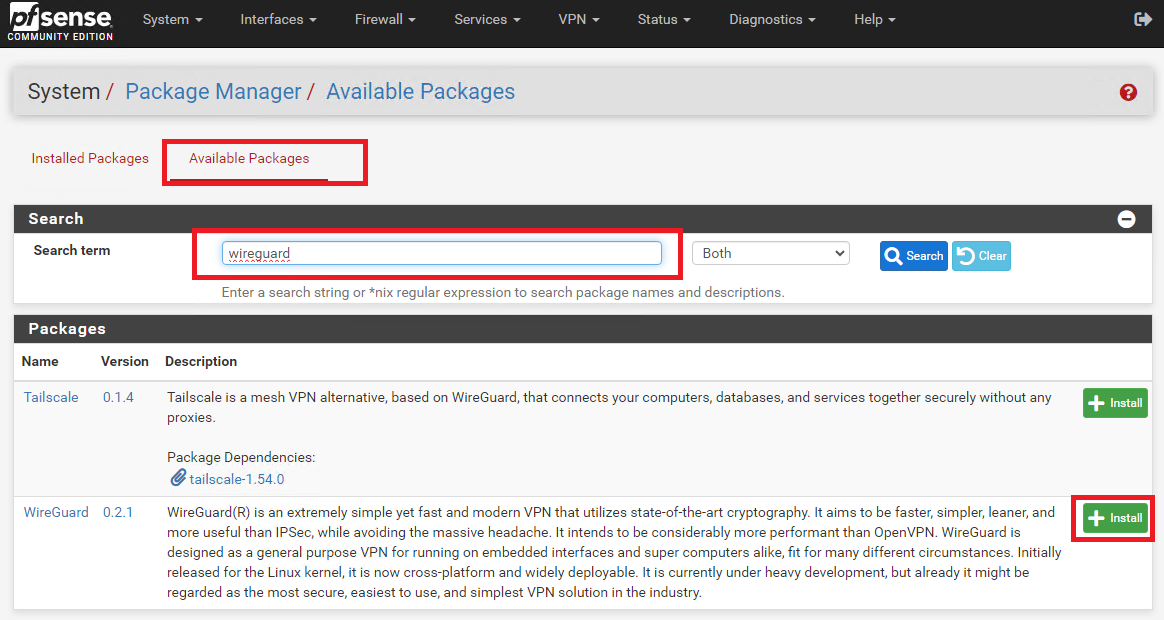
On **BOTH** site pfsense installations, install the **WireGuard package from System ---> Package Manager ---> Available Package**s. Enter **Wireguar**d in the **Search term** field, click search and then click on the **Install** button next to WireGuard package (**Figure 1**).
**Figure 1**
[](https://docs.deeztek.com/uploads/images/gallery/2024-01/image.png)
### Create Tunnel on Site A
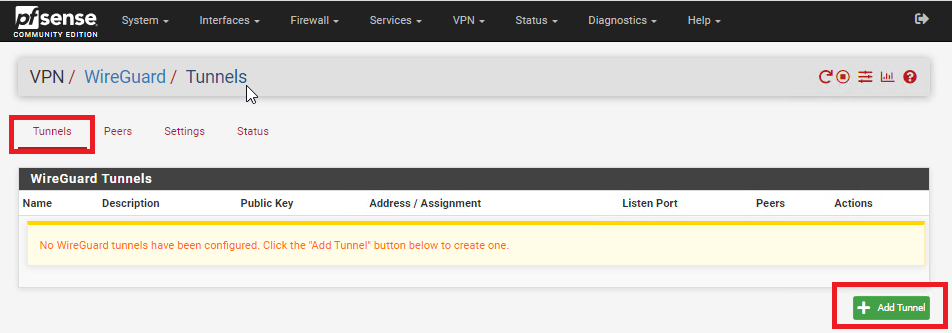
On **Site A**, refresh the pfsense web GUI and navigate to **VPN ---> Wireguard,** click on the **Tunnels** tab and then click on **Add Tunnel** button (**Figure 2**).
**Figure 2**
[](https://docs.deeztek.com/uploads/images/gallery/2024-01/tGIimage.png)
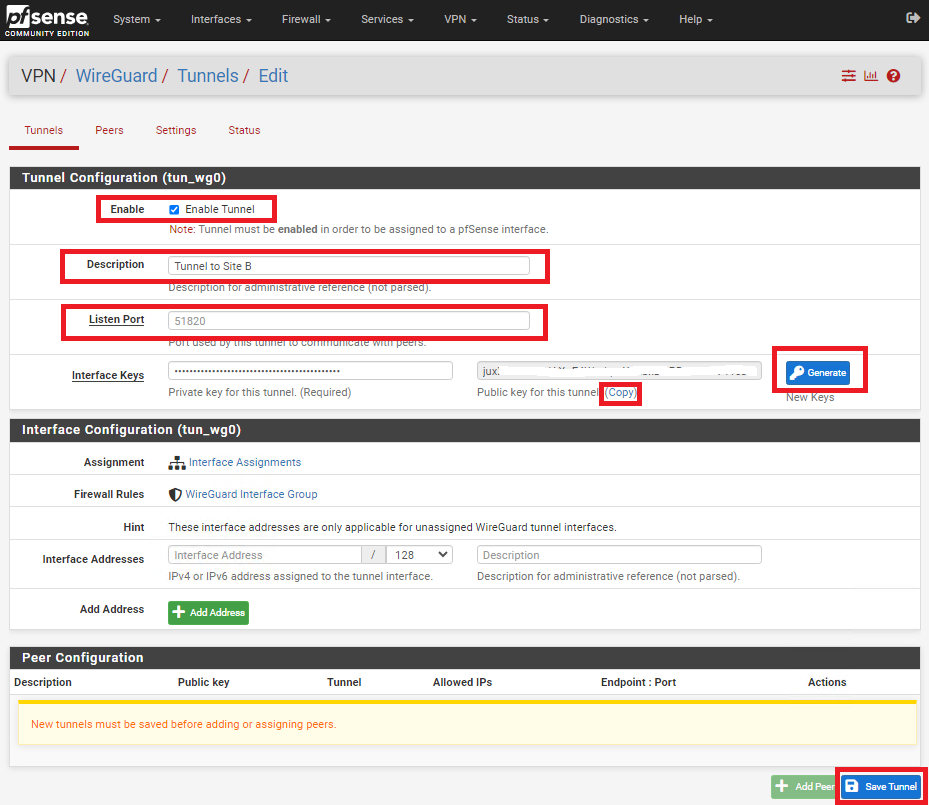
In the **Tunnel Configuration** fill/set in the following fields (**Figure 3**):
- **Enable:** Checked
- **Description:** Optionally, describe the purpose of this tunnel (Ex: Tunnel to Site B)
- **Listen Port:** Leave blank to use port UDP/51820 or enter a specific port number you with to use
- **Interface Keys:** click the **Generate** button to create a new Private/Public key pair and copy the **Public Key** that's generated in order to enter it in the Public Key field on Site B.
- Click the **Save Tunnel** button
**Figure 3**
[](https://docs.deeztek.com/uploads/images/gallery/2024-01/hRSimage.png)
### Create Tunnel on Site B
On **Site B**, refresh the pfsense web GUI and navigate to **VPN ---> Wireguard,** click on the **Tunnels** tab and then click on **Add Tunnel** button (**Figure 4**).
**Figure 4**
[](https://docs.deeztek.com/uploads/images/gallery/2024-01/tGIimage.png)
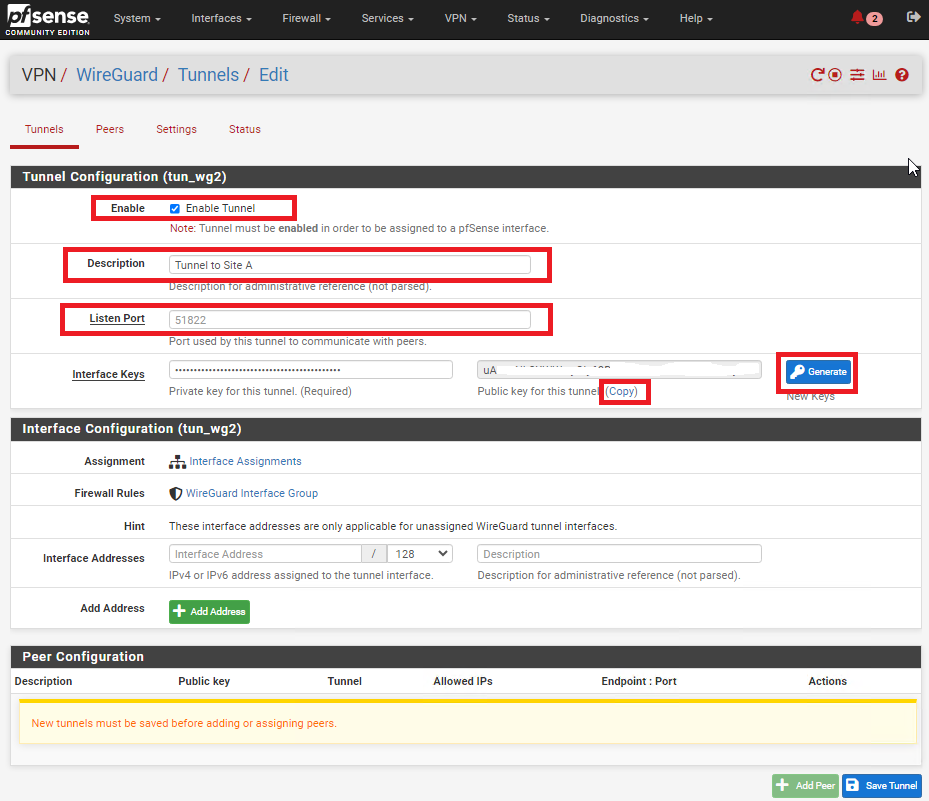
In the **Tunnel Configuration** fill/set in the following fields (**Figure 5**):
- **Enable:** Checked
- **Description:** Optionally, describe the purpose of this tunnel(Ex: Tunnel to Site A)
- **Listen Port:** Leave blank to use port UDP/51820 or enter a specific port number you with to use
- **Interface Keys:** click the **Generate** button to create a new Private/Public key pair and copy the **Public Key** that's generated in order to enter it in the Public Key field on Site B.
- Click the **Save Tunnel** button
**Figure 5**
[](https://docs.deeztek.com/uploads/images/gallery/2024-01/H1eimage.png)
### Enable WireGuard on Both Sites
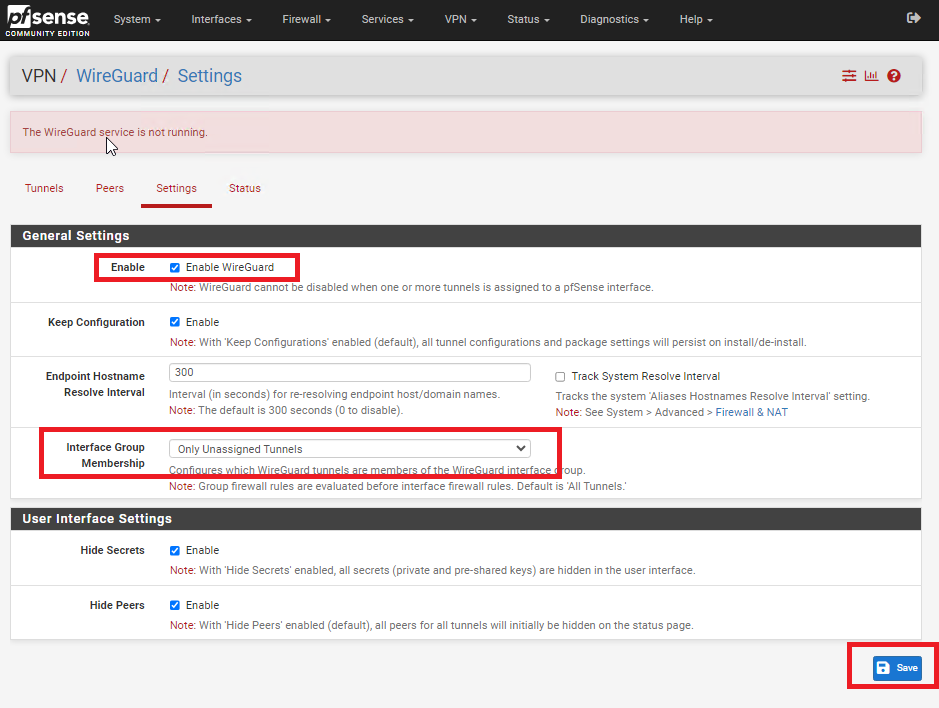
On **BOTH** sites, navigate to **VPN ---> WireGuard**, click on the **Settings** tab and click on the **Enable WireGuard** checkbox, select **Only Unassigned Tunnels** on the **Interface Group Membership** drop-down and then click on the **Save** button (**Figure 6**).
**Figure 6**
[](https://docs.deeztek.com/uploads/images/gallery/2024-01/4h3image.png)
### Add Peer on Site A
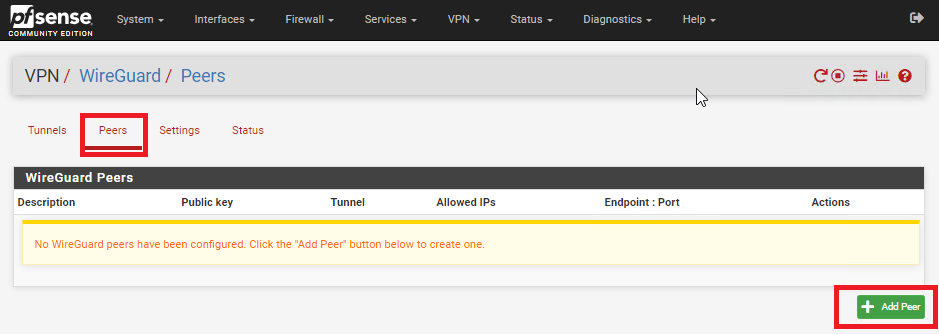
On **Site A**, navigate to **VPN ---> WireGuard**, click on the **Peers** tab and then click on the **Add Peer** button (**Figure 7**).
**Figure 7**
[](https://docs.deeztek.com/uploads/images/gallery/2024-01/biLimage.png)
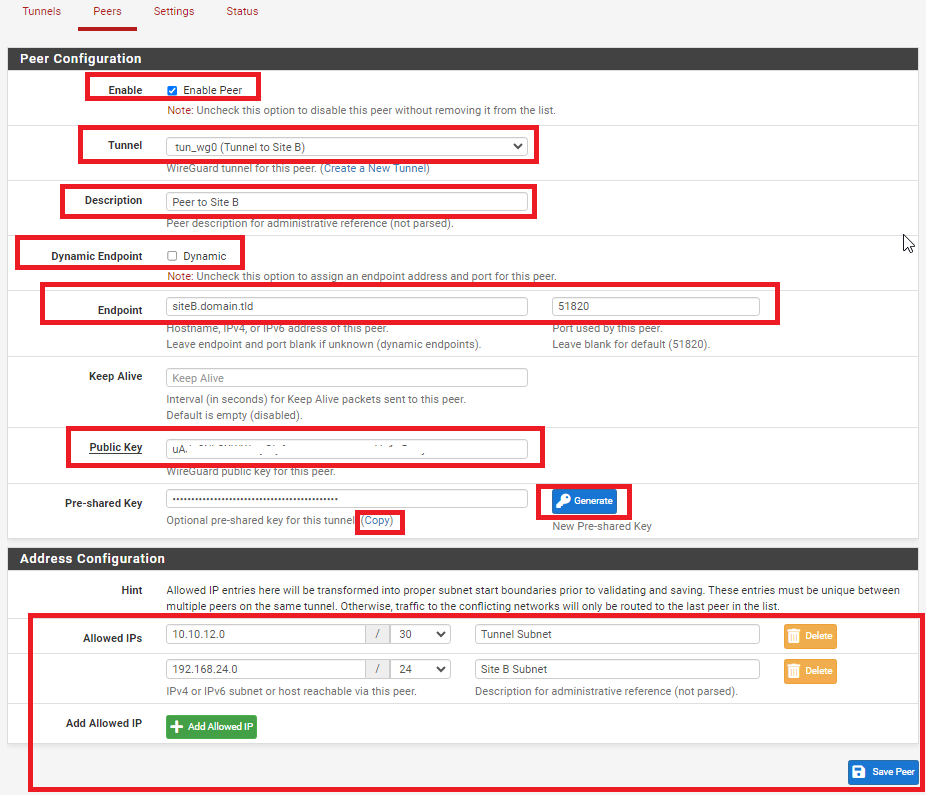
In the **Peer Configuration** fill/set in the following fields (**Figure 8**):
- **Enable:** Checked
- **Tunnel**: Select the Tunnel previously configured from the drop-down list
- **Description:** Optionally, describe the purpose of this Peer (Ex: Peer to Site B)
- **Dynamic Endpoint:** Unchecked
- **Endpoint**: Fill in the Internet IP or Hostname as well as the port number for **Site B**
- **Public Key**: Paste the previously copied **Public Key** from the **Tunnel** on **Site B**
- **Pre-shared Key:** Click the Generate button to generate a new pre-shared key and copy it in order to paste in the Peer configuration of **Site B**
- **Allowed IPs**: Enter an **UNUSED** Network address (Example: 10.10.12.0) with a CIDR of **30** (For a total of two IPs) in the first field, click the **Add Allowed IP** and then enter the Network Address and corresponding CIDR of the subnet for **Site B**
- Click the **Save Peer** button
**Figure 8**
[](https://docs.deeztek.com/uploads/images/gallery/2024-01/RhJimage.png)
### Add Peer on Site B
On **Site B**, navigate to **VPN ---> WireGuard**, click on the **Peers** tab and then click on the **Add Peer** button (**Figure 9**).
**Figure 9**
[](https://docs.deeztek.com/uploads/images/gallery/2024-01/biLimage.png)
In the **Peer Configuration** fill/set in the following fields (**Figure 10**):
- **Enable:** Checked
- **Tunnel**: Select the Tunnel previously configured from the drop-down list
- **Description:** Optionally, describe the purpose of this Peer (Ex: Peer to Site A)
- **Dynamic Endpoint:** Unchecked
- **Endpoint**: Fill in the Internet IP or Hostname as well as the port number for **Site A**
- **Public Key**: Paste the previously copied **Public Key** from the **Tunnel** on **Site A**
- **Pre-shared Key:** Paste the previously copied **Pre-Shared key** from the **Peer** on **Site A**
- **Allowed IPs**: Enter the **SAME** **Tunnel Subnet Network address and CIDR** you set on the **Peer** on **Site A**, click the **Add Allowed IP** and then enter the Network Address and corresponding CIDR of the subnet for **Site A**
- Click the **Save Peer** button
**Figure 10**
[](https://docs.deeztek.com/uploads/images/gallery/2024-01/RhJimage.png)
### Configure Interface for Site A
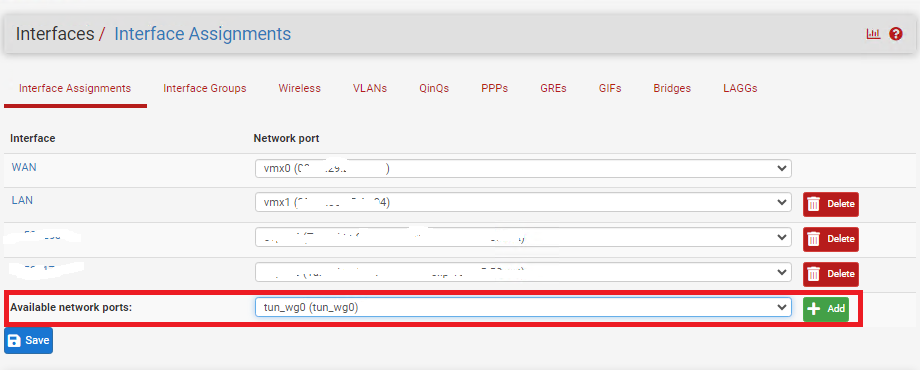
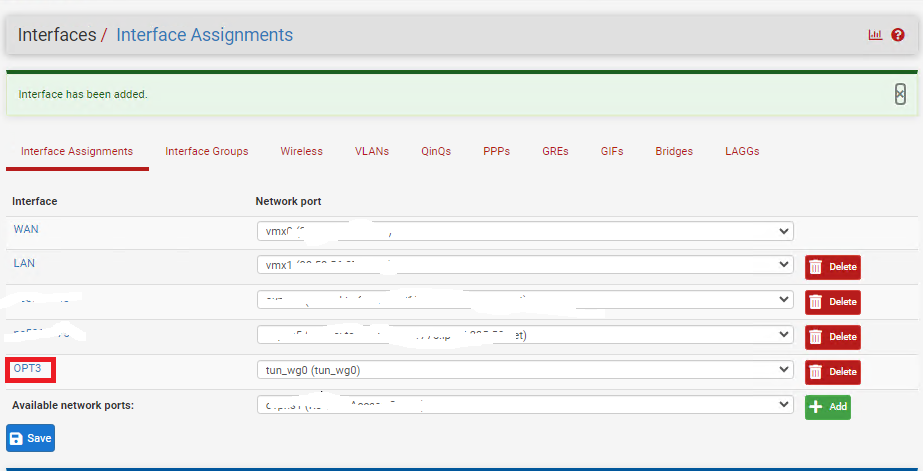
On **Site A**, navigate to **Interfaces ---> Assignments** and under **Available network ports** drop-down select the WireGuard tunnel you previously created and click the **Add** button (**Figure 11**).
**Figure 11**
[](https://docs.deeztek.com/uploads/images/gallery/2024-01/Ic2image.png)
Click on the new **OPT(X)** interface that was just created (**Figure 12**).
**Figure 12**
[](https://docs.deeztek.com/uploads/images/gallery/2024-01/z7rimage.png)
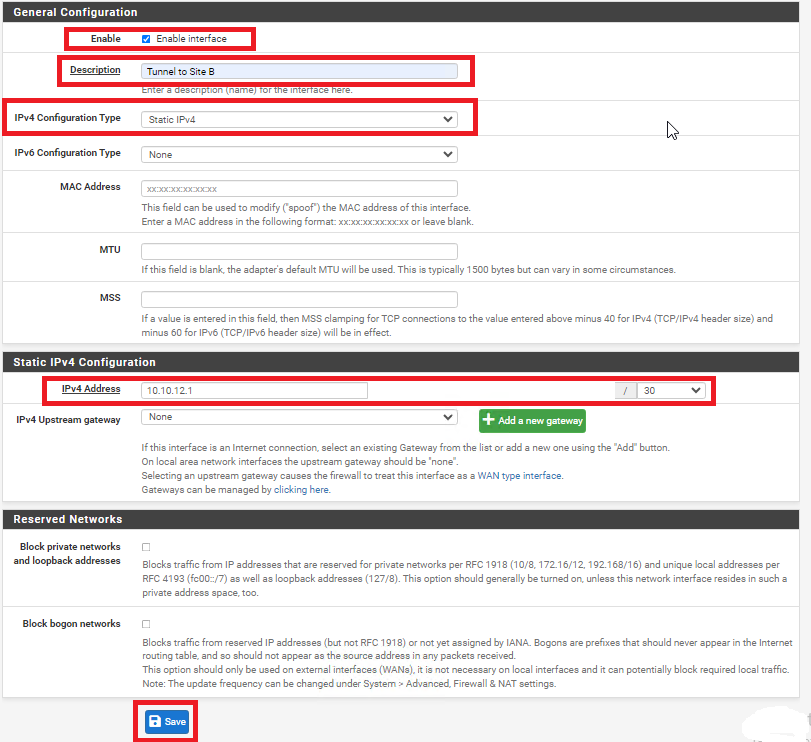
In the **General Configuration** page fill/set the following fields (**Figure 13**):
- **Enable:** Checked
- **Description:** Optionally, describe the purpose of this Interface (Ex: Tunnel to Site B)
- **IPv4 Configuration Type:** Static IPv4
- **IPv4 Address:** Enter an IP address for **Site A**. The IP address you enter here will be one of two possible IP addresses you can use from the /30 Tunnel Subnet you chose earlier. For this example, we used the Subnet Tunnel of **10.10.12.0/30** which gives us **10.10.12.1** and **10.10.12.2** as the only two usable IPs for this subnet. So, for this example we will use **10.10.12.1 for Site A**.
- Click the **Save** button and then click the **Apply Changes** button.
**Figure 13**
[](https://docs.deeztek.com/uploads/images/gallery/2024-01/yMOimage.png)
### Configure Interface for Site B
On **Site B**, navigate to **Interfaces ---> Assignments** and under **Available network ports** drop-down select the WireGuard tunnel you previously created and click the **Add** button (**Figure 14**).
**Figure 14**
[](https://docs.deeztek.com/uploads/images/gallery/2024-01/Ic2image.png)
Click on the new **OPT(X)** interface that was just created (**Figure 15**).
**Figure 15**
[](https://docs.deeztek.com/uploads/images/gallery/2024-01/z7rimage.png)
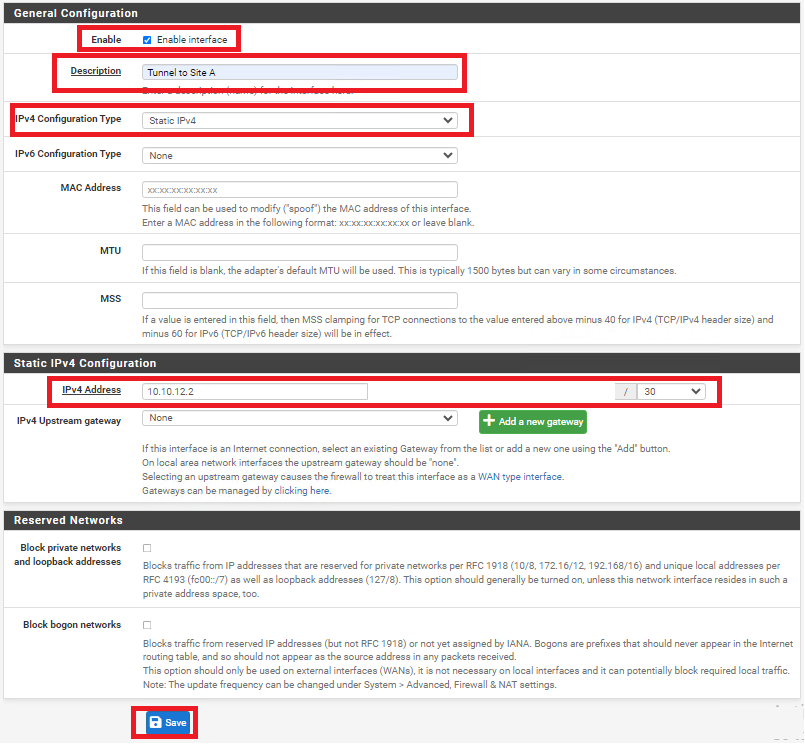
In the **General Configuration** page fill/set the following fields (**Figure 16**):
- **Enable:** Checked
- **Description:** Optionally, describe the purpose of this Interface (Ex: Tunnel to Site A)
- **IPv4 Configuration Type:** Static IPv4
- **IPv4 Address:** Enter an IP address for **Site B**. The IP address you enter here will be one of two possible IP addresses you can use from the /30 Tunnel Subnet you chose earlier. For this example, we used the Subnet Tunnel of **10.10.12.0/30** which gives us **10.10.12.1** and **10.10.12.2** as the only two usable IPs for this subnet. So, for this example we will use **10.10.12.2 for Site B**.
- Click the **Save** button and then click the **Apply Changes** button.
**Figure 16**
[](https://docs.deeztek.com/uploads/images/gallery/2024-01/q4jimage.png)
### Create Gateway and Route on Site A
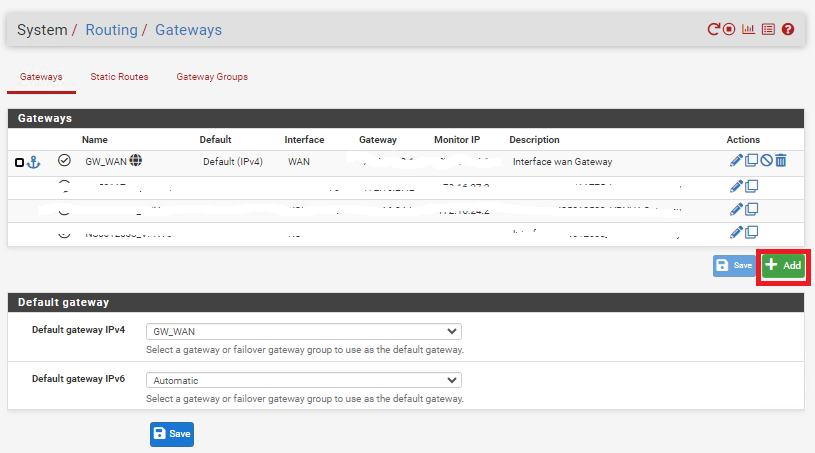
On **Site A** navigate to **System ---> Routing** and under the **Gateways** tab click the **Add** button (**Figure 17**).
**Figure 17**
[](https://docs.deeztek.com/uploads/images/gallery/2024-01/Kofimage.png)
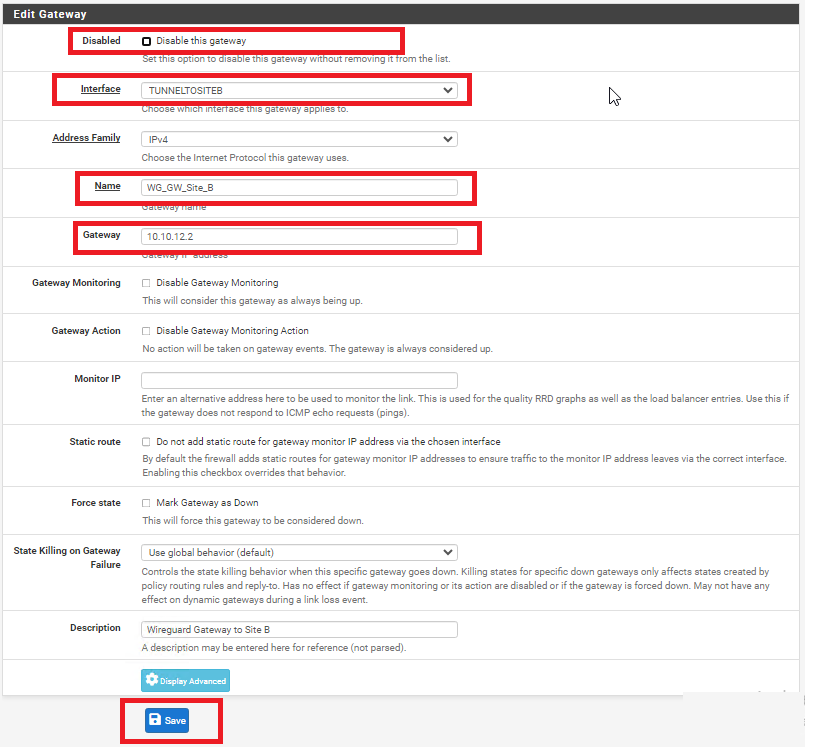
In the **Edit Gateway** page fill/set the following fields (**Figure 18**):
- **Disabled:** Unchecked
- **Interface:** Select the interface for **Site A** you created earlier
- **Name:** Enter a name for this gateway (Ex: WG\_GW\_Site\_B)
- **Gateway:** Enter the **Tunnel Subnet IP** address for **Site B**. For this example we used **10.10.12.2** for **Site B**.
- **Description:** Optionally, enter a description (Ex: Wireguard Gateway to Site B)
- Click the **Save** button and then click the **Apply Changes** button.
**Figure 18**
[](https://docs.deeztek.com/uploads/images/gallery/2024-01/mSvimage.png)
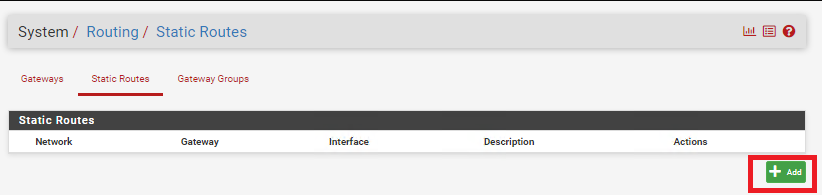
Next, on **Site A** navigate to **System ---> Routing** and under the **Static Routes** tab click the **Add** button (**Figure 19**).
**Figure 19**
[](https://docs.deeztek.com/uploads/images/gallery/2024-01/WGnimage.png)
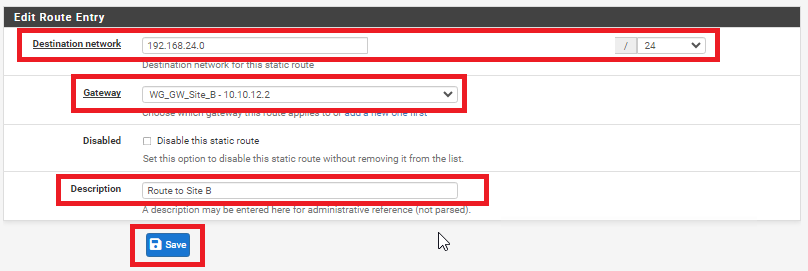
In the **Edit Route Entry** page, fill/set the following fields (**Figure 20**):
- **Destination network:** Enter the network subnet for **Site B** (**NOT the tunnel subnet**). In this example, the network subnet we used for Site B was **192.168.24.0/24**.
- **Gateway:** Select the Gateway to **Site B** you created earlier
- **Description:** Optionally, enter a description (Ex: Route to Site B)
- Click the **Save** button and then click the **Apply Changes** button.
**Figure 20**
[](https://docs.deeztek.com/uploads/images/gallery/2024-01/Rk5image.png)
### Create Gateway and Route on Site B
On **Site B** navigate to **System ---> Routing** and under the **Gateways** tab click the **Add** button (**Figure 21**).
**Figure 21**
[](https://docs.deeztek.com/uploads/images/gallery/2024-01/Kofimage.png)
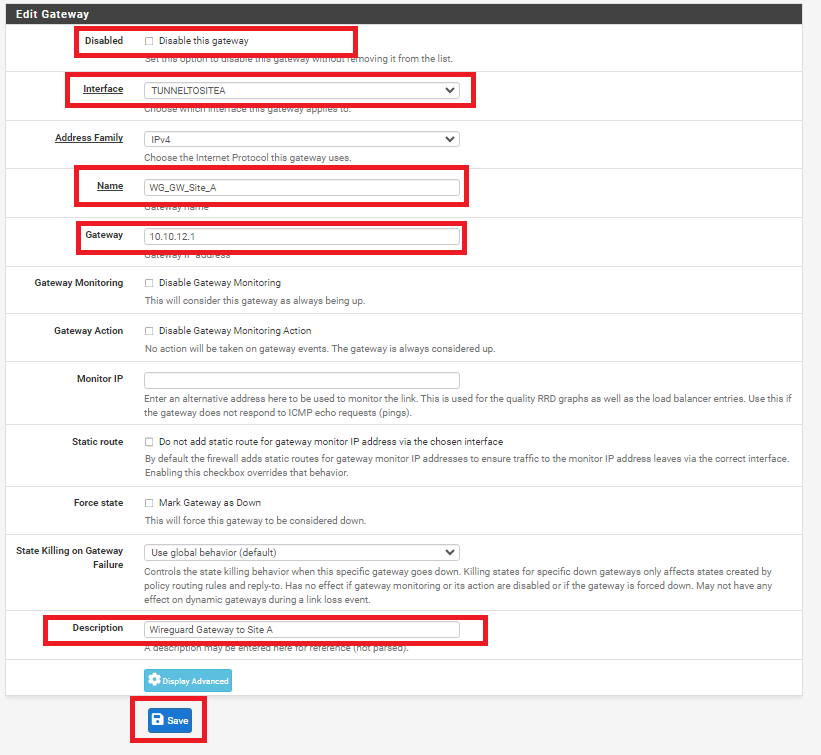
In the **Edit Gateway** page fill/set the following fields (**Figure 22**):
- **Disabled:** Unchecked
- **Interface:** Select the interface for **Site** **A** you created earlier
- **Name:** Enter a name for this gateway (Ex: WG\_GW\_Site\_A)
- **Gateway:** Enter the **Tunnel Subnet IP** address for **Site A**. For this example we used **10.10.12.1** for **Site A**.
- **Description:** Optionally, enter a description (Ex: Wireguard Gateway to Site A)
- Click the **Save** button and then click the **Apply Changes** button.
**Figure 22**
[](https://docs.deeztek.com/uploads/images/gallery/2024-01/io0image.png)
Next, on **Site B** navigate to **System ---> Routing** and under the **Static Routes** tab click the **Add** button (**Figure 23**).
**Figure 23**
[](https://docs.deeztek.com/uploads/images/gallery/2024-01/WGnimage.png)
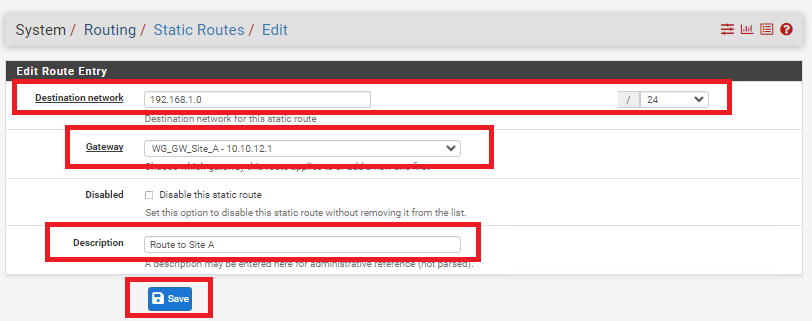
In the **Edit Route Entry** page, fill/set the following fields (**Figure 24**):
- **Destination network:** Enter the network subnet for **Site A** (**NOT the tunnel subnet**). In this example, the network subnet we used for **Site A** was **192.168.1.0/24**.
- **Gateway:** Select the Gateway to **Site A** you created earlier
- **Description:** Optionally, enter a description (Ex: Route to Site A)
- Click the **Save** button and then click the **Apply Changes** button.
**Figure 24**
[](https://docs.deeztek.com/uploads/images/gallery/2024-01/BQ4image.png)
### Add Firewall Rules on BOTH Firewalls
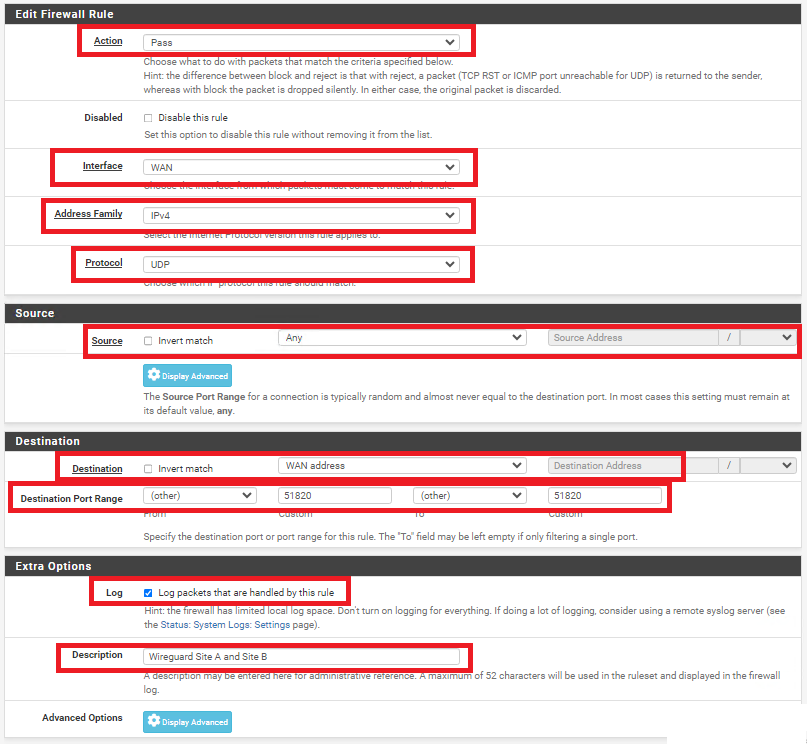
On **BOTH** firewalls, navigate to **Firewall ---> Rules** and under the **WAN** tab, click the **Add** button. In the **Edit Firewall Rule** page, fill/set the following fields (**Figure 25**).
- **Action:** Pass
- **Interface:** WAN
- **Address Family:** IPv4
- **Protocol:** UDP
- **Source:** Any
- **Destination:** WAN address
- **Destination Port Range:** (other) 51820 to (other) 51820
- **Log:** Optionally, check to Log packets that are handled by this rule
- **Description:** Optionally, enter a description (Ex: Wireguard Site A and Site B)
- Click the **Save** button and then click the **Apply Changes** button.
**Figure 25**
[](https://docs.deeztek.com/uploads/images/gallery/2024-01/azXimage.png)
On **BOTH** firewalls, navigate to **Firewall ---> Rules** and under the **TUNNELTOSITE(X)** tab, click the **Add** button. In the **Edit Firewall Rule** page, fill/set the following fields (**Figure 25**).
- **Action:** Pass
- **Interface:** Ensure the interface you created earlier for each site is already selected
- **Address Family:** IPv4
- **Protocol:** Any (Start with **Any** and then you can tighten the rules further after you ensure tunnel is working properly)
- **Source:** Any (Start with **Any** and then you can tighten the rules further after you ensure tunnel is working properly)
- **Destination:** Any (Start with **Any** and then you can tighten the rules further after you ensure tunnel is working properly)
- **Destination Port Range:** Any (Start with **Any** and then you can tighten the rules further after you ensure tunnel is working properly)
- **Log:** Optionally, check to Log packets that are handled by this rule
- **Description:** Optionally, enter a description (Ex: Wireguard Traffic Site A and Site B)
- Click the **Save** button and then click the **Apply Changes** button.
**Figure 25**
[](https://docs.deeztek.com/uploads/images/gallery/2024-01/azXimage.png)
### Check the Wireguard Status
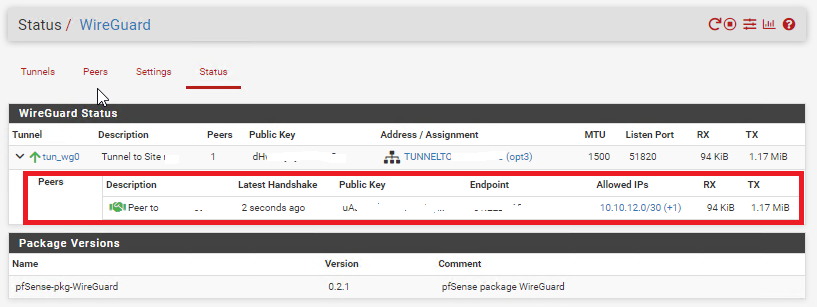
On **BOTH** firewalls navigate to **Status ---> Wireguard**, locate the WireGuard tunnel you created, expand it and ensure the Peers are connected on BOTH firewalls (**Figure 26**).
**Figure 26**
[](https://docs.deeztek.com/uploads/images/gallery/2024-01/VJ9image.png)
Additionally, ensure you can ping and access resources on each remote network from the corresponding site.