The system can ONLY release messages that are not archived. Messages that have been archived cannot be released. They can only be viewed and/or downloaded. You can easily see if a message has been archived by looking at the **Archived** column in the message listing. If it's set to **N**, then the message has NOT been archived thus it can be released. If it's set to **Y** then the message has been archived thus it cannot be released. It can only be viewed or downloaded (provided your administrator has allowed you the capability to download messages).
- Place a checkmark the message(s) you wish to release to your Mailbox (**Figure 1**). **Figure 1** [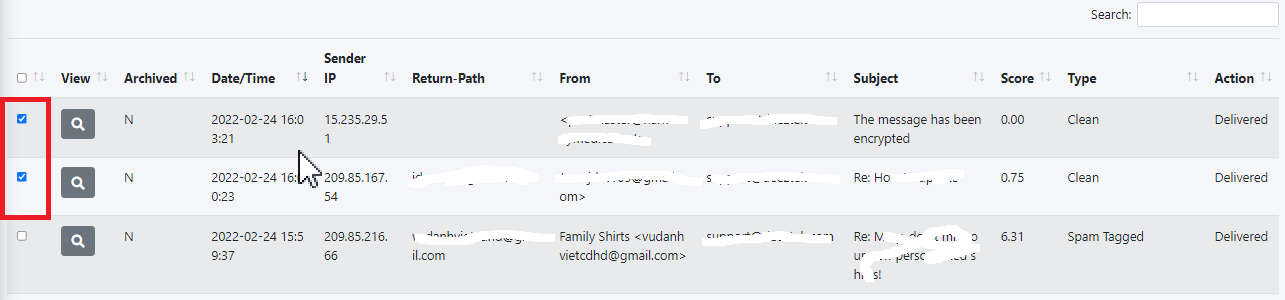](https://docs.deeztek.com/uploads/images/gallery/2022-02/image-1645805714539.png) - Click on the **Message Actions** button on the top-left and on the resultant **Message(s) Actions** window, select **Release Message(s) to Mailbox** in the **Action to Take** drop-down and click the **Submit** button (**Figure 2**): **Figure 2** [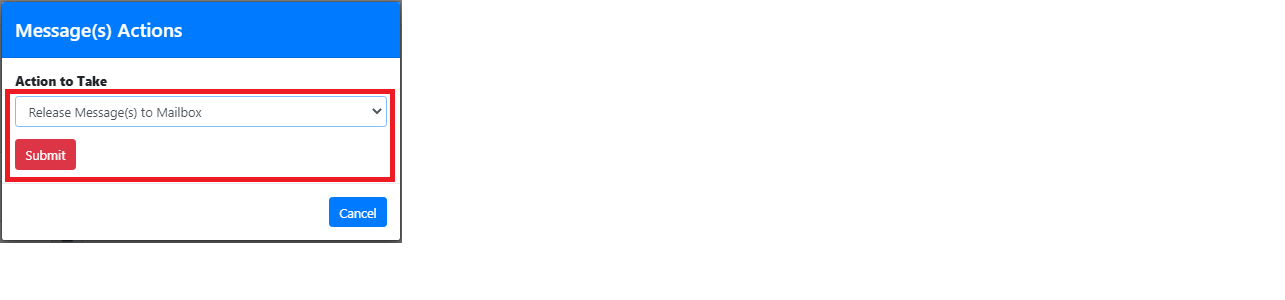](https://docs.deeztek.com/uploads/images/gallery/2022-02/image-1645805855285.png) #### Block & Allow SendersBlock/Allow rules should NOT be used as a method of spam control. Legitimate mass marketing email campaigns should be handled by unsubscribing from those campaigns.
Setting an action of ALLOW will only bypass the sender in the Spam filter. E-mails with banned files or malware will still be blocked. Only your Hermes SEG Administrator can set to allow for those types of e-mails.
- Place a checkmark the message(s) you wish to block/allow (**Figure 1**). **Figure 1** [](https://docs.deeztek.com/uploads/images/gallery/2022-02/image-1645805714539.png) - Click on the **Message Actions** button on the top-left and on the resultant **Message(s) Actions** window, select either **Block Sender** to block any future incoming e-mails or **Allow Sender** to allow any future incoming e-mails in the **Action to Take** drop-down and click the **Submit** button (**Figure 2**): **Figure 2** [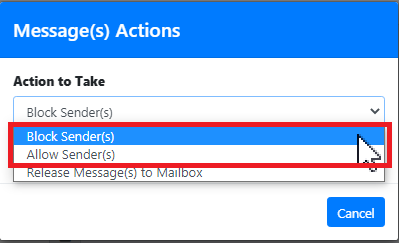](https://docs.deeztek.com/uploads/images/gallery/2022-02/image-1645806285270.png) - This will automatically create rules with either a Block or Allow action under the **Sender Filters** section using the the email address displayed in the **Return-Path** column as the Sender.Most marketing/spam email campaigns will auto generate the **From** email address each time they send out emails. An auto generated email address will look similar to the example below:
``` d-3-2492042-40004013-2-1-us2-c2bf84fa@aflac-onlineservices.com ``` In this example, each time an email goes out from this email campaign, the string before the **@** (d-3-2492042-40004013-2-1-us2-c2bf84fa) will always be different while the domain string after the **@** (aflac-onlineservices.com) will remain the same. Therefore, creating a block/allow rule using the **Return-Path** email address is pointless since the Block/Allow rule you previously created will not fire next time an email from this marketing campaign gets received since the string before the **@** will be different. In these cases, it's recommended to navigate to the **Sender Filters** part of the documentation and follow the instructions under the **Add Domain** section in order to create a rule by using the domain string after the **@** (aflac-onlineservices.com). #### Train the Bayes DatabaseThe ability to Train the Bayes Database is disabled by default and can only be enabled and available for your use if your system Administrator has enabled it for your e-mail address.
NEVER use legitimate mass marketing emails to train the Bayes Database as Spam. Inversely, you should NEVER use spam emails to train the Bayes Database as non-spam. These actions will corrupt the Bayes Database and lead to the system misidentifying spam and non-spam emails. Additionally, you should avoid training the Bayes Database with forwarded spam emails.
- Place a checkmark the message(s) you wish to train the Bayes Database with (**Figure 1**). **Figure 1** [](https://docs.deeztek.com/uploads/images/gallery/2022-02/image-1645805714539.png) - Click on the **Message Actions** button on the top-left and on the resultant **Message(s) Actions** window, select either **Train As Spam, Train as Ham** or **Remove Message(s) Previous Training** to train the Bayes database as desired in the **Action to Take** drop-down and click the **Submit** button (**Figure 2**): **Figure 2** [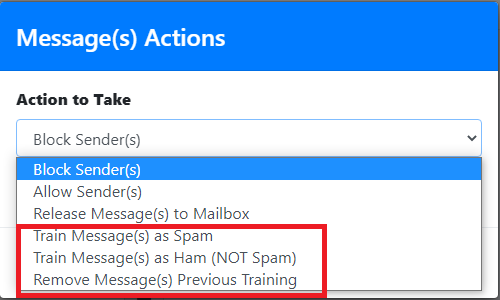](https://docs.deeztek.com/uploads/images/gallery/2022-02/image-1645811215294.png) #### View & Download Email MessagesWhen viewing messages, links and other malicious content is NOT disabled. Ensure you exercise proper caution to prevent any infection on your computer.
- Click on the [ ](https://docs.deeztek.com/uploads/images/gallery/2022-02/image-1645811413165.png)icon of the message you wish to view and/or download**.** You will be redirected to the **View Message** page (**Figure 1**): **Figure 1** [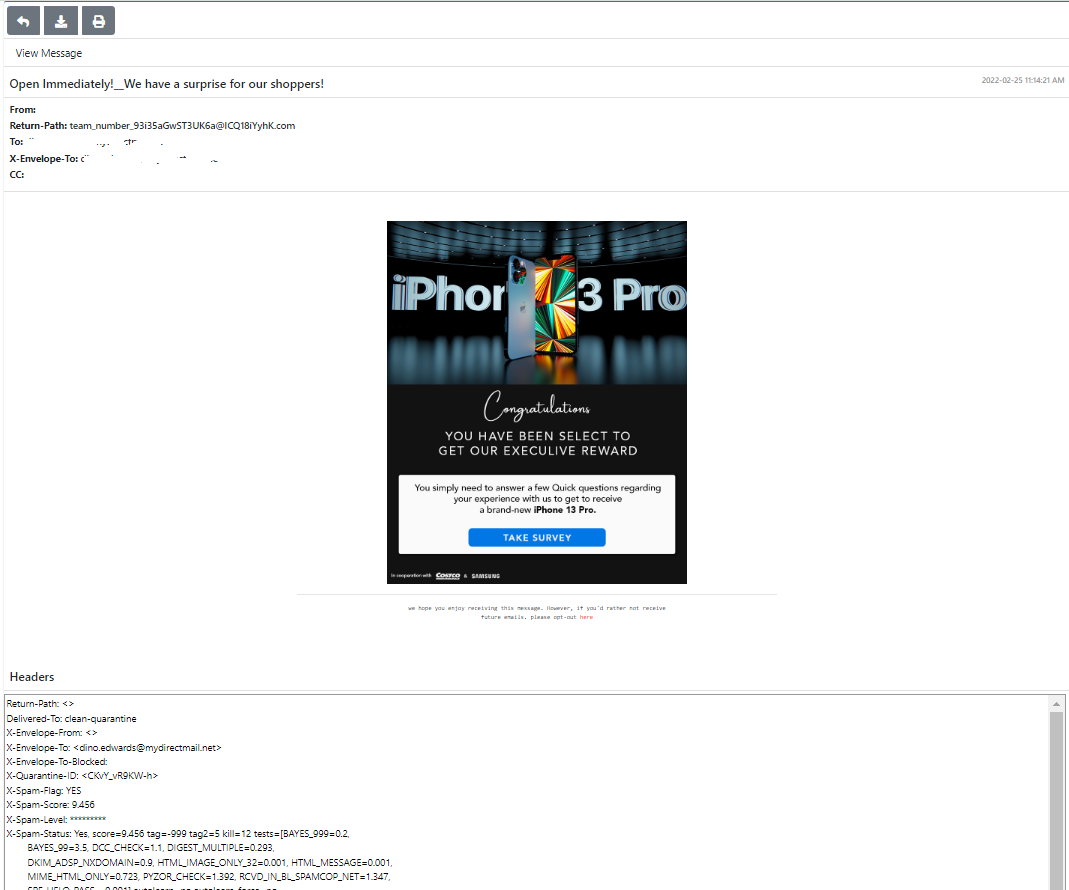](https://docs.deeztek.com/uploads/images/gallery/2022-02/image-1645812128777.png) - Click the  button to return to the Message History - If your system Administrator has enabled it, click on the [ ](https://docs.deeztek.com/uploads/images/gallery/2022-02/image-1645812059166.png)button to download the message to your computer as .eml file - Click on the [ ](https://docs.deeztek.com/uploads/images/gallery/2022-02/image-1645812090124.png)button to print the message.