**This is a MAJOR update that introduces many breaking changes.** This update will install and configure Nginx HTTP server which will enable the Admin and User Consoles to be accessible over Ports **80** and **443** in lieu of Apache HTTP sever over port 9080.
This update will install new packages from the Ubuntu repositories. Ensure your appliance has access to the Internet before proceeding.
It's important to understand that after this update is installed, Hermes SEG wil no longer be accessible over port 9080. You must instead access Hermes SEG over port 80 and 443. You must adjust any port forwards you may have in your firewall from port 9080 to port 80 and 443 and completely disable access to port 9080.
When the update has finished installing, it will prompt you to reboot your system. The normal method of going to **System --> System Reboot & Shutdown** will not work for this update. You must instead reboot your system by using the command console and typing the following command:
```
sudo reboot
```
After the system reboots, you must access the Hermes SEG Admin console by using the following address where **<SYSTEM\_IP>** is your system IP address (Do NOT use port 9080):
```
https:///admin/
```
This update will reset the admin system account password back to **ChangeMe2!**. After rebooting your system, you must login with the username of **admin** and the password of **ChangeMe2!**.
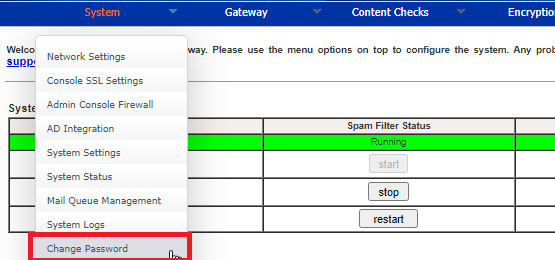
Change the password by navigating to **System --> Change Password** (**Figure 1**):
**Figure 1**
[](https://docs.deeztek.com/uploads/images/gallery/2021-11/image-1638013606382.png)
In the **Change System Admin Password** screen, click the link to use the **2.0 interface** (**Figure 2**):
**Figure 2**
[](https://docs.deeztek.com/uploads/images/gallery/2021-11/image-1638013706740.png)
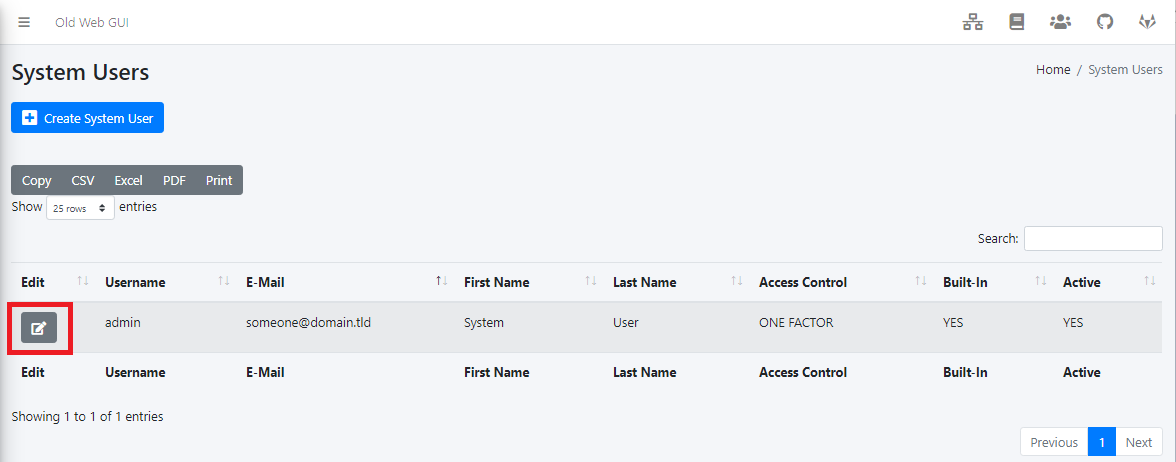
In the **System Users** screen, click the **Edit** button for the **admin** account (**Figure 3**):
**Figure 3**
[](https://docs.deeztek.com/uploads/images/gallery/2021-11/image-1638013812374.png)
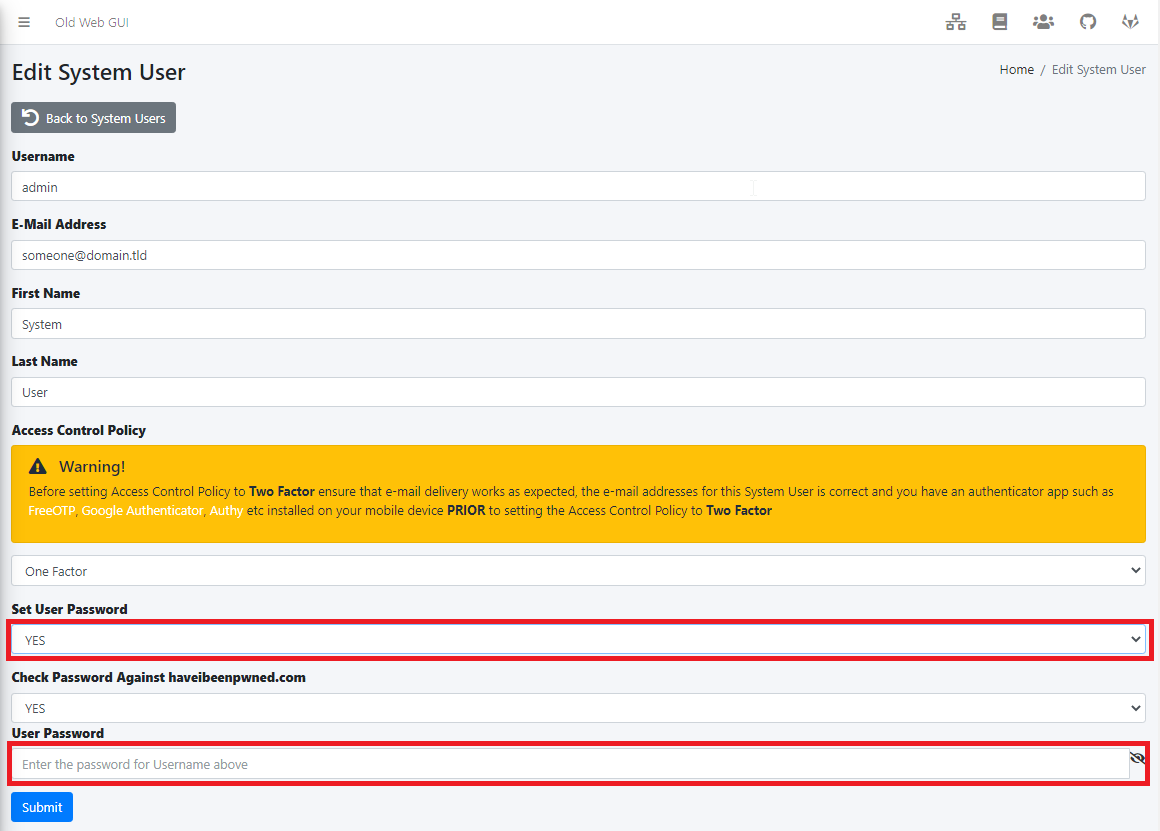
In the **Edit System User** screen set the **Set User Password** drop-down to **YES**, enter a new password in the **User Password** field and click the **Submit** button (**Figure 4**):
**Figure 4**
[](https://docs.deeztek.com/uploads/images/gallery/2021-11/image-1638013922364.png)
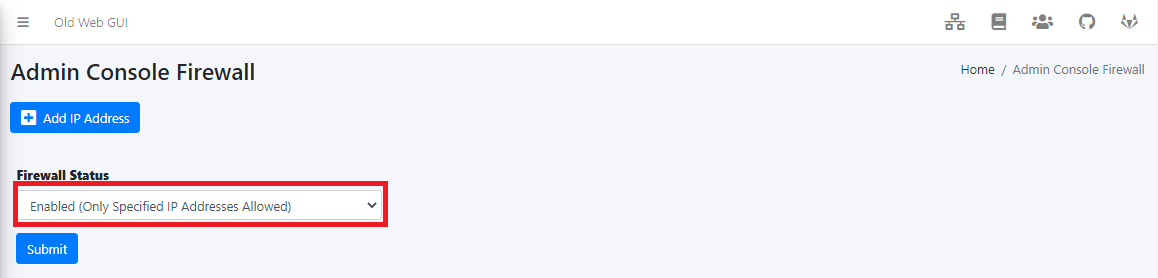
This update will disable the **Admin Console Firewall**. Re-enable the firewall by navigating to **System --> Admin Console Firewall**, set the **Firewall Status** drop-down to **Enabled** and click the **Submit** button (**Figure 5**):
**Figure 5**
[](https://docs.deeztek.com/uploads/images/gallery/2021-11/image-1638014121756.png)
You must edit the **Secure Portal address** and remove the port 9080 from the URL. Click on the **Old Web GUI** link on top of the page (**Figure 6**):
**Figure 6**
[](https://docs.deeztek.com/uploads/images/gallery/2021-11/image-1638014219315.png)
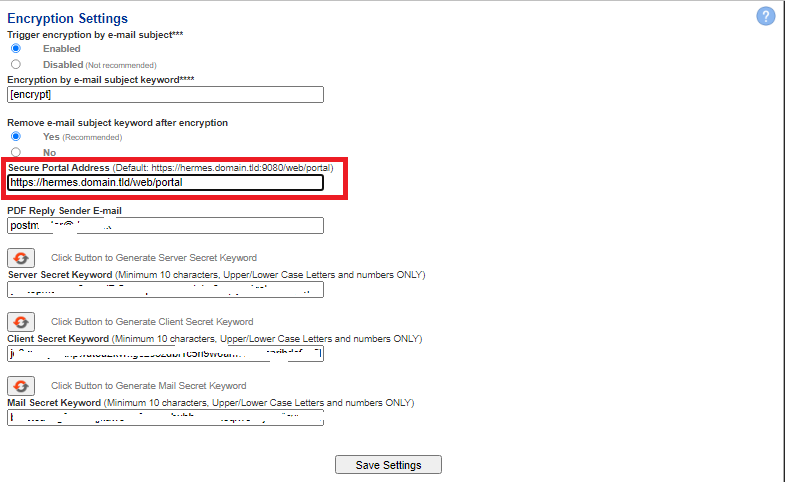
In the Old Web GUI, navigate to **Encryption --> Encryption Settings** under the **Secure Portal Address** field, remove the port number part. For example, if you had the following Secure Portal Address:
```
https://hermes.domain.tld:9080/web/portal
```
Remove the **:9080** from it so it looks like below:
```
https://hermes.domain.tld/web/portal
```
Click the **Save Settings** button and after settings are saved, click the **Apply Settings** button (**Figure 6**):
**Figure 6**
[](https://docs.deeztek.com/uploads/images/gallery/2021-11/image-1638014360114.png)
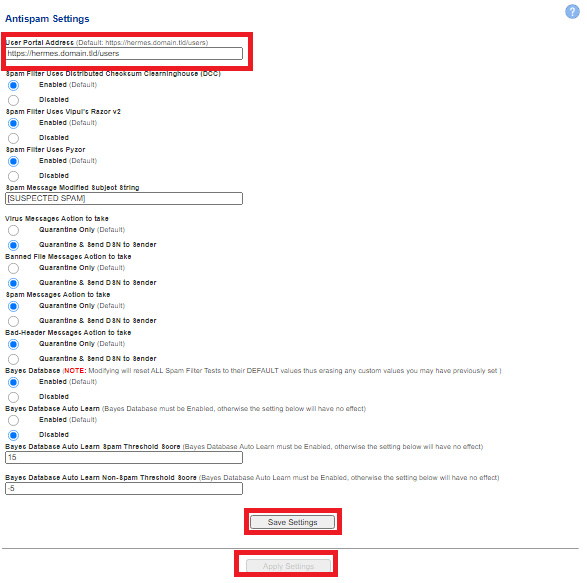
In the Old Web GUI, navigate to **Content Checks --> Antispam Settings** under the **User Portal Address** field, remove the port number part. For example, if you had the following Secure Portal Address:
```
https://hermes.domain.tld:9080/users
```
Remove the **:9080** from it so it looks like below:
```
https://hermes.domain.tld/users
```
Click the **Save Settings** button and after settings are saved, click the **Apply Settings** button (**Figure 7**):
**Figure 7**
[](https://docs.deeztek.com/uploads/images/gallery/2021-12/image-1638641236303.png)
We highly recommend that you enable 2FA for the admin account by going to **System --> System Users** and setting the **Access Control Policy** to **Two Factor** and enrolling your mobile device.
We highly recommend that you remove the Apache2 package by going to a console prompt and typing the following command:
```
sudo apt remove apache2 && sudo apt autoremove
```