# System Certificates

<span class="text-4505230f--HeadingH600-23f228db--textContentFamily-49a318e1">Hermes SEG allows you to manage SSL certificates in order to be used for console access over HTTPS as well as SMTP TLS transactions.</span>

##### <span class="text-4505230f--HeadingH600-23f228db--textContentFamily-49a318e1">Hermes SEG Community Version</span>

<span class="text-4505230f--HeadingH600-23f228db--textContentFamily-49a318e1">Hermes SEG Community Version will allow you to create Certificate Signing Requests to submit to 3rd party CAs and import certificates from 3rd party CAs.</span>

- <span class="text-4505230f--HeadingH600-23f228db--textContentFamily-49a318e1">Click the **Import Certificate** button, enter a friendly name for the certificate in the **Certificate Name** field, paste the contents of the certificate including the **-----BEGIN CERTIFICATE----- &amp; -----END CERTIFICATE-----** lines in the **Certificate** field, paste the contents of the unencrypted key including the **-----BEGIN PRIVATE KEY----- &amp; -----END PRIVATE KEY-----** lines in the **Unencrypted Key** field, paste the contents of the root and Intermediate CA certificates including the **-----BEGIN CERTIFICATE----- &amp; -----END CERTIFICATE-----** lines in the **Root and Intermediate CA Certificates** field and click the **Import** button (**Figure 3**):</span>

**<span class="text-4505230f--HeadingH600-23f228db--textContentFamily-49a318e1">Figure 3</span>**

[![image-1642889433326.png](https://docs.deeztek.com/uploads/images/gallery/2022-01/scaled-1680-/image-1642889433326.png)](https://docs.deeztek.com/uploads/images/gallery/2022-01/image-1642889433326.png)

##### <span class="text-4505230f--HeadingH600-23f228db--textContentFamily-49a318e1">Hermes SEG Pro Version</span>

<span class="text-4505230f--HeadingH600-23f228db--textContentFamily-49a318e1">Hermes SEG Pro Version will allow you to create Certificate Signing Requests to submit to 3rd party CAs, import certificates from 3rd party CAs as well as Request Lets Encrypt (Acme) Certificates.</span>

<span class="text-4505230f--HeadingH600-23f228db--textContentFamily-49a318e1">If you wish to import a 3rd party CA certificate, please follow the Hermes SEG Community instructions above to import a certificate. If you wish to request a Lets Encrypt (Acme) certificate, follow the instructions below:</span>

<p class="callout warning">Before requesting **Acme Certificates** ensure that **BOTH** ports **TCP 80** and **TCP 443** are open to Hermes SEG from the Internet and the domain you are requesting the certificate is pointing to the Internet accessible IP address of your Hermes SEG machine. We recommend that you test using the **Acme Staging** server first to ensure the request works before attempting to use **Acme Production**. The reason we initially **Request Acme Certificate** utilizing the **Acme Staging** server is because Lets Encrypt is much more lenient with rate limits with failed requests in their staging environment than their production environment, click [here](https://letsencrypt.org/docs/staging-environment/) for details.</p>

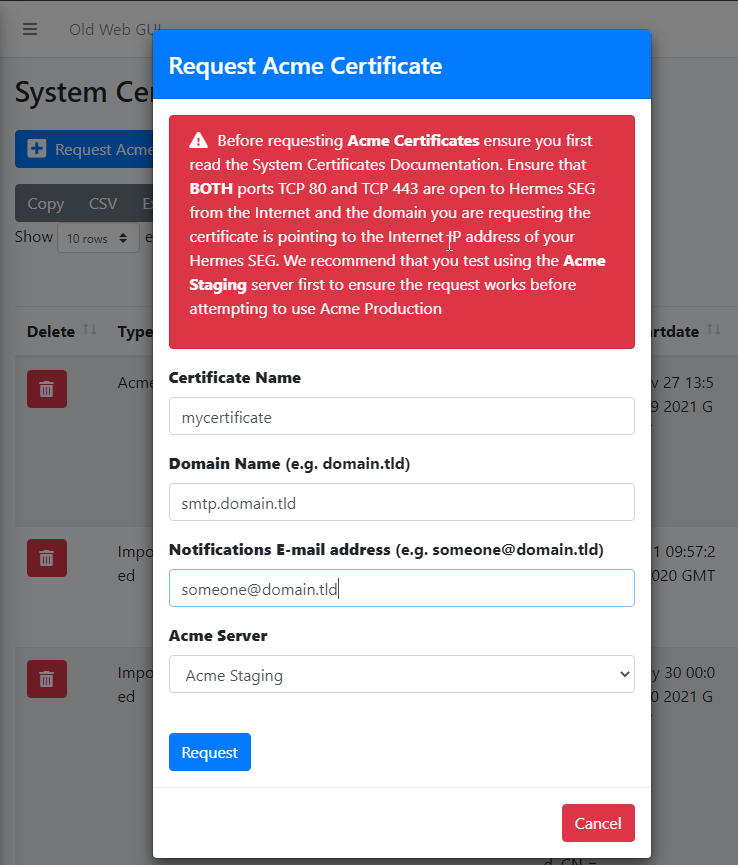
- <span class="text-4505230f--HeadingH600-23f228db--textContentFamily-49a318e1">Click the **Request Acme Certificate** button, enter a friendly name in the **Certificate Name** field, enter the FQDN (domain name) you wish to request a certificate, enter a valid e-mail address in the **Notifications E-mail address** field, leave the **Acme Server** drop-down field set to **Acme Staging** and click the **Request** button (**Figure 4**):</span>

**<span class="text-4505230f--HeadingH600-23f228db--textContentFamily-49a318e1">Figure 4</span>**

[![image-1642890261401.png](https://docs.deeztek.com/uploads/images/gallery/2022-01/scaled-1680-/image-1642890261401.png)](https://docs.deeztek.com/uploads/images/gallery/2022-01/image-1642890261401.png)

- If the Acme Certificate Request fails, double-check that the FQDN (domain name) points to the Internet accessible IP of your Hermes SEG machine and that BOTH ports TCP/80 (HTTP) and TCP/443 (HTTPS) are allowed through your firewall and try again.
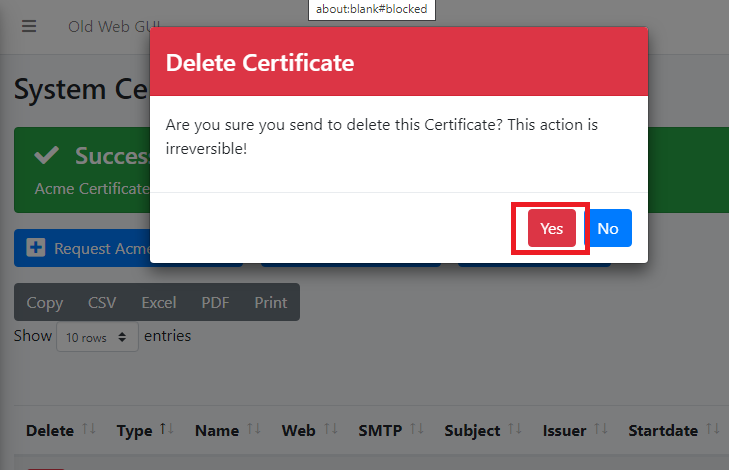
- If the Acme Certificate Request succeeds, locate the newly created certificate in your certificate list, click the [![image-1642946754752.png](https://docs.deeztek.com/uploads/images/gallery/2022-01/scaled-1680-/image-1642946754752.png) ](https://docs.deeztek.com/uploads/images/gallery/2022-01/image-1642946754752.png)icon and on the resultant **Delete Certificate** confirmation click on **Yes** (**Figure 5**):

**Figure 5**

[![image-1642946921688.png](https://docs.deeztek.com/uploads/images/gallery/2022-01/scaled-1680-/image-1642946921688.png)](https://docs.deeztek.com/uploads/images/gallery/2022-01/image-1642946921688.png)
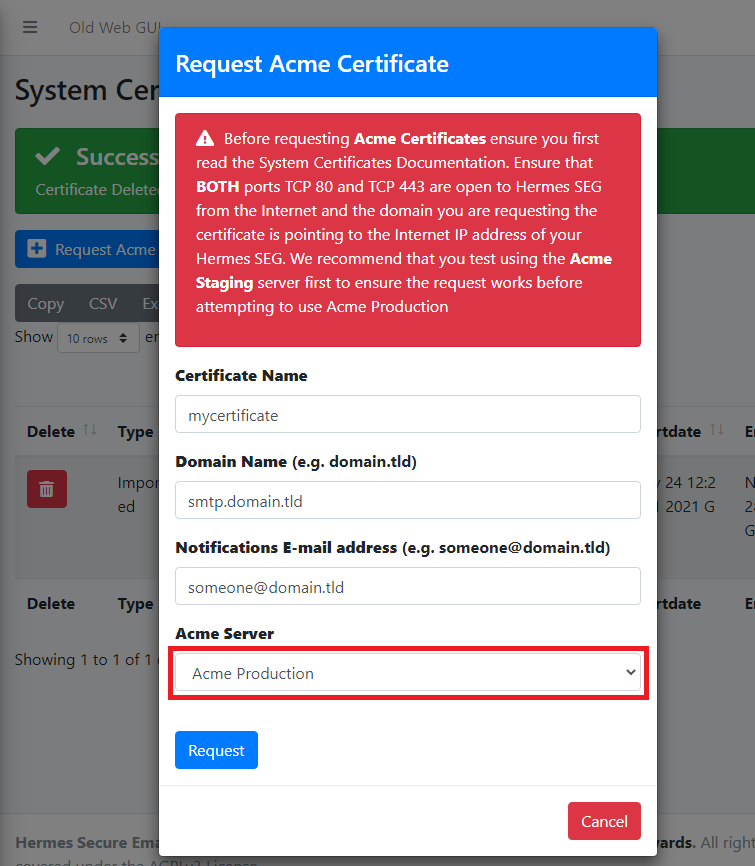
- <span class="text-4505230f--HeadingH600-23f228db--textContentFamily-49a318e1">Click the **Request Acme Certificate** button again, enter a friendly name in the **Certificate Name** field, enter the FQDN (domain name) you wish to request a certificate, enter a valid e-mail address in the **Notifications E-mail address** field, this time set the **Acme Server** drop-down field set to **Acme Production** and click the **Request** button (**Figure 6**):</span>

**Figure 6**

[![image-1642947557037.png](https://docs.deeztek.com/uploads/images/gallery/2022-01/scaled-1680-/image-1642947557037.png)](https://docs.deeztek.com/uploads/images/gallery/2022-01/image-1642947557037.png)