# SMTP TLS Settings

<span class="text-4505230f--TextH400-3033861f--textContentFamily-49a318e1"><span data-key="8f51b9a4d09342f0a6ea18bb9392bbb7">It's important to set SMTP TLS in order to transmit e-mail messages between your Hermes SEG machine and other e-mail servers with TLS encryption.</span></span>

By default, SMTP TLS support in Hermes SEG is disabled. In this section you can enable Hermes SEG TLS support as well as associate the SSL certificate you previously imported or requested.

Hermes SEG supports two SMTP TLS methods:

##### Opportunistic TLS

In this mode, any time a remote SMTP server makes a connection, Hermes SEG announces that it supports STARTTLS, however it does not require TLS encryption. This mode, is the recommended mode if you need TLS encryption.

##### Mandatory TLS

In this mode, any time a remote SMTP server makes a connection, Hermes SEG announces STARTTLS and it will NOT accept email without TLS encryption. **This mode should NEVER be used on a public Internet facing Hermes SEG**.

<p class="callout warning"><span class="text-4505230f--TextH400-3033861f--textContentFamily-49a318e1"><span data-key="8f51b9a4d09342f0a6ea18bb9392bbb7">Before you can set **SMTP TLS**, you must first have either imported or requested a SSL Certificate in the **System --&gt;** **System Certificates** section for the **Hostname** and **Primary Domain Name** you set in the **System --&gt;** **Network Settings**.</span></span></p>

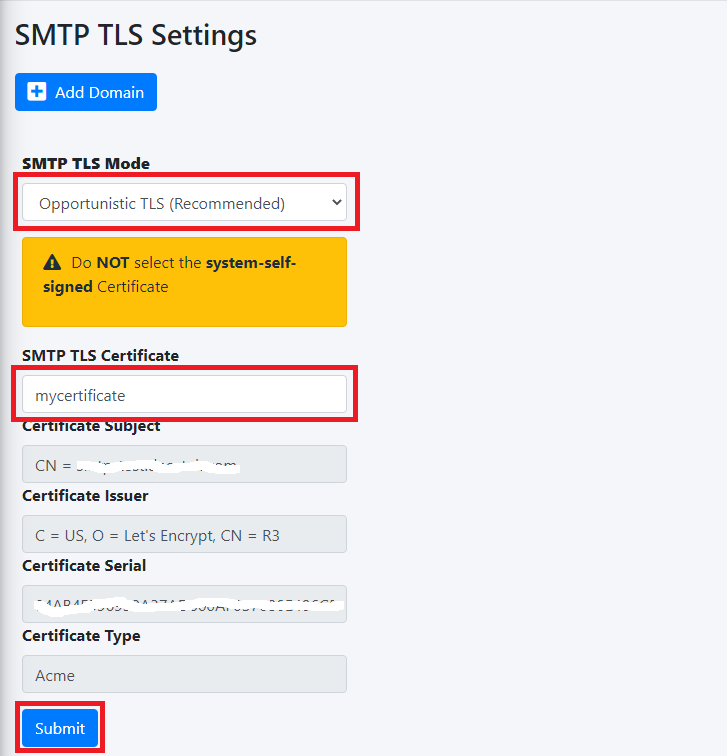
- <span class="text-4505230f--TextH400-3033861f--textContentFamily-49a318e1"><span data-key="ab0764b3b1d84182947eca5a041b31ed">Set the **SMTP TLS Mode** drop-down to **Opportunistic TLS or** or **Mandatory TLS** as required.</span></span>
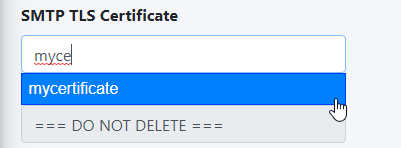
- <span class="text-4505230f--TextH400-3033861f--textContentFamily-49a318e1"><span data-key="096c15462e454ebfa025f1595af9b44c">The **SMTP TLS Certificate** field is pre-populated with the **system-self-signed** certificate. If you wish to use a SSL certificate you set in the **System Certificates** section above, simply delete the **system-self-signed** entry and start typing the friendly name of the certificate you setup previously that matches the **Hostname** and **Primary domain Name** you set in the **Network Settings**. The system will locate the certificate and display it in a drop-down list. Click on the certificate and the system will automatically populate all the rest of the Certificate fields such as the Subject, Issuer, Serial and Type (**Figure 1**):</span></span>

**<span class="text-4505230f--TextH400-3033861f--textContentFamily-49a318e1">Figure 1</span>**

[![image-1642971499398.png](https://docs.deeztek.com/uploads/images/gallery/2022-01/scaled-1680-/image-1642971499398.png)](https://docs.deeztek.com/uploads/images/gallery/2022-01/image-1642971499398.png)

- Click the **Submit** button (**Figure 2**):

**Figure 2**

[![image-1642971616360.png](https://docs.deeztek.com/uploads/images/gallery/2022-01/scaled-1680-/image-1642971616360.png)](https://docs.deeztek.com/uploads/images/gallery/2022-01/image-1642971616360.png)
#### Verify TLS Encryption and Certificate

The easiest way to verify whether or not your Hermes SEG TLS encryption is working correcly as well as verify the certificates you installed, is to go to [https://www.checktls.com/TestReceiver](https://www.checktls.com/TestReceiver) and run the TestReceiver test.

#### TLS Encryption Policies 

Hermes SEG allows you to create a policy to force TLS encryption when sending/receiving email from specific remote domains. TLS encryption along with S/MIME, PDF or PGP encryption will allow for the absolute best security.

- Before attempting to force TLS encryption for a specific remote domain, you must first ensure that the remote domain's SMTP hosts are able to support TLS encryption.
- Send a test email to a recipient on the remote domain.
- Navigate to **System --&gt; System Logs**.
- In the **Simple Search** section, under the **Search Text** field, enter the email address of the recipient and press the **Go** button.
- In the search results, look for a line similar to the one below where **smtp.remotedomain.tld** is the remote smtp server hostname:

```
1872E41D60: to=<someone@domain.tld>, relay=server.remotedomain.tld[75.xxx.xxx.xxx]:25, delay=0.52, delays=0.05/0/0.17/0.29, dsn=2.0.0, status=sent (250 2.0.0 Ok: queued as 46C274158E)</someone@domain.tld>
```

- Next, again in the **Simple Search** section, under the **Search Text** field, enter the following string and press the **Go** button where **server.remotedomain.tld** is the smtp server hostname from above:

<div id="bkmrk-host-offered-starttl"><div><div><div>```
Host offered STARTTLS: [server.remotedomain.tld]
```

</div></div>- If you find **Host offered STARTTLS** for the hostname you searched in the logs then it's pretty safe to assume that the remote smtp server support TLS encryption and you can proceed with adding the remote domain.  
    <svg height="16" viewbox="0 0 24 24" width="16" xmlns="http://www.w3.org/2000/svg"></svg>
- Click the **Add Domain** button and in the resultant window, enter the remote domain in the **Domain** field (if you add a "." in front of the domain, it will encompass the primary domain and any subdomains. **Example: .remote.domain.tld**), enter a note for your own use in the **Note** field and click the **Submit** button (**Figure 3**):

</div></div>**Figure 3**

[![image-1643043011869.png](https://docs.deeztek.com/uploads/images/gallery/2022-01/scaled-1680-/image-1643043011869.png)](https://docs.deeztek.com/uploads/images/gallery/2022-01/image-1643043011869.png)