# Network Settings

In this section you can setup the Hermes SEG network settings such as Hostname, IP address, Subnet, DNS and gateway. It's highly recommended that the Network Mode be set to Static.

<p class="callout warning">The <span class="text-4505230f--TextH400-3033861f--textContentFamily-49a318e1"><span data-key="b0bd4f00d4694029871fd117f4c78bee">The **Host Name** and **Primary Domain Name** you set in this section is used for SMTP transactions such as SMTP TLS as well as system functions such as OS hostname.</span></span></p>

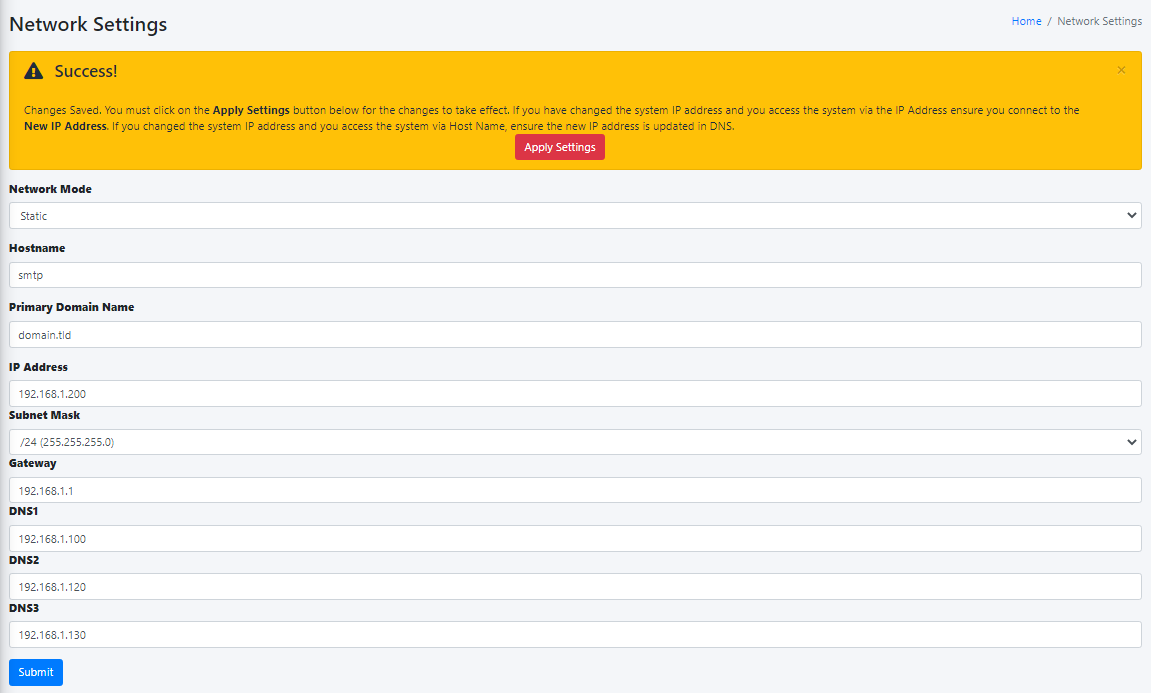
- <span class="text-4505230f--TextH400-3033861f--textContentFamily-49a318e1"><span data-key="79037f5dcdb641a9a2c74d4a74ecb2cd">Set the **Network Mode** drop-down to **Static**.</span></span>
- <span class="text-4505230f--TextH400-3033861f--textContentFamily-49a318e1"><span data-key="096c15462e454ebfa025f1595af9b44c">Fill in the **Host Name** field. Ensure you enter only the name without the domain part. For example, if the FQDN of your Hermes SEG appliance is going to be **smtp.domain.tld**, then in the **Host Name** field you will simply enter **smtp** without the domain part.</span></span>
- <span class="text-4505230f--TextH400-3033861f--textContentFamily-49a318e1"><span data-key="35188e1218b34b3f922bcf105bd55876">Fill in the **Primary Domain Name** field. For example, if the FQDN of your Hermes SEG appliance is going to be **smtp.domain.tld**, then in the **Primary Domain Name** field you will simply enter **domain.tld**.</span></span>
- <span class="text-4505230f--TextH400-3033861f--textContentFamily-49a318e1"><span data-key="c501027b0ab54012841aa192feeb42a7">Fill in the Hermes SEG appliance **IP Address**, select the appropriate **Subnet Mask** for your network, fill in the **Gateway** and **DNS1**. If applicable, fill in **DNS2** and **DNS3** fields.</span></span>
- <span class="text-4505230f--TextH400-3033861f--textContentFamily-49a318e1"><span data-key="fdea44ae6d284dcb8beb3f61b821267c">Click on the **Submit** button. Once the settings are saved, they will not take effect until you click on the **Apply Settings** button.</span></span>
- <span class="text-4505230f--TextH400-3033861f--textContentFamily-49a318e1"><span data-key="edd0f5829f2b488d8b16eaad279e6c79">Click on the **Apply Settings** button (**Figure 1**).</span></span>

**<span class="text-4505230f--TextH400-3033861f--textContentFamily-49a318e1">Figure 1</span>**

[![image-1638453135015.png](https://docs.deeztek.com/uploads/images/gallery/2021-12/scaled-1680-/image-1638453135015.png)](https://docs.deeztek.com/uploads/images/gallery/2021-12/image-1638453135015.png)

<div id="bkmrk-"><div><svg class="svg-icon" data-icon="link" role="presentation" viewbox="0 0 24 24" xmlns="http://www.w3.org/2000/svg"></svg></div></div>- <span class="text-4505230f--TextH400-3033861f--textContentFamily-49a318e1"><span data-key="d3cf415022604f778c5b31503850b196">If you changed Hermes SEG IP Address, your browser will most likely time out. Remember, to access the Hermes SEG Administrator Console Web GUI at </span>[https://&lt;NEW\_IP\_ADDRESS/admin/](https://%3Cnew_ip_address/admin/)<span data-key="585d359dbc8d4263b0d35f53cb7524de"> where is the **&lt;NEW\_IP\_ADDRESS&gt;** is the IP you set above.</span></span>