Please note that if you generate a new Storage Encryption Key, it will break authentication for System Users that utilize 2FA devices.
Before generating a new Storage Encryption Key, ensure you first delete any 2FA devices for each System User by navigating to **System --> System Users --> Edit,** click the **Delete 2FA Devices** button in the **Edit System User** page and set the **Access Control Policy** to **One Factor**. After generating a new Storage Encryption Key, you can go back and set the **Access Control Policy** to **Two Factor** and have the users re-register their 2FA authentication devices. (**Figure 3**). **Figure 3** [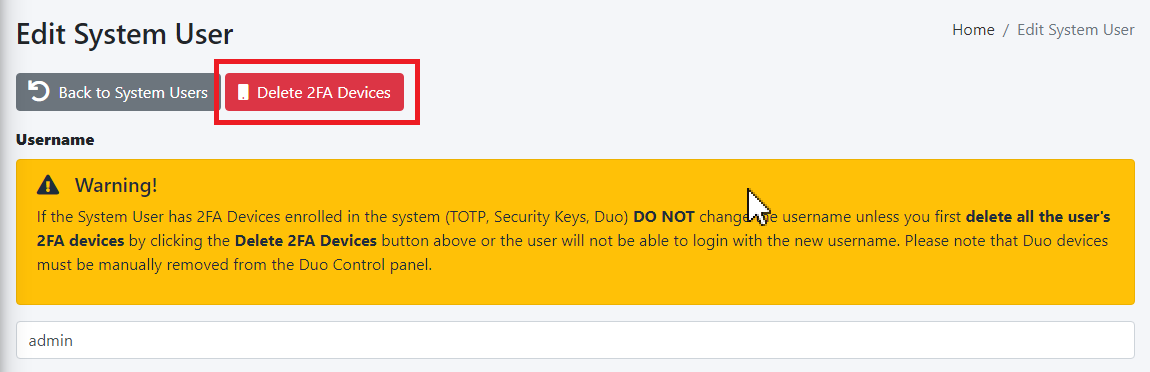](https://docs.deeztek.com/uploads/images/gallery/2023-06/y1cimage.png) [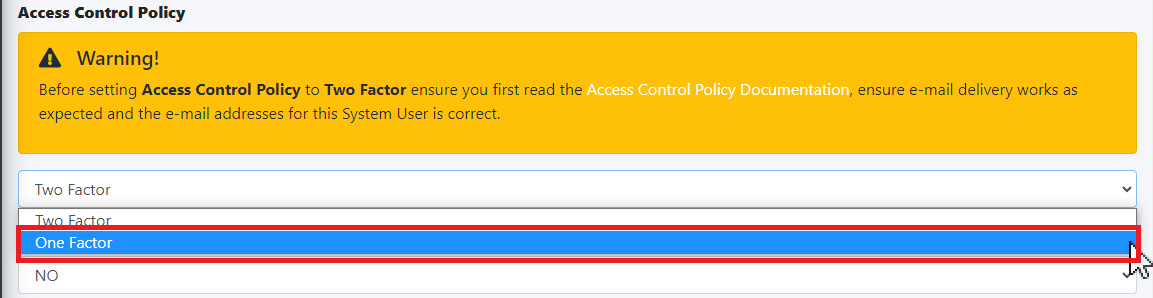](https://docs.deeztek.com/uploads/images/gallery/2023-06/0tsimage.png) #### Reset Password Function The **Reset Password Function** field allows to you switch between **Enable** (Default) which enables the **Reset password** link and functionality in the **Sign in** screen and **Disable** which disables the link and functionality in the **Sign in** screen (**Figure 2**). The **Reset Password Function** only works if the System Users have valid e-mail addresses assigned to them. E-mail addresses can be assigned to System Users by navigating to **System --> System Users**. **Figure 2** [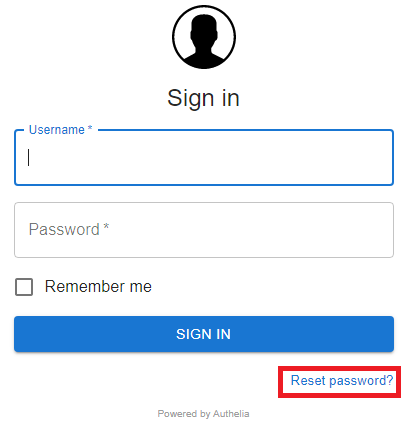](https://docs.deeztek.com/uploads/images/gallery/2021-10/image-1635455903437.png) #### Session Name The Session Name field specified the name of the session cookie which by default it's set to hermes\_session. It's usually not necessary to change this field. If you with to change it, it must be an alphanumeric string with undescores (\_) or dashes (-) in the name. #### Session Secret The Session Secret field is a string that is used to encrypt session data with Redis. Hermes SEG randomly generates a 20-character alphanumeric string at the time of installation. It's usually not necessary to change this field. However, if you wish to change it, click the [](https://docs.deeztek.com/uploads/images/gallery/2021-11/image-1637357351697.png) button and the system will generate a new one (**Figure 3**). **Figure 3** [](https://docs.deeztek.com/uploads/images/gallery/2021-11/image-1637357708269.png) If you wish to generate your own, Hermes SEG will accept a **minimum 12-character** and a **maximum 20-character** alphanumeric string only. #### Session Expiration The **Session Expiration** field specifies the amount of time (in seconds) before the cookie expires and the session is destroyed. By default it's set to **3600** (1 Hour). This can be overridden by clicking on the **Remember me** checkbox on the **Sign in** screen (**Figure 4**). **Figure 4** [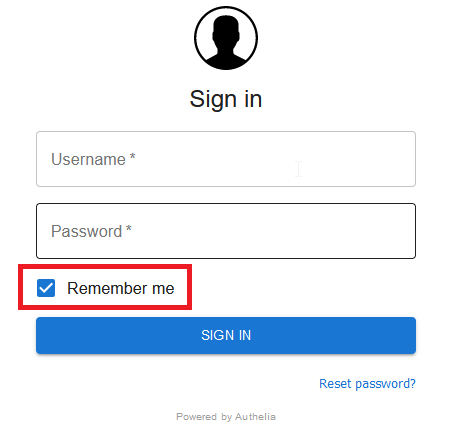](https://docs.deeztek.com/uploads/images/gallery/2021-10/image-1635456643671.png) #### Session Inactivity The **Session Inactivity** field specifies the amount of time (in seconds) the user can be inactive before the session is destroyed. By default it's set to **3600** (1 Hour). #### SMTP Host The **SMTP Host** field specifies the IP/Host Name of the e-mail server that Authelia will use to send out various notifications such password resets, 2FA notifications etc. By default it's set to the Hermes SEG appliance loopback address **\[127.0.0.1\]**. It's normally not necessary to change this field. #### SMTP Port The **SMTP Port** field specifies the port number of the e-mail server that Authelia will use to send out various notifications such password resets, 2FA notifications etc. By default it's set to the Hermes SEG internal port **10026**. It's normally not necessary to change this field. #### SMTP From Address The **SMTP From Address** field is the e-mail address that Authelia will use to send out various notifications such password resets, 2FA notifications etc. It should be set to a valid e-mail address for a domain Hermes SEG relays. #### SMTP E-mail Subject The **SMTP E-mail Subject** field specifies the subject format all Authelia outgoing e-mails will have. By default it's set to **\[Hermes SEG\] {title\]**. The **{title}** is a variable authelia uses for various functions and should be left intact. #### No of Login Failures Before User is Banned The **No of Login Failures Before User is Banned** field specified how many times a system user is allowed to fail authentication before that user is banned and not able to login. By default it's set to **5**. #### Time Between Failed Logins The **Time Between Failed Logins** field specifies the period of time (in seconds) Authelia will search for failed login attempts to count them as failed logins before banning a user. By default it's set to **120** (2 minutes). #### Banned Time The **Banned Time** field specifies the amount of time (in seconds) a user will be banned after failing authentication. By default it's set to **300** (5 minutes). #### Log Level The **Log Level** field specifies the log level used by Authelia. It can be set to **Trace, Debug, Info, Warn or Error**. Setting the Log Level to Trace will expose the **/debug/vars** and **/debug/pprof** endpoints which should never be enabled unless absolutely necessary during troubleshooting. By default it's set to **Debug**. #### Log Format The **Log Format** field specified the log type used by Authelia. It can be set to **JSON** or **Text**. By default it's set to **Text**. #### Duo Security Duo Security allows you to configure 2FA utilizing Duo mobile push. By default, Duo Security is set to disabled. In order to enable and configure Duo Security you must have an existing Duo account. If you don't already have one, you can easily set one up for free at [https://www.duo.com](https://www.duo.com). - In your Duo **Dashboard**, click on on **Applications --> Protect an Application** (**Figure 5**). **Figure 5** [](https://docs.deeztek.com/uploads/images/gallery/2023-06/zW9image.png) - In the **Protect an Application** screen, search for "partner auth api" and then click on the **Protect** button (**Figure 6**). **Figure 6** [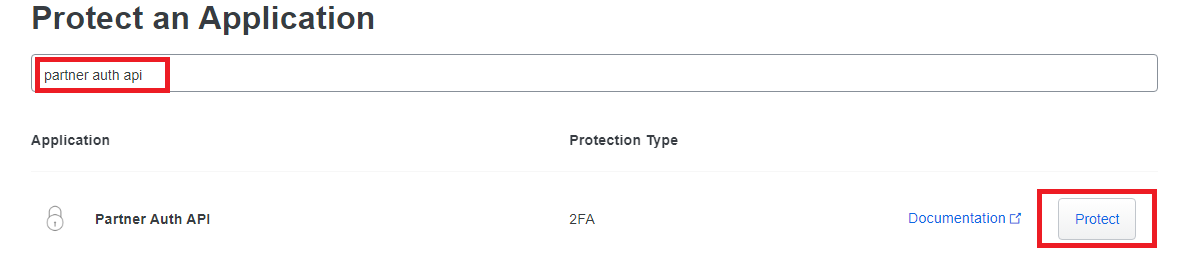](https://docs.deeztek.com/uploads/images/gallery/2023-06/jcuimage.png) - In the **Partner Auth API** screen in the **Details** section, take a note of the Integration key, Secret key and the API hostname (**Figure 7**). **Figure 7** [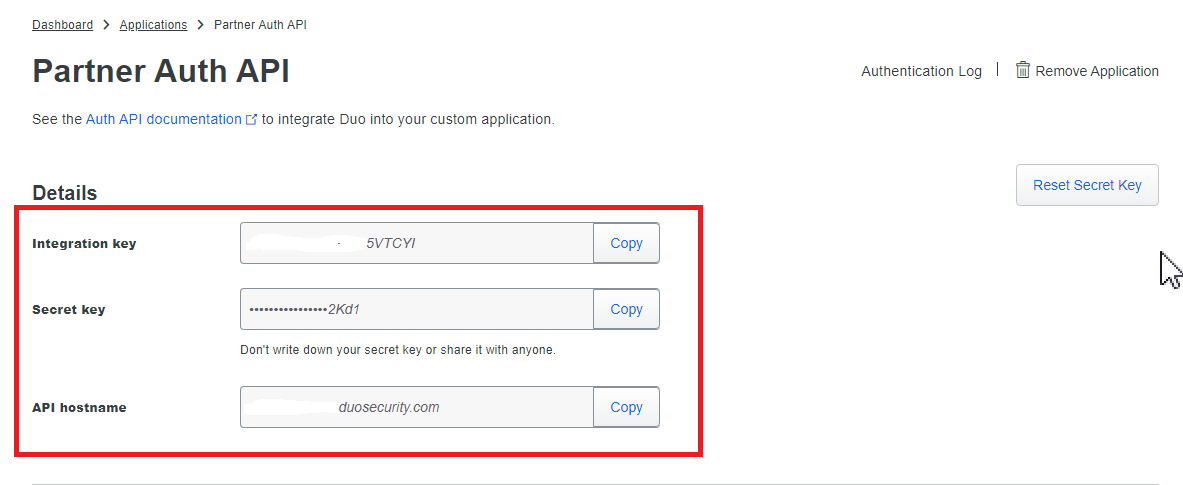](https://docs.deeztek.com/uploads/images/gallery/2023-06/x0uimage.png) - In the **Partner Auth API** screen in the **Settings** section, change the Name field to **Hermes SEG** or whatever name makes sense to you and click the Save button (**Figure 8**). **Figure 8** [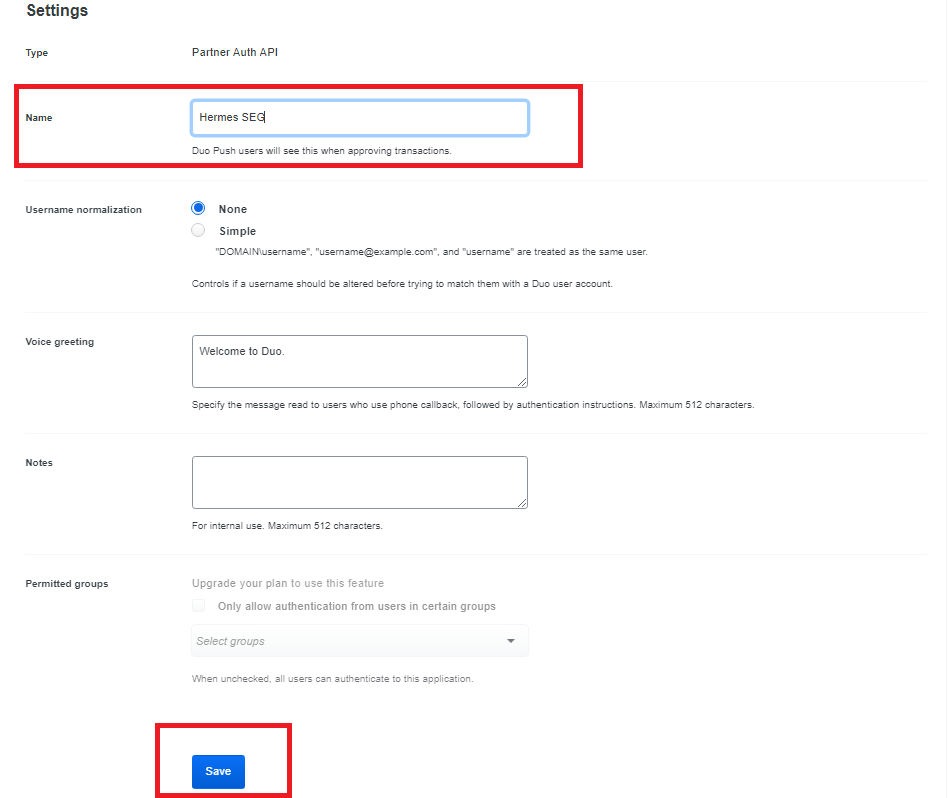](https://docs.deeztek.com/uploads/images/gallery/2023-06/Qmaimage.png) - In your Duo **Dashboard**, click on on **Users --> Add User** (**Figure 9**). **Figure 9** [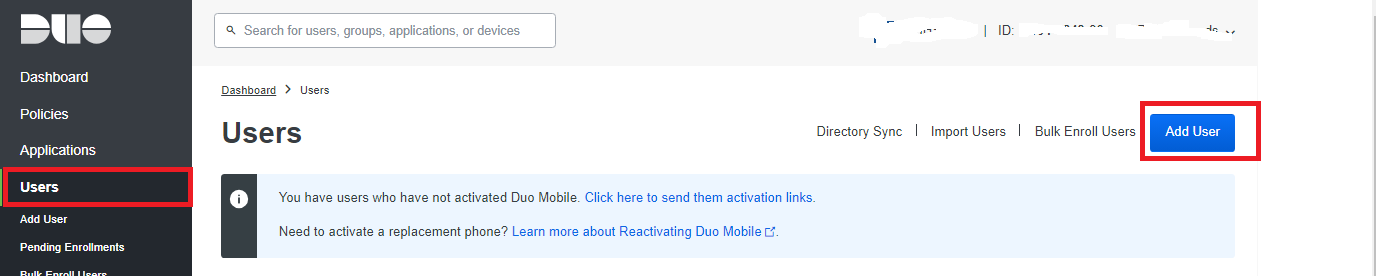](https://docs.deeztek.com/uploads/images/gallery/2023-06/KWfimage.png) - In the **Add User** screen, in the **Username** field, ensure you add a username that matches a system user username that's **already added** in the Hermes SEG **Admin Console --> System -->** **System User** and has **TWO FACTOR** authentication enabled and click the **Add User** button. (**Figure 10** and **Figure 11**). **Figure 10** [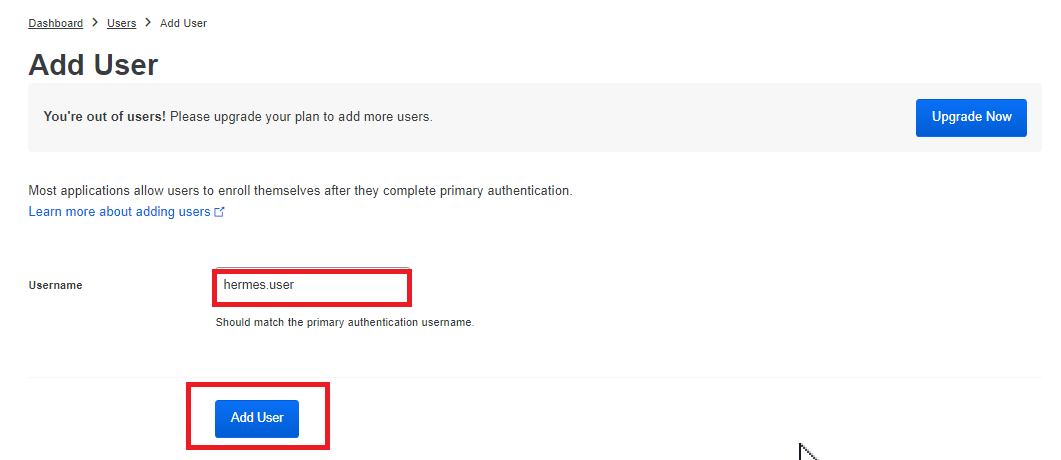](https://docs.deeztek.com/uploads/images/gallery/2023-06/dbqimage.png) **Figure 11** [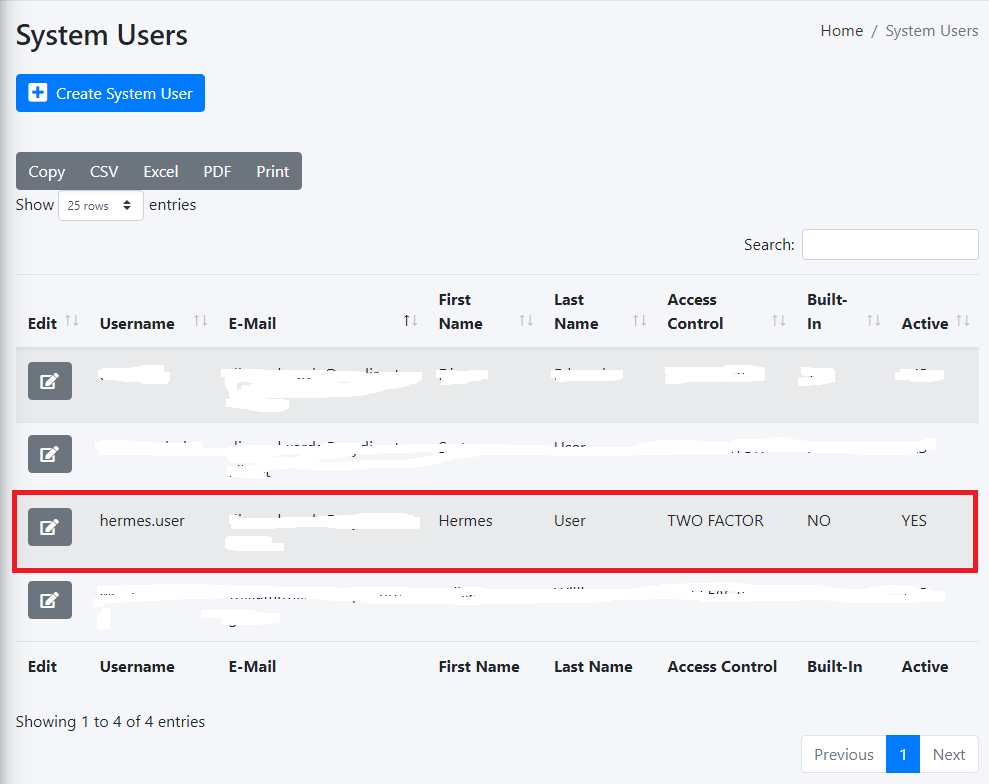](https://docs.deeztek.com/uploads/images/gallery/2023-06/yN4image.png) - In the Hermes SEG Admin Console, navigate back to **System --> Admin Authentication**, toggle the **Duo Security** drop-down from Disabled to **Enabled** and in the fill in the **Duo Hostname, Duo Integration Key, Duo Secret Key** with the values you got from the Duo Dashboard earlier, leave the **Duo Self-Enrollment** drop-down to **Enabled** (Recommended) and click the **Submit** button (**Figure 11**).If you set the **Duo Self Enrollment** drop-down to **Disabled** then your user's 2FA device must be already pre-enrolled in the Duo Dashboard. This guide does not cover that process.
**Figure 11** [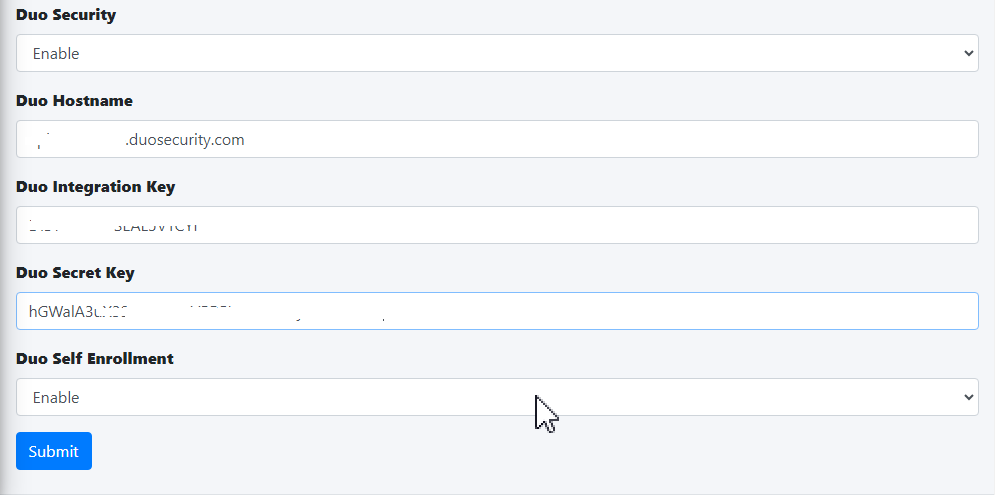](https://docs.deeztek.com/uploads/images/gallery/2023-06/6Llimage.png) - If this is your first time logging into Hermes SEG, 2FA defaults to TOTP (Timed One-Time Password). In order to utilize Duo Security ensure you have already installed on your device the **Duo Mobile** app from your Google Play store or Apple App Store and click on the **METHODS** link in the **One-Time Password** screen. (**Figure 12**). **Figure 12** [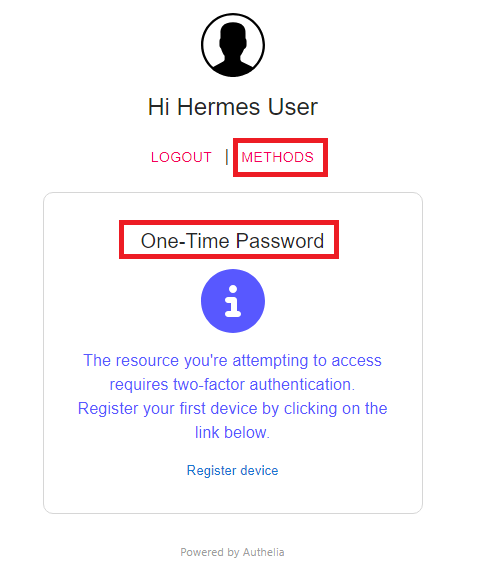](https://docs.deeztek.com/uploads/images/gallery/2023-06/vkrimage.png) - On the following screen, click on the **PUSH NOTIFICATION** button (**Figure 13**). **Figure 13** [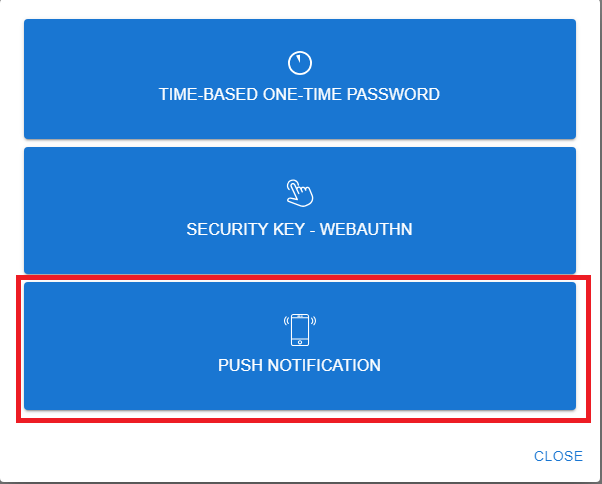](https://docs.deeztek.com/uploads/images/gallery/2023-06/euSimage.png) - On the **Push Notification** screen, click on the **Register device** link (**Figure 14**). **Figure 14** [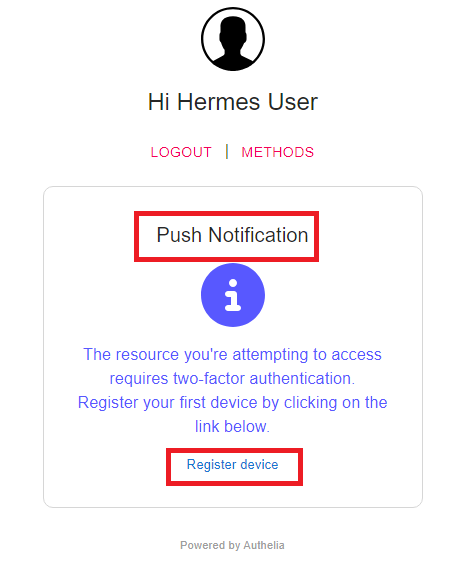](https://docs.deeztek.com/uploads/images/gallery/2023-06/Ahmimage.png) - Your browser will be redirected to the Duo Security self enrollment portal. Click the **Next** button until you reach the **Select an option** screen and select the **Duo Mobile** option and proceed to enroll you device as instructed. (**Figure 15**). **Figure 15** [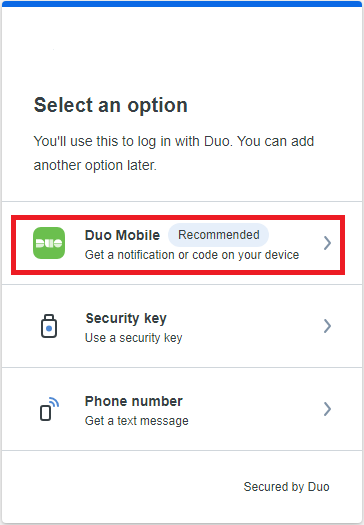](https://docs.deeztek.com/uploads/images/gallery/2023-06/9vmimage.png) - Once you have successfully enrolled your device with Duo, go back to the Hermes SEG Admin Console login screen, logout and re-login and if everything was setup correctly you should get a push notification on your device and upon approval you should be able to successfully login to Hermes SEG Admin Console.