**NOTE: This feature is only available with Hermes SEG Pro License.**
Hermes SEG requires a listing of **Internal Recipients** in order to process incoming email and deliver that email to the correct recipient mailboxes located on an email server(s) that are specified under the **Gateway --> Relay Domains** part of the system. Hermes SEG allows you to connect to Active Directory in order to automatically import the SMTP email addresses of your Active Directory users without having to manually input each one. The system will create Internal Recipients from each SMTP address it imports automatically. The import process can also be set to run at a scheduled interval so user additions or deletions will automatically be handled by Hermes SEG without manual intervention. In order to import Internal Recipients via Active Directory you must first create an AD connection. - Click the **Create Connection** button on top of the page (**Figure 1**) **Figure 1** [](https://docs.deeztek.com/uploads/images/gallery/2021-10/image-1634654352652.png) - Under the **Connection Name** field, enter a descriptive name for the connection - Under the **Domain Controller** field, enter the IP or the FQDN of a domain controller or simply enter the FQDN of your domain so you don't bind the connection to just one domain controller. - Under the **Distinguished Name** field, enter the DN of the recipients locations, or you can simply enter the DN of the entire domain. For example, if your domain is east.domain.tld, your DN should be DC=east, DC=domain, DC=tld. Ask your Administrator if you have any questions - Under the **Object Class** drop-down field, select **user, organizationalPerson, person or top** depending on the **objectClass** you wish to use to filter your AD users - Under the **Netbios Domain Name** enter your domain Netbios name. For example, if your domain is domain.tld, your netbios domain could simply be DOMAIN. Ask your Administrator if you have any questions - Under the **Domain User Username** field enter a username that has access to enumerate user objects in your domain - Under the **Domain User Password** field, enter the password for the username that has access to enumerate user objects in your domain - If you wish to schedule the automatic import of Internal Recipients on a specified interval, ensure you select **Yes** from the **Schedule SMTP Address Import** **from AD** drop-down, select the interval form the **Schedule Import Frequency** drop-down and click the **Submit** button (**Figure 2**) **Figure 2** [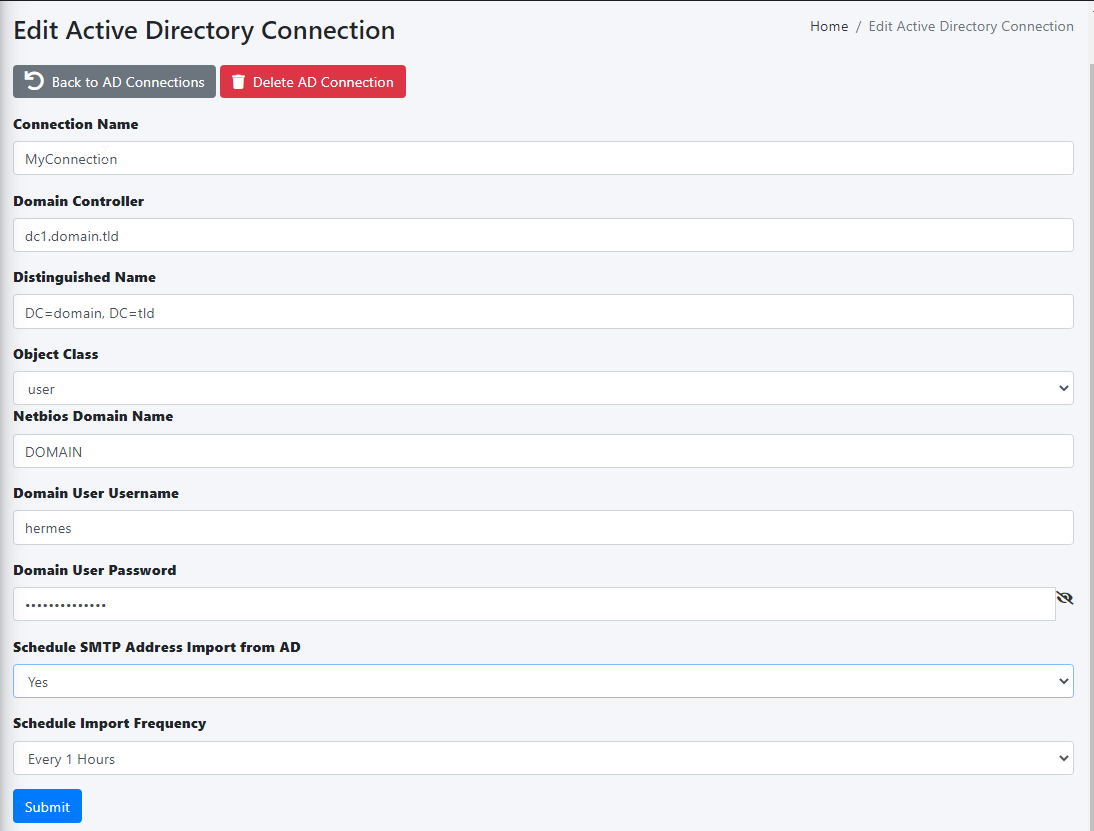](https://docs.deeztek.com/uploads/images/gallery/2021-10/image-1634655085483.png) If you entered the correct information, you will get a **Success!** **Changes saved** message on top of the page, otherwise you will get a specific error message on top of the page depending on the error encountered (**Figure 3**) **Figure 3** [](https://docs.deeztek.com/uploads/images/gallery/2021-10/image-1634655278674.png) Click on the **Back to AD Connections** button and back in the **AD Integration** page, you should see the newly created AD connection (**Figure 4**) **Figure 4** [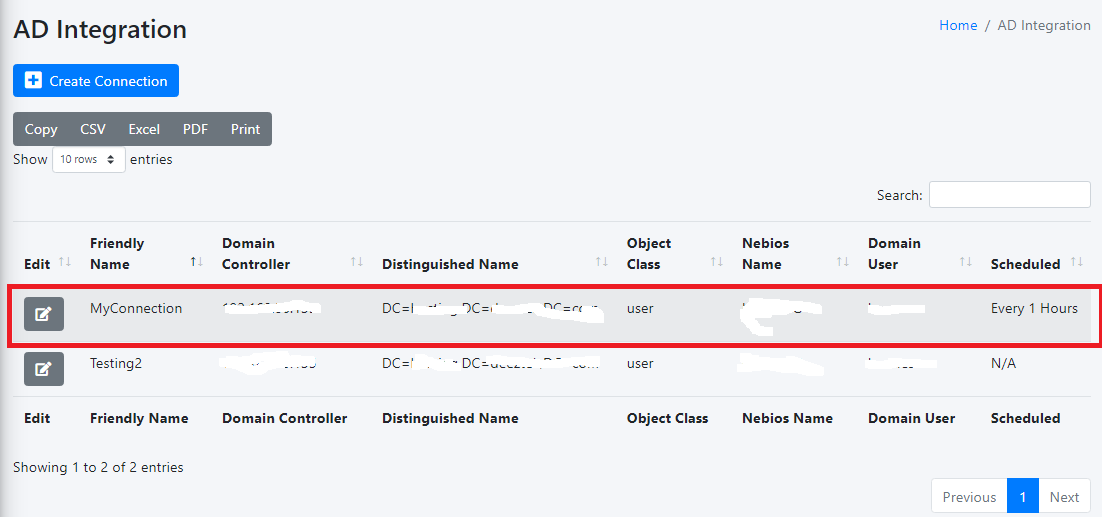](https://docs.deeztek.com/uploads/images/gallery/2021-10/image-1634655507695.png) Clicking on the [ ](https://docs.deeztek.com/uploads/images/gallery/2021-10/image-1634655633147.png)button on an AD connection, will take you back to the **Edit Active Directory Connection** page which will allow you to edit or delete the connection # Admin Authentication Hermes SEG utilizes [Authelia](https://www.authelia.com) Authentication Server for controlling access to the the Hermes SEG Administration Console. The **Authentication Settings** page allows you to change many Authelia settings to suit your needs. #### JWT Secret The JWT Secret is used to craft JWT tokens by the identity verification process. Hermes SEG randomly generates a 32-character alphanumeric string at the time of installation. It's usually not necessary to change this field. However, if you wish to change it, click the [](https://docs.deeztek.com/uploads/images/gallery/2021-11/image-1637357351697.png) button and the system will generate a new one (**Figure 1**). **Figure 1** [](https://docs.deeztek.com/uploads/images/gallery/2021-11/image-1637357479566.png) If you wish to generate your own, Hermes SEG will accept a **minimum 32-character** and a **maximum 64-character** alphanumeric string only. #### Storage Encryption Key The Storage Encryption Key is used to encrypt data in the database. Hermes SEG randomly generated a 32-character alphanumeric string at the time of installation. It's usually not necessary to change this field unless the key gets compromised. if you wish to change it, click the [](https://docs.deeztek.com/uploads/images/gallery/2021-11/image-1637357351697.png) button and the system will generate a new one (**Figure 2**). **Figure 2** [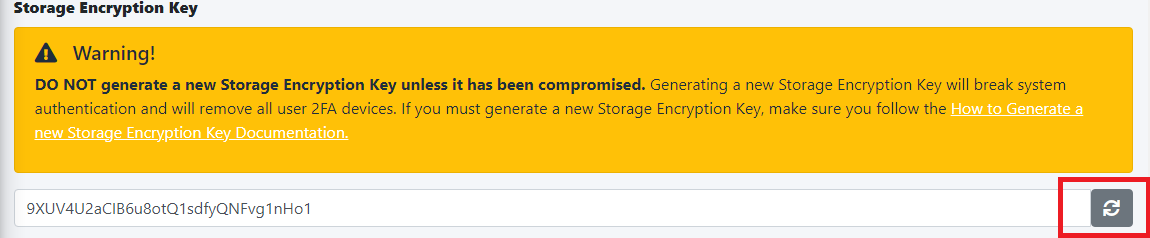](https://docs.deeztek.com/uploads/images/gallery/2023-06/7uTimage.png) If you wish to generate your own, Hermes SEG will accept a **minimum 32-character** and a **maximum 64-character** alphanumeric string only.Please note that if you generate a new Storage Encryption Key, it will break authentication for System Users that utilize 2FA devices.
Before generating a new Storage Encryption Key, ensure you first delete any 2FA devices for each System User by navigating to **System --> System Users --> Edit,** click the **Delete 2FA Devices** button in the **Edit System User** page and set the **Access Control Policy** to **One Factor**. After generating a new Storage Encryption Key, you can go back and set the **Access Control Policy** to **Two Factor** and have the users re-register their 2FA authentication devices. (**Figure 3**). **Figure 3** [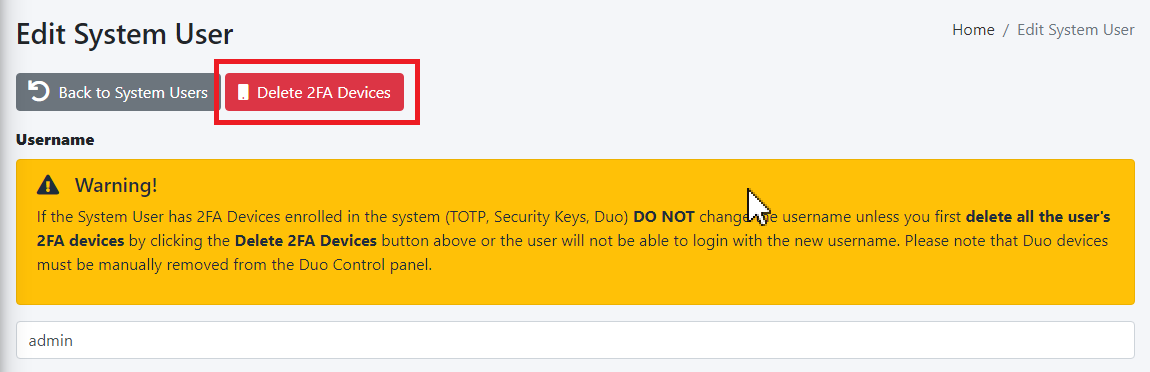](https://docs.deeztek.com/uploads/images/gallery/2023-06/y1cimage.png) [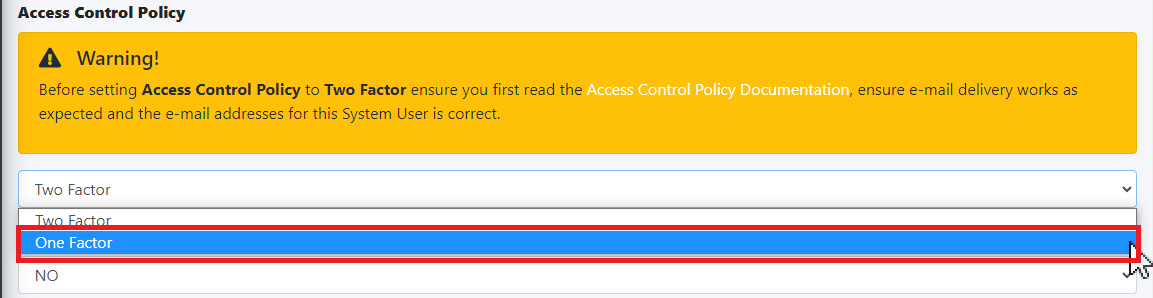](https://docs.deeztek.com/uploads/images/gallery/2023-06/0tsimage.png) #### Reset Password Function The **Reset Password Function** field allows to you switch between **Enable** (Default) which enables the **Reset password** link and functionality in the **Sign in** screen and **Disable** which disables the link and functionality in the **Sign in** screen (**Figure 2**). The **Reset Password Function** only works if the System Users have valid e-mail addresses assigned to them. E-mail addresses can be assigned to System Users by navigating to **System --> System Users**. **Figure 2** [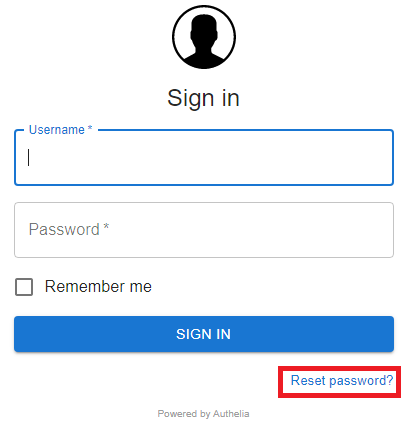](https://docs.deeztek.com/uploads/images/gallery/2021-10/image-1635455903437.png) #### Session Name The Session Name field specified the name of the session cookie which by default it's set to hermes\_session. It's usually not necessary to change this field. If you with to change it, it must be an alphanumeric string with undescores (\_) or dashes (-) in the name. #### Session Secret The Session Secret field is a string that is used to encrypt session data with Redis. Hermes SEG randomly generates a 20-character alphanumeric string at the time of installation. It's usually not necessary to change this field. However, if you wish to change it, click the [](https://docs.deeztek.com/uploads/images/gallery/2021-11/image-1637357351697.png) button and the system will generate a new one (**Figure 3**). **Figure 3** [](https://docs.deeztek.com/uploads/images/gallery/2021-11/image-1637357708269.png) If you wish to generate your own, Hermes SEG will accept a **minimum 12-character** and a **maximum 20-character** alphanumeric string only. #### Session Expiration The **Session Expiration** field specifies the amount of time (in seconds) before the cookie expires and the session is destroyed. By default it's set to **3600** (1 Hour). This can be overridden by clicking on the **Remember me** checkbox on the **Sign in** screen (**Figure 4**). **Figure 4** [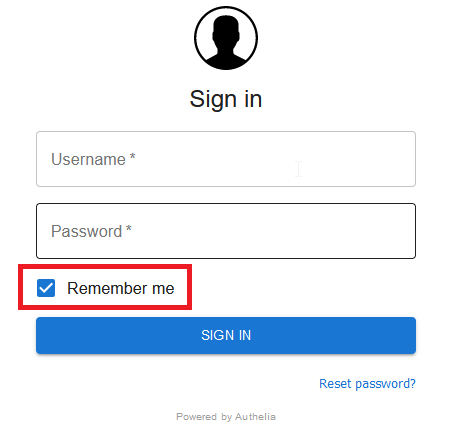](https://docs.deeztek.com/uploads/images/gallery/2021-10/image-1635456643671.png) #### Session Inactivity The **Session Inactivity** field specifies the amount of time (in seconds) the user can be inactive before the session is destroyed. By default it's set to **3600** (1 Hour). #### SMTP Host The **SMTP Host** field specifies the IP/Host Name of the e-mail server that Authelia will use to send out various notifications such password resets, 2FA notifications etc. By default it's set to the Hermes SEG appliance loopback address **\[127.0.0.1\]**. It's normally not necessary to change this field. #### SMTP Port The **SMTP Port** field specifies the port number of the e-mail server that Authelia will use to send out various notifications such password resets, 2FA notifications etc. By default it's set to the Hermes SEG internal port **10026**. It's normally not necessary to change this field. #### SMTP From Address The **SMTP From Address** field is the e-mail address that Authelia will use to send out various notifications such password resets, 2FA notifications etc. It should be set to a valid e-mail address for a domain Hermes SEG relays. #### SMTP E-mail Subject The **SMTP E-mail Subject** field specifies the subject format all Authelia outgoing e-mails will have. By default it's set to **\[Hermes SEG\] {title\]**. The **{title}** is a variable authelia uses for various functions and should be left intact. #### No of Login Failures Before User is Banned The **No of Login Failures Before User is Banned** field specified how many times a system user is allowed to fail authentication before that user is banned and not able to login. By default it's set to **5**. #### Time Between Failed Logins The **Time Between Failed Logins** field specifies the period of time (in seconds) Authelia will search for failed login attempts to count them as failed logins before banning a user. By default it's set to **120** (2 minutes). #### Banned Time The **Banned Time** field specifies the amount of time (in seconds) a user will be banned after failing authentication. By default it's set to **300** (5 minutes). #### Log Level The **Log Level** field specifies the log level used by Authelia. It can be set to **Trace, Debug, Info, Warn or Error**. Setting the Log Level to Trace will expose the **/debug/vars** and **/debug/pprof** endpoints which should never be enabled unless absolutely necessary during troubleshooting. By default it's set to **Debug**. #### Log Format The **Log Format** field specified the log type used by Authelia. It can be set to **JSON** or **Text**. By default it's set to **Text**. #### Duo Security Duo Security allows you to configure 2FA utilizing Duo mobile push. By default, Duo Security is set to disabled. In order to enable and configure Duo Security you must have an existing Duo account. If you don't already have one, you can easily set one up for free at [https://www.duo.com](https://www.duo.com). - In your Duo **Dashboard**, click on on **Applications --> Protect an Application** (**Figure 5**). **Figure 5** [](https://docs.deeztek.com/uploads/images/gallery/2023-06/zW9image.png) - In the **Protect an Application** screen, search for "partner auth api" and then click on the **Protect** button (**Figure 6**). **Figure 6** [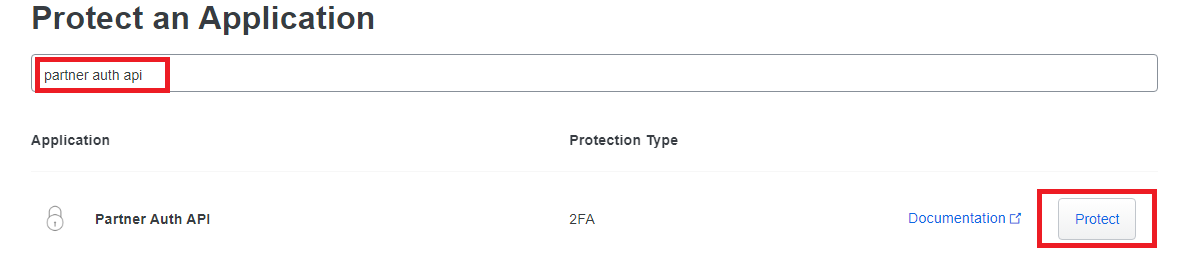](https://docs.deeztek.com/uploads/images/gallery/2023-06/jcuimage.png) - In the **Partner Auth API** screen in the **Details** section, take a note of the Integration key, Secret key and the API hostname (**Figure 7**). **Figure 7** [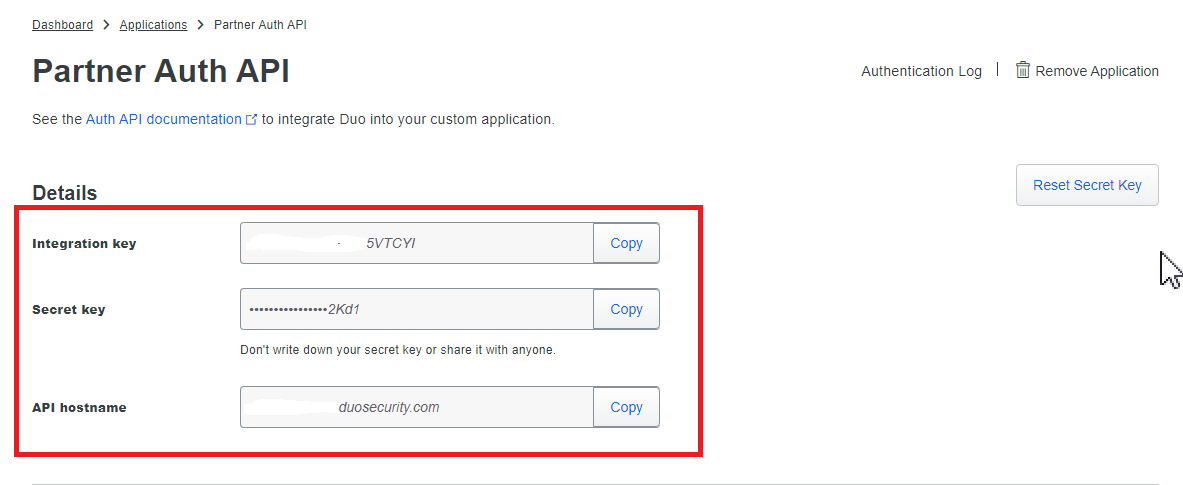](https://docs.deeztek.com/uploads/images/gallery/2023-06/x0uimage.png) - In the **Partner Auth API** screen in the **Settings** section, change the Name field to **Hermes SEG** or whatever name makes sense to you and click the Save button (**Figure 8**). **Figure 8** [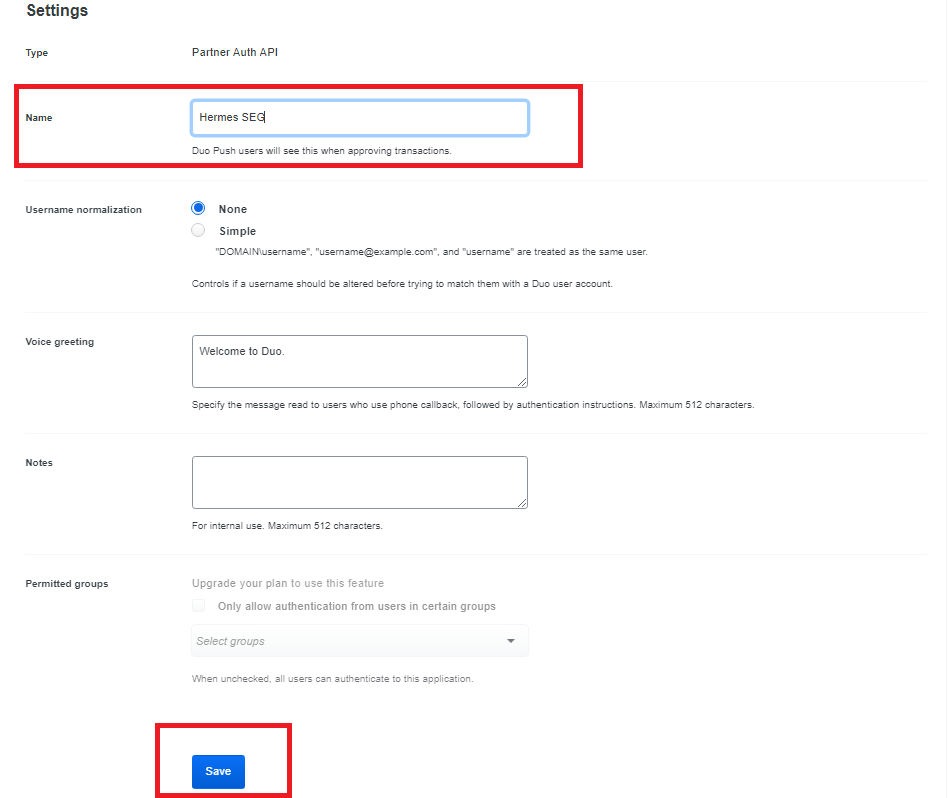](https://docs.deeztek.com/uploads/images/gallery/2023-06/Qmaimage.png) - In your Duo **Dashboard**, click on on **Users --> Add User** (**Figure 9**). **Figure 9** [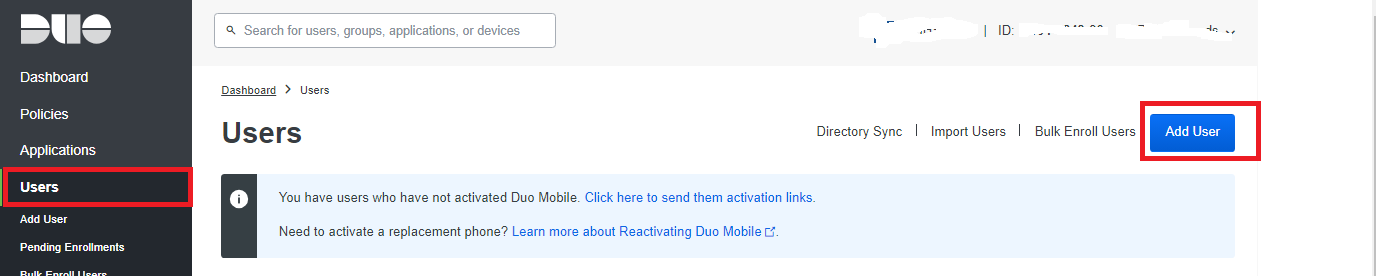](https://docs.deeztek.com/uploads/images/gallery/2023-06/KWfimage.png) - In the **Add User** screen, in the **Username** field, ensure you add a username that matches a system user username that's **already added** in the Hermes SEG **Admin Console --> System -->** **System User** and has **TWO FACTOR** authentication enabled and click the **Add User** button. (**Figure 10** and **Figure 11**). **Figure 10** [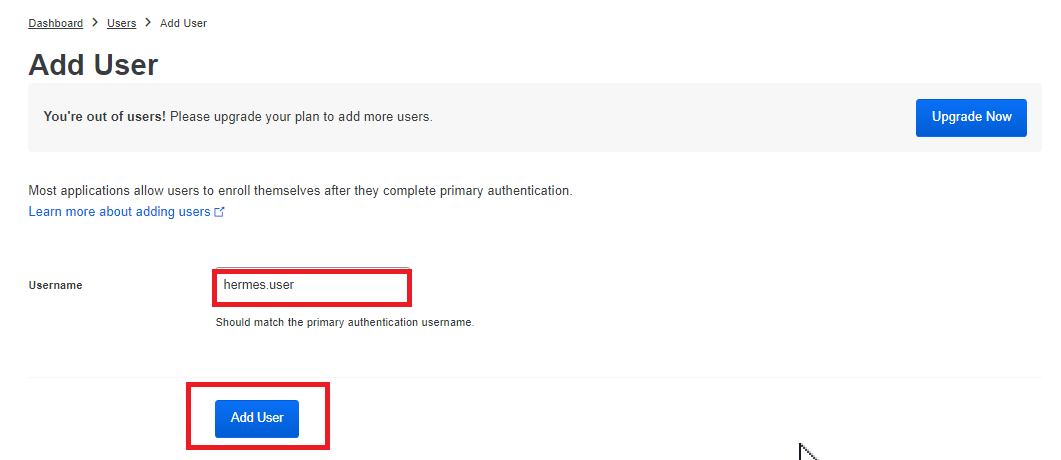](https://docs.deeztek.com/uploads/images/gallery/2023-06/dbqimage.png) **Figure 11** [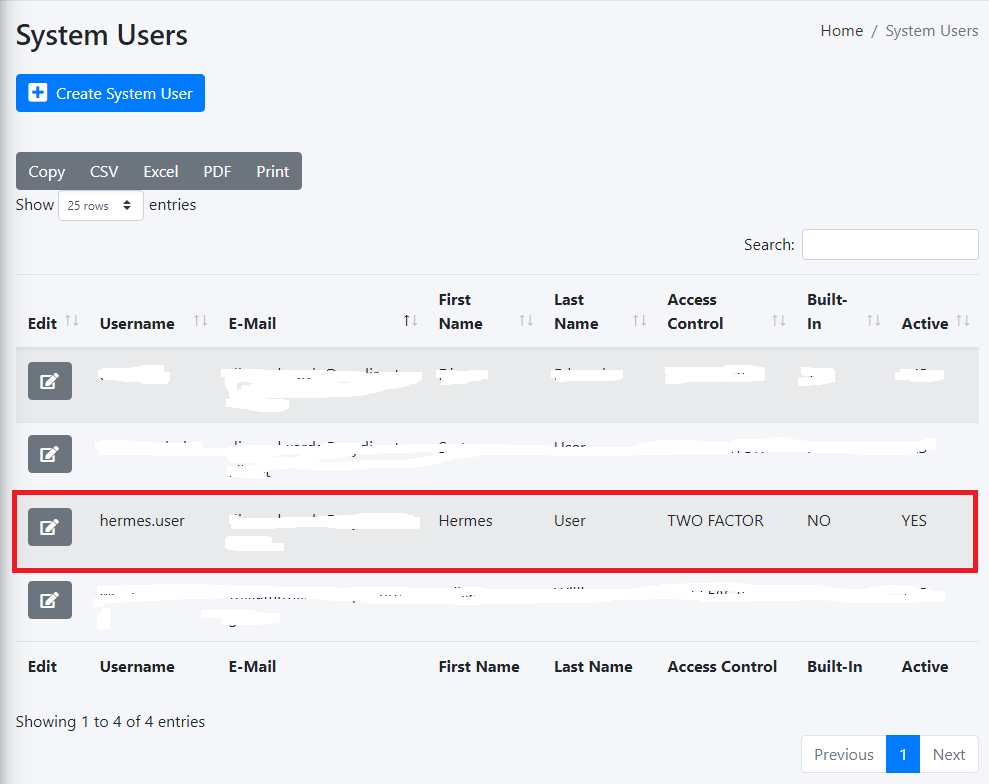](https://docs.deeztek.com/uploads/images/gallery/2023-06/yN4image.png) - In the Hermes SEG Admin Console, navigate back to **System --> Admin Authentication**, toggle the **Duo Security** drop-down from Disabled to **Enabled** and in the fill in the **Duo Hostname, Duo Integration Key, Duo Secret Key** with the values you got from the Duo Dashboard earlier, leave the **Duo Self-Enrollment** drop-down to **Enabled** (Recommended) and click the **Submit** button (**Figure 11**).If you set the **Duo Self Enrollment** drop-down to **Disabled** then your user's 2FA device must be already pre-enrolled in the Duo Dashboard. This guide does not cover that process.
**Figure 11** [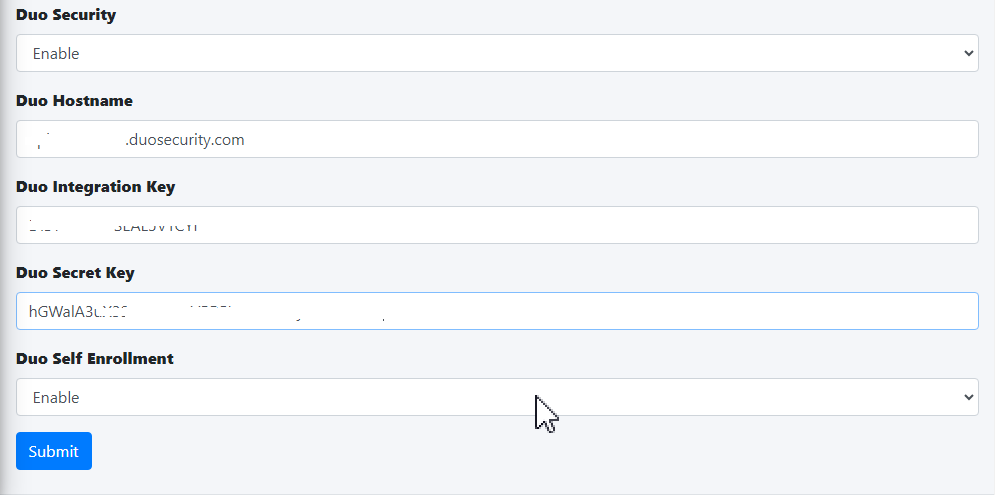](https://docs.deeztek.com/uploads/images/gallery/2023-06/6Llimage.png) - If this is your first time logging into Hermes SEG, 2FA defaults to TOTP (Timed One-Time Password). In order to utilize Duo Security ensure you have already installed on your device the **Duo Mobile** app from your Google Play store or Apple App Store and click on the **METHODS** link in the **One-Time Password** screen. (**Figure 12**). **Figure 12** [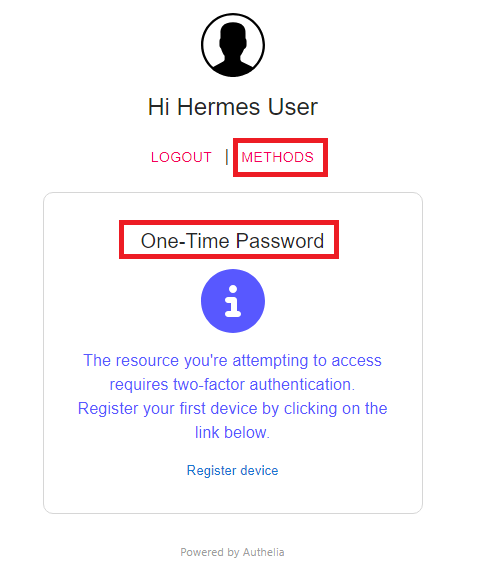](https://docs.deeztek.com/uploads/images/gallery/2023-06/vkrimage.png) - On the following screen, click on the **PUSH NOTIFICATION** button (**Figure 13**). **Figure 13** [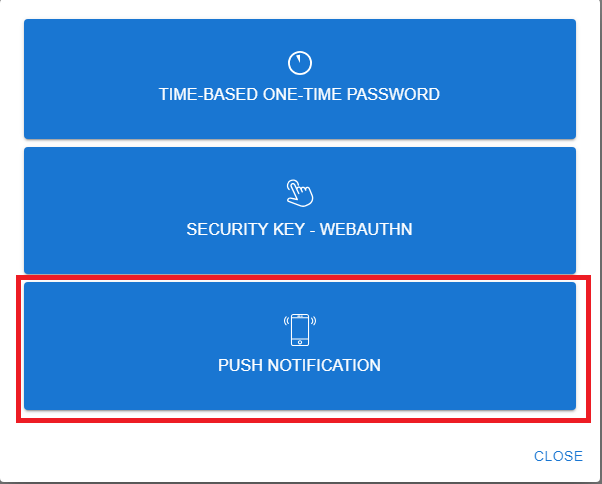](https://docs.deeztek.com/uploads/images/gallery/2023-06/euSimage.png) - On the **Push Notification** screen, click on the **Register device** link (**Figure 14**). **Figure 14** [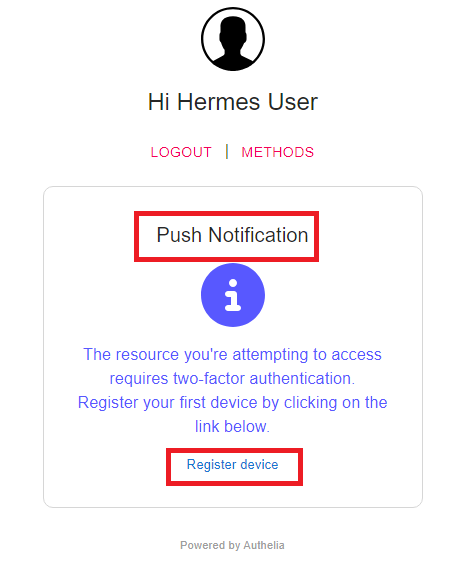](https://docs.deeztek.com/uploads/images/gallery/2023-06/Ahmimage.png) - Your browser will be redirected to the Duo Security self enrollment portal. Click the **Next** button until you reach the **Select an option** screen and select the **Duo Mobile** option and proceed to enroll you device as instructed. (**Figure 15**). **Figure 15** [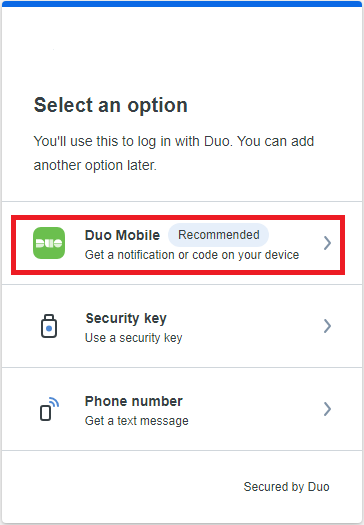](https://docs.deeztek.com/uploads/images/gallery/2023-06/9vmimage.png) - Once you have successfully enrolled your device with Duo, go back to the Hermes SEG Admin Console login screen, logout and re-login and if everything was setup correctly you should get a push notification on your device and upon approval you should be able to successfully login to Hermes SEG Admin Console. # Admin Console FirewallThis feature is only available with Hermes SEG Pro License.
The Admin Console Firewall allows you to specify IP Address(es) that will be allowed access to the **Hermes Admin Console (/admin/** and the **Ciphermail Admin Console (/ciphermail/).** The Firewall does NOT affect the User Console (/users/). By default, all IP Addresses are allowed access to the Admin and the Ciphermail Admin consoles. For best security, it's recommended that you enable the Admin Console Firewall to restrict access only to specified IP addresses. **Note:** In order to prevent a lockout of the Administration Console, the system will not allow you to enable the Administration Console Firewall unless the IP address that you are accessing the the Administration Console from is in the list of Allowed IP Addresses. Additionally, it will not allow you to Delete the IP address you are accessing the Administration Console from from the list of Allowed IP Addresses. - Before the system will allow you to enable the firewall, you must first add the IP Address that you are accessing the Admin Console from, which can be found on the top right corner of the by hovering over the[](https://docs.deeztek.com/uploads/images/gallery/2022-01/image-1643039940957.png)icon (**Figure 1**): **Figure 1** [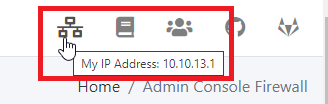](https://docs.deeztek.com/uploads/images/gallery/2022-01/image-1643039855923.png) - Click on the **Add IP Address** button and in the resultant window enter your IP address and set the **Allow to Hermes Admin** and optionally **Allow to Ciphermail Admin** drop-downs to **YES**, enter a note in the **Note** field for your own use and click the **Submit** button (**Figure 2**): **Figure 2** [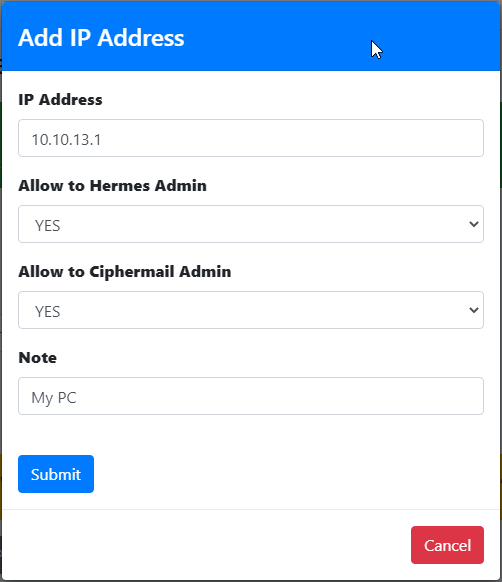](https://docs.deeztek.com/uploads/images/gallery/2022-01/image-1643040850454.png) - Repeat the procedure to add any additional IPs as necessary. - As you add each IP address, they will show up under the **Allowed IP Addresses** section (**Figure 3**): **Figure 3** [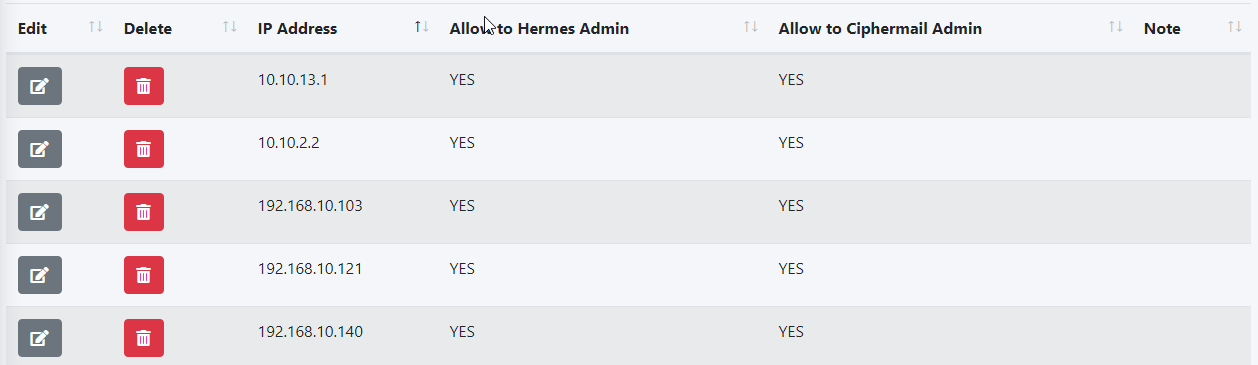](https://docs.deeztek.com/uploads/images/gallery/2022-01/image-1643040227272.png) - Once you are finished adding IP address(es), set the **Firewall Status** drop-down to **Enabled** and click the **Submit** button (**Figure 4**): **Figure 4** [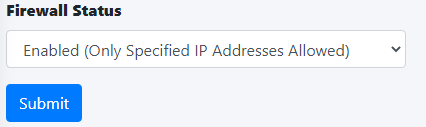](https://docs.deeztek.com/uploads/images/gallery/2022-01/image-1643040335743.png) Click the **Apply Settings** button to apply the changes to the firewall (**Figure 5**): **Figure 5** [](https://docs.deeztek.com/uploads/images/gallery/2022-01/image-1643040501619.png) - Test your firewall by attempting to access the **Admin Console** at **https://<ipaddress>/admin/** where **<ipaddress>** is the IP address or the hostname of your Hermes SEG from an IP Address that you did **NOT** allow in Admin Console Firewall. You should a **403 Forbidden** message (**Figure 5**) **Figure 5** [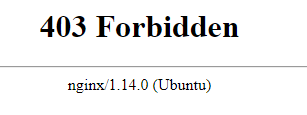](https://docs.deeztek.com/uploads/images/gallery/2022-01/image-1643040669051.png)The The **Host Name** and **Primary Domain Name** you set in this section is used for SMTP transactions such as SMTP TLS as well as system functions such as OS hostname.
- Set the **Network Mode** drop-down to **Static**. - Fill in the **Host Name** field. Ensure you enter only the name without the domain part. For example, if the FQDN of your Hermes SEG appliance is going to be **smtp.domain.tld**, then in the **Host Name** field you will simply enter **smtp** without the domain part. - Fill in the **Primary Domain Name** field. For example, if the FQDN of your Hermes SEG appliance is going to be **smtp.domain.tld**, then in the **Primary Domain Name** field you will simply enter **domain.tld**. - Fill in the Hermes SEG appliance **IP Address**, select the appropriate **Subnet Mask** for your network, fill in the **Gateway** and **DNS1**. If applicable, fill in **DNS2** and **DNS3** fields. - Click on the **Submit** button. Once the settings are saved, they will not take effect until you click on the **Apply Settings** button. - Click on the **Apply Settings** button (**Figure 1**). **Figure 1** [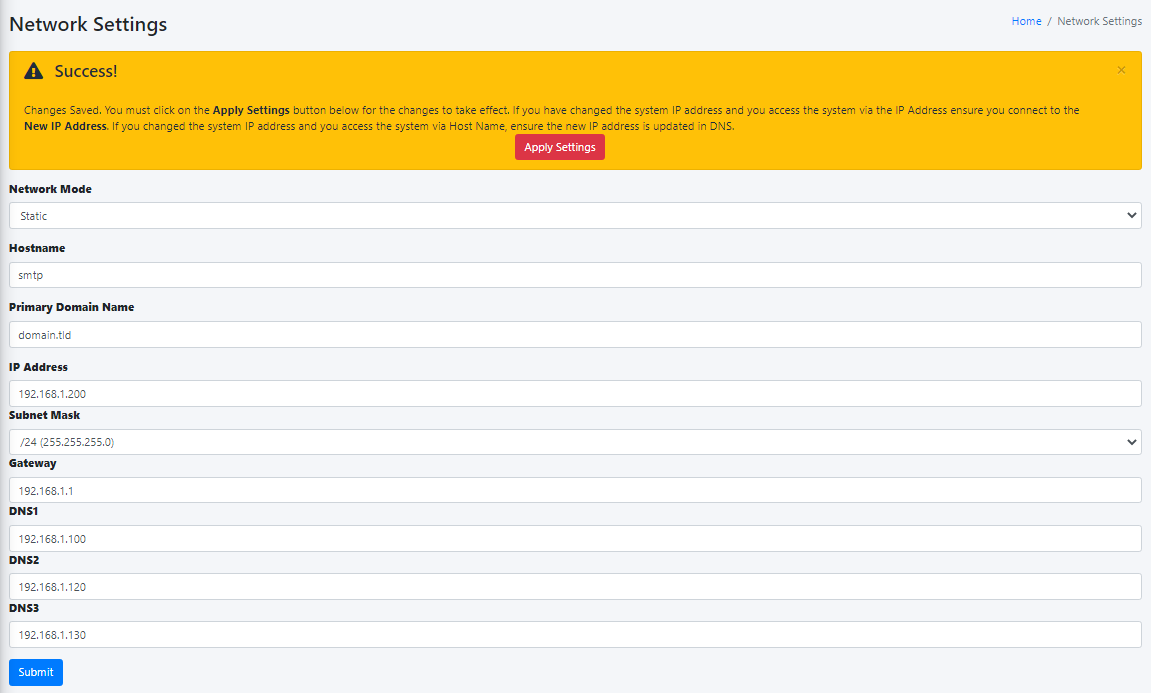](https://docs.deeztek.com/uploads/images/gallery/2021-12/image-1638453135015.png)After clicking the **Submit** button and you changed the Console Mode from IP Address to Host Name, your browser will **NOT** automatically redirect you to the new console address. Ensure you enter the new address in your browser as **[https://<HOST\_NAME>/admin/](https://
Deleting messages from the queue should be carefully considered. If users were expecting those emails to be delivered, removing them from the queue will ensure that they will never get delivered.
**Figure 4** [](https://docs.deeztek.com/uploads/images/gallery/2022-06/image-1656414974817.png) #### Search Messages Enter a search term in the **Search** field and the system will automatically filter messages matching the term you entered. You can enter multiple search terms separated by a space (**Figure 5**). **Figure 5** [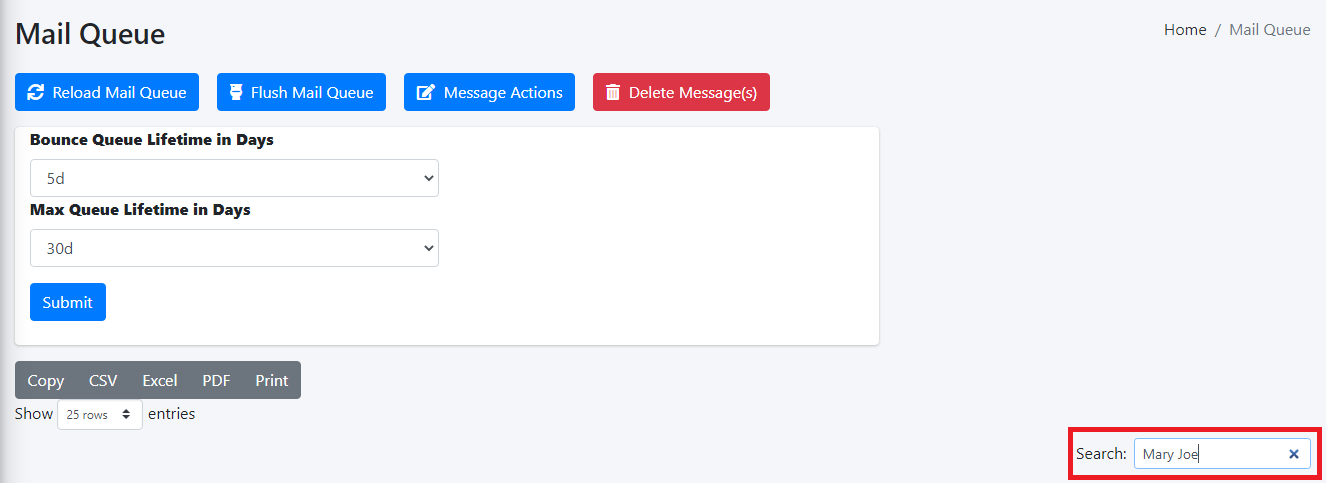](https://docs.deeztek.com/uploads/images/gallery/2022-06/image-1656417335908.png) #### Bounce Queue Lifetime and Max Queue Lifetime The **Bounce Queue Lifetime** determine how long a MAILER-DAEMON messages stays in the queue before it's considered undeliverable. **This setting strictly controls non-delivery messages** generated by the SMTP server. Once the lifetime expires the MAILER-DAEMON messages are automatically removed from the queue by the system. **The default is 5 Days**. If this is set to 0 Days, delivery will be tried only once and then removed from the queue. The **Max Queue Lifetime** determines how long all other messages stay in the queue before the SMTP server considers them undeliverable and sends a bounce message back to the sender. This setting controls how long the system will hold on and try to deliver messages to other mail servers. Ideally, this setting should be set high enough so that the system holds on to messages as long as possible before bouncing them. This is especially important if you are relaying messages to external email servers that may go down for long periods of time. **The default is 14 days**. If this is set to 0 days, delivery will be tried only once and then a bounce message will be sent to the sender (Not recommended). 1. Select the **Bounce Queue Lifetime** setting you wish from the drop-down. 2. Select the **Max Queue Lifetime** setting you wish from the drop-down. 3. Click the **Submit** button (**Figure 6**). **Figure 6** [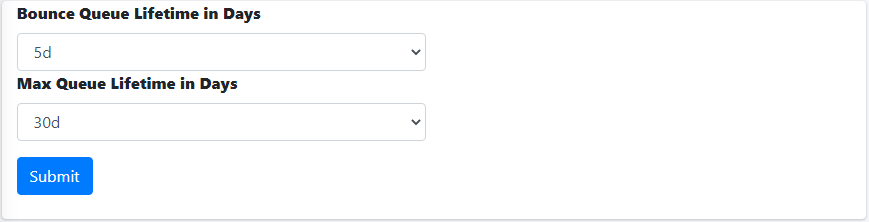](https://docs.deeztek.com/uploads/images/gallery/2022-06/image-1656412437533.png) #### View Messages Viewing a message reveals detailed information which can assist in determining why the message is stuck in the mail queue. 1. Click on the [ ](https://docs.deeztek.com/uploads/images/gallery/2022-06/image-1656415192491.png)icon of the message you wish to to view. 2. You will be directed to the **View Mail Queue Message** page where you will be able to view all the detailed information about the message. 3. Click the [ ](https://docs.deeztek.com/uploads/images/gallery/2022-06/image-1656416657322.png)icon to go back to the Mail Queue. 4. Click the [ ](https://docs.deeztek.com/uploads/images/gallery/2022-06/image-1656416695599.png)icon to print the message contents (**Figure 7**). **Figure 7** [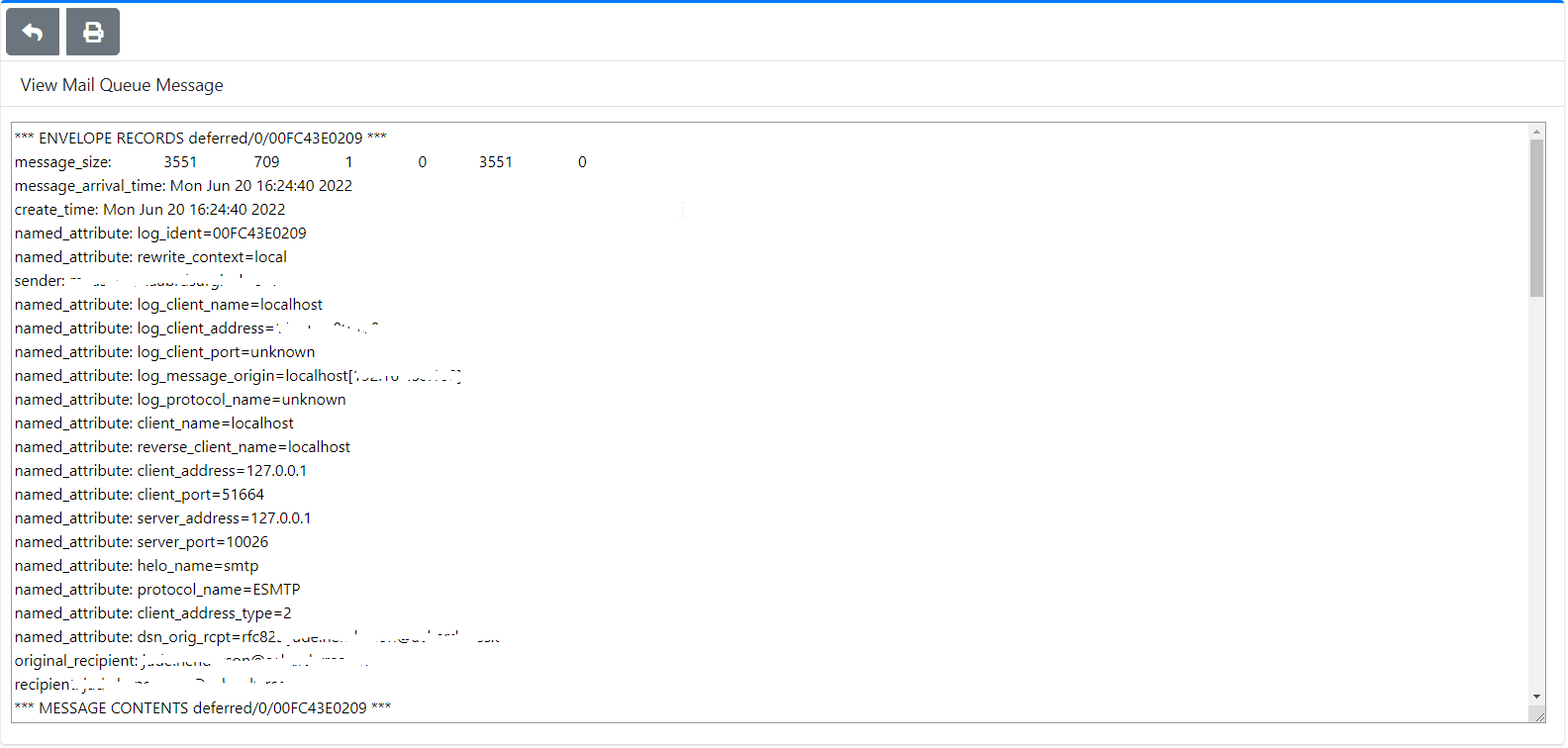](https://docs.deeztek.com/uploads/images/gallery/2022-06/image-1656416591478.png) # System Logs System Logs allows you to set the Log Retention period, fetch system logs by date range/time and search. #### Log Retention By default Hermes SEG stores logs up to **30 days** before automatically purging older entries. This setting can be adjusted by selecting **30 Days, 60 Days, 90 Days, 120 Days or 180 Days** intervals and clicking the the **Submit** button (**Figure 1**) **Figure 1** [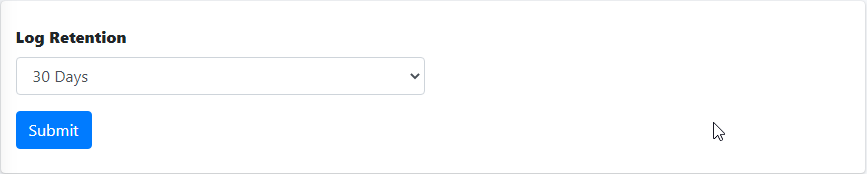](https://docs.deeztek.com/uploads/images/gallery/2022-06/image-1656417444120.png) #### Fetch Logs by Date Range/Time Click the [](https://docs.deeztek.com/uploads/images/gallery/2022-06/image-1656419218858.png) icon on the or manually enter date/time in the format **yyyy-mm-dd hh:mm:ss** in **Start Date/Time** and the **End Date/Time** fields to select a Date/Time range and click the Fetch Logs button to search for logs matching your criteria (**Figure 2**). **Figure 2** [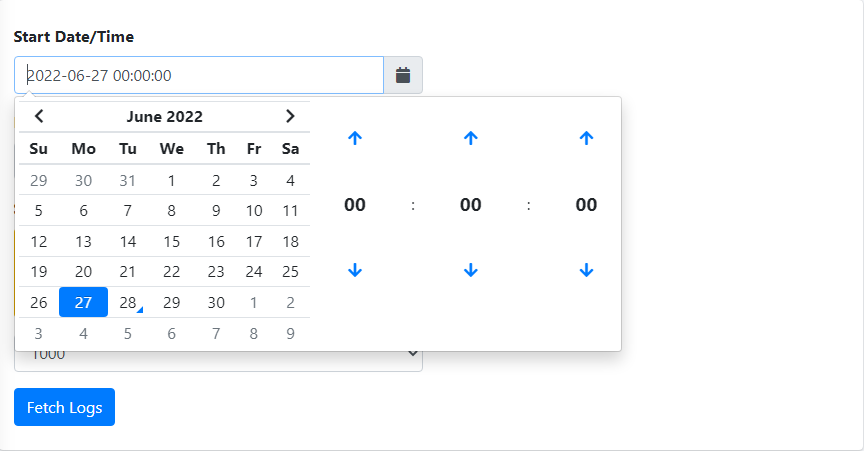](https://docs.deeztek.com/uploads/images/gallery/2022-06/image-1656419300960.png) #### Search Logs Enter a search term in the **Search** field and the system will automatically filter logs matching the term you entered. You can enter multiple search terms separated by a space (**Figure 3**). **Figure 3** [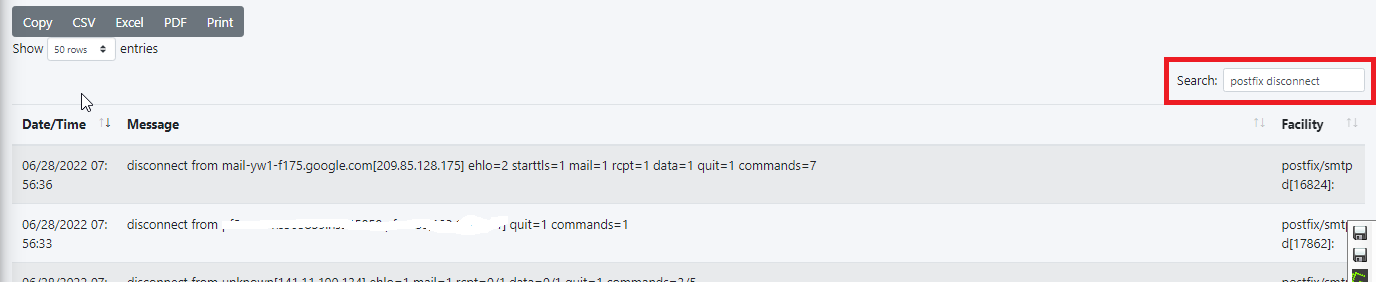](https://docs.deeztek.com/uploads/images/gallery/2022-06/image-1656419659171.png) # System Backup and Restore **System Backup** and **System Restore** are configured and ran in the CLI as root. There is a Backup script located at **/opt/hermes/scripts/system\_backup.sh** and a Restore script located at **/opt/hermes/scripts/system\_restore.sh**. These scripts should not be moved/copied to other locations. System Backups should be scheduled via Cron or other mechanism to point to **/opt/hermes/scripts/system\_backup.sh**. Before scheduling **system\_backup.sh**, it's highly recommended that you run it manually to ensure proper operation before scheduling it. The backups can be stored to any mount that you have previously configured in your system such as local, SMB, NFS etc... ### System Backup The **/opt/hermes/scripts/system\_backup.sh** script accepts several flags with corresponding values enclosed in single quotes in order to configure its behavior. - The **-D** flag sets the number of days of backups to retain. For example, **-D '7'** would configure it to delete any backups older than **7** days. - The **-P** flag sets the path to store the backups WITHOUT the trailing slash. For example **-P '/mnt/backups'** configures the backup to store all backups in the **/mnt/backups** path. **Please note that backup logs are also automatically stored in that path.** - The **-E** flag sets the recipient to send backup success/failure notifications. For example, **-E 'to@domain.tld'** configures the backup to send notifications to **[to@domain.tld](mailto:someone@domain.tld)**. - The **-F** flag sets the sender where the backup success/failure notifications would come from. For example, -**F ' 'from@domain.tld'** configures the backup to send notications from **[from@domain.tld](mailto:sender@domain.tld)**. - The **-B** flag sets the backup mode. The backup mode can be either **system** (backs up all Hermes related files and databases EXCLUDING the e-mail archive), **archive** (backs up ONLY the e-mail archive) or **all** (backups all Hermes related files including the databases as well as the e-mail archive). For example, **-B 'system'** sets the backup mode to back up all Hermes related files and databases. - The **-R** flag sets the MySQL root password that the backup will need in order to back up all the Hermes databases. For example, **- R 'supersercretpass'** sets the MySQL root password to **supersercretpass.** Putting it all together, if you wanted to run an **all** backup, you can run a command similar to below: ``` /opt/hermes/scripts/system_backup.sh -D '7' -P '/mnt/backups' -E 'to@domain.tld' -F 'from@domain.tld' -B 'all' -R 'supersercretpass' ```Please note that depending on what Backup Mode you use, the system will store an appropriately named backup file in the backup location. For example, **hermes-system-220410-08-16-2024-0920.tar.gz** backup file is system backup as noted by the word **system** in its name. In case of an **all** Backup Mode, the system will generate two backup files, one backup file will contain the system backup and the other backup file will contain the e-mail archive backup. In addition to the type of backup, the backup file also includes the build number (in this case **220410**) as well as the date/time the backup was created. The build number becomes very important when you attempt to perform a System Restore.
### System RestoreSystem Restore **WILL NOT** install any programs, therefore, it requires that you have an already existing and fully updated **Ubuntu 20.04 LTS Server** plain "vanilla" machine with a **/mnt/data** directory for database and email archive storage. Then, you install the same build of Hermes SEG as the build number of the backup file you are attempting to restore.
#### System PreparationPlease note that Hermes SEG will NOT run in a LXC Environment
##### Required Information Ensure you have that information available before you begin: - MySQL(MariaDB) root user password you wish to use - MySQL(MariaDB) username you wish to use with the hermes database (Example: hermes) - MySQL(MariaDB) password you wish to use with the hermes database user - MySQL(MariaDB) username you wish to use with the Syslog database (Example: rsyslog) - MySQL(MariaDB) password you wish to use with the Syslog database user - MySQL(MariaDB) username you wish to use with the cipermail database (Example: ciphermail) - MySQL(MariaDB) password you wish to use with the ciphermail database user - MySQL(MariaDB) username you wish to use with the opendmarc database (Example: opendmarc) - MySQL(MariaDB) password you wish to use with the opendmarc database user - Lucee Server and Web Administrator password you wish to use - System Mailname (Example: smtp.domain.tld) The **Configure /mnt/data partition** directions below assume you have a 250GB secondary drive which you will partition, format and mount as /mnt/data. Technically a secondary drive for the /mnt/data directory is not a requirement but it's highly recommended for performance reasons. If you don't wish to use a secondary drive for the /mnt/data directory, simply create a /mnt/data directory in your system. ##### Configure /mnt/data partition ``` sudo mkdir /mnt/data ``` ``` sudo fdisk -l ``` Look for 250 GB drive you created earlier device ID, usually /dev/sdb. Ensure you select correct device ID before running the commands below) Create partition: ``` sudo fdisk /dev/sdb ``` - Hit "n" to add new partition - Hit "p" for primary partition - Hit "Enter" for partition 1 - Hit "Enter" for default first sector - Hit "Enter" for default last sector - Hit "w" to write changes to disk and exit Format Partition: ``` sudo mkfs.ext4 /dev/sdb1 ``` Mount Partition to /mnt/data: ``` sudo mount /dev/sdb1 /mnt/data ``` Get disk UUID: ``` ls -l /dev/disk/by-uuid ``` Edit /etc/fstab: ``` sudo vi /etc/fstab ``` Add the following in /etc/fstab where DEVICE\_ID is the UUID from the command above: ``` UUID=DEVICE_ID /mnt/data ext4 errors=remount-ro 0 1 ``` Verify drive is mounted: ``` sudo df -h ``` Should yield output similar to below: ``` Filesystem Size Used Avail Use% Mounted on udev 1.9G 0 1.9G 0% /dev tmpfs 395M 1.1M 394M 1% /run /dev/sda2 79G 5.5G 69G 8% / tmpfs 2.0G 0 2.0G 0% /dev/shm tmpfs 5.0M 0 5.0M 0% /run/lock tmpfs 2.0G 0 2.0G 0% /sys/fs/cgroup /dev/loop0 87M 87M 0 100% /snap/core/4917 /dev/loop1 90M 90M 0 100% /snap/core/8039 tmpfs 395M 0 395M 0% /run/user/1000 /dev/sdb1 246G 61M 233G 1% /mnt/data ```The instructions below have ONLY been tested on Hermes SEG **build-220410** and above. Do not use on any builds lower than build-220410.
Identify the build number from the restore file you wish to restore. For example, the build number for restore file **hermes-system-220410-08-16-2024-0920.tar.gz** is **220410**. After identifying the build number, from the CLI as root git clone the desired build using the following command where **build-220410** is the desired build: ``` git clone --depth 1 --branch build-220410 https://github.com/deeztek/Hermes-Secure-Email-Gateway ``` This will clone the repository into directory **Hermes-Secure-Email-Gateway**. Change to the **Hermes-Secure-Email-Gateway** directory: ``` cd Hermes-Secure-Email-Gateway/ ```If you are installing Hermes Build **220410** and below, download **ubuntu\_hermes\_old\_install.sh** and overwrite existing one. **Do NOT run the command below if you are installing Hermes Build 231130 and above**:
``` wget https://raw.githubusercontent.com/deeztek/Hermes-Secure-Email-Gateway/master/ubuntu_hermes_old_install.sh -O ubuntu_hermes_install.sh ``` Make script executable: ``` sudo chmod +x ubuntu_hermes_install.sh ``` Run the script as root and follow the prompt to install Hermes SEG: ``` sudo ./ubuntu_hermes_install.sh ``` Once installation is complete, reboot your computer, ensure everything is running and then continue below to perform a System Restore. #### Perform a RestoreBefore you can perform a restore, you must have already mounted the location where all you backup files are stored accessible to the **/opt/hermes/scripts/system\_restore.sh** script. Additionally, be aware that once you restore a backup, all existing Hermes SEG credentials including the database credentials will be replaced by the credentials in the backup.
If you have a Hermes SEG Pro installation with a valid license, please be aware that your license will have to be re-installed and re-activated in the restored system. Please send the serial number to
The recommended order of restoring backups is to first perform a system restore and once that completes, reboot your computer and then perform an archive restore. Archive restores can take a very long time to complete depending on the size of the data being restored, thus it's best to have your system already up and running and processing e-mail while the archive restore is running. This method will minimize down time.
The **/opt/hermes/scripts/system\_restore.sh** script accepts several flags with corresponding values enclosed in single quotes in order to configure its behavior. - The **-F** flag sets the full path to the backup file you wish to restore. For example, **-F**Before requesting **Acme Certificates** ensure that **BOTH** ports **TCP 80** and **TCP 443** are open to Hermes SEG from the Internet and the domain you are requesting the certificate is pointing to the Internet accessible IP address of your Hermes SEG machine. We recommend that you test using the **Acme Staging** server first to ensure the request works before attempting to use **Acme Production**. The reason we initially **Request Acme Certificate** utilizing the **Acme Staging** server is because Lets Encrypt is much more lenient with rate limits with failed requests in their staging environment than their production environment, click [here](https://letsencrypt.org/docs/staging-environment/) for details.
- Click the **Request Acme Certificate** button, enter a friendly name in the **Certificate Name** field, enter the FQDN (domain name) you wish to request a certificate, enter a valid e-mail address in the **Notifications E-mail address** field, leave the **Acme Server** drop-down field set to **Acme Staging** and click the **Request** button (**Figure 4**): **Figure 4** [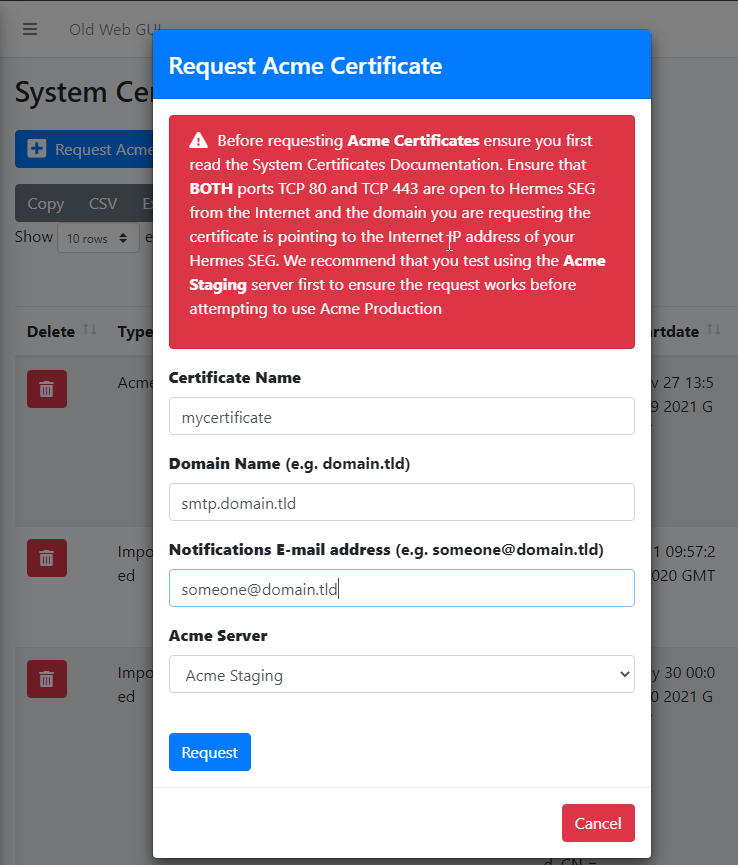](https://docs.deeztek.com/uploads/images/gallery/2022-01/image-1642890261401.png) - If the Acme Certificate Request fails, double-check that the FQDN (domain name) points to the Internet accessible IP of your Hermes SEG machine and that BOTH ports TCP/80 (HTTP) and TCP/443 (HTTPS) are allowed through your firewall and try again. - If the Acme Certificate Request succeeds, locate the newly created certificate in your certificate list, click the [ ](https://docs.deeztek.com/uploads/images/gallery/2022-01/image-1642946754752.png)icon and on the resultant **Delete Certificate** confirmation click on **Yes** (**Figure 5**): **Figure 5** [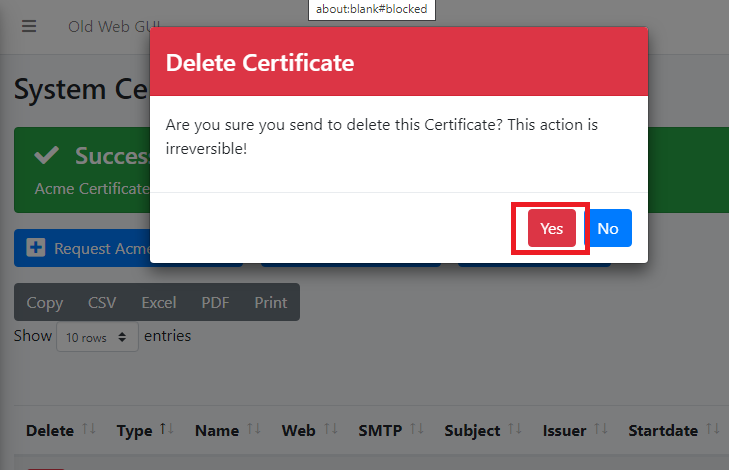](https://docs.deeztek.com/uploads/images/gallery/2022-01/image-1642946921688.png) - Click the **Request Acme Certificate** button again, enter a friendly name in the **Certificate Name** field, enter the FQDN (domain name) you wish to request a certificate, enter a valid e-mail address in the **Notifications E-mail address** field, this time set the **Acme Server** drop-down field set to **Acme Production** and click the **Request** button (**Figure 6**): **Figure 6** [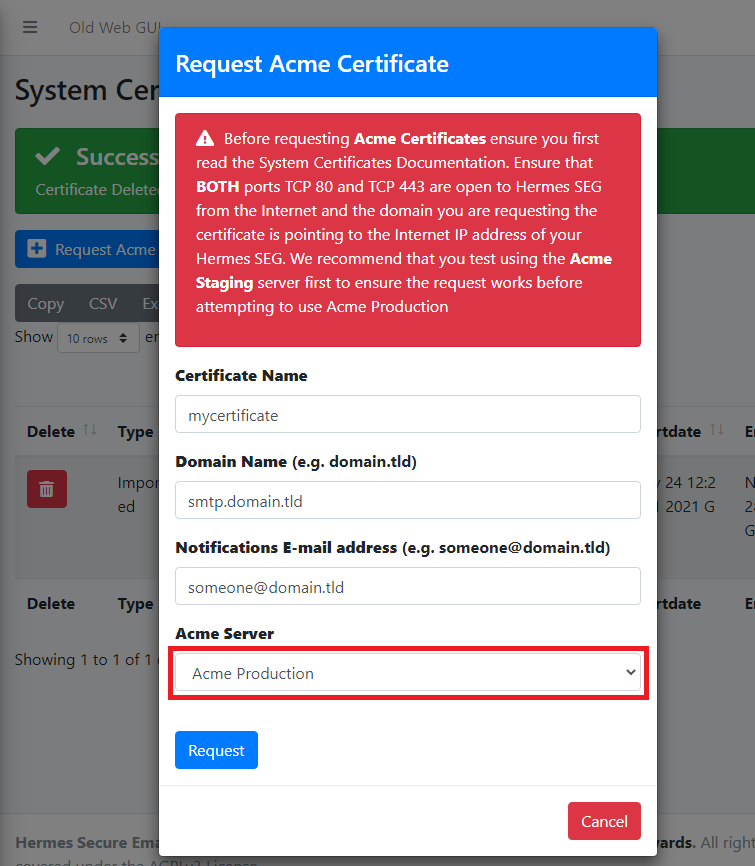](https://docs.deeztek.com/uploads/images/gallery/2022-01/image-1642947557037.png) # System Settings - The **Postmaster E-mail Address** MUST BE on a domain that the system currently delivers email for and the **Admin E-mail Address** SHOULD BE an email address for a domain that Hermes SEG does NOT deliver email for. Even though the system will allow you to enter an Admin E-mail Address for a domain that Hermes SEG deliver email for, it's not recommended. The **Admin E-mail Address** should be an external to the system e-mail address. - The system will automatically create virtual addresses for **postmaster**, **abuse** and **root** based on the **Postmaster E-mail Address** you set. For example, if your Postmaster E-mail Address is **postmaster@domain.tld** and your Admin E-mail Address is **someone@otherdomain.tld**, the system will automatically create the following virtual address: - **postmaster@domain.tld** ---> **someone@otherdomain.tld** - The system will also create the following two virtual addresses and related mappings based on the postmaster e-mail address domain part: - **abuse@domain.tld** ---> **someone@otherdomain.tld** - **root@domain.tld** ---> **someone@otherdomain.tld** - The virtual address the system creates can be viewed under **Gateway ---> Virtual Recipients**. - Adding a Serial Number is not required. However, if you are going to add a Serial Number, ensure Hermes SEG has access to the Internet over ports **TCP/80** and **TCP/443**. Serial Numbers are validated over the Internet with our activation service). - If you have a Serial Number, click the **Add Serial Number** button and in the resultant window enter it in the **Serial Number** field, check the license convert checkbox and click the **Submit** button (**Figure 1**). **Figure 1** [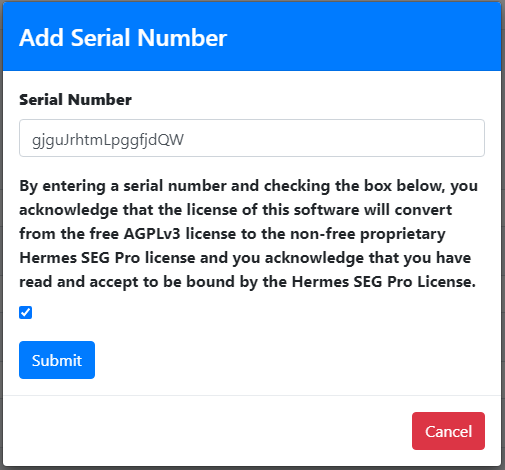](https://docs.deeztek.com/uploads/images/gallery/2022-06/image-1656410867375.png) - In the **Postmaster E-mail Address** field enter the email address you want to use - In the **Admin E-mail Address** field enter the email address you want to use - In the **TimeZone** field, set your local timezone by deleting the default **America/New\_York** and start typing the name of your continent. The system will automatically display a drop-down with all the relevant timezones for your continent (**Figure 2**). **Figure 2** [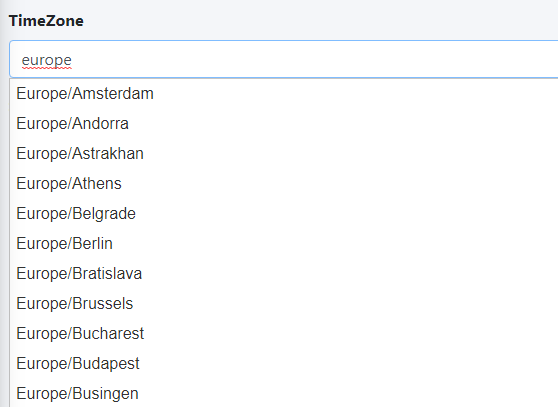](https://docs.deeztek.com/uploads/images/gallery/2022-06/image-1656411073214.png) - If you have activated a Hermes SEG Pro Serial Number, the **Daily Update Check** field will be available for you to **Enable/Disable**. If you enable the **Daily Update Check**, the system will automatically check for Hermes SEG updates on a daily basis and if it finds one, it will send an e-mail to the postmaster E-mail Address you set above. - In the **Telemetry** field, set to **Enabled** (By default it's enabled) if you wish to allow the sending of anonymized data to our servers in order to improve Hermes SEG and our services. **Rest assured, that we do NOT share or sell this data and it's strictly used for internal purposes**. Please see the list below for the data we collect: - Hermes SEG unique system ID - The total number of Internal Recipients (NOT the actual internal recipients) - The total number of Domains (NOT the actual domains) - The total number of Virtual Recipients (NOT the actual virtual recipients) - Hermes SEG version - Hermes SEG build - Hermes SEG timezone - Hermes SEG edition - Whether or not you use the internal build-in certificate for the Console or SMTP (NOT the actual certificate) - The total number of Clean messages (NOT the actual messages) - The total number of Spam messages (NOT the actual messages) - The total number of Virus messages (NOT the actual messages) - Your IP address (ONLY used to determine your Geo location) - Click the **Submit** button to save your changes (**Figure 3**). **Figure 3** [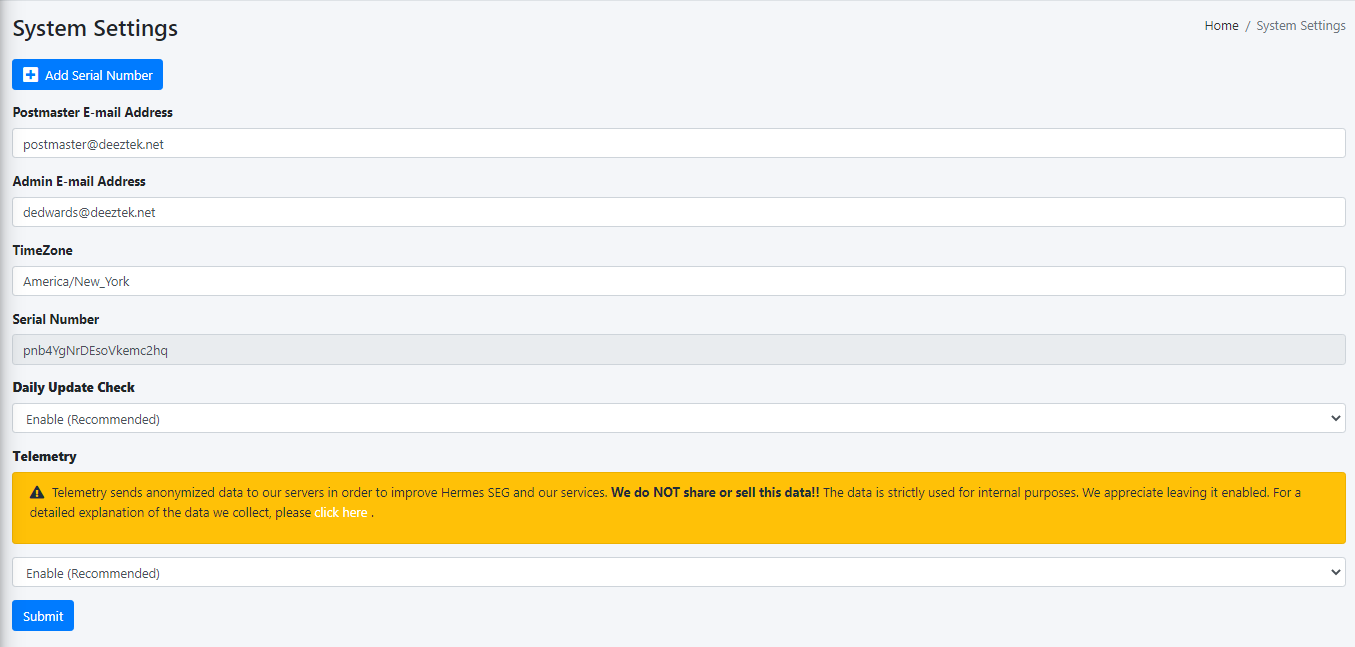](https://docs.deeztek.com/uploads/images/gallery/2023-06/image.png) # System Status System Status displays the following information: - Version - Build - Edition - Uptime - System IP - License Status (Hermes SEG Pro Only) - If system needs to be rebooted to install OS Updates - If there is a Hermes SEG Update (Hermes SEG Pro Only) - CPU Utilization - Memory Utilization - Root FileSystem Utilization - Date FileSystem Utilization [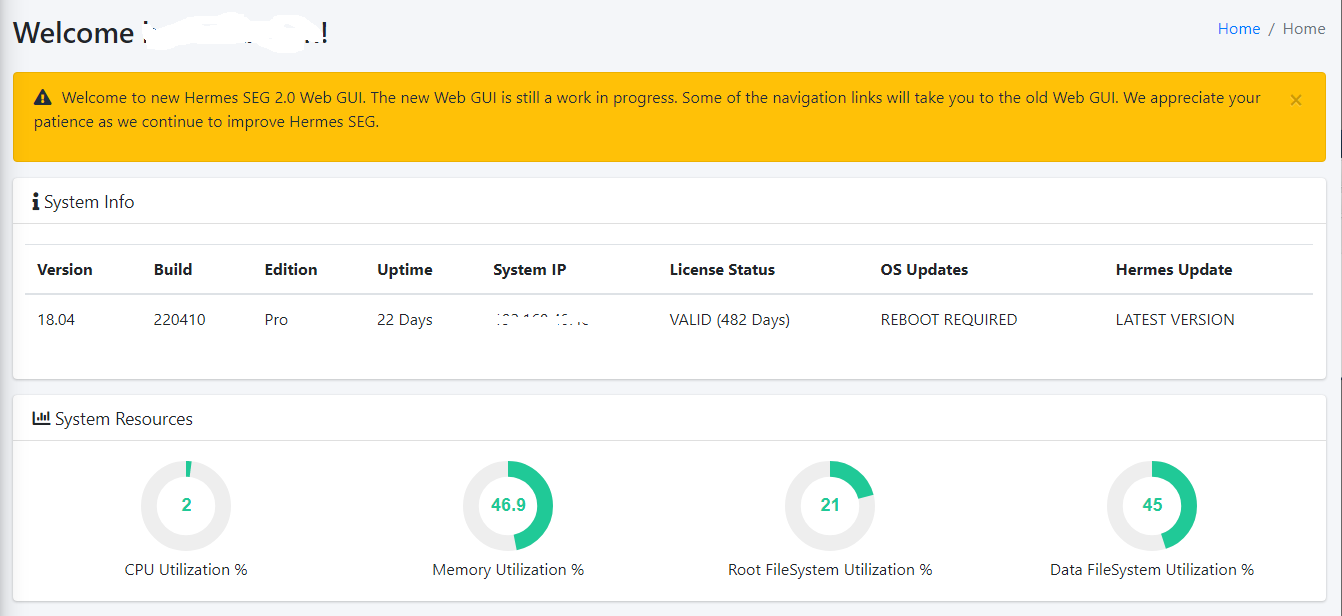](https://docs.deeztek.com/uploads/images/gallery/2022-06/image-1656412195117.png) # System Update**Hermes SEG requires outbound TCP/80 and TCP/443 access to our update servers in order to check and download updates.**
**Ensure you have a recent and valid backup of your system before installing updates.**
**Updates may contain breaking changes and/or additional steps that must be taken after the update gets installed, therefore ensure you check out the Release Notes for each update BEFORE installing. Updates are provided with absolutely no guarantees or warranties of any kind explicitly or implied and we are not liable for any damage that may occur to your system, service, cat, dog, car, house etc.. Simply stated, you are installing updates at your own risk.**
**Hermes SEG updates are installed in order of release, in other words, System Update will not allow you to skip updates. If your system is behind more than one update, each update will have to be downloaded and installed individually.**
System Update has moved from Hermes SEG Pro Edition to Hermes SEG Community Edition. A valid license is no longer a requirement to run System Update. Hermes SEG installations **build-221211** or **build-231130** must now manually download the **system\_update.sh** script and perform a system update. Hermes SEG installations **build-240815** or higher already include the **system\_update.sh** script thus there is no need to manually download.
Each time you run the **/opt/hermes/scripts/system\_update.sh** script, it will check for newer versions of itself as well as other required files. If new versions of the files are needed, it will download them automatically and exit. You must then restart **/opt/hermes/scripts/system\_update.sh** in order to proceed with the update. The script will initially ask you whether to to check for DEV updates. You should always answer NO to this prompt unless support has instructed you to check for DEV updates as part of troubleshooting. **Installing DEV updates without support guidance will most likely break your system.** Next, the script will ask you for the MariaDB/MySQL root password. You must provide the correct password before the update will proceed. #### Hermes SEG build-221211 or build-231130 installations From the CLI as root run the following command to download the system\_update.sh script: ``` wget https://gitlab.deeztek.com/dedwards/hermes-seg-18.04/-/raw/master/dirstructure/opt/hermes/scripts/system_update.sh?ref_type=heads -O /opt/hermes/scripts/system_update.sh ``` Make it executable: ``` chmod +x /opt/hermes/scripts/system_update.sh ``` Run the script and follow the prompts to install the latest update: ``` /opt/hermes/scripts/system_update.sh ``` #### Hermes SEG build-240815 and above installations From the CLI as root run the update script: ``` /opt/hermes/scripts/system_update.sh ``` # System Users The **System Users** screen allows you to create, add and delete System Users (**Figure 1**). **Figure 1** [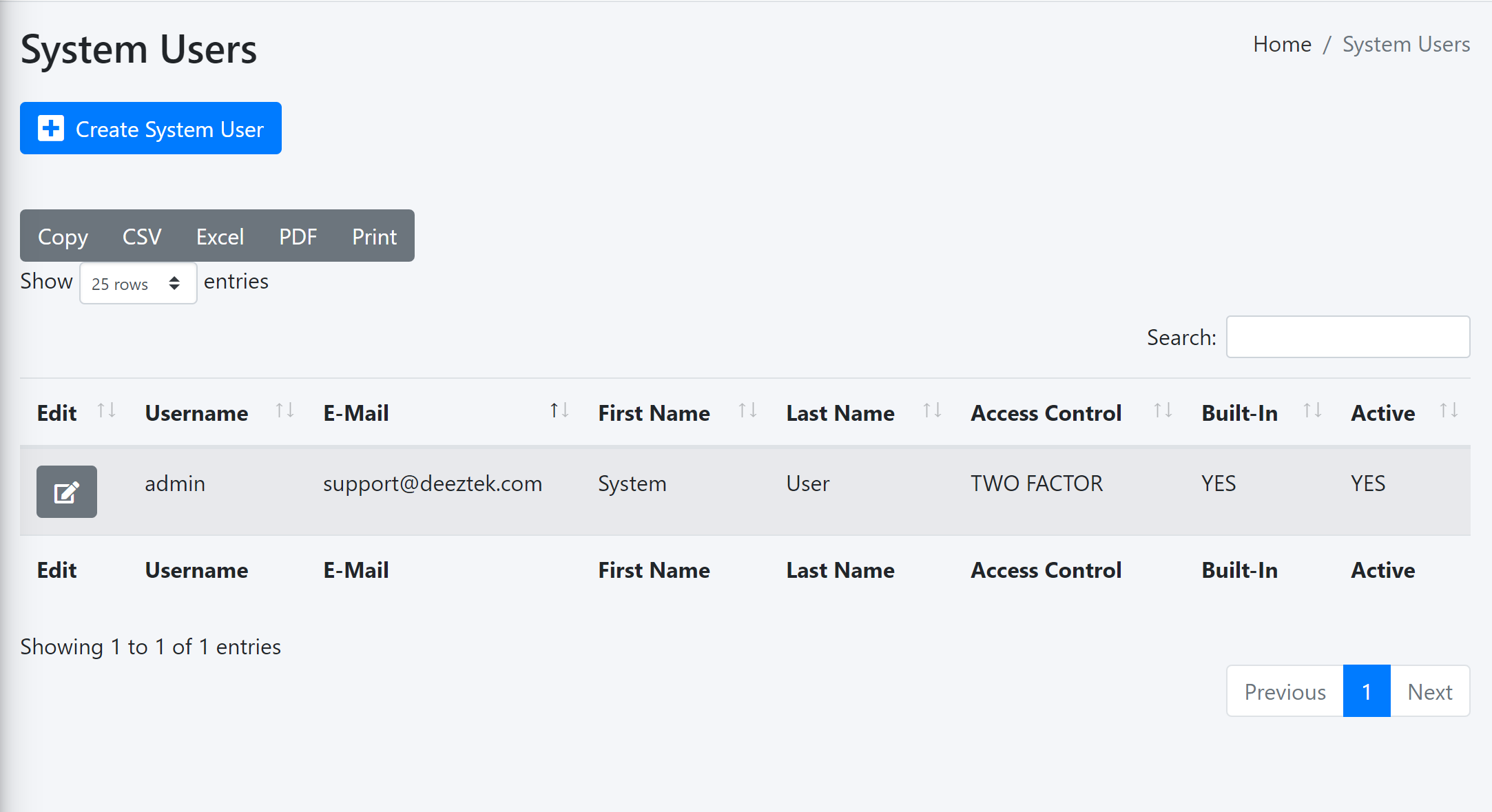](https://docs.deeztek.com/uploads/images/gallery/2021-11/image-1637977280616.png) By default, Hermes SEG comes pre-configured with the the **System User** account with the following default credentials: - **Username:** admin - **Password:** ChangeMe2! #### Create System User If you wish to create a new System User, click the **Create System User** button on top of the screen (**Figure 2**). **Figure 2** [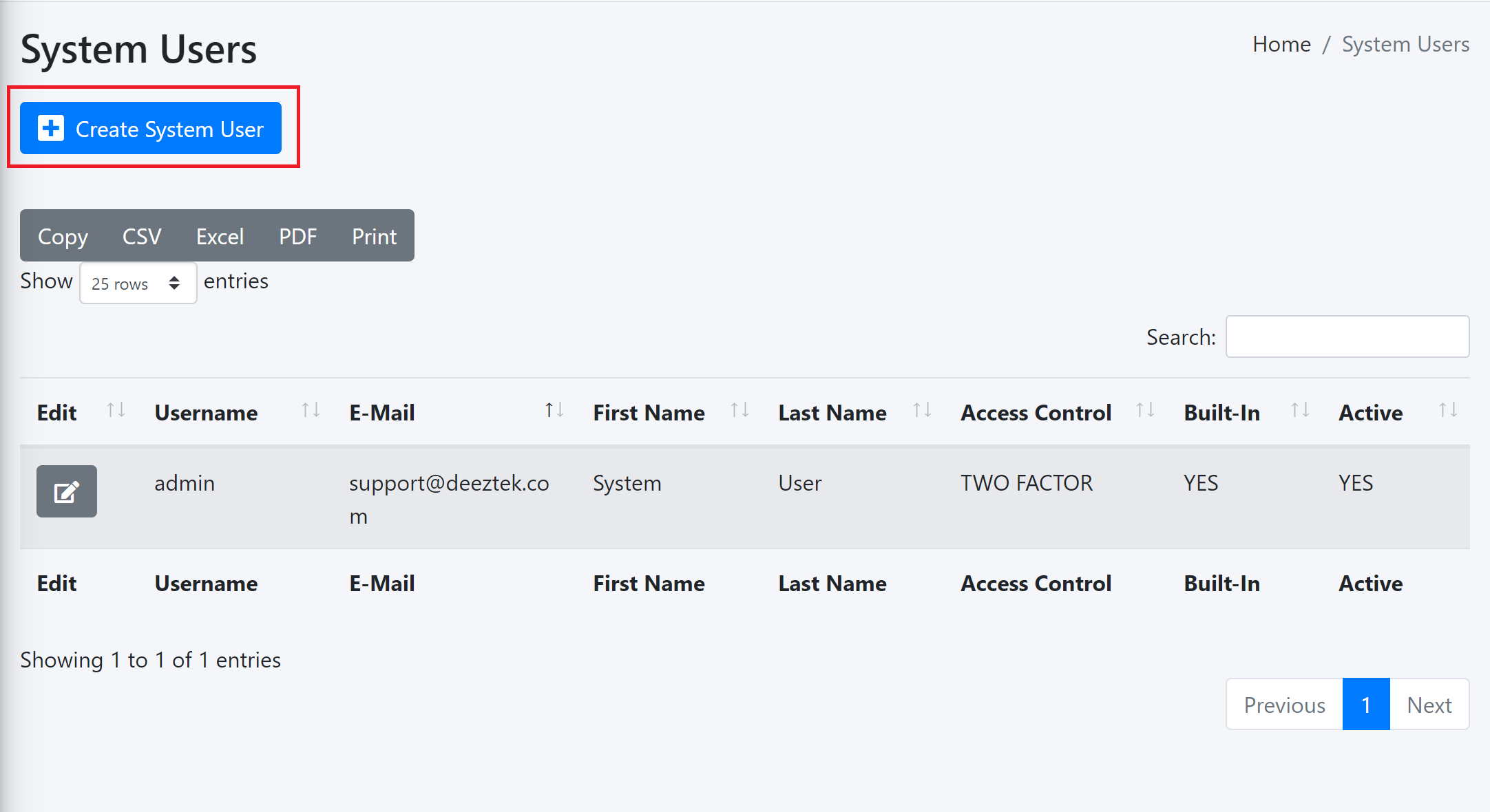](https://docs.deeztek.com/uploads/images/gallery/2021-11/image-1637977567602.png) You will be directed to the **Edit System User** screen where the system has already pre-filled the **Username**, **E-Mail Address**, **First Name** and **Last Name** fields. The **Access Control Policy** field has been set to **One Factor**, the **Set User Password** field has been set to **YES** and the **Check Password Against haveibeenpwned.com** has been set to **YES**. Adjust fields as necessary, enter a password in the **User Password** field and click the **Submit** button (**Figure 3**). **Figure 3** [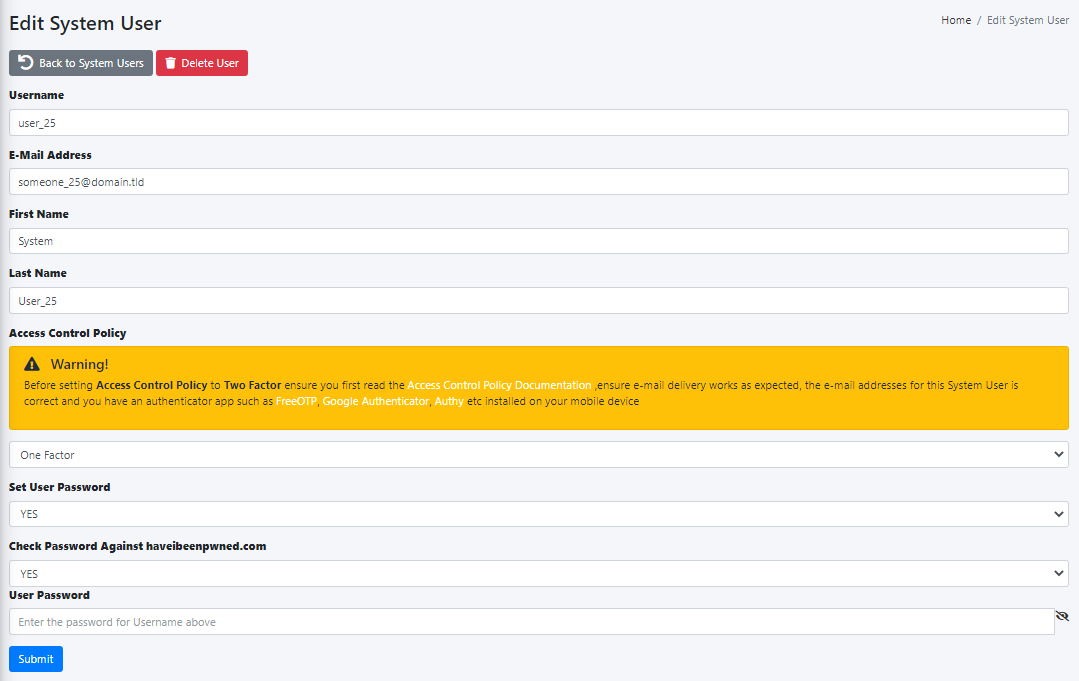](https://docs.deeztek.com/uploads/images/gallery/2021-11/image-1638020865501.png) #### Access Control Policy The Access Control Policy field allows you to switch between **One Factor** Authentication (1FA) which consists of Username and Password authentication (Default) OR **Two Factor** Authentication (2FA) which consists of Username and Password AND an additional **Timed One Time Password** (TOTP) generated on your mobile device for additional security. Two Factor requires the following pre-requisites before enabling: - Hermes SEG Outbound E-mail Flow must be working correctly - The System User Account you enable Two Factor authentication must have a valid e-mail address. - You must have an Authenticator app installed on your mobile device such as [FreeOTP](https://freeotp.github.io), [Google Authenticator](https://play.google.com/store/apps/details?id=com.google.android.apps.authenticator2), [Authy](https://authy.com/download/) etc. Once you set the **Access Control Policy** to **Two Factor** and click the **Submit** button, logout and then log back in with the same System User you enabled Two Factor authentication. After successfully authenticating, the system will prompt to register your mobile device. Click the **Register device** link on the One-Time Password screen (**Figure 4**). **Figure 4** [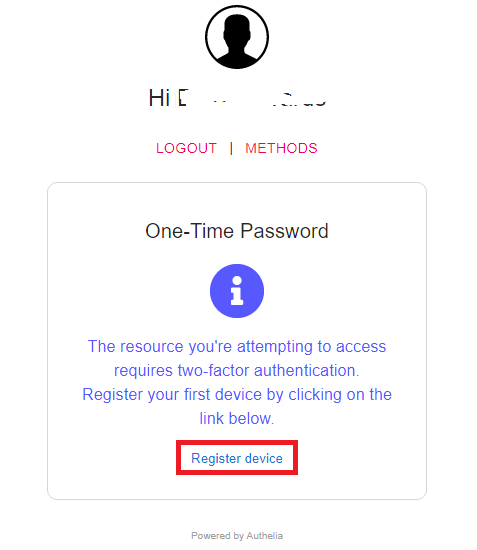](https://docs.deeztek.com/uploads/images/gallery/2021-10/image-1635449972196.png) The system will display **An email has been sent to your address to complete the process** on the upper right-hand corner of the screen (**Figure 5**). **Figure 5** [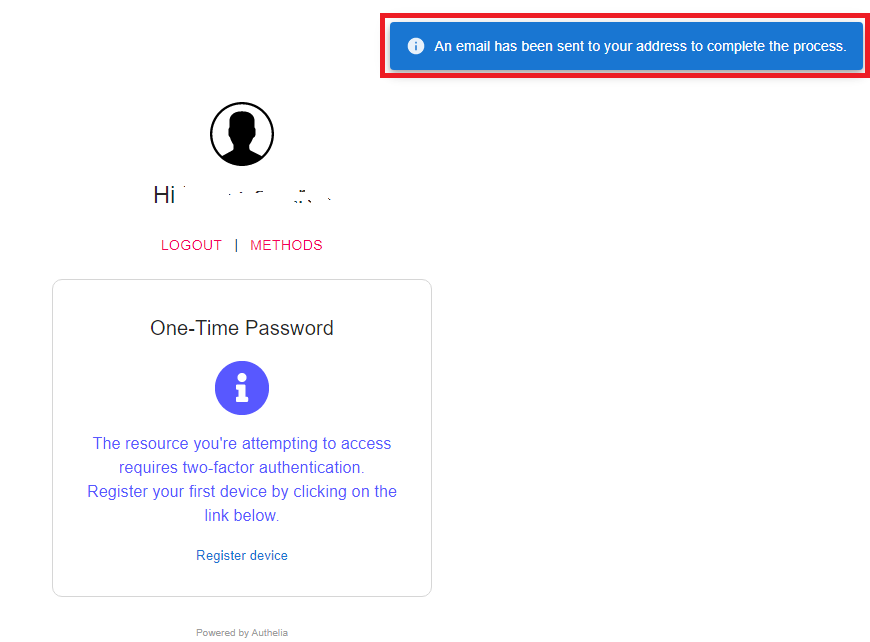](https://docs.deeztek.com/uploads/images/gallery/2021-10/image-1635450273072.png) Check the mailbox of the e-mail address associated with your account and look for an e-mail that contains the subject **Register your mobile** and click the **Register** button at the bottom of the e-mail (**Figure 6**). **Figure 6** [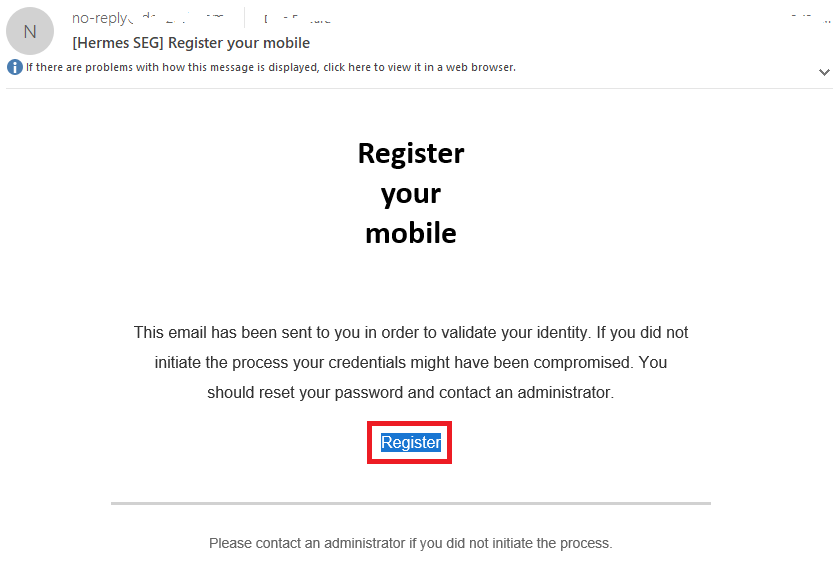](https://docs.deeztek.com/uploads/images/gallery/2021-10/image-1635450744160.png) You will be taken to the **Scan QR Code** page. Using the Authenticator app you previously downloaded and installed on your mobile device, scan the QR Code from the page and click the **DONE** button (**Figure 7**). **Figure 8** [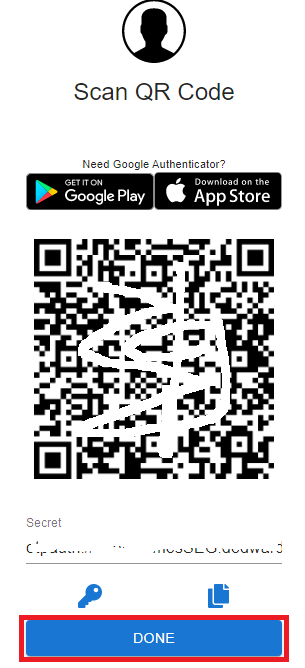](https://docs.deeztek.com/uploads/images/gallery/2021-10/image-1635451176940.png) On the following **One-Time Password** screen enter the passcode generated by your authenticator app (**Figure 9**). **Figure 9** [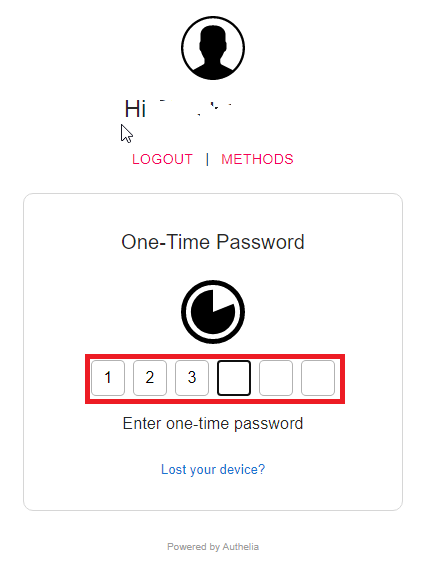](https://docs.deeztek.com/uploads/images/gallery/2021-10/image-1635452032741.png) If everything goes well and you typed in the correct passcode within the allotted time, you should be able to successfully login to **Hermes SEG Administration Console**. If you run into a problem and the Two Factor authentication did not work for any reason, you can reset authentication back to One Factor by running the following script from the console with root privileges: ``` /opt/hermes/scripts/disable_authelia_2fa.sh ``` #### Passwords Hermes SEG implements the following [NIST 800-63](https://pages.nist.gov/800-63-3/sp800-63-3.html) Password Guidelines: - 8 character minimum password. - 64 character maximum password. - Able to check against known breached passwords via the use of the [haveibeenpwned.com](https://haveibeenpwned.com) API. - Implementation of Multifactor Authentication via the use of [Time-Based One-Time Password (TOTP)](https://infogalactic.com/info/Time-based_One-time_Password_Algorithm) , [Duo Security](https://duo.com) and [Webauthn](https://www.yubico.com/authentication-standards/webauthn/) Security Keys. - Passwords are hashed with the [Argon2 KDF](https://infogalactic.com/info/Argon2). # Email Archive In this section will be able to configure a scheduled archive jobs for your Hermes SEG. An Email Archive Job will create a separate email archive on external storage by creating a directory named **/mnt** on that share, copying all the emails stored on the appliance to that directory, verifying that the emails copied correctly and then delete them from the appliance local storage in order to free up space. Archived emails can still be viewed and downloaded form the Hermes SEG Administration Console or User Self-Service Console as long as the external storage is mounted on the appliance. **However, archived emails cannot be released to user mailboxes.** In addition to archiving the email on the appliance to external storage, an archive job will also allow you to create a compressed 7-zip snapshot of the latest archive on the external storage . The 7-zip snapshot is useful for having multiple backup copies of the e-mail archive. Each time an Email Archive Job runs, it creates a detailed log of each and every message that is moved and deleted from the appliance local storage. At the end of the job, this log is compressed as a 7-zip file and then moved to the external archive storage. For Email Archive Jobs configured **without** a compressed 7-zip snapshot of the latest archive, the system will automatically prune logs older than **14-days** by default. For Email Archive Jobs configured **with** a compressed 7-zip snapshot of the latest archive, the system will automatically prune logs following the **Compressed 7-zip Snapshot Retention Period** setting of the job. Hermes SEG requires a CIFS (Windows Share) share to an external storage in order to perform scheduled email archives. Shares have to be successfully validated first before an Archive Job can be saved. **Only one Archive Job can be created.** **Note: It is highly recommended that you archive email to an external deduplicating storage**. **Note: Windows Server 2012 and above has support for deduplication, however if you are planning on utilizing Windows Server deduplication, you must disable [Windows Kernel Case Insensitivity](https://www.deeztek.com/documentation/hermes-seg-documentation/hermes-secure-email-gateway-general-documentation/disable-windows-kernel-case-insensitivity/) and you must NEVER use Windows file tools to manage the email archive because case sensitivity will not be preserved and the appliance will not able to access the archived emails.** **Note: Email Archive Jobs can be a very time consuming process depending on the number of emails stored on the appliance. The initial Archive Job can take days or even weeks to complete.** ### Validate Share By default, when creating a new Archive Job, the **Archive Job Create Mode** field is automatically set to **Validate Share** and the **Save Archive Job** field is **disabled**. The Save Archive Job field only gets enabled when a share is succesfully validated. 1. Enter a friendly name under the **Archive Job Name** field 2. Enter an IP Address or a FQDN Host name of the server hosting the share under the **Server** field 3. Enter the name of the share under the **Share Name** field 4. Enter the name of a directory under the share if applicable under the **Directory Name** field 5. Enter domain name under the **Domain** field 6. Enter the username who has access to that share under the **Username** field 7. Enter the password for the username from Step 6 under the **Password** field 8. Enter a valid email address in order to get success or failure notifications from the backup job under the **Notification E-mail Address** field 9. Select the number of days to archive email older than in the **Archive Emails Older Than** drop-down box. For instance, if you want to have 3 months worth of archive emails stored on the appliance and archive the rest, you would select 90 Days from the drop-down box. 10. Select **Yes** on the **Create Compressed 7-zip Snapshot** field if you want the system to create **Compressed 7-zip format** snapshots of the email archive stored on the share. If you select Yes, after all the emails have been archived on the share, the system will additionally create a 7-zip compressed archive of all the emails on the share. This is useful for having multiple copies of the email archive for retention purposes. 11. Select the number of days to retain Compressed 7-zip Snapshot files on the **Compressed 7-zip Snapshot Retention Period** drop-down field. Available options are, **7 Days, 14 Days, 21 Days and 28 Days**. The system will use the **Compressed 7-zip Snapshot Retention Period** you selected to automatically delete older snapshot files so that your external storage doesn't get filled up. 12. Select the job frequency from the **Frequency** drop-down field. Available options are **Daily, Weekly and Monthly**. 13. Enter a date for the archive job to start by either selecting a date by clicking the calendar button or by manually entering a date in the form of **mm/dd/yyyy** in the **Start Date** field. 14. Select a time for the archive job to start by selecting a time from the **Start Time** drop-down field 15. Click the **Submit** button to validate the share (**Figure 1**) **Figure 1** [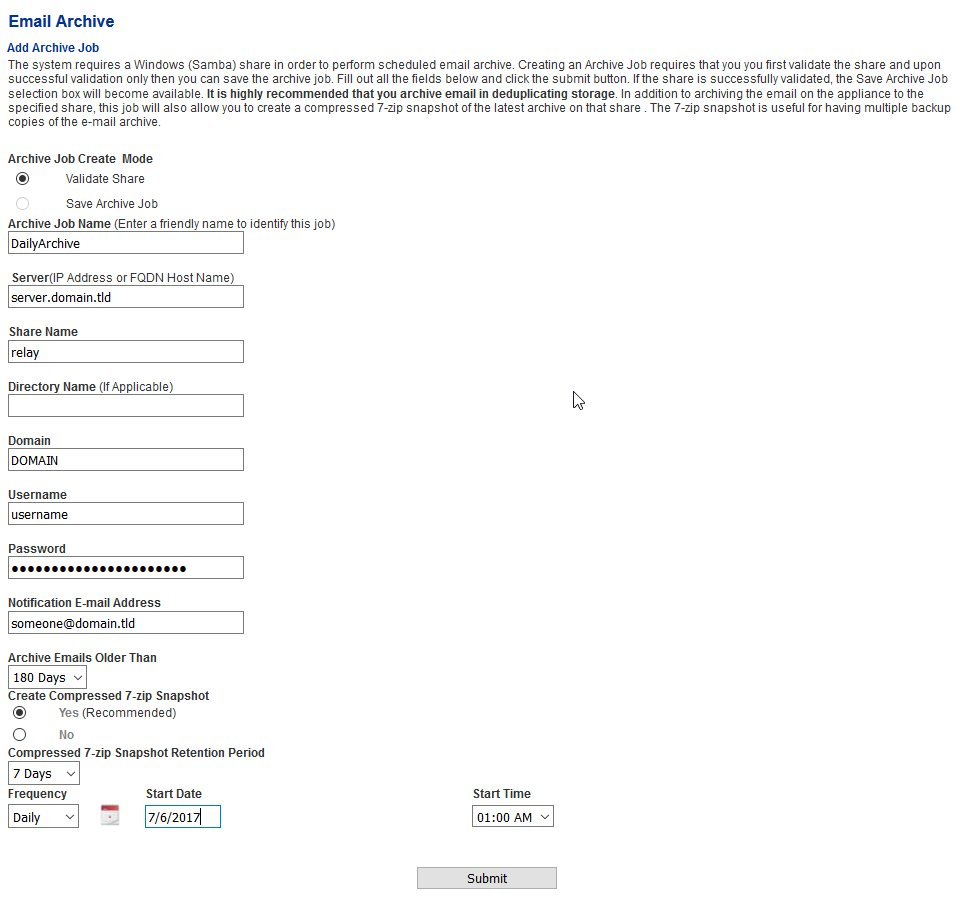](https://docs.deeztek.com/uploads/images/gallery/2020-11/image-1606157719854.png) ### Share Validation Succesful If the validation is succesful, you will receive the following message (**Figure 2**) **Figure 2** [](https://docs.deeztek.com/uploads/images/gallery/2020-11/image-1606157730027.png) You will also notice that the **Save Archive Job** option will be enabled under the **Archive Job Create Mode** on top of the page. Select the **Save Archive Job** option and click the **Submit** button to save the job (Figure 3). **Figure 3** [](https://docs.deeztek.com/uploads/images/gallery/2020-11/image-1606157737507.png) The job will be saved under the **Existing Archive Job** section on the bottom of the page (**Figure 4**) **Figure 4** [](https://docs.deeztek.com/uploads/images/gallery/2020-11/image-1606157746508.png) ### Share Validation Unsuccessful If the validation is unsuccesful, you will receive the following message (**Figure 5**). **Figure 5** [](https://docs.deeztek.com/uploads/images/gallery/2020-11/image-1606157756338.png) Check the information supplied and share permissions and try validating the share again. ### Manually Run Archive Job The saved archive job will run according to the schedule you set. Alternatively if you wish to run it immediately: 1. Click on the green arrow button  under the **Run/Stop** column to run the job immediately (**Figure 6)** **Figure 6** [](https://docs.deeztek.com/uploads/images/gallery/2020-11/image-1606157925805.png) 2. In the **Confirmation Window**, click the **Yes** button (**Figure 7**). Clicking **No**, will take you back to the Email Archive page. **Figure 7** [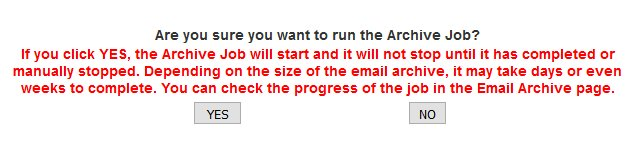](https://docs.deeztek.com/uploads/images/gallery/2020-11/image-1606157948521.png) If the Archive Job is in progress, the button under the **Run/Stop** column will become a red square  (**Figure 8**) **Figure 8** [](https://docs.deeztek.com/uploads/images/gallery/2020-11/image-1606157959520.png) ### Stop an Active Archive Job If you wish to stop an active Archive Job: 1. Click on the red square button  under the **Run/Stop** column (**Figure 9)** **Figure 9** [](https://docs.deeztek.com/uploads/images/gallery/2020-11/image-1606157968600.png) 2. In the **Confirmation Window**, click the **Yes** button (**Figure 10**). Clicking **No**, will take you back to the Email Archive page. **Figure 10** [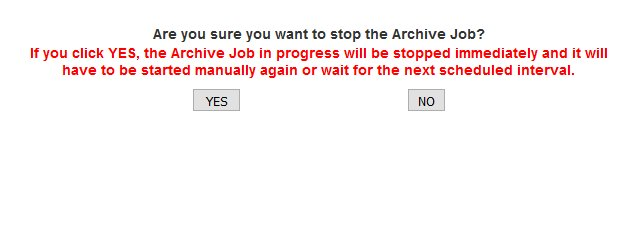](https://docs.deeztek.com/uploads/images/gallery/2020-11/image-1606157977295.png) ### Delete Archive Job If you wish to delete the existing Archive Job and the job is NOT running: 1. Click on the red X  under the Delete column (**Figure 11**) **Figure 11** [](https://docs.deeztek.com/uploads/images/gallery/2020-11/image-1606158010278.png) 2. In the Confirmation Window, click the **Yes** button (**Figure 12**). Clicking **No**, will take you back to the Email Archive page. **Figure 12** [](https://docs.deeztek.com/uploads/images/gallery/2020-11/image-1606158036697.png) ### Remount Archive Share If the Archive Share becomes dismounted and you or your users are not able to view or download archived emails from the **Message History & Archive**, you can click on the button on the **Remount Share** column to attempt to remount the Archive share (**Figure 13**). **Note: You cannot remount the Archive share if the Archive Job is in progress.** **Figure 13** [](https://docs.deeztek.com/uploads/images/gallery/2020-11/image-1606158046782.png) ### Restore External Storage Archive from Compressed 7-zip Snapshot File As mentiond above, if you are storing your email archive on an external storage share on a Windows server, you must NEVER use Windows file tools to manage the email archive because case sensitivity will not be preserved and the appliance will not able to access the archived emails. This includes, attempting to restore the email archive from a Compressed 7-zip Snapshot file. The restore process should always be done from the Hermes SEG appliance. 1. Login to Hermes SEG via SSH or the virtual console and become root and then type the hermes account password when prompted: ``` sudo su ``` 2. Ensure the email archive share is mounted: ``` df -h ``` 3. Look for the /mnt/hermesemail\_archive mount (**Figue 14**) **Figure 14**  [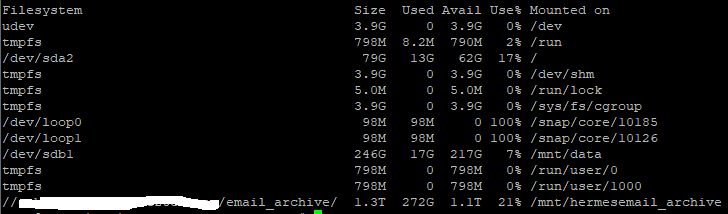](https://docs.deeztek.com/uploads/images/gallery/2020-11/image-1606158146714.png) 4. Change to the /mnt/hermesemail\_archive directory: ``` cd /mnt/hermesemail_archive ``` 5. List files in that directory ``` ls ``` 6. If the share is mounted succesfully you should get a listing similar to below (in this example, note the presense of the the various **Compressed 7-zip Snapshot** files): ``` hermesemail_archive_07-06-2017-0224.7z hermesemail_archive_07-11-2017-0303.7z hermesemail_archive_07-07-2017-0201.7z hermesemail_archive_07-12-2017-0304.7z hermesemail_archive_07-08-2017-0153.7z hermesemail_archive_07-13-2017-0246.7z hermesemail_archive_07-09-2017-0313.7z hermesemail_archive_07-14-2017-0149.7z hermesemail_archive_07-10-2017-0315.7z mnt ``` ### If the mnt directory exists Change to that directory: ``` cd mnt/ ``` ### If the mnt directory does NOT exist Create the directory: ``` mkdir mnt ``` Change to that directory: ``` cd mnt/ ``` 7. Restore the email archive to the share by running the following command where **hermesemail\_archive\_mm-dd-yyyy-hhmm.7z** is the name of the Compressed 7-zip Snapshot file from the listing in **Step 6**: ``` 7za x ../hermesemail_archive_mm-dd-yyyy-hhmm.7z ``` # System Reboot & Shutdown ### Reboot System 1. Click on the **Reboot System** button and wait for the system to finish the reboot process (**Figure 1**). **Figure 1** [](https://docs.deeztek.com/uploads/images/gallery/2020-11/image-1606158378832.png) ### Shutdown System 1. Click on the **Shutdown** System button. Please note that manual intervention will be required in order to turn the system back on (**Figure 2**). **Figure 2** [](https://docs.deeztek.com/uploads/images/gallery/2020-11/image-1606158385830.png)