# Encryption


# Internal Certificate Authority

An Internal Certificate Authority can be used to create certificates for internal and external recipients for the purposes of S/MIME encryption and message signing. The certificate generated by the internal CA are not trusted, therefore you must instruct the external recipients of your messages to trust your Internal CA in their clients.

Alternatively, instead of using certificates generated by the internal CA, you can import certificates from a trusted 3rd party Certificate Authority for both internal and external recipients.

### Add Internal Certificate Authority

1. Under the **Certificate Authority Common Name** field, enter the name you wish to assign to the internal CA.
2. Under the **Certificate Authority Certificate Validity in Years** field, select the length of time you wish the Certificate Authority to remain valid. We recommend you leave this setting at the default 5 years.
3. Under the **Certificate Authority Certificate Key Length** select the key length you wish to use. We recommend you leave this setting at the default 4096-bits.
4. Under the **Organization/Company Name** enter the name of your organization.
5. Under the Organization Unit field enter the name of your organization unit.
6. Under the **Organization State/Province** field enter the name of of the organization state/province
7. Under the **Organization Country Code** field enter the two letter code for your organization country. Example, for United States simply enter **US**.
8. Click the checkbox under the **Make Default** field, if you wish to make this Certficate Authority the defalt CA. By default, the first CA that gets created becomes the default CA.
9. Click the **Save Settings** button (**Figure 1**).

**Figure 1**

[![image-1609680670258.png](https://docs.deeztek.com/uploads/images/gallery/2021-01/scaled-1680-/image-1609680670258.png)](https://docs.deeztek.com/uploads/images/gallery/2021-01/image-1609680670258.png)

10. Each Internal Certificate Authority you add shows up in the **Edit/Delete Existing Internal Certificate Authorities** section (**Figure 2**).

**Figure 2**

[![image-1609680681186.png](https://docs.deeztek.com/uploads/images/gallery/2021-01/scaled-1680-/image-1609680681186.png)](https://docs.deeztek.com/uploads/images/gallery/2021-01/image-1609680681186.png)

11. Continue adding Internal Certificate Authorities as needed.

### Set Internal Certificate Authority as Default

1. Under the **Edit/Delete Existing Internal Certificate Authorities** place a checkmark under the Default column of the Internal Certificate Authority you wish to set as default. The system will automatically set the Certificate Authority as the default (**Figure 3**).

**Figure 3**

[![image-1609680694957.png](https://docs.deeztek.com/uploads/images/gallery/2021-01/scaled-1680-/image-1609680694957.png)](https://docs.deeztek.com/uploads/images/gallery/2021-01/image-1609680694957.png)

### Delete Internal Certificate Authority

Default Internal Certificate Authorities or Internal Certificate Authorities that have been used to issue certificates to Internal or External Recipients cannot be deleted. In those cases you must either set another Internal CA as the default and/or you must first remove the Internal Recipients under **Gateway --&gt; Internal Repients** and the External Recipients under **Encryption --&gt; External Recipient Encryption** which will also remove any certificates assigned to those recipients. Please note, you do not have to remove all internal or external recipients, only the recipients that have certificates assigned to them by the Internal Certificate Authority you wish to delete.

<p class="callout warning">If an internal Certificate Authority cannot be deleted, the Delete column of that entry will contain a [![image-1609680708729.png](https://docs.deeztek.com/uploads/images/gallery/2021-01/scaled-1680-/image-1609680708729.png)](https://docs.deeztek.com/uploads/images/gallery/2021-01/image-1609680708729.png)icon. Otherwise, if it can be deleted, the Delete column of that entry will contain a [![image-1609680727704.png](https://docs.deeztek.com/uploads/images/gallery/2021-01/scaled-1680-/image-1609680727704.png) ](https://docs.deeztek.com/uploads/images/gallery/2021-01/image-1609680727704.png)icon.</p>

1. Under the **Edit/Delete Existing Internal Certificate Authorities** click the [![image-1609680757812.png](https://docs.deeztek.com/uploads/images/gallery/2021-01/scaled-1680-/image-1609680757812.png) ](https://docs.deeztek.com/uploads/images/gallery/2021-01/image-1609680757812.png)icon of the Internal Certificate Authority you wish to delete.
2. On the confirmation page, click on the **YES** button to delete the Internal CA or click the **NO** button to cancel.

**Figure 4**

[![image-1609680774135.png](https://docs.deeztek.com/uploads/images/gallery/2021-01/scaled-1680-/image-1609680774135.png)](https://docs.deeztek.com/uploads/images/gallery/2021-01/image-1609680774135.png)

3. You will be returned to the **Internal Certificate Authority** Page

# PGP Key Servers

PGP Key Servers section allows you to add/delete public PGP Key Servers to Hermes SEG in order to be able to publish Internal and External Recipient Public PGP Keys to those servers. Hermes SEG by default includes the following public PGP Key Servers:

- ha.pool.sks-keyservers.net --&gt; OpenPGP SKS Key Server High Availability
- keyserver.ubuntu.com --&gt; Ubuntu SKS OpenPGP Public Key Server

### Add PGP Key Server

1. Under the **Key Server** field, enter the Key Server address. Ensure you do **NOT** include **http://** or **https://** or any port numbers.
2. Under the **Note** field, enter a description for this key server.
3. Click the **Add** button (**Figure 1**)

**Figure 1**

[![image-1609680828285.png](https://docs.deeztek.com/uploads/images/gallery/2021-01/scaled-1680-/image-1609680828285.png)](https://docs.deeztek.com/uploads/images/gallery/2021-01/image-1609680828285.png)

4. The server will be added and it will appear under the **Delete PGP Key Server(s)** section below (**Figure 2**)

**Figure 2**

[![image-1609680836733.png](https://docs.deeztek.com/uploads/images/gallery/2021-01/scaled-1680-/image-1609680836733.png)](https://docs.deeztek.com/uploads/images/gallery/2021-01/image-1609680836733.png)

### Delete PGP Key Server

1. Under the **Delete PGP Key Server(s)** section, select the Key Server entry you wish to delete (only one entry at a time can be selected) and click the **Delete** button (**Figure 3**).

**Figure 3**

[![image-1609680846403.png](https://docs.deeztek.com/uploads/images/gallery/2021-01/scaled-1680-/image-1609680846403.png)](https://docs.deeztek.com/uploads/images/gallery/2021-01/image-1609680846403.png)

2. The Key Server you selected will be immediately deleted and removed from the **Delete PGP Key Server(s)** section.

# Encryption Settings

1. The **Trigger encryption by e-mail subject** allows Internal Recipients to encrypt email to any External Recipient by entering a special keyword in the subject of any email. This setting enables or disables this feature. We recommend you set it to **Enabled** (**Figure 1**).

**Figure 1**

[![image-1609680981859.png](https://docs.deeztek.com/uploads/images/gallery/2021-01/scaled-1680-/image-1609680981859.png)](https://docs.deeztek.com/uploads/images/gallery/2021-01/image-1609680981859.png)
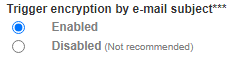
2. The **Encryption by e-mail subject keyword** sets the special keyword to be entered in the subject of an email in order to encrypt that email message. Enter a unique keyword that would not normally appear in the subject of a typical email. We recommend you set this field to **\[encrypt\]** or **\[secure\]** ensuring to include the brackets (**Figure 2**).

**Figure 2**

[![image-1609680998600.png](https://docs.deeztek.com/uploads/images/gallery/2021-01/scaled-1680-/image-1609680998600.png)](https://docs.deeztek.com/uploads/images/gallery/2021-01/image-1609680998600.png)

3. The **Remove e-mail subject keyword after encryption** field sets the system to automatically remove the special keyword from the subject after the email has been encrypted. We recommend you set it to **Enabled** (**Figure 3**).

**Figure 3**

[![image-1609681020505.png](https://docs.deeztek.com/uploads/images/gallery/2021-01/scaled-1680-/image-1609681020505.png)](https://docs.deeztek.com/uploads/images/gallery/2021-01/image-1609681020505.png)

4. The **Secure Portal Address** field sets the address that will be included in PDF encrypted emails that require the recipient to navigate in order to decrypt, view and reply to encrypted PDF emails (**Figure 4**).

**Figure 4**

[![image-1609681343402.png](https://docs.deeztek.com/uploads/images/gallery/2021-01/scaled-1680-/image-1609681343402.png)](https://docs.deeztek.com/uploads/images/gallery/2021-01/image-1609681343402.png)

5. The **PDF Reply Sender E-mail** sets the **From** address for when an external recipient replies to an encrypted PDF email from the **Secure Portal** (**Figure 5**).

**Figure 5**

[![image-1609681357968.png](https://docs.deeztek.com/uploads/images/gallery/2021-01/scaled-1680-/image-1609681357968.png)](https://docs.deeztek.com/uploads/images/gallery/2021-01/image-1609681357968.png)

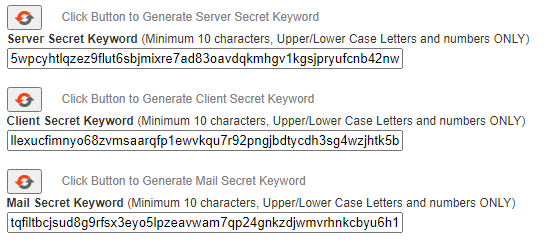
6. The **Server Secret Keyword, Client Secret Keyword** and **Mail Secret Keyword** are used to protect external resources against tampering. For example if an external user replies to an encrypted PDF email, the **Server Secret Keyword** ensures that the user can only reply to to a message generated by this server. If you followed the [Getting Started](https://www.deeztek.com/documentation/hermes-seg-documentation/hermes-seg-administrator-guide/getting-started/) guide, you should had generated new Server Secret Keyword, Client Secret Keyword and Mail Secret Keyword. If not, ensure you generate one by clicking on the [![image-1609681075547.png](https://docs.deeztek.com/uploads/images/gallery/2021-01/scaled-1680-/image-1609681075547.png) ](https://docs.deeztek.com/uploads/images/gallery/2021-01/image-1609681075547.png)icon next to each which will automatically generate a keyword and enter it in each respective field (**Figure 6**).

**Figure 6**

[![image-1609681276095.png](https://docs.deeztek.com/uploads/images/gallery/2021-01/scaled-1680-/image-1609681276095.png)](https://docs.deeztek.com/uploads/images/gallery/2021-01/image-1609681276095.png)
7. Click on the **Save Settings** button to save your settings.

# Internal Recipients Encryption

<div id="bkmrk-if-internal-recipien"><section class="col-lg-9 col-md-9 col-sm-8 col-xs-12 content"><p class="callout warning">If Internal Recipients have not been added in your system under **Gateway --&gt; Internal Recipients**, this page will not show a recipient listing.</p>

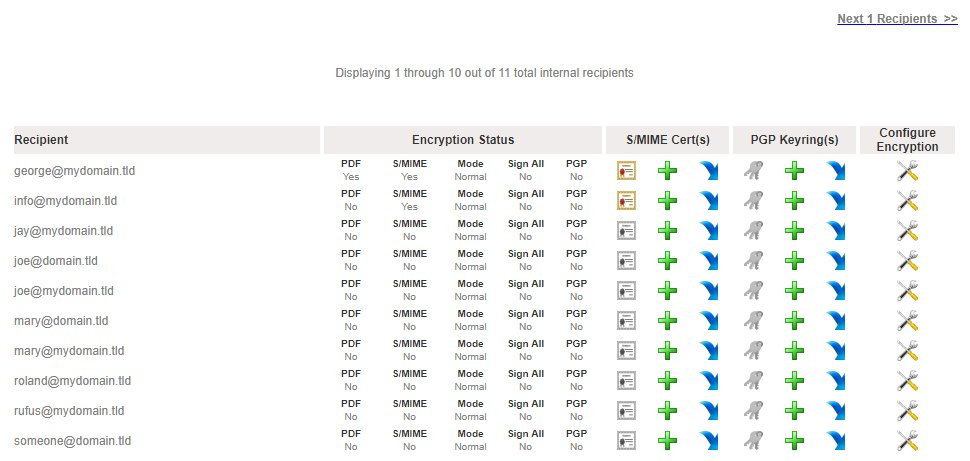
By default, When Internal Recipients are added into Hermes SEG, they are NOT configured with the ability to send encrypted email. Each Internal Recipient must be individually configured for the type of encryption you wish for them to use.

On this page, a listing of only previously added Internal Recipients will appear. Note, that under the **Encryption Status** section the **PDF** and **S/MIME** and **PGP** columns are set to **No**. Additionally, under the **S/MIME Cert(s)** section, the certificate[![image-1609681511189.png](https://docs.deeztek.com/uploads/images/gallery/2021-01/scaled-1680-/image-1609681511189.png)](https://docs.deeztek.com/uploads/images/gallery/2021-01/image-1609681511189.png)icons are disabled indicating that no S/MIME Certificates are present, and under the **PGP Keyring(s)** section the keyring[![image-1609681527764.png](https://docs.deeztek.com/uploads/images/gallery/2021-01/scaled-1680-/image-1609681527764.png)](https://docs.deeztek.com/uploads/images/gallery/2021-01/image-1609681527764.png)icons are disabled indicating that no PGP Keyrings are present **(Figure 1**).

**Figure 1**

[![image-1609681541466.png](https://docs.deeztek.com/uploads/images/gallery/2021-01/scaled-1680-/image-1609681541466.png)](https://docs.deeztek.com/uploads/images/gallery/2021-01/image-1609681541466.png)
### Filter Internal Recipients Encryption

Setting a filter will assist you in narrowing down specific recipients by email address or domain in order to manage encryption settings easier.

1. In the Filter By field, enter a complete or partial email address or domain and click the **Set Filter** button. If any matches are found, the **Internal Recipients** **Encryption** listing will be populated with **only the entries matching the filter you set** (**Figure 2**).

**Figure 2**

[![image-1609681552196.png](https://docs.deeztek.com/uploads/images/gallery/2021-01/scaled-1680-/image-1609681552196.png)](https://docs.deeztek.com/uploads/images/gallery/2021-01/image-1609681552196.png)

2. You can clear a filter you set by clicking the **Clear Filter** button at any time.

### Configure Internal Recipients Encryption

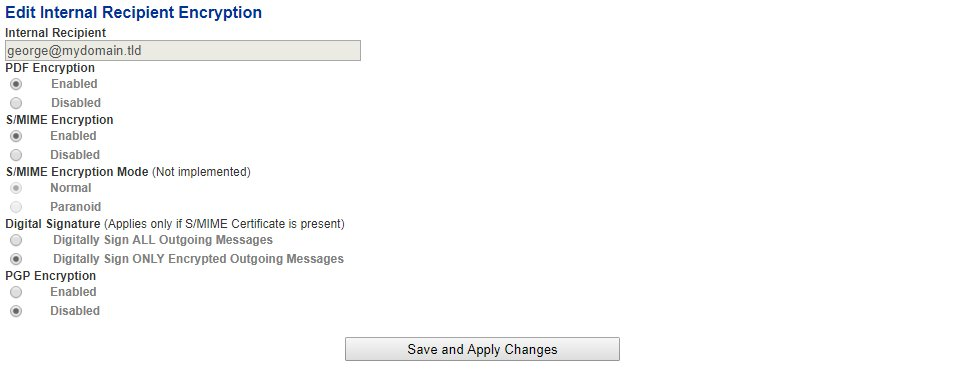
1. Under the C**onfigure Encryption** column of the Internal Recipient you wish to configure, click on the[![image-1609681570492.png](https://docs.deeztek.com/uploads/images/gallery/2021-01/scaled-1680-/image-1609681570492.png)](https://docs.deeztek.com/uploads/images/gallery/2021-01/image-1609681570492.png)icon.
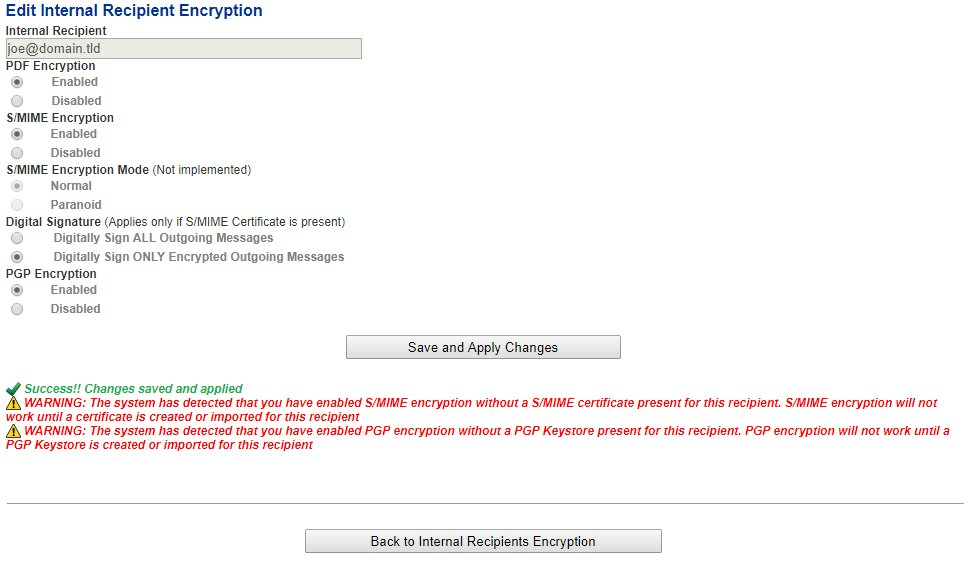
2. In the **Edit Internal Recipient Encryption** page, under the **PDF Encryption** field, select Enabled if you wish to enable PDF Encryption for this recipient.
3. Under the **S/MIME Encryption** field, select Enabled if you wish to enable S/MIME Encryption for this recipient. Please note, that if you enable S/MIME Encryption, you must also create or import a S/MIME Certificate for this recipient.
4. Under the **Digital Signature** field, select **Digitally Sign ALL Outgoing Messages** if you wish to have all outgoing messages from this recipient to be digitally signed by S/MIME Certificate regardless if the messsage is encrypted or not. Otherwise, leave selected the default setting of **Digitally Sign ONLY Encrypted Outgoing Messages** which will ONLY digitally sign outgoing messages that have been encrypted. Please note, Digital Signature requires a S/MIME certificate to be created or imported before any messages can be digitally signed.
5. Under the **PGP Encryption** field, select Enabled if you wish to enable PGP Encryption for this recipient. Please note, that if you enable PGP Encryption, you must also create or import a PGP Keyring for this recipient.
6. Click on the **Save and Apply Changes** button (**Figure 3**).

**Figure 3**

[![image-1609681584848.png](https://docs.deeztek.com/uploads/images/gallery/2021-01/scaled-1680-/image-1609681584848.png)](https://docs.deeztek.com/uploads/images/gallery/2021-01/image-1609681584848.png)
6. The button will display a status of **Saving and Apply Changes, please wait...**(**Figure 4**).

**Figure 4**

[![image-1609681592985.png](https://docs.deeztek.com/uploads/images/gallery/2021-01/scaled-1680-/image-1609681592985.png)](https://docs.deeztek.com/uploads/images/gallery/2021-01/image-1609681592985.png)

7. Configuring encryption can be a time consuming process. Please wait for a Success message from the system before clicking the **Back to Internal Recipients Encryption** button at the bottom of the page (**Figure 5**).

**Figure 5**

[![image-1609681604978.png](https://docs.deeztek.com/uploads/images/gallery/2021-01/scaled-1680-/image-1609681604978.png)](https://docs.deeztek.com/uploads/images/gallery/2021-01/image-1609681604978.png)
### Generate Internal Recipient S/MIME Certificate

**Do not attempt to generate a S/MIME Certificate for an Internal Recipient unless you have already enabled S/MIME encryption on that recipient.**

1. Under the **S/MIME Certificate(s)** section of the Internal Recipient you wish to generate a certificate, click on the[![image-1609681614972.png](https://docs.deeztek.com/uploads/images/gallery/2021-01/scaled-1680-/image-1609681614972.png)](https://docs.deeztek.com/uploads/images/gallery/2021-01/image-1609681614972.png)icon.
2. You will be re-directed to the **Add Recipient S/MIME Certificate** page.
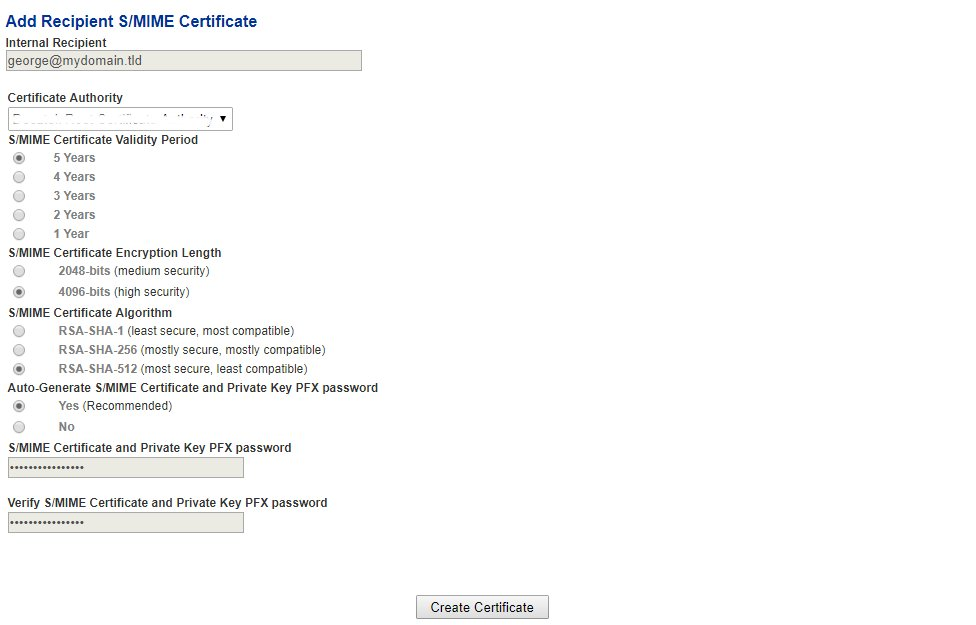
3. Assuming you have previously created an Internal Certificate Authority, under the **Certificate Authority** field, select the Internal Certificate Authority you wish to use to generate the S/MIME certificate.
4. Under the **S/MIME Certificate Validity Period**, select the number of years you wish this S/MIME Certificate to be valid. The default setting of 5 Years is recommended.
5. Under the **S/MIME Certificate Encryption Length**, select the length of the certificate. The default setting of 4096-bits is recommended.
6. Under the **S/MIME Certificate Algorithm**, select the algorithm you wish to generate the certificate. The default setting of RSA-SHA-512 is recommended.
7. Under the **Auto-Generate S/MIME Certificate and Private Key PFX password** field, select **Yes** to have the systtem automatically generate a password for the PFX file or select **No** if you wish to specify your own password. When generating a certificate, the system will also create a PFX file (Personal Information Exchange) and assign a password to it for security. A PFX file will contain both the public AND the private key of the generated certificate. The PFX file is used by the system for sending both the private and public key to the recipient that the certificate is being generated for for backup purposes or for configuring an email client. It's recommended that you allow the system to generate a PFX file password.
8. If you selected No in the **Auto-Generate S/MIME Certificate and Private Key PFX password**, enter the password you wish to use under the **S/MIME Certificate and Private Key PFX password** and enter the same password under the **Verify S/MIME Certificate and Private Key PFX password** field.
9. Click on the **Create Certificate** button (**Figure 6**). Please note that clicking the **Create Certificate** button will not change the button status and the system may appear unresponsive. Please wait until the certificate get created and the system re-directs you back to the **Internal Recipients Encryption** page.

**Figure 6**

[![image-1609681629583.png](https://docs.deeztek.com/uploads/images/gallery/2021-01/scaled-1680-/image-1609681629583.png)](https://docs.deeztek.com/uploads/images/gallery/2021-01/image-1609681629583.png)
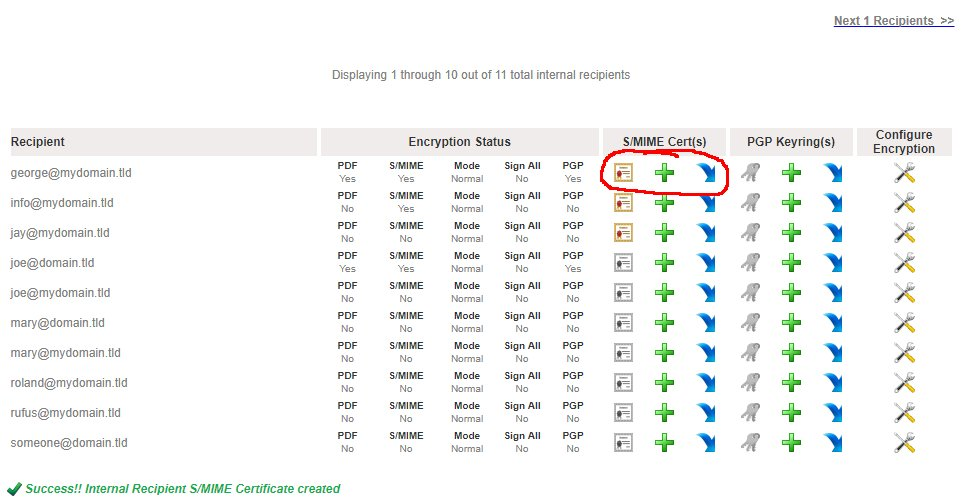
10. The system will generate the certificate and automatically redirect you back to the **Internal Recipients Encryption** page.
11. Under the Internal Repients listing on the S/MIME Cert(s) section of the recipient you just generated a certificate, you will note the[![image-1609681647880.png](https://docs.deeztek.com/uploads/images/gallery/2021-01/scaled-1680-/image-1609681647880.png)](https://docs.deeztek.com/uploads/images/gallery/2021-01/image-1609681647880.png)icon which will now be enabled and clickable indicating that there are certificates present (**Figure 7**).

**Figure 7**

[![image-1609681659089.png](https://docs.deeztek.com/uploads/images/gallery/2021-01/scaled-1680-/image-1609681659089.png)](https://docs.deeztek.com/uploads/images/gallery/2021-01/image-1609681659089.png)
### Import Internal Recipient S/MIME Certificate

**Do not attempt to import a S/MIME Certificate for an Internal Recipient unless you have already enabled S/MIME encryption on that recipient.**

**Hermes SEG ONLY supports importing S/MIME certificates from PFX (Personal Information Exchange) files. Ensure that you have a PFX file which will contain both the certificate and the private key along with the password of the PFX file before proceeding.**

1. Under the **S/MIME Cert(s)** section of the Internal Recipient you wish to import a certificate, click on the[![image-1609681669236.png](https://docs.deeztek.com/uploads/images/gallery/2021-01/scaled-1680-/image-1609681669236.png)](https://docs.deeztek.com/uploads/images/gallery/2021-01/image-1609681669236.png)icon.
2. You will be re-directed to the **Import Recipient S/MIME Certificate** page.
3. Under the **Select PFX File** section, click on the **Choose File** button.
4. Browse to the location of the PFX file, select the file and click the **Open** button (**Figure 8**).

**Figure 8**

[![image-1609681683343.png](https://docs.deeztek.com/uploads/images/gallery/2021-01/scaled-1680-/image-1609681683343.png)](https://docs.deeztek.com/uploads/images/gallery/2021-01/image-1609681683343.png)
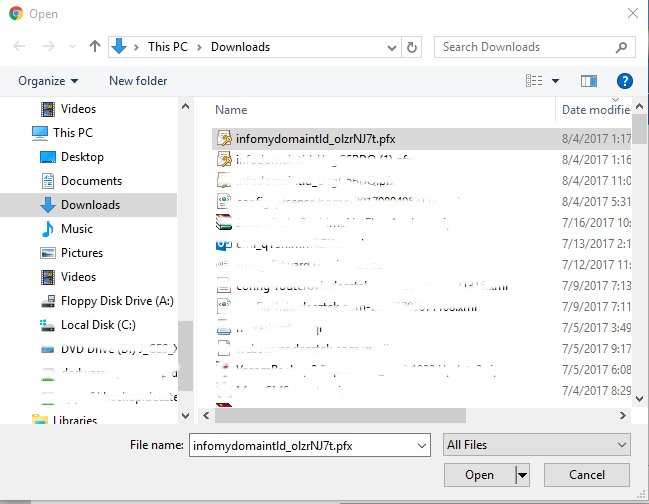
5. The name of the PFX file you chose will appear next to the **Choose File** button (**Figure 9**).

**Figure 9**

[![image-1609681693427.png](https://docs.deeztek.com/uploads/images/gallery/2021-01/scaled-1680-/image-1609681693427.png)](https://docs.deeztek.com/uploads/images/gallery/2021-01/image-1609681693427.png)

6. Under the **PFX file password** field, enter the password to the PFX file (**Figure 10**).

**Figure 10**

[![image-1609681700633.png](https://docs.deeztek.com/uploads/images/gallery/2021-01/scaled-1680-/image-1609681700633.png)](https://docs.deeztek.com/uploads/images/gallery/2021-01/image-1609681700633.png)

7. Under the **Add to Certificate Trust List** field, select **Yes** to add the certificate to the system Certificate Trust List. **Selecting Yes is always recommended** unless you have a specific reason not to trust the certificate you are importing. In that case, select No (**Figure 10**).

**Figure 10**

[![image-1609681707879.png](https://docs.deeztek.com/uploads/images/gallery/2021-01/scaled-1680-/image-1609681707879.png)](https://docs.deeztek.com/uploads/images/gallery/2021-01/image-1609681707879.png)
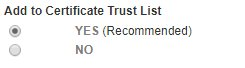
8. Click the **Import Certificate** button (**Figure 11**).

**Figure 11**

[![image-1609681716057.png](https://docs.deeztek.com/uploads/images/gallery/2021-01/scaled-1680-/image-1609681716057.png)](https://docs.deeztek.com/uploads/images/gallery/2021-01/image-1609681716057.png)

9. After a succesful import, click on the **Back to Internal Recipients Encryption** button on the bottom of the page (**Figure 12**).

**Figure 12**

[![image-1609681724264.png](https://docs.deeztek.com/uploads/images/gallery/2021-01/scaled-1680-/image-1609681724264.png)](https://docs.deeztek.com/uploads/images/gallery/2021-01/image-1609681724264.png)

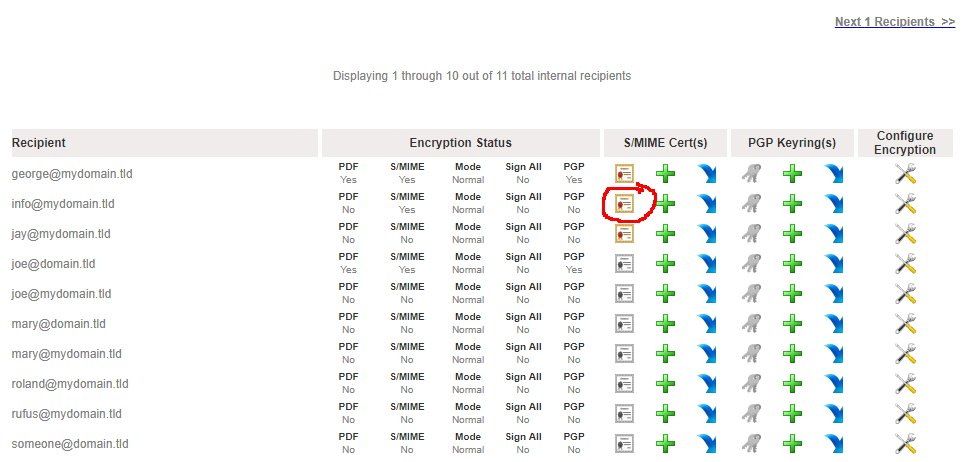
10. Back at the **Internal Recipients Encryption** page, under the Internal Repients listing on the S/MIME Cert(s) section of the recipient you just imported a certificate, you will note the[![image-1609681735000.png](https://docs.deeztek.com/uploads/images/gallery/2021-01/scaled-1680-/image-1609681735000.png)](https://docs.deeztek.com/uploads/images/gallery/2021-01/image-1609681735000.png)icon which will now be enabled and clickable indicating that there are certificates present (**Figure 13**).

**Figure 13**

[![image-1609681747069.png](https://docs.deeztek.com/uploads/images/gallery/2021-01/scaled-1680-/image-1609681747069.png)](https://docs.deeztek.com/uploads/images/gallery/2021-01/image-1609681747069.png)
### Download or Send PFX File

**Hermes SEG will allow you to download or send to the Internal Recipient the password protected PFX file containing the certificate and private key.**

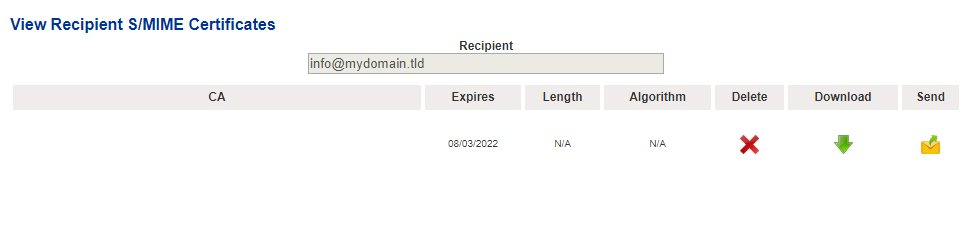
1. At the **Internal Recipients Encryption** page, under the **S/MIME Cert(s)** section, click on the[![image-1609681756705.png](https://docs.deeztek.com/uploads/images/gallery/2021-01/scaled-1680-/image-1609681756705.png)](https://docs.deeztek.com/uploads/images/gallery/2021-01/image-1609681756705.png)icon of the recipient you want to download or send the PFX file. You will be re-directed to the **View Recipient S/MIME Certificates** page (**Figure 14**).

**Figure 14**

[![image-1609681772173.png](https://docs.deeztek.com/uploads/images/gallery/2021-01/scaled-1680-/image-1609681772173.png)](https://docs.deeztek.com/uploads/images/gallery/2021-01/image-1609681772173.png)
**Download PFX File**

**NEVER share PFX File passwords via unsecured means such as unencrypted email, SMS text etc.**

1. Click on the[![image-1609681783491.png](https://docs.deeztek.com/uploads/images/gallery/2021-01/scaled-1680-/image-1609681783491.png)](https://docs.deeztek.com/uploads/images/gallery/2021-01/image-1609681783491.png)icon of the certificate you wish to download. Your browser will immediately start downloading the PFX file.
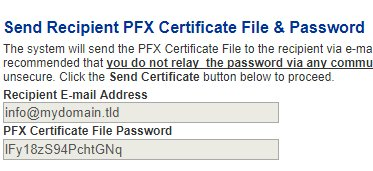
2. If you wish to view the PFX password, click on the[![image-1609681796269.png](https://docs.deeztek.com/uploads/images/gallery/2021-01/scaled-1680-/image-1609681796269.png) ](https://docs.deeztek.com/uploads/images/gallery/2021-01/image-1609681796269.png)icon. You will be re-directed to the **Send Recipient PFX Certificate File &amp; Password** page, where you will be able to view the PFX file password under the **PFX Certificate File Password** field (**Figure 15**).

**Figure 15**

[![image-1609681810036.png](https://docs.deeztek.com/uploads/images/gallery/2021-01/scaled-1680-/image-1609681810036.png)](https://docs.deeztek.com/uploads/images/gallery/2021-01/image-1609681810036.png)
**Send PFX File**

**NEVER share PFX File passwords via unsecured means such as unencrypted email, SMS text etc.**

**Hermes SEG will send the PFX file ONLY to the recipient email address that the certiciate was generated/imported for.**

1. Click on the[![image-1609681817414.png](https://docs.deeztek.com/uploads/images/gallery/2021-01/scaled-1680-/image-1609681817414.png)](https://docs.deeztek.com/uploads/images/gallery/2021-01/image-1609681817414.png)icon of the certificate you wish to send.
2. You will be re-directed to the **Send Recipient PFX Certificate File &amp; Password** page.
3. Click on the **Send Certificate** button (**Figure 16**).

**Figure 16**

[![image-1609681830409.png](https://docs.deeztek.com/uploads/images/gallery/2021-01/scaled-1680-/image-1609681830409.png)](https://docs.deeztek.com/uploads/images/gallery/2021-01/image-1609681830409.png)
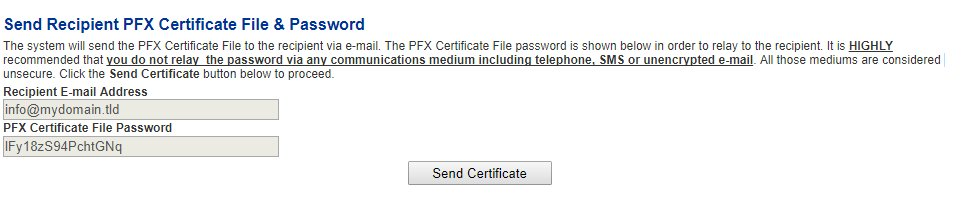
4. If necessary, provide the password to the PFX file to the recipient via secured means.

### Generate Internal Recipient PGP Keyring

**Do not attempt to generate a PGP Keyring for an Internal Recipient unless you have already enabled PGP encryption on that recipient.**

1. Under the **PGP Keyring(s)** section of the Internal Recipient you wish to generate a PGP Keyring, click on the[![image-1609681840135.png](https://docs.deeztek.com/uploads/images/gallery/2021-01/scaled-1680-/image-1609681840135.png)](https://docs.deeztek.com/uploads/images/gallery/2021-01/image-1609681840135.png)icon.
2. You will be re-directed to the **Add Recipient PGP Keyring** page.
3. Under the **Recipient Real Name** section, enter the recipient's First and Last Name.
4. Under the **PGP Keyring Size**, select the size of the keyring. The default setting of 4096-bits is recommended.
5. Under the **Auto-Generate PGP Secret Key Password** field, select **Yes** to have the systtem automatically generate a password for the Secret Key or select **No** if you wish to specify your own password. It's recommended that you allow the system to generate a Secret Key password.
6. If you selected No in the **Auto-Generate PGP Seccret Key password**, enter the password you wish to use under the **PGP Secret Key Password** and enter the same password under the **Verify PGP Secret Key Password** field below the first one.
7. Click on the **Create Keyring** button (**Figure 17**). Please note that clicking the **Create Keyring** button will not change the button status and the system may appear unresponsive. Please wait until the keyring get created and the system re-directs you back to the **Internal Recipients Encryption** page.

**Figure 17**

[![image-1609681853742.png](https://docs.deeztek.com/uploads/images/gallery/2021-01/scaled-1680-/image-1609681853742.png)](https://docs.deeztek.com/uploads/images/gallery/2021-01/image-1609681853742.png)
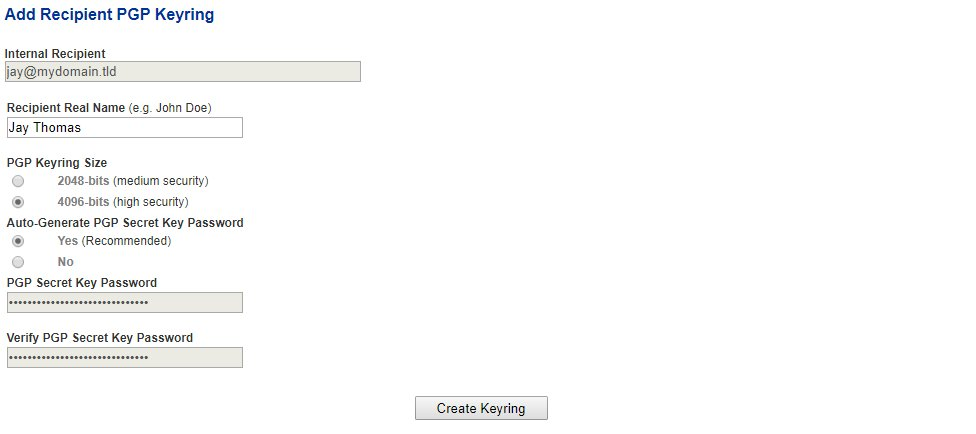
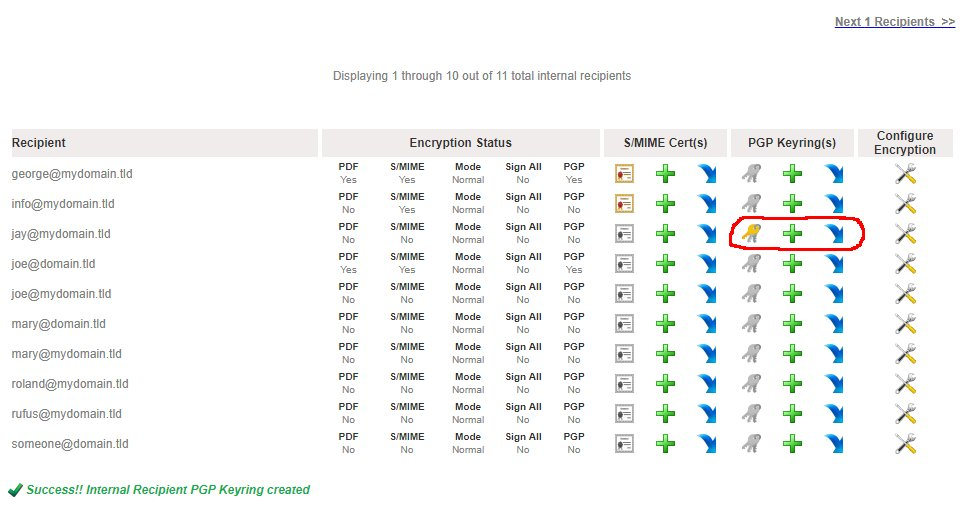
10. The system will generate the keyring and automatically redirect you back to the **Internal Recipients Encryption** page.
11. Under the Internal Repients listing on the **PGP Keyring(s)** section of the recipient you just generated a keystore, you will note the[![image-1609681862499.png](https://docs.deeztek.com/uploads/images/gallery/2021-01/scaled-1680-/image-1609681862499.png)](https://docs.deeztek.com/uploads/images/gallery/2021-01/image-1609681862499.png)icon which will now be enabled and clickable indicating that there are keyrings present (**Figure 18**).

**Figure 18**

[![image-1609681875758.png](https://docs.deeztek.com/uploads/images/gallery/2021-01/scaled-1680-/image-1609681875758.png)](https://docs.deeztek.com/uploads/images/gallery/2021-01/image-1609681875758.png)
### Import Internal Recipient PGP Keyring

**Do not attempt to import a PGP Keyring for an Internal Recipient unless you have already enabled PGP encryption on that recipient.**

1. Under the **PGP Keystore(s)** section of the Internal Recipient you wish to import a keystore, click on the[![image-1609681888101.png](https://docs.deeztek.com/uploads/images/gallery/2021-01/scaled-1680-/image-1609681888101.png)](https://docs.deeztek.com/uploads/images/gallery/2021-01/image-1609681888101.png)icon.
2. You will be re-directed to the **Import Recipient PGP Key** page.
3. Under the **PGP Key Type** field, select whether you will be importing a **Public** or a **Private** Key type. If you select a **Private** PGP Key Type, the **Private PGP Key Password** field below will become enabled.
4. If you selected a **Private** PGP Key Type above, enter the private key password in the **Private PGP Key Password** field.
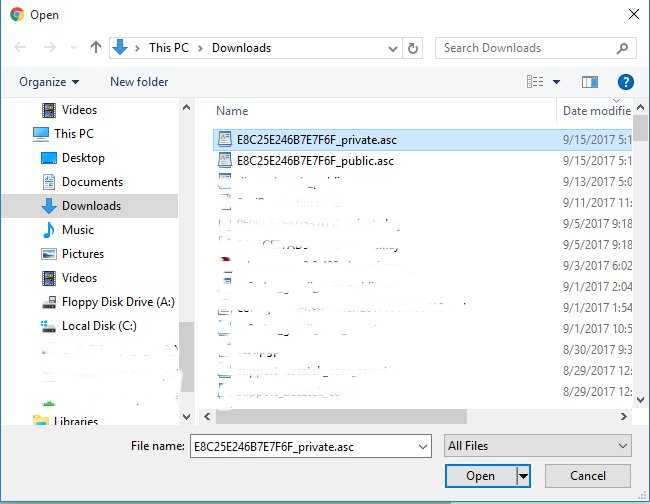
5. Under the **Select PGP Key File** section, click on the **Choose File** button.
6. Browse to the location of the PGP key file, select the file and click the **Open** button (**Figure 19**).

**Figure 19**

[![image-1609681901975.png](https://docs.deeztek.com/uploads/images/gallery/2021-01/scaled-1680-/image-1609681901975.png)](https://docs.deeztek.com/uploads/images/gallery/2021-01/image-1609681901975.png)
5. The name of the PGP Key file you chose will appear next to the **Choose File** button (**Figure 20**).

**Figure 20**

[![image-1609681911068.png](https://docs.deeztek.com/uploads/images/gallery/2021-01/scaled-1680-/image-1609681911068.png)](https://docs.deeztek.com/uploads/images/gallery/2021-01/image-1609681911068.png)

6. Click the **Import Key** button (**Figure 21**).

**Figure 21**

[![image-1609681917473.png](https://docs.deeztek.com/uploads/images/gallery/2021-01/scaled-1680-/image-1609681917473.png)](https://docs.deeztek.com/uploads/images/gallery/2021-01/image-1609681917473.png)

9. After a succesful import, click on the **Back to Internal Recipients Encryption** button on the bottom of the page (**Figure 12**).

**Figure 22**

[![image-1609681924310.png](https://docs.deeztek.com/uploads/images/gallery/2021-01/scaled-1680-/image-1609681924310.png)](https://docs.deeztek.com/uploads/images/gallery/2021-01/image-1609681924310.png)

10. Back at the **Internal Recipients Encryption** page, under the Internal Repients listing on the **PGP Keyring(s)** section of the recipient you just imported a certificate, you will note the[![image-1609681931865.png](https://docs.deeztek.com/uploads/images/gallery/2021-01/scaled-1680-/image-1609681931865.png)](https://docs.deeztek.com/uploads/images/gallery/2021-01/image-1609681931865.png)icon which will now be enabled and clickable indicating that there are keystores present (**Figure 23**).

**Figure 23**

[![image-1609681944363.png](https://docs.deeztek.com/uploads/images/gallery/2021-01/scaled-1680-/image-1609681944363.png)](https://docs.deeztek.com/uploads/images/gallery/2021-01/image-1609681944363.png)
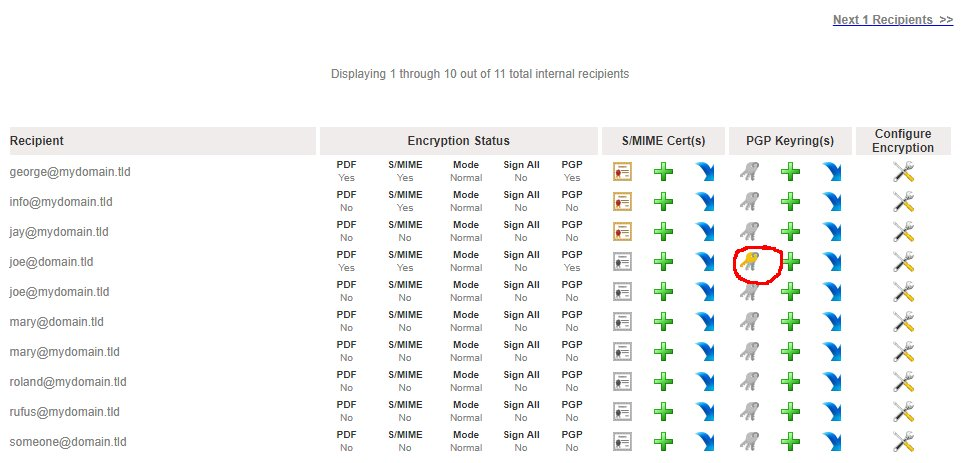
### Delete Key, Download Public Key, Download Private Key, View Private Key Password and Publish Public Key

1. At the **Internal Recipients Encryption** page, under the **PGP Keystore(s)** section, click on the[![image-1609681952987.png](https://docs.deeztek.com/uploads/images/gallery/2021-01/scaled-1680-/image-1609681952987.png)](https://docs.deeztek.com/uploads/images/gallery/2021-01/image-1609681952987.png)icon of the recipient. You will be re-directed to the **View Recipient PGP Keyrings** page (**Figure 24**).

**Figure 24**

[![image-1609681965377.png](https://docs.deeztek.com/uploads/images/gallery/2021-01/scaled-1680-/image-1609681965377.png)](https://docs.deeztek.com/uploads/images/gallery/2021-01/image-1609681965377.png)

**Delete Key**

1. Click on the[![image-1609681973148.png](https://docs.deeztek.com/uploads/images/gallery/2021-01/scaled-1680-/image-1609681973148.png)](https://docs.deeztek.com/uploads/images/gallery/2021-01/image-1609681973148.png)icon of the key you wish to delete. You will be re-directed to the **Delete Recipient PGP Key** page (**Figure 25**).

**Figure 25**

[![image-1609681986666.png](https://docs.deeztek.com/uploads/images/gallery/2021-01/scaled-1680-/image-1609681986666.png)](https://docs.deeztek.com/uploads/images/gallery/2021-01/image-1609681986666.png)
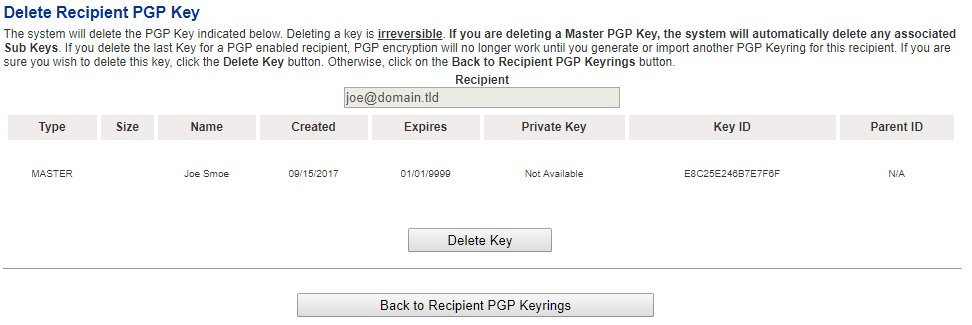
2. Click the **Delete** Key button. Please note that if you are deleting the **Master** Key, the system will automatically delete both the Master and any associated Sub Keys. If you are deleting a **Sub** Key, the system will only delete the Sub Key you selected to delete. If you wish to cancel, click on the **Back to Recipient PGP Keyrings** button.
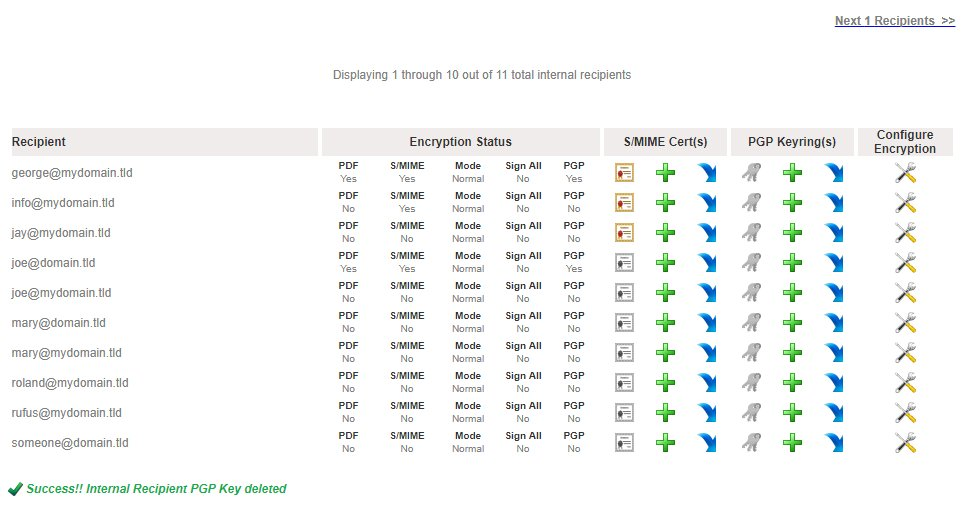
3. Clicking the **Delete** button will delete the key and re-direct you back to the **Internal Recipients Encryption** page (**Figure 26**).

**Figure 26**

[![image-1609681996852.png](https://docs.deeztek.com/uploads/images/gallery/2021-01/scaled-1680-/image-1609681996852.png)](https://docs.deeztek.com/uploads/images/gallery/2021-01/image-1609681996852.png)
**Download Public Key or Private Key**

Downloading the Public and Private Keys is useful for importing those keys in 3rd party PGP applications such as Enigma, Kleopatra etc.

1. Click on the[![image-1609682007409.png](https://docs.deeztek.com/uploads/images/gallery/2021-01/scaled-1680-/image-1609682007409.png)](https://docs.deeztek.com/uploads/images/gallery/2021-01/image-1609682007409.png)icon under the **Download Public** or the **Download Private** column of the key you wish to download. Your browser will automatically begin downloading the key you clicked in <span class="_Tgc _y9e">**ASCII armor**</span> format.

**View Private Key Password**

**This feature is useful in determining the Private Key password that the system automatically generates when generating a PGP Keyring. NEVER share Private Key passwords via unsecured means such as unencrypted email, SMS text etc.**

1. Click on the[![image-1609682021264.png](https://docs.deeztek.com/uploads/images/gallery/2021-01/scaled-1680-/image-1609682021264.png)](https://docs.deeztek.com/uploads/images/gallery/2021-01/image-1609682021264.png)icon under the **View Password** column of the key you wish to view the private key password.
2. You will be re-directed to the **View Recipient PGP Private Key** **Password** page (**Figure 27**).

**Figure 27**

[![image-1609682140278.png](https://docs.deeztek.com/uploads/images/gallery/2021-01/scaled-1680-/image-1609682140278.png)](https://docs.deeztek.com/uploads/images/gallery/2021-01/image-1609682140278.png)

**Publish Public PGP Key**

This feature is helpful with publishing recipient Public PGP Keys to Public PGP Key Servers. Public PGP Key Servers act as central repositories for public keys in order to assist in PGP cryptography.

<p class="callout warning">Please note that if no PGP Key Servers are defined under **Encryption --&gt; PGP Key Servers** the icons under the Publish Key column of every key will be disabled[![image-1609682188837.png](https://docs.deeztek.com/uploads/images/gallery/2021-01/scaled-1680-/image-1609682188837.png)](https://docs.deeztek.com/uploads/images/gallery/2021-01/image-1609682188837.png).</p>

1. Click on the[![image-1609682219443.png](https://docs.deeztek.com/uploads/images/gallery/2021-01/scaled-1680-/image-1609682219443.png)](https://docs.deeztek.com/uploads/images/gallery/2021-01/image-1609682219443.png)icon under the **Publish Key** column of the key you wish to publish.
2. You will be re-directed to the **Publish Recipient PGP Public Key** page (**Figure 28**).

**Figure 28**

[![image-1609682314479.png](https://docs.deeztek.com/uploads/images/gallery/2021-01/scaled-1680-/image-1609682314479.png)](https://docs.deeztek.com/uploads/images/gallery/2021-01/image-1609682314479.png)
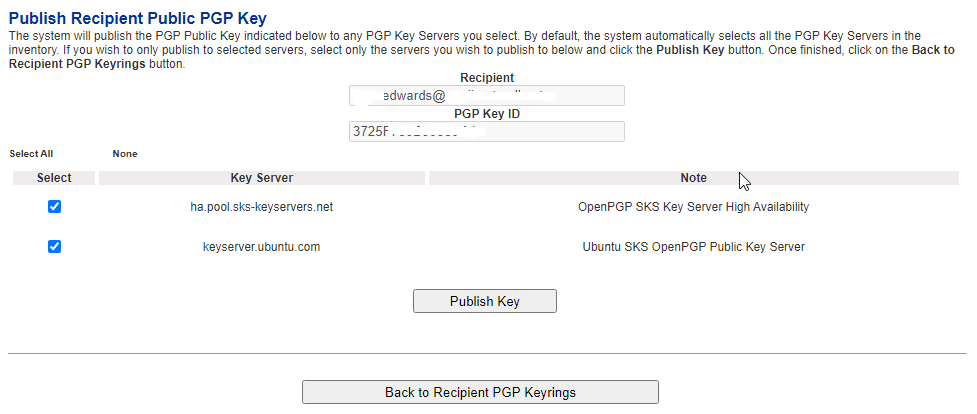
3. By default all the configured Public PGP Key Servers are selected. If desired, uncheck any key servers from the list that you do not wish to publish the public key and click the **Publish Key** button.
4. When finished, click, on the **Back to Recipient PGP Keyrings** button on the bottom of the page.

</section></div><footer class="footer-distributed" id="bkmrk-"><div></div><div><div></div></div></footer>

# External Recipients Encryption

Hermes SEG will send encrypted email to any external external recipient by by triggering the encryption though a keyword in an email subject (Please see **Encryption --&gt; Encryption Settings** for more details) or by pre-configuring the external recipient for encryption. Triggering encryption by keyword in an email subject is certainly convenient but the problem with this approach is that it depends on the person sending the email to remember to enter the special keyword in the subject. If that person forgets to enter the keyword or mispells the keyword, the email will not be encrypted and potentially sensitive information can be compromised. For this reason, pre-configuring external recipients for encryption should be done whenever possible. On this page, you will be able to pre-configure external recipients for encryption as well as the type of encryption you wish to apply to each recipient.

Hermes SEG External Recipients Encryption are categorized in two categories: **Manual** and **Automatic** users. Manual users are external recipients that have been been manually configured for encryption and automatic users are users that the system has automatically configured for encryption usually through the use of a subject trigger to send a PDF encrypted email to an external email address.

By default, a listing of **manually configured** external recipients will appear (assuming external recipients have been previously added) as evidenced by the **Show Manual Users Only** selection (**Figure 1**).

**Figure 1**

[![image-1609688392955.png](https://docs.deeztek.com/uploads/images/gallery/2021-01/scaled-1680-/image-1609688392955.png)](https://docs.deeztek.com/uploads/images/gallery/2021-01/image-1609688392955.png)

If you wish to view the **automatically configured** external recipients, select the **Show Automatic Users Only** selection (**Figure 2**).

**Figure 2**

[![image-1609688403961.png](https://docs.deeztek.com/uploads/images/gallery/2021-01/scaled-1680-/image-1609688403961.png)](https://docs.deeztek.com/uploads/images/gallery/2021-01/image-1609688403961.png)

### Create External Encryption Recipient

1. On the **External Recipients Encryption** page, click on the[![image-1609688431899.png](https://docs.deeztek.com/uploads/images/gallery/2021-01/scaled-1680-/image-1609688431899.png) ](https://docs.deeztek.com/uploads/images/gallery/2021-01/image-1609688431899.png)icon to create a new External Recipient. You will be re-directed to the **Create External Encrypted Recipient** page.
2. On the **Create External Encrypted Recipient** page under the **Specify E-mail Address** field enter the address part on the field before the **@** and the domain part after the **@**.
3. Under the **Select Encryption Type** field, select the type of encryption you wish to use and click the **Continue** button (**Figure 3**).

**Figure 3**

[![image-1609688448033.png](https://docs.deeztek.com/uploads/images/gallery/2021-01/scaled-1680-/image-1609688448033.png)](https://docs.deeztek.com/uploads/images/gallery/2021-01/image-1609688448033.png)

- **Mandatory PDF Encryption** - This will force ALL emails to that recipient to be encrypted utilizing PDF Encryption.
- **PDF Encryption Triggered by E-mail Subject Keyword** - This will only encrypt emails to the external recipient utilizing PDF encryption, ONLY if encryption is triggered by the e-mail subject keyword.
- **Mandatory S/MIME Encryption** - This will force ALL emails to that recipient to be encrypted utilizing S/MIME Encryption. Please note that a certificate must be created and/or imported for S/MIME encryption to work. If no certificate exists, all emails to that recipient will fail.
- **S/MIME Encryption Triggered by E-mail Subject Keyword** - This will only encrypt emails to that recipient utilizing S/MIME encryption ONLY if encryption is triggered by the e-mail subject keyword. Please note that a certificate must be created and/or imported for S/MIME encryption to work. If no certificate exists, any encrypted emails to that recipient will fail.
- **Mandatory PGP Encryption** - This will force ALL emails to that recipient to be encrypted utilizing PGP Encryption. Please note that a PGP Keystore must be created and/or imported for PGP encryption to work. If no PGP Keystore exists, all emails to that recipient will fail.
- **PGP Encryption Triggered by E-mail Subject Keyword** - This will only encrypt emails to that recipient utilizing PGP encryption ONLY if encryption is triggered by the e-mail subject keyword. Please note that a PGP Keystore must be created and/or imported for PGP encryption to work. If no PGP Keystore exists, all emails to that recipient will fail.

### Configure External Encryption Recipient

1. On the **External Recipients Encryption** page, click on the[![image-1609688459051.png](https://docs.deeztek.com/uploads/images/gallery/2021-01/scaled-1680-/image-1609688459051.png)](https://docs.deeztek.com/uploads/images/gallery/2021-01/image-1609688459051.png)icon on an existing External Recipient to reconfigure encryption. You will be re-directed to the **Edit External Encrypted Recipient** page.
2. On the **Edit External Encrypted Recipient** page**,** under the **Select Encryption Type** field, select the type of encryption you wish to use and click the **Continue** button (**Figure 4**).

**Figure 4**

[![image-1609688483259.png](https://docs.deeztek.com/uploads/images/gallery/2021-01/scaled-1680-/image-1609688483259.png)](https://docs.deeztek.com/uploads/images/gallery/2021-01/image-1609688483259.png)

- **Mandatory PDF Encryption** - This will force ALL emails to that recipient to be encrypted utilizing PDF Encryption.
- **PDF Encryption Triggered by E-mail Subject Keyword** - This will only encrypt emails to the external recipient utilizing PDF encryption, ONLY if encryption is triggered by the e-mail subject keyword.
- **Mandatory S/MIME Encryption** - This will force ALL emails to that recipeint to be encrypted utilizing S/MIME Encryption. Please note that a certificate must be created and/or imported for S/MIME encryption to work. If no certificate exists, all emails to that recipient will fail.
- **S/MIME Encryption Triggered by E-mail Subject Keyword** - This will only encrypt emails to that recipeint utilizing S/MIME encryption ONLY if encryption is triggered by the e-mail subject keyword. Please note that a certificate must be created and/or imported for S/MIME encryption to work. If no certificate exists, any encrypted emails to that recipient will fail.
- **Mandatory PGP Encryption** - This will force ALL emails to that recipient to be encrypted utilizing PGP Encryption. Please note that a PGP Keystore must be created and/or imported for PGP encryption to work. If no PGP Keystore exists, all emails to that recipient will fail.
- **PGP Encryption Triggered by E-mail Subject Keyword** - This will only encrypt emails to that recipient utilizing PGP encryption ONLY if encryption is triggered by the e-mail subject keyword. Please note that a PGP Keystore must be created and/or imported for PGP encryption to work. If no PGP Keystore exists, all emails to that recipient will fail.

### Mandatory PDF Encryption or PDF Encryption Triggered by E-mail Subject Keyword

**Random Generated PDF Password through Secure E-mail Portal**

Selecting this type of PDF encryption will configure the system to send encrypted PDF emails that will require the external recipient to access the Secure E-mail Portal and generate a random passwords that will then be used to open the encrypted PDF in order to read the email contents.

1. On the **Configure External Recipient PDF Encryption** page, select the **Random Generated PDF Password through Secure E-mail Portal** option.
2. Click the **Apply** button on the bottom of the page (**Figure 5**).

**Figure 5**

[![image-1609688510220.png](https://docs.deeztek.com/uploads/images/gallery/2021-01/scaled-1680-/image-1609688510220.png)](https://docs.deeztek.com/uploads/images/gallery/2021-01/image-1609688510220.png)

- The **Apply** button will change to a **Please wait...** status (**Figure 6**).

**Figure 6**

[![image-1609688523796.png](https://docs.deeztek.com/uploads/images/gallery/2021-01/scaled-1680-/image-1609688523796.png)](https://docs.deeztek.com/uploads/images/gallery/2021-01/image-1609688523796.png)

- Once the system finishes configuring the external recipient encryption, it will redirect back to the **External Recipients Encryption** page (**Figure 7**). Note how the the **PDF Mode** under the **Encryption Status** column is set to **random**.

**Figure 7**

[![image-1609688551953.png](https://docs.deeztek.com/uploads/images/gallery/2021-01/scaled-1680-/image-1609688551953.png)](https://docs.deeztek.com/uploads/images/gallery/2021-01/image-1609688551953.png)

**Random Generated PDF Password Sent Back to Sender**

Selecting this type of PDF encryption will configure the system to generate random password which will be emailed back to the sender of the email. The sender will in turn have to provide that random password to the external recipient in order the external recipient to open the encrypted PDF and read the email contents.

1. On the **Configure External Recipient PDF Encryption** page, select the **Random Generated PDF Password Sent Back to Sender** option.
2. Selecting the **Random Generated PDF Password Sent Back to Sender** option, will automatically enable the **PDF Password Age in Minutes** and the **PDF Password Length** fields.
3. If needed, adjust the number of minutes under the **PDF Password Age In Minutes** field. This field sets the number of minutes the PDF password will be valid.
4. If needed, adjust the **PDF Password Length** field. This field controls how long of a PDF password the system will generate. We recommend you leave it set to **160-Bits**.
5. Click the **Apply** button on the bottom of the page (**Figure 8**).

**Figure 8**

[![image-1609688568988.png](https://docs.deeztek.com/uploads/images/gallery/2021-01/scaled-1680-/image-1609688568988.png)](https://docs.deeztek.com/uploads/images/gallery/2021-01/image-1609688568988.png)

- The **Apply** button will change to a **Please wait...** status (**Figure 9**).

**Figure 9**

[![image-1609688604755.png](https://docs.deeztek.com/uploads/images/gallery/2021-01/scaled-1680-/image-1609688604755.png)](https://docs.deeztek.com/uploads/images/gallery/2021-01/image-1609688604755.png)

- Once the system finishes configuring the external recipient encryption, it will redirect back to the **External Recipients Encryption** page (**Figure 10**). Note how the the **PDF Mode** under the **Encryption Status** column is set to **backtosender**.

**Figure 10**

[![image-1609688631498.png](https://docs.deeztek.com/uploads/images/gallery/2021-01/scaled-1680-/image-1609688631498.png)](https://docs.deeztek.com/uploads/images/gallery/2021-01/image-1609688631498.png)

**Specified PDF Password**

Selecting this type of PDF encryption will configure the system to send encrypted PDF emails with a specified static password.

1. On the **Configure External Recipient PDF Encryption** page, select the **Specified PDF Password** option.
2. Selecting the **Specified PDF Password** option, will automatically enable the **PDF Password**  and the **Verify PDF Password** fields.
3. Enter a password under the **PDF Password** field ensuring that it's at least 8 characters long and it includes leters, number and special characters.
4. Enter the password again under the **Verify PDF Password** field.
5. Click the **Apply** button on the bottom of the page (**Figure 11**).

**Figure 11**

[![image-1609688649115.png](https://docs.deeztek.com/uploads/images/gallery/2021-01/scaled-1680-/image-1609688649115.png)](https://docs.deeztek.com/uploads/images/gallery/2021-01/image-1609688649115.png)

- The **Apply** button will change to a **Please wait...** status (**Figure 12**).

**Figure 12**

[![image-1609688667367.png](https://docs.deeztek.com/uploads/images/gallery/2021-01/scaled-1680-/image-1609688667367.png)](https://docs.deeztek.com/uploads/images/gallery/2021-01/image-1609688667367.png)

- Once the system finishes configuring the external recipient encryption, it will redirect back to the **External Recipients Encryption** page (**Figure 13**). Note how the the **PDF Mode** under the **Encryption Status** column is set to **static.**

**Figure 13**

[![image-1609688680441.png](https://docs.deeztek.com/uploads/images/gallery/2021-01/scaled-1680-/image-1609688680441.png)](https://docs.deeztek.com/uploads/images/gallery/2021-01/image-1609688680441.png)

### Mandatory S/MIME Encryption or S/MIME Encryption Triggered by E-mail Subject Keyword

1. After clicking the Continue button the system does not ask any more questions as is the case with configuring PDF Encryption. It simply configures the External Recipient for either Mandatory S/MIME Encryption or S/MIME Encryption Triggered by E-mail Subject Keyword and re-directs back to the External Recipient Encryption page. Note that **S/MIME** under the **Encryption Status** column will be set to either **Mandatory** or **Subject** depending on the S/MIME encryption type you chose earlier (**Figure 14**)**.**

**Figure 14**

[![image-1609688695109.png](https://docs.deeztek.com/uploads/images/gallery/2021-01/scaled-1680-/image-1609688695109.png)](https://docs.deeztek.com/uploads/images/gallery/2021-01/image-1609688695109.png)

2. As mentioned above, S/MIME encryption requires certificates to either be generated or imported. Please refer to the Generate External Recipient S/MIME Certicate or the Import External Recipient S/MIME Certificate sections below.

### Generate External Recipient S/MIME Certificate

**Do not attempt to generate a S/MIME Certificate for an External Recipient unless you have already enabled S/MIME encryption on that recipient.**

1. Under the **S/MIME Certificate(s)** section of the External Recipient you wish to generate a certificate, click on the[![image-1609688704548.png](https://docs.deeztek.com/uploads/images/gallery/2021-01/scaled-1680-/image-1609688704548.png)](https://docs.deeztek.com/uploads/images/gallery/2021-01/image-1609688704548.png)icon.
2. You will be re-directed to the **Add Recipient S/MIME Certificate** page.
3. Assuming you have previously created an Internal Certificate Authority, under the **Certificate Authority** field, select the Internal Certificate Authority you wish to use to generate the S/MIME certificate.
4. Under the **S/MIME Certificate Validity Period**, select the number of years you wish this S/MIME Certificate to be valid. The default setting of 5 Years is recommended.
5. Under the **S/MIME Certificate Encryption Length**, select the length of the certificate. The default setting of 4096-bits is recommended.
6. Under the **S/MIME Certificate Algorithm**, select the algorithm you wish to generate the certificate. The default setting of RSA-SHA-512 is recommended.
7. Under the **Auto-Generate S/MIME Certificate and Private Key PFX password** field, select **Yes** to have the system automatically generate a password for the PFX file or select **No** if you wish to specify your own password. When generating a certificate, the system will also create a PFX file (Personal Information Exchange) and assign a password to it for security. A PFX file will contain both the public AND the private key of the generated certificate. The PFX file is used by the system for sending both the private and public key to the recipient that the certificate is being generated for for backup purposes or for configuring an email client. It's recommended that you allow the system to generate a PFX file password.
8. If you selected No in the **Auto-Generate S/MIME Certificate and Private Key PFX password**, enter the password you wish to use under the **S/MIME Certificate and Private Key PFX password** and enter the same password under the **Verify S/MIME Certificate and Private Key PFX password** field.
9. Click on the **Create Certificate** button (**Figure 15**).

**Figure 15**

[![image-1609688729565.png](https://docs.deeztek.com/uploads/images/gallery/2021-01/scaled-1680-/image-1609688729565.png)](https://docs.deeztek.com/uploads/images/gallery/2021-01/image-1609688729565.png)

10. The system will generate the certificate and automatically redirect you back to the **External Recipients Encryption** page.
11. Under the External Recipients listing on the S/MIME Certificate(s) section of the recipient you just generated a certificate, you will note the[![image-1609688747499.png](https://docs.deeztek.com/uploads/images/gallery/2021-01/scaled-1680-/image-1609688747499.png)](https://docs.deeztek.com/uploads/images/gallery/2021-01/image-1609688747499.png)icon which will now be enabled and clickable indicating that there are certificates present (**Figure 16**).

**Figure 16**

[![image-1609688764702.png](https://docs.deeztek.com/uploads/images/gallery/2021-01/scaled-1680-/image-1609688764702.png)](https://docs.deeztek.com/uploads/images/gallery/2021-01/image-1609688764702.png)

### Import External Recipient S/MIME Certificate

**Do not attempt to import a S/MIME Certificate for an External Recipient unless you have already enabled S/MIME encryption on that recipient.**

**Hermes SEG ONLY supports importing S/MIME certificates from PFX (Personal Information Exchange) files. Ensure that you have a PFX file which will contain both the certificate and the private key along with the password of the PFX file before proceeding.**

1. Under the **S/MIME Certificate(s)** section of the External Recipient you wish to import a certificate, click on the[![image-1609688773415.png](https://docs.deeztek.com/uploads/images/gallery/2021-01/scaled-1680-/image-1609688773415.png) ](https://docs.deeztek.com/uploads/images/gallery/2021-01/image-1609688773415.png)icon.
2. You will be re-directed to the **Import Recipient S/MIME Certificate** page.
3. Under the **Select PFX File** section, click on the **Choose File** button.
4. Browse to the location of the PFX file, select the file and click the **Open** button (**Figure 17**).

**Figure 17**

[![image-1609688795612.png](https://docs.deeztek.com/uploads/images/gallery/2021-01/scaled-1680-/image-1609688795612.png)](https://docs.deeztek.com/uploads/images/gallery/2021-01/image-1609688795612.png)

5. The name of the PFX file you chose will appear next to the **Choose File** button (**Figure 18**).

**Figure 18**

[![image-1609688809386.png](https://docs.deeztek.com/uploads/images/gallery/2021-01/scaled-1680-/image-1609688809386.png)](https://docs.deeztek.com/uploads/images/gallery/2021-01/image-1609688809386.png)

6. Under the **PFX file password** field, enter the password to the PFX file (**Figure 19**).

**Figure 19**

[![image-1609688821325.png](https://docs.deeztek.com/uploads/images/gallery/2021-01/scaled-1680-/image-1609688821325.png)](https://docs.deeztek.com/uploads/images/gallery/2021-01/image-1609688821325.png)

7. Under the **Add to Certificate Trust List** field, select **Yes** to add the certificate to the system Certificate Trust List. **Selecting Yes is always recommended** unless you have a specific reason not to trust the certificate you are importing. In that case, select No (**Figure 20**).

**Figure 20**

[![image-1609688837822.png](https://docs.deeztek.com/uploads/images/gallery/2021-01/scaled-1680-/image-1609688837822.png)](https://docs.deeztek.com/uploads/images/gallery/2021-01/image-1609688837822.png)

8. Click the **Import Certificate** button (**Figure 21**).

**Figure 21**

[![image-1609688849102.png](https://docs.deeztek.com/uploads/images/gallery/2021-01/scaled-1680-/image-1609688849102.png)](https://docs.deeztek.com/uploads/images/gallery/2021-01/image-1609688849102.png)

9. After a succesful import, click on the **Back to External Recipients Encryption** button on the bottom of the page (**Figure 22**).

**Figure 22**

[![image-1609688864491.png](https://docs.deeztek.com/uploads/images/gallery/2021-01/scaled-1680-/image-1609688864491.png)](https://docs.deeztek.com/uploads/images/gallery/2021-01/image-1609688864491.png)

10. Back at the **External Recipients Encryption** page, under the External Repients listing on the S/MIME Certificate(s) section of the recipient you just imported a certificate, you will note the[![image-1609688888847.png](https://docs.deeztek.com/uploads/images/gallery/2021-01/scaled-1680-/image-1609688888847.png)](https://docs.deeztek.com/uploads/images/gallery/2021-01/image-1609688888847.png)icon which will now be enabled and clickable indicating that there are certificates present (**Figure 23**).

**Figure 23**

[![image-1609688878892.png](https://docs.deeztek.com/uploads/images/gallery/2021-01/scaled-1680-/image-1609688878892.png)](https://docs.deeztek.com/uploads/images/gallery/2021-01/image-1609688878892.png)

### Download or Send PFX File

**Hermes SEG will allow you to download or send to the External Recipient the password protected PFX file containing the certificate and private key.**

1. At the **External Recipients Encryption** page, under the **S/MIME Certificate(s)** section, click on the[![image-1609688904185.png](https://docs.deeztek.com/uploads/images/gallery/2021-01/scaled-1680-/image-1609688904185.png)](https://docs.deeztek.com/uploads/images/gallery/2021-01/image-1609688904185.png)icon of the recipient you want to download or send the PFX file. You will be re-directed to the **View Recipient S/MIME Certificates** page (**Figure 24**).

**Figure 24**

[![image-1609688924634.png](https://docs.deeztek.com/uploads/images/gallery/2021-01/scaled-1680-/image-1609688924634.png)](https://docs.deeztek.com/uploads/images/gallery/2021-01/image-1609688924634.png)

**Download PFX File**

**NEVER share PFX File passwords via unsecured means such as unencrypted email, SMS text etc.**

1. Click on the[![image-1609688933407.png](https://docs.deeztek.com/uploads/images/gallery/2021-01/scaled-1680-/image-1609688933407.png)](https://docs.deeztek.com/uploads/images/gallery/2021-01/image-1609688933407.png)icon of the certificate you wish to download. Your browser will immediately start downloading the PFX file.
2. If you wish to view the PFX password, click on the[![image-1609688946600.png](https://docs.deeztek.com/uploads/images/gallery/2021-01/scaled-1680-/image-1609688946600.png)](https://docs.deeztek.com/uploads/images/gallery/2021-01/image-1609688946600.png)icon. You will be re-directed to the **Send Recipient PFX Certificate File &amp; Password** page, where you will be able to view the PFX file password under the **PFX Certificate File Password** field (**Figure 25**).

**Figure 25**

[![image-1609688968526.png](https://docs.deeztek.com/uploads/images/gallery/2021-01/scaled-1680-/image-1609688968526.png)](https://docs.deeztek.com/uploads/images/gallery/2021-01/image-1609688968526.png)

**Send PFX File**

**NEVER share PFX File passwords via unsecured means such as unencrypted email, SMS text etc.**

**Hermes SEG will send the PFX file ONLY to the recipient email address that the certiciate was generated/imported for.**

1. Click on the[![image-1609688978425.png](https://docs.deeztek.com/uploads/images/gallery/2021-01/scaled-1680-/image-1609688978425.png) ](https://docs.deeztek.com/uploads/images/gallery/2021-01/image-1609688978425.png)icon of the certificate you wish to send.
2. You will be re-directed to the **Send Recipient PFX Certificate File &amp; Password** page.
3. Click on the **Send Certificate** button (**Figure 26**).

**Figure 26**

[![image-1609688999538.png](https://docs.deeztek.com/uploads/images/gallery/2021-01/scaled-1680-/image-1609688999538.png)](https://docs.deeztek.com/uploads/images/gallery/2021-01/image-1609688999538.png)

4. If necessary, provide the password to the PFX file to the recipient via secured means.

### Mandatory PGP Encryption or PGP Encryption Triggered by E-mail Subject Keyword

1. After clicking the Continue button the system does not ask any more questions as is the case with configuring PDF Encryption. It simply configures the External Recipient for either Mandatory PGP Encryption or PGP Encryption Triggered by E-mail Subject Keyword and re-directs back to the External Recipient Encryption page. Note that **PGP** under the **Encryption Status** column will be set to either **Mandatory** or **Subject** depending on the PGP encryption type you chose earlier (**Figure 27**)**.**

**Figure 27**

[![image-1609689015694.png](https://docs.deeztek.com/uploads/images/gallery/2021-01/scaled-1680-/image-1609689015694.png)](https://docs.deeztek.com/uploads/images/gallery/2021-01/image-1609689015694.png)

2. As mentioned above, PGP encryption requires PGP Keystores to either be generated or imported. Please refer to the Generate External Recipient PGP Keystore or the Import External Recipient PGP Keystore sections below.

### Generate External Recipient PGP Keyring

**Do not attempt to generate a PGP Keyring for an External Recipient unless you have already enabled PGP encryption on that recipient.**

1. Under the **PGP Keyring(s)** section of the External Recipient you wish to generate a PGP Keyring, click on the[![image-1609689025080.png](https://docs.deeztek.com/uploads/images/gallery/2021-01/scaled-1680-/image-1609689025080.png)](https://docs.deeztek.com/uploads/images/gallery/2021-01/image-1609689025080.png)icon.
2. You will be re-directed to the **Add Recipient PGP Keyring** page.
3. Under the **Recipient Real Name** section, enter the recipient's First and Last Name.
4. Under the **PGP Keyring Size**, select the size of the keyring. The default setting of 4096-bits is recommended.
5. Under the **Auto-Generate PGP Secret Key Password** field, select **Yes** to have the systtem automatically generate a password for the Secret Key or select **No** if you wish to specify your own password. It's recommended that you allow the system to generate a Secret Key password.
6. If you selected No in the **Auto-Generate PGP Seccret Key password**, enter the password you wish to use under the **PGP Secret Key Password** and enter the same password under the **Verify PGP Secret Key Password** field below the first one.
7. Click on the **Create Keyring** button (**Figure 28**). Please note that clicking the **Create Keyring** button will not change the button status and the system may appear unresponsive. Please wait until the keyring get created and the system re-directs you back to the **External Recipients Encryption** page.

**Figure 28**

[![image-1609689046752.png](https://docs.deeztek.com/uploads/images/gallery/2021-01/scaled-1680-/image-1609689046752.png)](https://docs.deeztek.com/uploads/images/gallery/2021-01/image-1609689046752.png)

10. The system will generate the keyring and automatically redirect you back to the **External Recipients Encryption** page.
11. Under the External Recipients listing on the **PGP Keyring(s)** section of the recipient you just generated a keystore, you will note the[![image-1609689057442.png](https://docs.deeztek.com/uploads/images/gallery/2021-01/scaled-1680-/image-1609689057442.png)](https://docs.deeztek.com/uploads/images/gallery/2021-01/image-1609689057442.png)icon which will now be enabled and clickable indicating that there are keyrings present (**Figure 29**).

**Figure 29**

[![image-1609689080526.png](https://docs.deeztek.com/uploads/images/gallery/2021-01/scaled-1680-/image-1609689080526.png)](https://docs.deeztek.com/uploads/images/gallery/2021-01/image-1609689080526.png)

### Import External Recipient PGP Keyring

**Do not attempt to import a PGP Keyring for an External Recipient unless you have already enabled PGP encryption on that recipient.**

1. Under the **PGP Keystore(s)** section of the External Recipient you wish to import a keystore, click on the[![image-1609689089967.png](https://docs.deeztek.com/uploads/images/gallery/2021-01/scaled-1680-/image-1609689089967.png)](https://docs.deeztek.com/uploads/images/gallery/2021-01/image-1609689089967.png)icon.
2. You will be re-directed to the **Import Recipient PGP Key** page.
3. Under the **PGP Key Type** field, select whether you will be importing a **Public** or a **Private** Key type. If you select a **Private** PGP Key Type, the **Private PGP Key Password** field below will become enabled.
4. If you selected a **Private** PGP Key Type above, enter the private key password in the **Private PGP Key Password** field.
5. Under the **Select PGP Key File** section, click on the **Choose File** button.
6. Browse to the location of the PGP key file, select the file and click the **Open** button (**Figure 30**).

**Figure 30**

[![image-1609689110751.png](https://docs.deeztek.com/uploads/images/gallery/2021-01/scaled-1680-/image-1609689110751.png)](https://docs.deeztek.com/uploads/images/gallery/2021-01/image-1609689110751.png)

5. The name of the PGP Key file you chose will appear next to the **Choose File** button (**Figure 31**).

**Figure 31**

[![image-1609689126994.png](https://docs.deeztek.com/uploads/images/gallery/2021-01/scaled-1680-/image-1609689126994.png)](https://docs.deeztek.com/uploads/images/gallery/2021-01/image-1609689126994.png)

6. Click the **Import Key** button (**Figure 32**).

**Figure 32**

[![image-1609689137853.png](https://docs.deeztek.com/uploads/images/gallery/2021-01/scaled-1680-/image-1609689137853.png)](https://docs.deeztek.com/uploads/images/gallery/2021-01/image-1609689137853.png)

9. After a succesful import, click on the **Back to External Recipients Encryption** button on the bottom of the page (**Figure 33**).

**Figure 33**

[![image-1609689149777.png](https://docs.deeztek.com/uploads/images/gallery/2021-01/scaled-1680-/image-1609689149777.png)](https://docs.deeztek.com/uploads/images/gallery/2021-01/image-1609689149777.png)

10. Back at the **External Recipients Encryption** page, under the External Repients listing on the **PGP Keyring(s)** section of the recipient you just imported a certificate, you will note the[![image-1609689158467.png](https://docs.deeztek.com/uploads/images/gallery/2021-01/scaled-1680-/image-1609689158467.png)](https://docs.deeztek.com/uploads/images/gallery/2021-01/image-1609689158467.png)icon which will now be enabled and clickable indicating that there are keystores present (**Figure 34**).

**Figure 34**

[![image-1609689176408.png](https://docs.deeztek.com/uploads/images/gallery/2021-01/scaled-1680-/image-1609689176408.png)](https://docs.deeztek.com/uploads/images/gallery/2021-01/image-1609689176408.png)

### Delete Key, Download Public Key, Download Private Key, View Private Key Password and Publish Public Key

1. At the **External Recipients Encryption** page, under the **PGP Keystore(s)** section, click on the[![image-1609689185667.png](https://docs.deeztek.com/uploads/images/gallery/2021-01/scaled-1680-/image-1609689185667.png)](https://docs.deeztek.com/uploads/images/gallery/2021-01/image-1609689185667.png)icon of the recipient. You will be re-directed to the **View Recipient PGP Keyrings** page (**Figure 35**).

**Figure 35**

[![image-1609689206865.png](https://docs.deeztek.com/uploads/images/gallery/2021-01/scaled-1680-/image-1609689206865.png)](https://docs.deeztek.com/uploads/images/gallery/2021-01/image-1609689206865.png)

**Delete Key**

1. Click on the[![image-1609689214210.png](https://docs.deeztek.com/uploads/images/gallery/2021-01/scaled-1680-/image-1609689214210.png) ](https://docs.deeztek.com/uploads/images/gallery/2021-01/image-1609689214210.png)icon of the key you wish to delete. You will be re-directed to the **Delete Recipient PGP Key** page (**Figure 36**).

**Figure 36**

[![image-1609689235108.png](https://docs.deeztek.com/uploads/images/gallery/2021-01/scaled-1680-/image-1609689235108.png)](https://docs.deeztek.com/uploads/images/gallery/2021-01/image-1609689235108.png)

2. Click the **Delete** Key button. Please note that if you are deleting the **Master** Key, the system will automatically delete both the Master and any associated Sub Keys. If you are deleting a **Sub** Key, the system will only delete the Sub Key you selected to delete. If you wish to cancel, click on the **Back to Recipient PGP Keyrings** button.
3. Clicking the **Delete** button will delete the key and re-direct you back to the **External Recipients Encryption** page (**Figure 37**).

**Figure 37**

[![image-1609689254894.png](https://docs.deeztek.com/uploads/images/gallery/2021-01/scaled-1680-/image-1609689254894.png)](https://docs.deeztek.com/uploads/images/gallery/2021-01/image-1609689254894.png)

**Download Public Key or Private Key**

Downloading the Public and Private Keys is useful for importing those keys in 3rd party PGP applications such as Enigma, Kleopatra etc.

1. Click on the[![image-1609689263582.png](https://docs.deeztek.com/uploads/images/gallery/2021-01/scaled-1680-/image-1609689263582.png) ](https://docs.deeztek.com/uploads/images/gallery/2021-01/image-1609689263582.png)icon under the **Download Public** or the **Download Private** column of the key you wish to download. Your browser will automatically begin downloading the key you clicked in <span class="_Tgc _y9e">**ASCII armor**</span> format.

**View Private Key Password**

**This feature is useful in determining the Private Key password that the system automatically generates when generating a PGP Keyring. NEVER share Private Key passwords via unsecured means such as unencrypted email, SMS text etc.**

1. Click on the[![image-1609689277901.png](https://docs.deeztek.com/uploads/images/gallery/2021-01/scaled-1680-/image-1609689277901.png)](https://docs.deeztek.com/uploads/images/gallery/2021-01/image-1609689277901.png)icon under the **View Password** column of the key you wish to view the private key password.
2. You will be re-directed to the **View Recipient PGP Private Key** Password page (**Figure 38**).

**Figure 38**

[![image-1609689305519.png](https://docs.deeztek.com/uploads/images/gallery/2021-01/scaled-1680-/image-1609689305519.png)](https://docs.deeztek.com/uploads/images/gallery/2021-01/image-1609689305519.png)

**Publish Public PGP Key**

This feature is helpful with publishing recipient Public PGP Keys to Public PGP Key Servers. Public PGP Key Servers act as central repositories for public keys in order to assist in PGP cryptography.

<p class="callout warning">Please note that if no PGP Key Servers are defined under **Encryption --&gt; PGP Key Servers** the icons under the Publish Key column of every key will be disabled[![image-1609689330247.png](https://docs.deeztek.com/uploads/images/gallery/2021-01/scaled-1680-/image-1609689330247.png)](https://docs.deeztek.com/uploads/images/gallery/2021-01/image-1609689330247.png).</p>

1. Click on the[![image-1609689351573.png](https://docs.deeztek.com/uploads/images/gallery/2021-01/scaled-1680-/image-1609689351573.png)](https://docs.deeztek.com/uploads/images/gallery/2021-01/image-1609689351573.png)icon under the **Publish Key** column of the key you wish to publish.
2. You will be re-directed to the **Publish Recipient PGP Public Key** page (**Figure 39**).

**Figure 39**

[![image-1609689373352.png](https://docs.deeztek.com/uploads/images/gallery/2021-01/scaled-1680-/image-1609689373352.png)](https://docs.deeztek.com/uploads/images/gallery/2021-01/image-1609689373352.png)
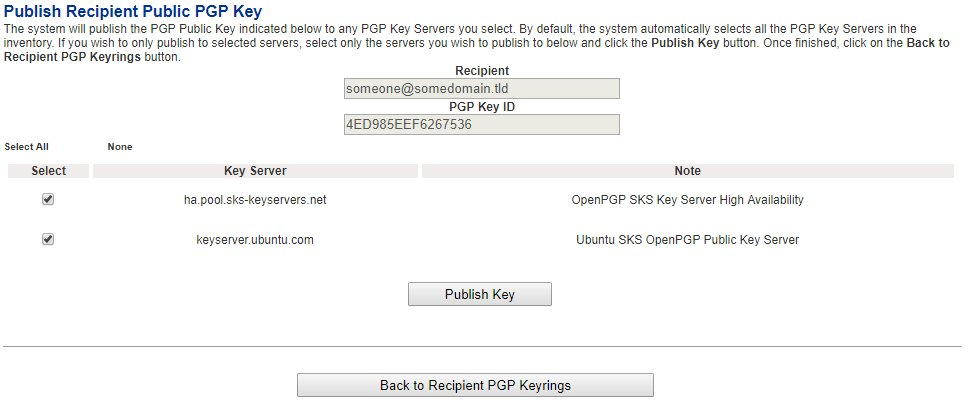
3. By default all the configured Public PGP Key Servers are selected. If desired, uncheck any key servers from the list that you do not wish to publish the public key and click the **Publish Key** button.
4. When finished, click, on the **Back to Recipient PGP Keyrings** button on the bottom of the page.