# Content Checks
# Perimeter Checks
The Hermes SEG Perimeter Checks page allows you to set settings for any incoming email before they are even processed by the SMTP server or the rest of the subsystems such as the virus and spam filters . You can think of perimeter checks as a type of "front door" checks before they are processed by the system.
**NOTE: This section requires any changes to be applied by clicking the Apply Settings button on the bottom of the page.**
### Inititial Connection Deep Protocol Tests
The Initital Connection Deep Protocol Tests are comprised of the following 3 tests:
- **Pipeline Detection** - Detects senders that send multiple commands, instead of sending one command at a time and waiting for Hermes SEG to reply.
- **Non SMTP Commands Detection** - Detects senders that try to use non-SMTP commands
- **Bare New Line Detection** - Detects usage of newline that are not proceded by carriage returns, e.g., a bare line.
If they are all enabled they are very useful in refusing SMTP connections by zombie senders. However, this setting introduces a delay (graylisting) in email delivery and certain legitimate but incorrectly configured email servers do not try to reconnect to deliver their email. If you have problems receiving emails from legitimate servers, you should first attempt to permit the sending email server(s) under **Content Checks --> IP & Network Override** which will configure Hermes SEG to bypass Initial Connection Deep Protocol Tests on the server(s) IPs you specify. Hermes SEG comes pre-configured to bypass Initial Connection Deep Protocol Tests on certain email services such as Exchange Online and Outlook.com.
### Require HELO
If enabled, this setting requires for the incoming email system to start the SMTP session by first sending the HELO or EHLO command before sending the MAIL FROM or ETRN command. Set this setting to Disabled if it starts creating problems with certain homegrown email systems. Otherwise, it is recommended to be set to Enabled (Figure 2).
### Reject Unauthorized Domain
If enabled, this setting will reject any incoming email that is destined for a recipient domain or subdomain thereof that the system does not handle i.e. any domain that is not listed in the Relay Domains (See General Options Above). It is recommended that this settings is set to Enabled.
### Sender Policy Framework (SPF) Checks
Enable/Disable SPF checks on the system. When enabled the system will attempt to identify email spam by detecting whether or not the email is spoofed by verifying that the sender IP address is authorized to send email on behalf of the senders domain.
### Reject Invalid HELO Hostname
If enabled, this setting will reject any incoming email from a mail server that sends the HELO or EHLO command along with a malformed hostname. It is recommended that this settings is set to Enabled. For best effect of this setting, ensure the Required HELO setting above is also set to Enabled.
### Reject Pipelining
If enabled, this setting will reject any incoming email from a mail server that sends SMTP commands where it is not allowed or without waiting for confirmation that the system supports ESMTP commands. This is used by spammers in order to try to speed up delivery of spam email. It is recommended that you set this setting to Enabled.
### Reject Non-FQDN Sender Domain
If enabled, this setting will reject any incoming email from a mail server without a FQDN (Fully Qualified Domain Name). Example of a Non-FQDN domain would be: domain.local. It is recommended that you set this setting to Enabled.
### Reject Invalid Sender Domain
If enabled, this setting will reject any incoming email from a mail server whose domain as sent in the MAIL FROM command during the SMTP session does not have a DNS A or MX record or has an invalid MX record. It is recommended that you set this setting to Enabled.
### Reject Non-FQDN Recipient
If enabled, this setting will reject any incoming email destined for a recipient without a FQDN (Fully Qualified Domain Name) as sent in the RCPT TO command of the SMTP session. It is recommended that you set this setting to Enabled.
### Reject Invalid Recipient Domain
If enabled, this setting will reject any incoming email where this system is not the final destination and the email is destined for a recipient domain as specified in the RCPT TO command of the SMTP session that does not have a DNS A or MX Record or an invalid MX record. It is recommended that you set this setting to Enabled.
### Realtime Block/Allow Lists Threshold Score
This is the score required for the system to block an incoming mail server’s IP address that has been listed on Real Time Block/Allow List(s). The final outcome of combining the weights of the Real Time Block/Allow Lists must be less than the number specified below in order for the incoming mail server to be allowed to deliver mail to this system. Realtime Block/Allow Lists are configured under **Content Checks --> RBL Configuration**.
### Message Size Limit
Enter the maximum message size in MB (Megabytes) to be processed by the system. Please note, the larger the limit the more memory required by the system to process the e-mail. Extremely large message sizes can crash the system. Recommended size is 20 MB or lower.
# RBL Configuration
A RBL (Real Time Block List) is a mechanism for determining the reputation of a sender IP address by looking up the sender IP through various RBLs that are configured in the system. RBL lookups are performed using DNS. The reputation of an IP is determined by assigning a score to a sender IP address. The higher the score, the lower the reputation. Once a certain score threshold is reached, the sender IP address is not allowed to send email to the system. The RBL threshold score is configured under **Content Checks --> Perimeter Checks --> Realtime Block/Allow Lists Threshold Score**.
There are two types of RBLs configured in Hermes SEG; **Block type** and **Allow type**. Block type RBLs are assigned a positive integer for weight and allow type RBLs are assigned a negative integer for weight.
Each RBL added to the system is assigned a weight based on the perceived effectiveness of that particular RBL. Each time a sender IP is matched against a RBL, a score is assigned to that IP depending on the weight of that RBL. For example, if a sender IP address matched against a block type RBL with a weight of 3 and also matched against a block type RBL with a weight of 1, but then matched against an allow type RBL with a weight of -1, then the RBL score for that IP address would be 3. So, if the RBL threshold score configured is 4, then that sender IP would be allowed to deliver email since sender IP reputation of 3 is lower than the RBL threshold score of 4.
The are many RBLs in existence today varying in degree of effectiveness and reputation. Thus which RBLs you choose to use can make a big difference in the effectiveness of Hermes SEG to identify IPs with poor reputation.
The following is a list of RBLs we can recommend:
**Block Type RBLs**
- zen.spamhaus.org
- b.barracudacentral.org --> Requires registration at [http://barracudacentral.org/rbl](http://barracudacentral.org/rbl)
- bl.mailspike.net
- bl.spamcop.net
- dnsbl.sorbs.net
- psbl.surriel.com
- bl.spameatingmonkey.net
**Allow Type RBLs**
- list.dnswl.org
- wl.mailspike.net
### Add Realtime Block List
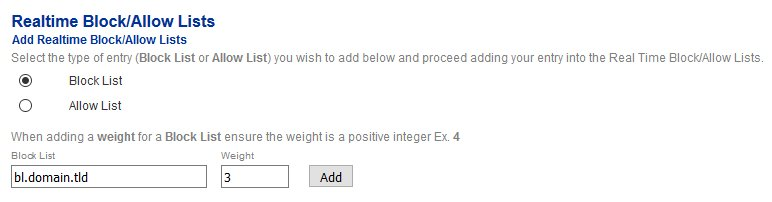
1. Under the **Select the type of entry...** ensure **Block List** is selected.
2. Under the **Block List** field, enter the block list host name.
3. Under the **Weight** field enter a **positive integer** to assign as a weight to this RBL (if you do not enter a weight, a weight of 1 will be automatically assigned).
4. Click the **Add** button (**Figure 1**).
**Figure 1**
[](https://docs.deeztek.com/uploads/images/gallery/2021-01/image-1609596069789.png)
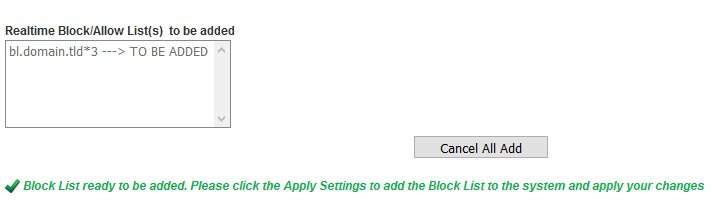
5. Each RBL entry you add shows up in the **Realtime Block/Allow List(s) to be added** section (**Figure 2**).
**Figure 2**
[](https://docs.deeztek.com/uploads/images/gallery/2021-01/image-1609596086206.png)
6. Continue adding RBL entries as needed. When finished, click on the **Apply Settings** button on the bottom of the page (**Figure 3**).
**Figure 3**
[](https://docs.deeztek.com/uploads/images/gallery/2021-01/image-1609596099938.png)
### Add Realtime Allow List
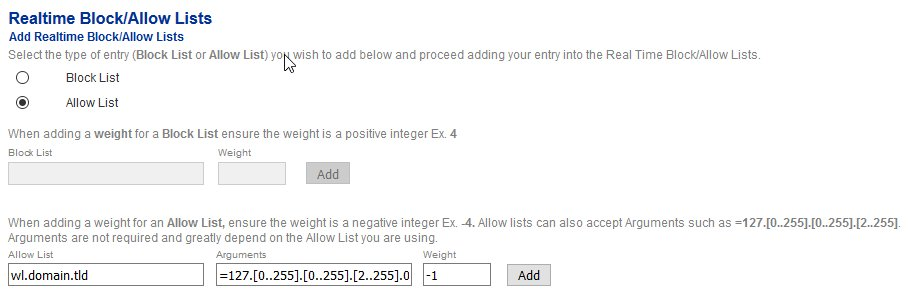
1. Under the **Select the type of entry...** ensure **Allow List** is selected.
2. Under the **Allow List** field, enter the allow list host name.
3. Under the **Arguments** field, enter any arguments for the allow list if required.
4. Under the **Weight** field enter a **negative integer** to assign as a weight to this RBL (if you do not enter a weight, a weight of 1 will be automatically assigned which will in effect invalidate the allow list so ensure you enter a negative integer).
5. Click the **Add** button (**Figure 4**).
**Figure 4**
[](https://docs.deeztek.com/uploads/images/gallery/2021-01/image-1609596108817.png)
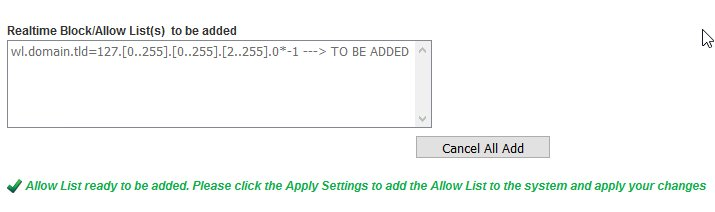
6. Each RBL entry you add shows up in the **Realtime Block/Allow List(s) to be added** section (**Figure 5**).
**Figure 5**
[](https://docs.deeztek.com/uploads/images/gallery/2021-01/image-1609596115964.png)
7. Continue adding RBL entries as needed. When finished, click on the **Apply Settings** button on the bottom of the page (**Figure 6**).
**Figure 6**
[](https://docs.deeztek.com/uploads/images/gallery/2021-01/image-1609596124769.png)
### Delete RBL
1. Under the **Delete Realtime Block/Allow Lists** section, select the entry you wish to delete and click the **Delete** button below (**Figure 7**). **Note that only one entry can be selected to be deleted at a time.**
**Figure 7**
[](https://docs.deeztek.com/uploads/images/gallery/2021-01/image-1609596131706.png)
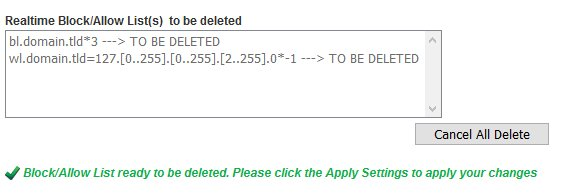
2. Each entry you select to be deleted shows up in the **Permitted Relay IPs/Network to be deleted** section (**Figure 8**).
**Figure 8**
[](https://docs.deeztek.com/uploads/images/gallery/2021-01/image-1609596138983.png)
3. Continue selecting entries to be deleted as needed. When finished, click on the **Apply Settings** button on the bottom of the page (**Figure 9**).
**Figure 9**
[](https://docs.deeztek.com/uploads/images/gallery/2021-01/image-1609596145734.png)
# Network Block/Allow
The IP & Network Override section will allow you to Permit or Deny specific IPs or Networks. The permit or deny action will occur at the perimeter check level. If the action is permit, then the perimeter checks will be effectively bypassed and the email will be allowed to be processed by the rest of the subsystems such as the spam filter and the antivirus engines(s). If the action is deny, then the connection will be immediately dropped by Hermes SEG and no further processing will occur.
### Override an IP Address
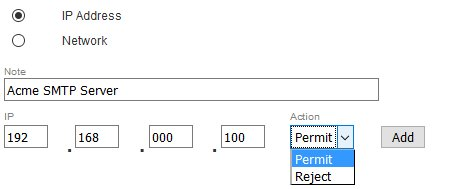
1. Ensure **IP Address** is selected.
2. Under the **Note** field, enter a note describing the entry you are adding.
3. Under the **IP** field, enter the IP address of the remote server.
4. Under the **Action** field, select either **Permit** or **Deny**.
5. Click the **Add** button (**Figure 1**).
**Figure 1**
[](https://docs.deeztek.com/uploads/images/gallery/2021-01/image-1609596199968.png)
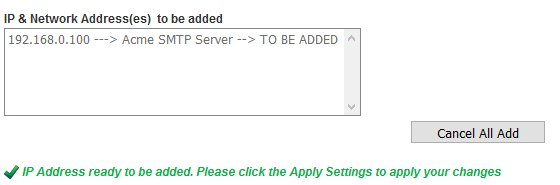
6. Each entry you add shows up in the **IP & Network Address(es) to be added** section (**Figure 2**).
**Figure 2**
[](https://docs.deeztek.com/uploads/images/gallery/2021-01/image-1609596207564.png)
7. Continue adding entries as needed. When finished, click on the **Apply Settings** button on the bottom of the page (**Figure 3**).
**Figure 3**
[](https://docs.deeztek.com/uploads/images/gallery/2021-01/image-1609596214756.png)
### Override a Network Address
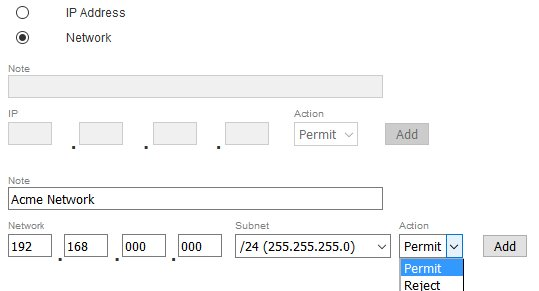
1. Ensure **Network** is selected.
2. Under the **Note** field, enter a note describing the entry you are adding.
3. Under the **Network** field, enter the network address you are adding.
4. Under the **Subnet** drop-down field select the subnet mask of the network you are adding.
5. Under the **Action** field, select either **Permit** or **Deny**.
6. Click the **Add** button (**Figure 4**).
**Figure 4**
[](https://docs.deeztek.com/uploads/images/gallery/2021-01/image-1609596222787.png)
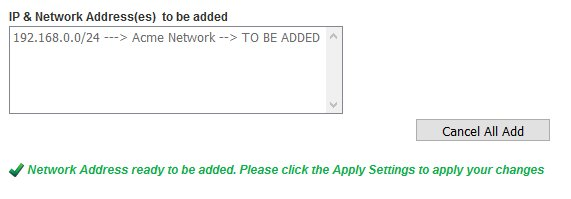
6. Each entry you add shows up in the **IP & Network Address(es) to be added** section (**Figure 5**).
**Figure 5**
[](https://docs.deeztek.com/uploads/images/gallery/2021-01/image-1609596230368.png)
7. Continue adding entries as needed. When finished, click on the **Apply Settings** button on the bottom of the page (**Figure 6**).
**Figure 6**
[](https://docs.deeztek.com/uploads/images/gallery/2021-01/image-1609596237660.png)
### Delete an Override
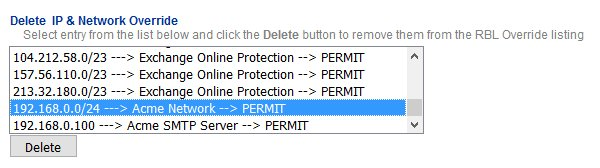
1. Under the **Delete IP & Network Override** section, select the entry you wish to delete and click the **Delete** button below (**Figure 7**). **Note that only one entry can be selected to be deleted at a time.**
**Figure 7**
[](https://docs.deeztek.com/uploads/images/gallery/2021-01/image-1609596244226.png)
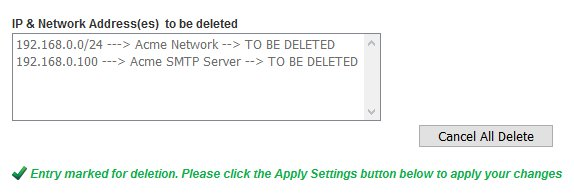
2. Each entry you select to be deleted shows up in the **IP & Network Address(es) to be deleted** section (**Figure 8**).
**Figure 8**
[](https://docs.deeztek.com/uploads/images/gallery/2021-01/image-1609596250627.png)
3. Continue selecting entries to be deleted as needed. When finished, click on the **Apply Settings** button on the bottom of the page (**Figure 9**).
**Figure 9**
[](https://docs.deeztek.com/uploads/images/gallery/2021-01/image-1609596257693.png)
# Sender to Recipient Block/Allow List
The Sender Checks Bypass permits you to either Block or Allow sender email addresses or sender domains to specific **Internal Recipients** or entire **Relay Domains**. It's important to note that the Sender Checks occur **AFTER** the perimeter checks. For example, if you have setup a sender to be allowed but email is still not coming through, it's possible that the sender's IP address is being blocked by the Hermes SEG perimeter checks.
When setting up a sender email address or domain to be allowed or blocked for an entire Relay Domain within Hermes SEG, the system will automatically create separate mappings for every Internal Recipient for that Relay Domain at the time of setup. However, if additional Internal Recipients are added after the the bypass was set, those Internal Recipients will not get the previously set bypasses. In those cases, you will have to manually add those bypasses for the new Internal Recipients.
### Add Email Address Sender Check Bypass to Internal Recipient
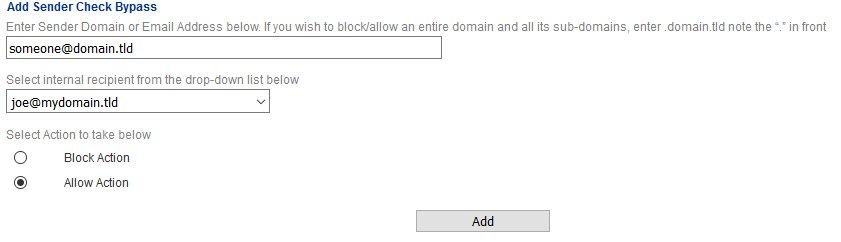
1. Under the **Sender Domain or Email Address ...** field, enter a sender email address.
2. Under the **Select Internal recipient from the ....** drop-down field, select one of the existing **Internal Recipients** in the system.
3. Under the **Select Action to take below** field, select either a **Block** or **Allow** action.
4. Click the **Add** button (**Figure 1**)
**Figure 1**
[](https://docs.deeztek.com/uploads/images/gallery/2021-01/image-1609596314962.png)
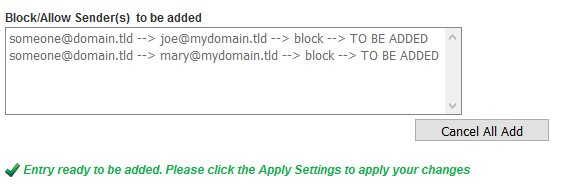
5. Each entry you add shows up in the **Block/Allow Sender(s) to be added** section (**Figure 2**).
**Figure 2**
[](https://docs.deeztek.com/uploads/images/gallery/2021-01/image-1609596323139.png)
6. Continue adding entries as needed. When finished, click on the **Apply Settings** button on the bottom of the page (**Figure 3**).
**Figure 3**
[](https://docs.deeztek.com/uploads/images/gallery/2021-01/image-1609596330611.png)
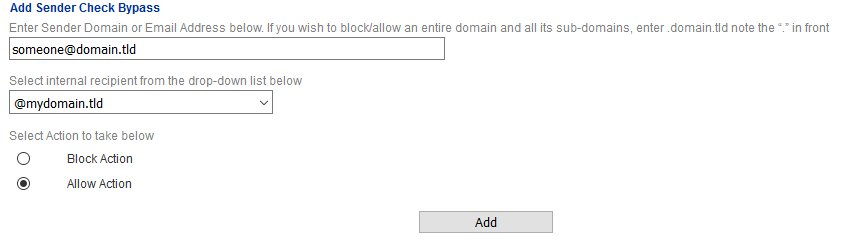
### Add Email Address Sender Check Bypass to Relay Domain
1. Under the **Sender Domain or Email Address ...** field, enter a sender email address.
2. Under the **Select Internal recipient from the ....** drop-down field, select one of the existing **Relay Domains** in the system. Relay Domains are annotated by a (**@**) at symbol in front of them. For example, if you have a Relay Domain of **mydomain.tld** then it will appear as **@mydomain.tld** in the drop-down field.
3. Under the **Select Action to take below** field, select either a **Block** or **Allow** action.
4. Click the **Add** button (**Figure 4**)
**Figure 4**
[](https://docs.deeztek.com/uploads/images/gallery/2021-01/image-1609596344487.png)
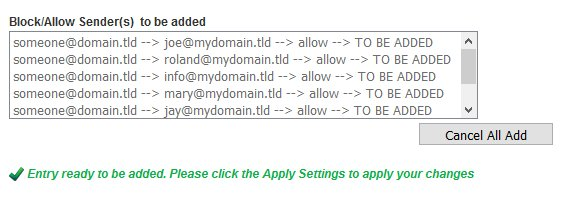
5. Since we are mapping an entire **Relay Domain** to a sender, the system will automatically populate the **Block/Allow Sender(s) to be added** section with all the **Internal Recipients** for that domain (**Figure 5**).
**Figure 5**
[](https://docs.deeztek.com/uploads/images/gallery/2021-01/image-1609596351169.png)
6. Continue adding entries as needed. When finished, click on the **Apply Settings** button on the bottom of the page (**Figure 6**).
**Figure 6**
[](https://docs.deeztek.com/uploads/images/gallery/2021-01/image-1609596359041.png)
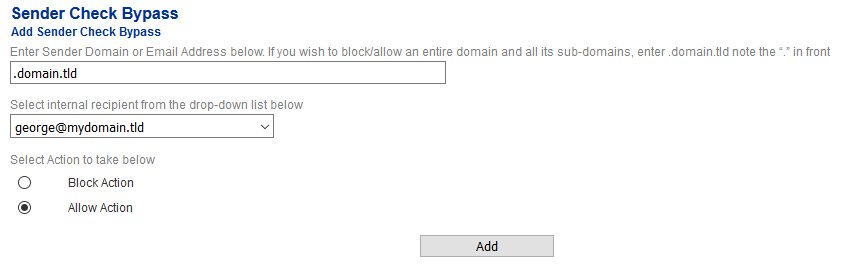
### Add Domain Sender Check Bypass to Internal Recipient
1. Under the **Sender Domain or Email Address ...** field, enter a sender domain. If you want to include all the all the sub-domains under a root domain then you would simply enter a (**.**) dot in front of the domain. For example, if you want to include all the sub-domains for **domain.tld**, you would simply enter **.domain.tld** (note the **.** in front of the domain).
2. Under the **Select Internal recipient from the ....** drop-down field, select one of the existing **Internal Recipients** in the system.
3. Under the **Select Action to take below** field, select either a **Block** or **Allow** action.
4. Click the **Add** button (**Figure 7**)
**Figure 7**
[](https://docs.deeztek.com/uploads/images/gallery/2021-01/image-1609596366490.png)
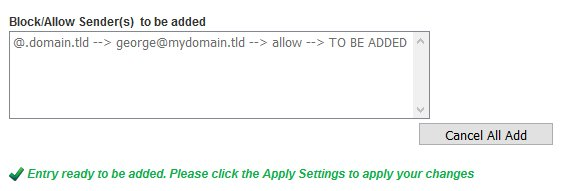
5. Each entry you add shows up in the **Block/Allow Sender(s) to be added** section (**Figure 8**).
**Figure 8**
[](https://docs.deeztek.com/uploads/images/gallery/2021-01/image-1609596373945.png)
6. Continue adding entries as needed. When finished, click on the **Apply Settings** button on the bottom of the page (**Figure 9**).
**Figure 9**
[](https://docs.deeztek.com/uploads/images/gallery/2021-01/image-1609596380955.png)
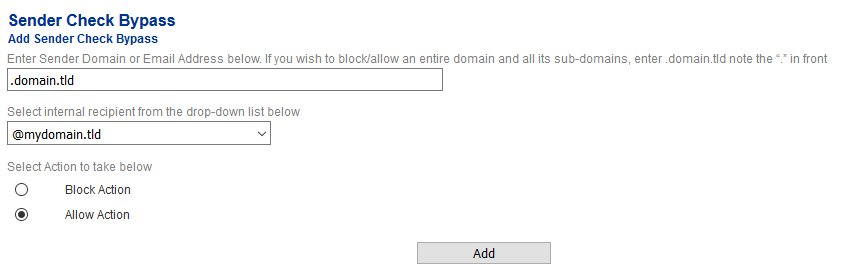
### Add Domain Sender Check Bypass to Relay Domain
1. Under the **Sender Domain or Email Address ...** field, enter a sender domain. If you want to include all the all the sub-domains under a root domain then you would simply enter a (**.**) dot in front of the domain. For example, if you want to include all the sub-domains for **domain.tld**, you would simply enter **.domain.tld** (note the **.** in front of the domain).
2. Under the **Select Internal recipient from the ....** drop-down field, select one of the existing **Relay Domains** in the system. Relay Domains are annotated by a (**@**) at symbol in front of them. For example, if you have a Relay Domain of **mydomain.tld** then it will appear as **@mydomain.tld** in the drop-down field.
3. Under the **Select Action to take below** field, select either a **Block** or **Allow** action.
4. Click the **Add** button (**Figure 10**)
**Figure 10**
[](https://docs.deeztek.com/uploads/images/gallery/2021-01/image-1609596388880.png)
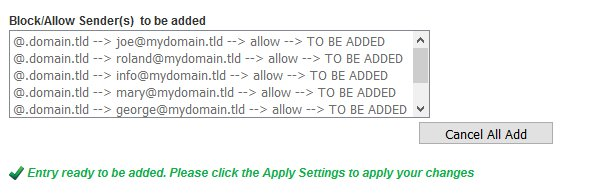
5. Since we are mapping an entire **Relay Domain** to a sender, the system will automatically populate the **Block/Allow Sender(s) to be added** section with all the **Internal Recipients** for that domain (**Figure 11**).
**Figure 11**
[](https://docs.deeztek.com/uploads/images/gallery/2021-01/image-1609596395174.png)
6. Continue adding entries as needed. When finished, click on the **Apply Settings** button on the bottom of the page (**Figure 12**).
**Figure 12**
[](https://docs.deeztek.com/uploads/images/gallery/2021-01/image-1609596405604.png)
### Filter Sender Checks Bypass Entries
Setting a filter will assist you in narrowing down Sender Check Bypass Entries by email address or domain in order to manage them easily.
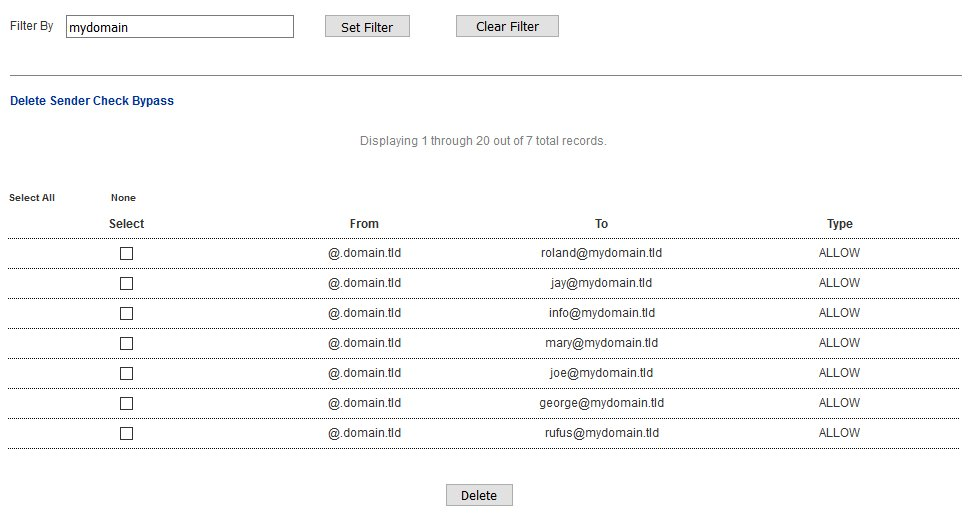
1. In the **Filter By** field, enter a complete or partial email address or domain and click the **Set Filter** button. If any matches are found, the **Delete Sender Check Bypass** listing will be populated with **only the entries matching the filter you set** (**Figure 13**).
**Figure 13**
[](https://docs.deeztek.com/uploads/images/gallery/2021-01/image-1609596414068.png)
2. You can clear a filter you set by clicking the **Clear Filter** button at any time (**Figure 13**).
### Delete Sender Checks Bypass Entries
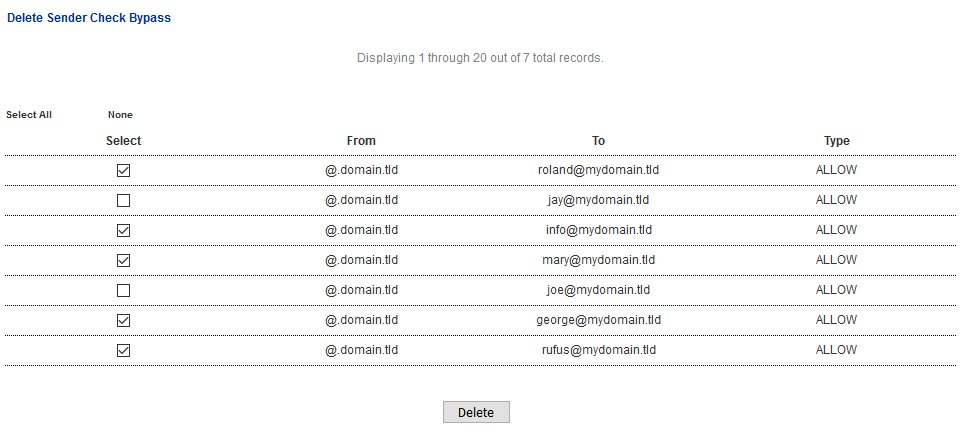
1. Place a checkmark on the checkbox under the **Select** column of any entries you wish to delete. You can select as many entries as needed.
2. Click the **Delete** button on the bottom (**Figure 14**).
**Figure 14**
[](https://docs.deeztek.com/uploads/images/gallery/2021-01/image-1609596425510.png)
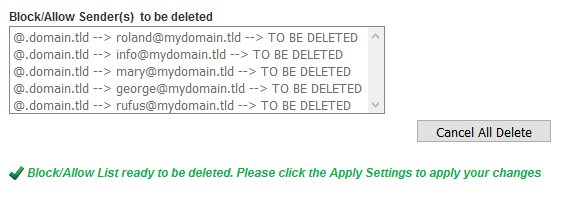
3. The entries to be deleted will show up under the **Block/Allow Sender(s) to be deleted** section (**Figure 15**).
**Figure 15**
[](https://docs.deeztek.com/uploads/images/gallery/2021-01/image-1609596433131.png)
4. Click on the **Apply Settings** button to delete the entries from the system (**Figure 16**).
**Figure 16**
[](https://docs.deeztek.com/uploads/images/gallery/2021-01/image-1609596445206.png)
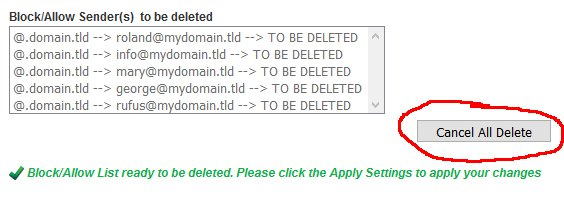
5. If you make a mistake, click on the **Cancel All Delete** button to cancel (**Figure 17**).
**Figure 17**
[](https://docs.deeztek.com/uploads/images/gallery/2021-01/image-1609596452042.png)
# Global Sender Block/Allow List
This page is under construction.
# SPF Settings
Sender Policy Framework (**SPF**) is a simple [email](https://infogalactic.com/info/Email "Email")-validation system designed to detect [email spoofing](https://infogalactic.com/info/Email_spoofing "Email spoofing") by providing a mechanism to allow receiving [mail exchangers](https://infogalactic.com/info/Mail_exchanger "Mail exchanger") to check that incoming mail from a domain comes from a host authorized by that domain's administrators.[\[1\]](https://infogalactic.com/info/Sender_Policy_Framework#cite_note-1) The list of authorized sending hosts for a domain is published in the [Domain Name System](https://infogalactic.com/info/Domain_Name_System "Domain Name System") (DNS) records for that domain in the form of a specially formatted [TXT record](https://infogalactic.com/info/List_of_DNS_record_types "List of DNS record types"). [Email spam](https://infogalactic.com/info/Email_spam "Email spam") and [phishing](https://infogalactic.com/info/Phishing "Phishing") often use forged "from" addresses, so publishing and checking SPF records can be considered [anti-spam techniques](https://infogalactic.com/info/Anti-spam_techniques "Anti-spam techniques"). ([See original source](https://infogalactic.com/info/Sender_Policy_Framework)).
#### Set SPF Settings
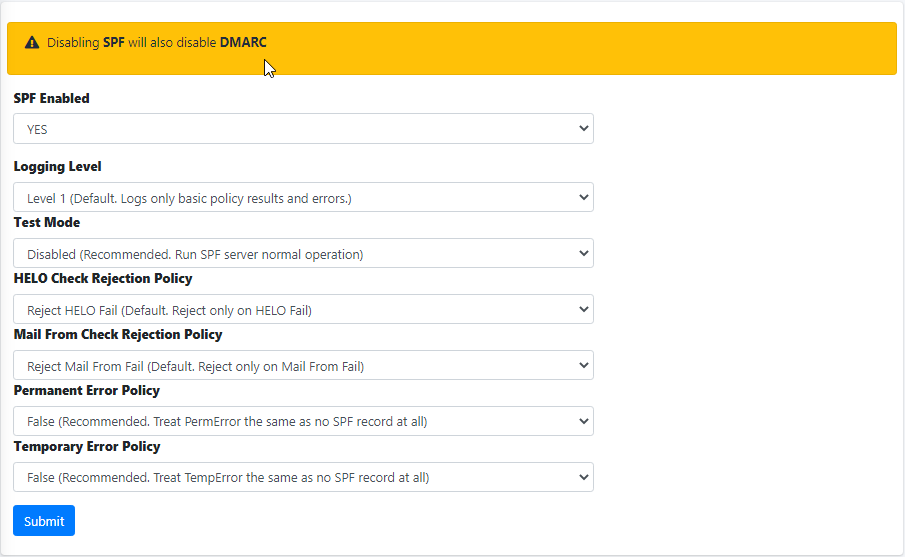
- Set **SPF Enabled** field to **YES** or **NO** in order to enable or disable SPF.
Disabling SPF will also automatically disable DKIM if enabled.
- Set the **Logging Level** field to a logging level of your choice. By default, it's set to **Level 1**.
- **Level 1** logs no debugging messages, just basic policy results and errors generated through the policy server.
- **Level 2** adds a log message if no client address (IP address from which the connection was made), Mail From address, or HELO/EHLO name is received by the policy server, and logs SPF results for each Mail From and HELO check.
- **Level 3** generates a log message each time the policy server starts and each time it exits, as well as logging a copy of the exact header returned to Postfix to be prepended into the message. Each time the policy server starts. Level 3 also logs the configuration information used by the policy server.
- **Level 4** logs the complete data set received by Postfix via the policy interface and when the end of the entry is read.
- **Level 5** is used to debug config file processing and, for this purpose, can only be set in code and not via the config file. It also provides additional internal status details generally of interest only to developers.
- **Level 0** server logs errors only.
- **Disabled** logs nothing, not even error messages. **This setting is NOT recommended**.
- Set the Test Mode to Enabled or Disabled. Setting it to Enabled Hermes SEG will NOT block any e-mail and simply generate logs.
- Set the **HELO Check Rejection Policy** field to a setting of your choice. By default, it's set to **Reject HELO Fail**.
- **Reject HELO Fail** rejects only on HELO Fail. HELO/EHLO is known first in the SMTP dialogue and there is no practical reason to waste resources on Mail From checks if the HELO check will already cause the message to be rejected. This should not cause interoperability problems when used for HELO.
- **Reject All** rejects if the SPF result is **Fail, Softfail, Neutral, PermError**. Unlike the **Mail From Checking Policy**, there are no standard e-mail use cases where a HELO check should not Pass if there is an SPF record for the HELO name (transparent forwarding, for example, is not an issue). HELO/EHLO is known first in the SMTP dialogue and there is no practical reason to waste resources on Mail From checks if the HELO check will already cause the message to be rejected. This is not consistent with the RFC 7208 requirement to treat none and neutral the same, but should not cause interoperability problems when used for HELO.
- **Reject Softfail** rejects on HELO **Softfail** or **Fail**. HELO/EHLO is known first in the SMTP dialogue and there is no practical reason to waste resources on Mail From checks if the HELO check will already cause the message to be rejected. This should not cause interoperability problems when used for HELO.
- **Reject Null** - rejects HELO Fail for Null sender (SPF Classic). This is the approach used by the pre-RFC 4408 reference implementation and many of the pre- RFC specifications. Use of at least this option (SPF\_Not\_Pass or Fail) are preferred) is highly recommended.
- **Append Only** does NOT reject on HELO but instead appends a header only which the Spam Filter should detect and assign a Spam Score to it.
- **Disable Check** does not check HELO. This is only recommended if you are calling the policy server twice (once for HELO checks and once for Mail From) with two different configuration files. This approach is useful to get both the HELO and Mail From headers prepended to a message. **This setting is NOT recommended and should only be used by VERY experienced users with custom configurations.**
- Set the **Mail From Check Rejection Policy** to a setting of your choice. By default it's set to **Reject Mail from Fail**.
- **Reject Mail from Fail** rejects on Mail From Fail.
- **Reject All** rejects if result not Pass/None/Tempfail. This option is not RFC 7208 compliant since the mail with an SPF Neutral result is treated differently than mail with no SPF record and Softfail results are not supposed to cause mail rejection. Global use of this option is not recommended. Use per-domain if needed (per-domain usage described below).
- **Reject Softfail** rejects on Mail From Softfail or Fail. **Use of this option is NOT recommended**.
- **Append Only** does NOT reject but instead appends a header only which the Spam Filter should detect and assign a Spam Score to it.
- **Disable** never checks Mail From/Return Path. This is only recommended if you are calling the policy server twice (once for HELO checks and once for Mail From) with two different configuration files. This approach is useful to get both the HELO and Mail From headers prepended to a message. It could also be used to do HELO checking only (because HELO checking has a lower false positive risk than Mail From checking), but this approach may not be fully RFC 7208 compliant since the Mail From identity is mandatory if HELO checking does not reach a definitive result. **This setting is NOT recommended and should only be used by VERY experienced users with custom configurations.**
- Set the **Permanent Error Policy** to a setting of your choice. By default it's set to **False**.
- **False** treats PermError the same as no SPF record at all. This is consistet with the pre-RFC usage (the pre-RFC name for this error was "Unknown").
- **True** rejects the message if the SPF result (for HELO or Mail From) is PermError. This has a higher short-term false positive risk, but does result in senders getting feedback that they have a problem with their SPF record.
- Set the **Temporary Error Policy** to a setting of your choice. By default it's set to **False**.
- **False** treats TempError the same as no SPF record at all. This is the default to minimize false positive risk.
- **True** defers the message if the SPF result (for HELO or Mail From) is TempError. This is the traditional usage and has proven useful in reducing acceptance of unwanted messages. Sometimes spam senders do not retry. Sometimes by the time a message is retried the sending IP has made it onto a DNS RBL and can then be rejected. This is not the default because it is possible for some DNS errors that are classified as "Temporary" per RFC 7208 to be permanent in the sense that they require operator intervention to correct. (**Figure 1**).
**Figure 1**
[](https://docs.deeztek.com/uploads/images/gallery/2022-06/image-1656440337894.png)
#### Add SPF Whitelist Entries
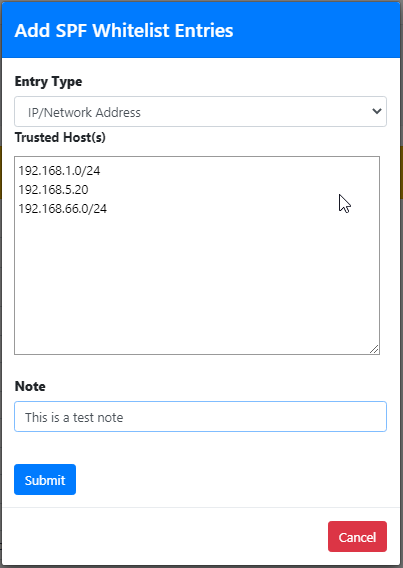
Adding entries in the SPF Whitelist will allow Hermes SEG to skip SPF checks for those entries. SPF Whitelist entries can be an IP/Network Address, HELO/EHLO Host Name, Domain Name or PTR Domain.
Click the **Add SPF Whitelist Entries** button and in the resultant menu, select the **Entry Type**, enter the entries the **Trusted Host(s)** field (You can add multiple entries each in its own line), enter an optional note in the **Note** field and click the **Submit** button (**Figure** **2).**
**Figure 2**
[](https://docs.deeztek.com/uploads/images/gallery/2022-06/image-1656440690778.png)
#### Delete SPF Whitelist Entries
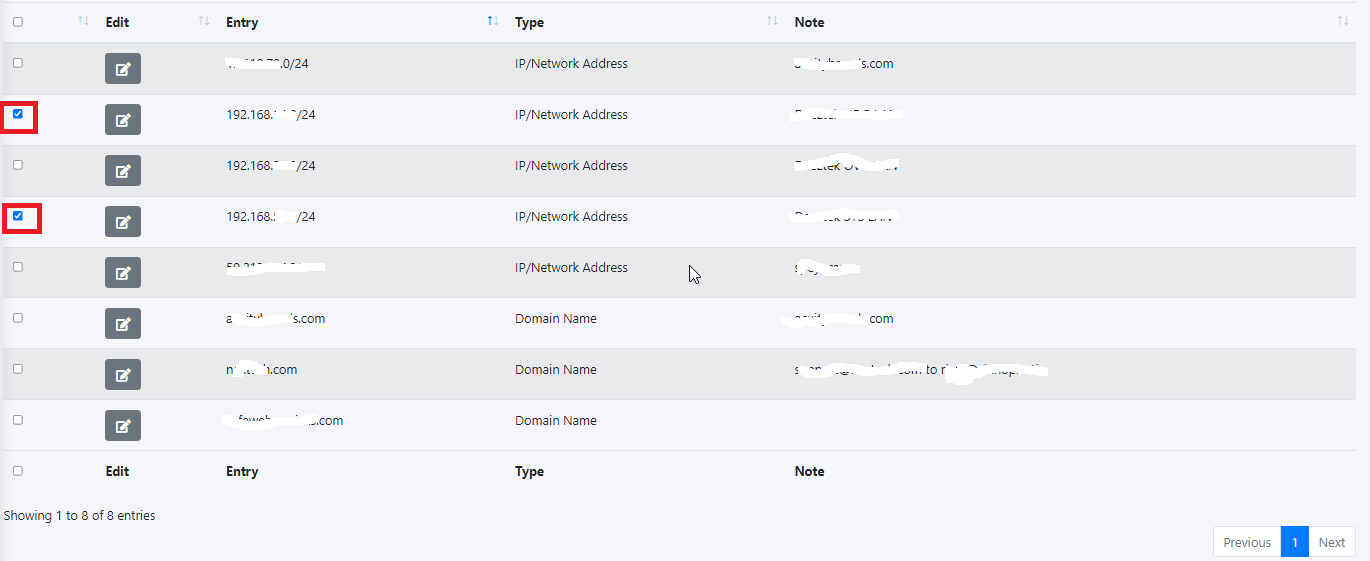
Select the entries you wish to delete by checking their checkboxes and click the **Delete** button on top of the page (**Figure 3**).
**Figure 3**
[](https://docs.deeztek.com/uploads/images/gallery/2022-06/image-1656440974193.png)
#### Edit SPF Whitelist Entry
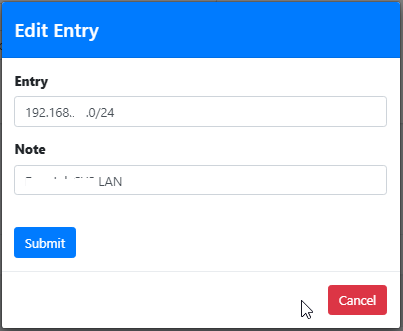
Click the [ ](https://docs.deeztek.com/uploads/images/gallery/2022-06/image-1656441062730.png)icon next to the entry you wish to edit. In the resultant window, make changes as necessary and click the **Submit** button (**Figure 4**).
**Figure 4**
[](https://docs.deeztek.com/uploads/images/gallery/2022-06/image-1656441187722.png)
# DKIM Settings
DomainKeys Identified Mail (DKIM) is a protocol that allows verifiable email transmission though the use of cryptographic authentication. This is accomplished through the use of private and public keys. The private key is stored on the sending email server so that hash strings can be generated out of email message using that private key and a public key which is stored in DNS so that recipients can verify those hashes using that public key.
#### DKIM Enabled
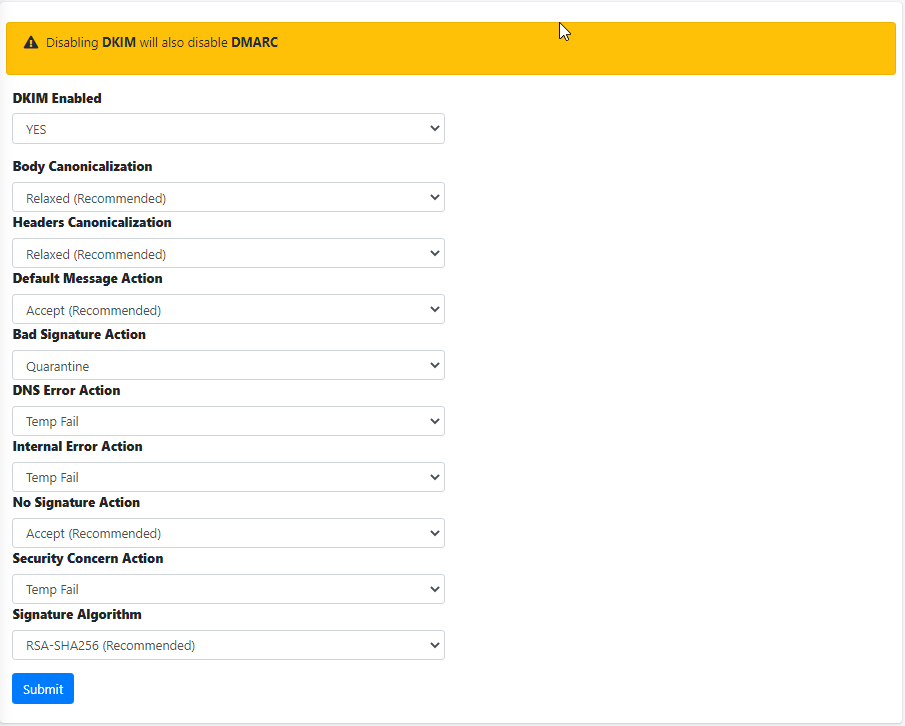
Setting this setting to **YES** will enable DKIM verification of all incoming email and if **DKIM Sign** is enabled for any domains, it will also enable the generation of DKIM keys for all outgoing email for those domains. If DKIM Sign is not enabled for any domains it will ONLY enable DKIM verification of all incoming email.
Disabling DKIM will also automatically disable DKIM if enabled.
#### Body Canonicalization
The canonicalization method for the message body used when DKIM signing messages. The recommended setting is **Relaxed**.
#### Headers Canonicalization
The canonicalization method for the message headers used when DKIM signing messages. The recommended setting is **Relaxed**.
#### Default Message Action
This is the default action to take when an incoming message DKIM signature fails to validate. The recommended setting is **Accept**. This action is processed before all the other actions below so it's best to be set to Accept and then set any overrides below.
#### Bad Signature Action
This is the default action to take when an incoming message DKIM signature fails to validate. The recommended setting is **Accept**.
#### DNS Error Action
This is the default action to take when a DNS error occurs during the DKIM validation of an incoming message . The recommended setting is **Temp Fail**.
#### Internal Error Action
This is the default action to take when a system internal occurs during the DKIM validation of an incoming message . The recommended setting is **Quarantine**.
#### No Signature Action
This is the default action to take when an incoming message has no DKIM signature . The recommended setting is **Accept**.
#### Security Concern Action
This is the default action to take when an incoming message contains properties that maybe of a security concern . The recommended setting is **Quarantine**.
#### Signature Algorithm
This settings sets the DKIM signature algorithm used when signing outgoing DKIM messages . The recommended setting is **RSA-SHA-256**. (**Figure 1**).
**Figure 1**
[](https://docs.deeztek.com/uploads/images/gallery/2022-06/image-1656442045156.png)
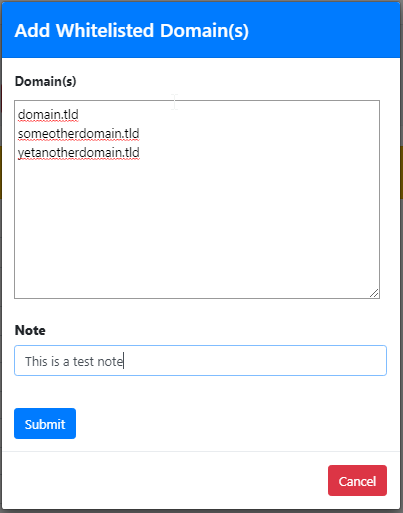
#### Add Whitelisted Domain(s)
Adding entries in the Whitelisted Domain(s) will allow Hermes SEG to skip DKIM checks for those entries.
Click the **Add Whitelisted Domain(s)** button and in the resultant menu enter the entries the **Domain(s)** field (You can add multiple entries each in its own line), enter an optional note in the **Note** field and click the **Submit** button (**Figure** **2).**
**Figure 2**
[](https://docs.deeztek.com/uploads/images/gallery/2022-06/image-1656442323170.png)
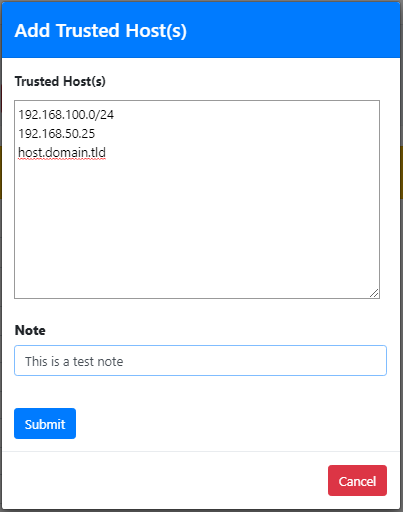
#### Add Trusted Host(s)
Adding entries in Trusted Host(s) enables those hosts to send DKIM signed e-mail through Hermes SEG. Trusted Host(s) can be IPs, Network Address(es) and FQDNs.
Click the **Add Trusted Host(s)** button and in the resultant menu enter the entries the **Trusted Host(s)** field (You can add multiple entries each in its own line), enter an optional note in the **Note** field and click the **Submit** button (**Figure** **3).**
**Figure 3**
[](https://docs.deeztek.com/uploads/images/gallery/2022-06/image-1656442533239.png)
#### Delete Whitelisted Domain(s) or Trusted Host(s) Entries
Select the entries you wish to delete by checking their checkboxes and click the **Delete** button on top of the page (**Figure 4**).
**Figure 4**
[](https://docs.deeztek.com/uploads/images/gallery/2022-06/image-1656442742794.png)
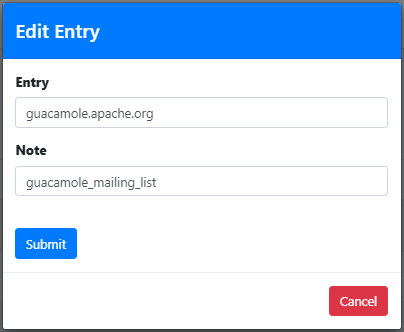
#### Edit Whitelisted Domain or Trusted Host Entry
Click the [ ](https://docs.deeztek.com/uploads/images/gallery/2022-06/image-1656441062730.png)icon next to the entry you wish to edit. In the resultant window, make changes as necessary and click the **Submit** button (**Figure 5**).
**Figure 5**
[](https://docs.deeztek.com/uploads/images/gallery/2022-06/image-1656442860519.png)
# Antivirus Settings
The settings below control the behavior of the ClamAV antivirus engine. ClamAV is the default engine that comes pre-configured with Hermes SEG. Additional antivirus scanners can be installed such as Sophos but the settings below ONLY apply to ClamAV.
### Scan Email Files
This setting enables the scanning of email files. If this setting gets disabled, it will effectively completely disable the ClamAV antivirus engine. Recommended to be set to **Enabled**.
### Scan Archives
This setting enable scanning of archive files such as ZIP, RAR, GZ etc. This setting will also enable the scanning of Microsoft Word .DOCX files, which are considered archives by the system. Recommended to be set to **Enabled**.
### Mark Encrypted Archives as Viruses
This setting tells ClamAV to treat any encrypted archives such as encrypted ZIP, RAR and .DOCX files as viruses. ClamAV is not able to open and scan encrypted archives so it's impossible to tell if there are malware present in the archive. Recommended to be set to **Disabled**.
### Scan Portable Executables
This settings enables the scanning of Portal Executable files. Portable Executable is a file format is a file format used in all version of Windows OS. This option allows ClamAV to perform a deeper analysis of executable files and it's also required for decompression of popular executable packers such as UPX. Recommended to be set to **Enabled**.
### Scan OLE2 files
This setting enables the scanning of OLE2 files such as Mcrosoft Office Documents and .MSI files. Recommended to be set to **Enabled**.
### Block OLE2 Macros
This setting will bypass ALL Antivirus signatures and block ALL OLE2 files with VBA Macros in them whether malicious or not. In effect, it will treat any macros embedded in OLE2 files as a virus. This setting has no effect Scan OLE2 files setting above is set to disabled. Recommended to be set to **Disabled**.
### Scan PDF files
This setting enables the scanning of .PDF files. Recommended to be set to **Enabled**.
### Scan and normalize HTML
This setting enables HTML detection and normalisation. Recommended to be set to **Enabled**.
### Algorithmic Detection
This setting enables the detection of complex malware and exploits in graphic files and others by allowing ClamAV to use special algorithms in order to provide accurate detection. Recommended to be set to **Enabled**.
### Scan Executable and Linking Format Files (ELF)
This setting enables the scanning of ELF files. ELF files are is a standard format for Unix executables. Recommended to be set to **Enabled**.
### Signature Based Detection of Phishing Attempts
This setting enables the detection of phishing attempts by using signatures. Recommended to be set to **Enabled**.
### Scan Email URLs for Phishing Attempts
This settings enables the detection of phishing attempts in URLs using heuristics. This setting will classify unwanted phishing emails as **Phishing.Heuristics.Email.\***. Recommended to be set to **Enabled**.
### Block SSL Mismatches in Email URLs
This setting will always block SSL mismatches in URLs, even if the the URL isn't in the threat database. This setting has can lead to false positives. Recommended to be set to **Disabled**.
### Block Cloaked Email URLs
This setting will always block cloaked URLs even if the URL isn't in the threat database. This setting can lead to false positives. Recommended to be set to **Disabled**.
### Detect Possibly Unwanted Applications
This setting enables the detection of Possibly Unwanted Applications (PUA) such as runtime packers, password tools, network tools, P2P clients, IRC clients, remote access trojans, process killers, keyloggers and various spying tools, Javascript scripts, ActiveX scripts etc. Recommended to be set to **Enabled**.
### Heuristic Scan Precedence
When this setting is enabled, if a heuristic malware matches, the scanning will stop immediately thus saving CPU. When this setting is disabled, heuristic matches will be reported at the end of the scan. For example, if disabled and an archive contains both a heuristically detected malware and a signature based malware, the signature based malware will be reported. If signature based malware is found, the scan stops immediately regardless of whether this option is enabled or not. Recommended to be set to **Disabled**.
# Antivirus Signature Feeds
The Hermes SEG default antivirus engine (ClamAV) is not very effective at detecting malware when using only its own signatures. Therefore, 3rd party ClamAV signature feeds have been developed. Using the correct 3rd party signatures, ClamAV becomes extremely good at detecting malware with very few false positives. Currently, Hermes SEG supports the integration of the following 3rd party signature feeds:
- Linux Malware Detect
- Malware Patrol
- Sanesecurity
- SecuriteInfo
- YaraRules
In this page, you can enable and configure each one of the supported 3rd party signature feeds.
### Linux Malware Detect
Linux Malware Detect (LMD) is a malware scanner for Linux released under the GNU GPLv2 license, that is designed around the threats faced in shared hosted environments. It uses threat data from network edge intrusion detection systems to extract malware that is actively being used in attacks and generates signatures for detection. In addition, threat data is also derived from user submissions with the LMD checkout feature and from malware community resources. The signatures that LMD uses are MD5 file hashes and HEX pattern matches, they are also easily exported to any number of detection tools such as ClamAV. More information can be found at [https://www.rfxn.com/projects/linux-malware-detect/](https://www.rfxn.com/projects/linux-malware-detect/)
**Enable Linux Malware Detect feed and adjust update interval**
1. Click on the[](https://docs.deeztek.com/uploads/images/gallery/2021-01/image-1609597340999.png) icon under the **Configure** column of the **linuxmalwaredetect** entry.
2. On the **Linux Malware Detect Feed Configuration** page under the **Linux Malware Detect Feed** section, ensure **Enabled** is selected (Linux Malware Detect is enabled by default).
3. Under the **Linux Malware Detect Database Update Interval**, adjust the update interval as needed. The default is **8 hours**. Change the interval with caution, because some feeds will ban your IP address if you connect for updates too often (**Figure 1**).
**Figure 1**
[](https://docs.deeztek.com/uploads/images/gallery/2021-01/image-1609597352998.png)
4. Click on the **Apply Settings** button on the bottom of the page to apply your changes (**Figure 2**).
**Figure 2**
[](https://docs.deeztek.com/uploads/images/gallery/2021-01/image-1609597359684.png)
**Add Linux Malware Detect Databases**
Hermes SEG already comes preconfigured with Linux Malware Detect signatures. As far as we can tell, the only two signatures available for Linux Malware Detect have already been added to Hermes SEG. If more signatures become available in the future and you wish to add them, Linux Malware Detect signatures can be found at the following URL [https://github.com/andrewelkins/Linux-Malware-Detect/tree/master/files/sigs.](https://github.com/andrewelkins/Linux-Malware-Detect/tree/master/files/sigs)
**Note: Adding or enabling databases that have a False Positive Risk of Medium or High can lead to false positives. Use those databases with caution.**
1. Click on the[](https://docs.deeztek.com/uploads/images/gallery/2021-01/image-1609597368762.png)icon under the **Configure** column of the **linuxmalwaredetect** entry.
2. On the **Linux Malware Detect Feed Configuration** page click on the **Add Linux Malware Detect Database** button (**Figure 3**).
**Figure 3**
[](https://docs.deeztek.com/uploads/images/gallery/2021-01/image-1609597390786.png)
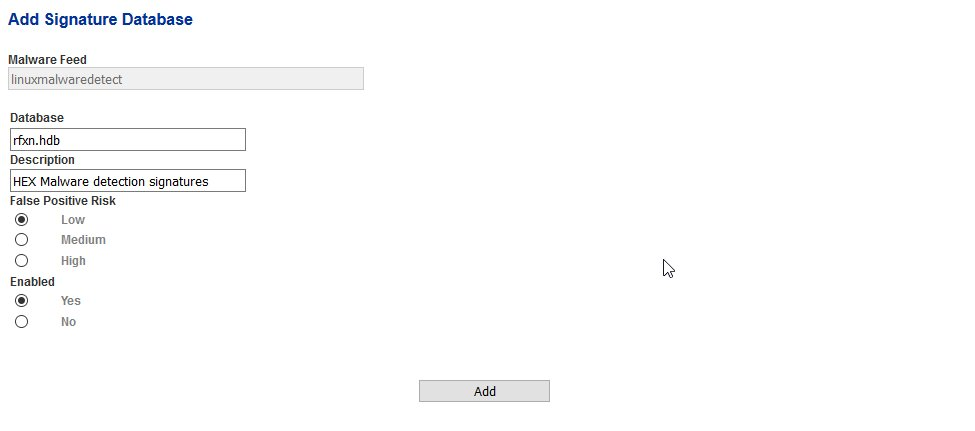
3. On the **Add Signature Database** page, under the **Database** field, enter the signature you wish to add, under the **Description** field enter a description for the database, under the **False Positive Risk** field select a risk level and under the **Enabled** field select whether to enable to disable the signature and then click the **Add** button (**Figure 4**). **Note that signatures can be added by not necessarilly enabled**.
**Figure 4**
[](https://docs.deeztek.com/uploads/images/gallery/2021-01/image-1609597398805.png)
4. Continue adding signature databases as needed. When finished, click on the **Back to Feed Configuration** button to return to the **Linux Malware Detect Feed Configuration** page (**Figure 5**).
**Figure 5**
[](https://docs.deeztek.com/uploads/images/gallery/2021-01/image-1609597407509.png)
4. Back on the **Linux Malware Detect Feed Configuration** page, click on the **Apply Settings** button on the bottom of the page to save the new database signature(s) you just added to the configuration (**Figure 6**).
**Figure 6**
[](https://docs.deeztek.com/uploads/images/gallery/2021-01/image-1609597414510.png)
**Delete or disable Linux Malware Detect Databases**
Deleting a database will completely remove all the database signatures from the ClamAV configuration. Note that if you delete all of the database for a particular feed, the feed will be effectively disabled.
Disabling a database will prevent the system from downloading signature updates for that particular database on the Signature Feed update interval. However, the signatures (albeit old ones) will still be part of the ClamAV configuration.
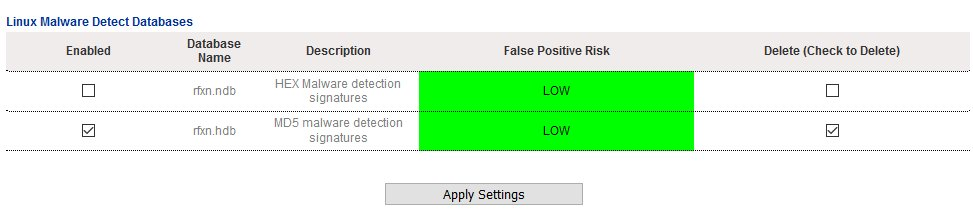
1. Place a checkmark on the checkbox under **Enabled** column if you wish to disable a database or the **Delete (Check to Delete)** column if you wish to delete the database of one or more database(s).
2. Click on the **Apply Settings** button to apply your setting to the ClamAV configuration (**Figure 6**).
**Figure 6**
[](https://docs.deeztek.com/uploads/images/gallery/2021-01/image-1609597422988.png)
### Malware Patrol
The Malware Patrol Project have been gathering and providing malware and ransomware threat data since 2005. This information is used by enterprises and open source members of their community to protect networks and assets in more than 130 countries. For ease of use, they offer data feeds in pre-defined and customized contents and formats compatible with the most popular security systems. More information can be found at [https://www.malwarepatrol.net/](https://www.malwarepatrol.net/)
**Enable and configure Malware Patrol feed**
1. Click on the[](https://docs.deeztek.com/uploads/images/gallery/2021-01/image-1609597434281.png) icon under the **Configure** column of the **malwarepatrol** entry.
2. Sign up for an account at [https://www.malwarepatrol.net/signup-free.shtml](https://www.malwarepatrol.net/signup-free.shtml). Choose either a **Free** or a **Premium** subscription.
3. After signing up, you will receive an email that contains your Password/Receipt number.Login to your account at [https://www.malwarepatrol.net/login.php](https://www.malwarepatrol.net/login.php)
4. In the **My Account** page, under the **URL block lists**, locate the **Regular List Download** link for either ClamAV Virus DB (Basic) if you have a Free Subscription or ClamAV Virus DB (ext) if you have a Premium Subscription. **Never use the Aggresive List Download links.**
5. The Download link you select will be formatted like: **https://lists.malwarepatrol.net/cgi/getfile?receipt=521901267812&product=15&list=clamav\_basic** for a Free Subscription or **https://lists.malwarepatrol.net/cgi/getfile?receipt=521901267812&product=15&list=clamav\_ext** for a Premium Subscription. From the Download link, please note the **receipt=521901267812** will be your actual password/receipt number, **product=15** is the product code and **list=clamav\_basic** or **list=clamav\_ext** depending on your subscription.
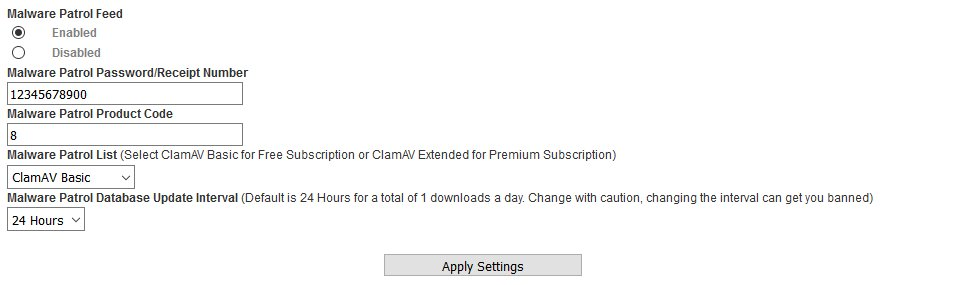
6. On the **Malware Patrol Feed Configuration** page under the **Malware Patrol Feed** section, ensure **Enabled** is selected (Malware Patrol is disabled by default).
7. Under the **Password/Receipt Number** field, enter the number after **receipt=** from **Step 5**. **Ensure you enter your own number and don’t use the number from the example above.**
8. Under the Malware Patrol Product Code field, enter the number after the **product=** from **Step 5**. **Ensure you enter your own number and don’t use the number from the example above.**
9. Under the Malware Patrol List drop-down field, select either **ClamAV Basic** if you signed up for a **Free Subscription** or **ClamAV Extended** if you signed up for **Premium Subscription**.
10. Under the **Linux Malware Detect Database Update Interval**, adjust the update interval as needed. The default is **24 hours**. If you have a Premium Subscription, you can change to **2 Hours**. Change the interval with caution, because some feeds will ban your IP address if you connect for updates too often (**Figure 7**).
**Figure 7**
[](https://docs.deeztek.com/uploads/images/gallery/2021-01/image-1609597452338.png)
4. Click on the **Apply Settings** button on the bottom of the page to apply your changes (**Figure 8**).
**Figure 8**
[](https://docs.deeztek.com/uploads/images/gallery/2021-01/image-1609597461774.png)
**Add Malware Patrol Databases**
The Malware Patrol feed does not require any databases to be added.
### Sanesecurity
Sanesecurity produces add-ons signatures to help improve the ClamAV detection rate on Zero-Day malware and even on Zero-Hour malware. Since 2006 they have provided professional quality ClamAV signatures to protect against the following email types: Macro malware, Zip malware, Rar malware, Javascript malware, 7z malware, Phishing, Spear phishing and other types of common emailed malware and spam. Sanesecurity 3rd Party ClamAV signatures can also help prevent TeslaCrypt, Cryptowall, Cryptolocker and other ransomware, who’s source usually starts as a malicious email. Sanesecurity signatures are free, however we highly recommend donating to this worthwhile cause. More information can be found at [http://sanesecurity.com/](http://sanesecurity.com/)
**Enable Sanesecurity feed and adjust update interval**
1. Click on the[](https://docs.deeztek.com/uploads/images/gallery/2021-01/image-1609597473827.png)icon under the **Configure** column of the **sanesecurity** entry.
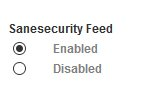
2. On the **Sanesecurity Feed Configuration** page under the **Sanesecurity Feed** section. ensure **Enabled** is selected (Sanesecurity is enabled by default) (**Figure 9**).
**Figure 9**
[](https://docs.deeztek.com/uploads/images/gallery/2021-01/image-1609597485840.png)
4. Click on the **Apply Settings** button on the bottom of the page to apply your changes (**Figure 10**).
**Figure 10**
[](https://docs.deeztek.com/uploads/images/gallery/2021-01/image-1609597493862.png)
**Add Sanesecurity Databases**
Hermes SEG already comes preconfigured with the safest Sanesecurity signatures (Low False Positive Risk). Additional Sanesecurity signatures can be found at the following URL [http://sanesecurity.com/usage/signatures/](http://sanesecurity.com/usage/signatures/).
**Note: Adding or enabling databases that have a False Positive Risk of Medium or High can lead to false positives. Use those databases with caution.**
1. Click on the[](https://docs.deeztek.com/uploads/images/gallery/2021-01/image-1609597501325.png)icon under the **Configure** column of the **sanesecurity** entry.
2. On the **Sanesecurity Feed Configuration** page click on the **Add Sanesecurity Database** button (**Figure 3**).
**Figure 11**
[](https://docs.deeztek.com/uploads/images/gallery/2021-01/image-1609597513379.png)
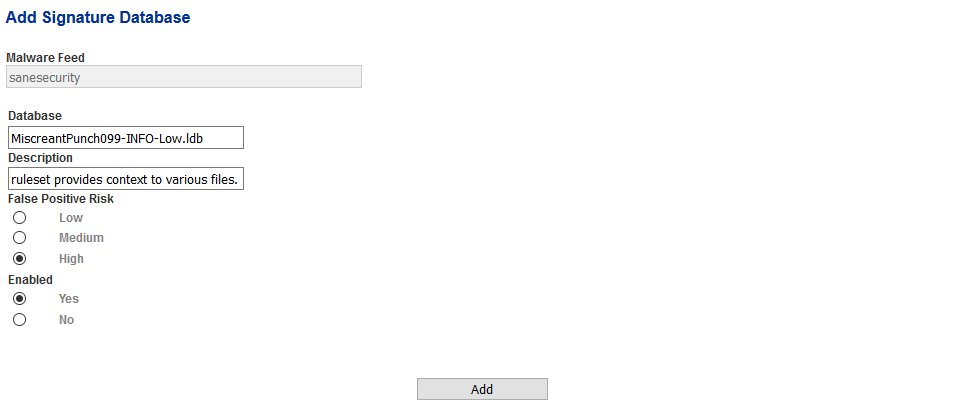
3. On the **Add Signature Database** page, under the **Database** field, enter the signature you wish to add, under the **Description** field enter a description for the database, under the **False Positive Risk** field select a risk level and under the **Enabled** field select whether to enable to disable the signature and then click the **Add** button (**Figure 12**). **Note that signatures can be added by not necessarilly enabled**.
**Figure 12**
[](https://docs.deeztek.com/uploads/images/gallery/2021-01/image-1609597520787.png)
4. Continue adding signature databases as needed. When finished, click on the **Back to Feed Configuration** button to return to the **Sanesecurity Feed Configuration** page (**Figure 13**).
**Figure 13**
[](https://docs.deeztek.com/uploads/images/gallery/2021-01/image-1609597530711.png)
4. Back on the **Sanesecurity Feed Configuration** page, click on the **Apply Settings** button on the bottom of the page to save the new database signature(s) you just added to the configuration (**Figure 14**).
**Figure 14**
[](https://docs.deeztek.com/uploads/images/gallery/2021-01/image-1609597536726.png)
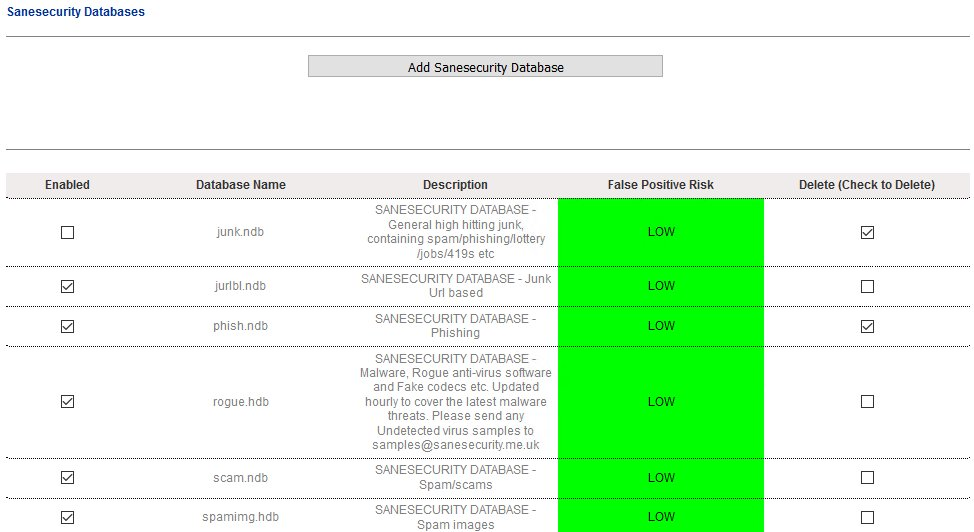
**Delete or disable Sanesecurity Databases**
Deleting a database will completely remove all the database signatures from the ClamAV configuration. Note that if you delete all of the database for a particular feed, the feed will be effectively disabled.
Disabling a database will prevent the system from downloading signature updates for that particular database on the Signature Feed update interval. However, the signatures (albeit old ones) will still be part of the ClamAV configuration.
1. Place a checkmark on the checkbox under **Enabled** column if you wish to disable a database or the **Delete (Check to Delete)** column if you wish to delete the database of one or more database(s) (**Figure 15**).
**Figure 15**
[](https://docs.deeztek.com/uploads/images/gallery/2021-01/image-1609597543867.png)
2. Click on the **Apply Settings** button on the bottom of the database listing to apply your setting to the ClamAV configuration (**Figure 16**) .
**Figure 16**
[](https://docs.deeztek.com/uploads/images/gallery/2021-01/image-1609597552145.png)
### SecuriteInfo
SecuriteInfo.com is a french computer security company. They provide state-of-the-art technologies to deliver security audits and products, like vulnerability audits for websites, network audits and firewall/proxy appliances. More information can be found at [https://www.securiteinfo.com/](https://www.securiteinfo.com/).
**Enable and configure SecuriteInfo feed**
1. Click on the[](https://docs.deeztek.com/uploads/images/gallery/2021-01/image-1609597561165.png)icon under the **Configure** column of the **securiteinfo** entry.
2. Sign up for an account at [https://www.securiteinfo.com/clients/customers/signup](https://www.securiteinfo.com/clients/customers/signup).
3. You will receive an activation e-mail and after a succesful activation, you will receive an e-mail with your login name and a temporary password.
4. Login to your newly created account at [https://www.securiteinfo.com/clients/customers/account ](https://www.securiteinfo.com/clients/customers/account)and click on the **Setup** tab.
5. In the **Setup** tab, you will see a listing of Database Custom URLs like the example below:
```
DatabaseCustomURL http://www.securiteinfo.com/get/signatures/fdag7f8vga2s822yqr4mit0dyu7qahji1r91ke2rffsta0ry3qw2cdyerh9c937cwmd0eyg3d1c0rpjy2ybb6rtz5apke6c04dnjmdh1mre3nsdo2bdsatbt r7hl798c/securiteinfo.hdb
```
1. The bold 128-character string from the example above represents your unique **SecuriteInfo Authorization Signature**.
6. On the **SecuriteInfo Feed Configuration** page under the **SecuriteInfo** section, ensure **Enabled** is selected (SecuriteInfo is disabled by default).
7. Copy the 128-character string (Ensure you copy **ONLY the string** NOT the URL) from **Step 6** and paste it under the **SecuriteInfo Authorization Signature** field, **Ensure you enter your own 128-character string and don’t use the number from the example above.**
8. Under the **SecuriteInfo Database Update Interval**, adjust the update interval as needed. The default is **4 hours**. Change the interval with caution, because some feeds will ban your IP address if you connect for updates too often (**Figure 17**).
**Figure 17**
[](https://docs.deeztek.com/uploads/images/gallery/2021-01/image-1609597644867.png)
4. Click on the **Apply Settings** button on the bottom of the page to apply your changes (**Figure 18**).
**Figure 18**
[](https://docs.deeztek.com/uploads/images/gallery/2021-01/image-1609597652722.png)
**Add SecuriteInfo Databases**
Hermes SEG already comes preconfigured with the safest SecuriteInfo signatures (Low False Positive Risk). Additional SecuriteInfo signatures can be found by either logging in your [SecuriteInfo account](https://www.securiteinfo.com/clients/customers/account) and then going under **Setup** or the [Sanesecurity signatures website](http://sanesecurity.com/usage/signatures/) under the SecuriteInfo section.
**Note: Adding or enabling databases that have a False Positive Risk of Medium or High can lead to false positives. Use those databases with caution.**
1. Click on the[](https://docs.deeztek.com/uploads/images/gallery/2021-01/image-1609597662594.png)icon under the **Configure** column of the **securiteinfo** entry.
2. On the **SecuriteInfo Feed Configuration** page click on the **Add SecuriteInfo Database** button (**Figure 19**).
**Figure 19**
[](https://docs.deeztek.com/uploads/images/gallery/2021-01/image-1609597677386.png)
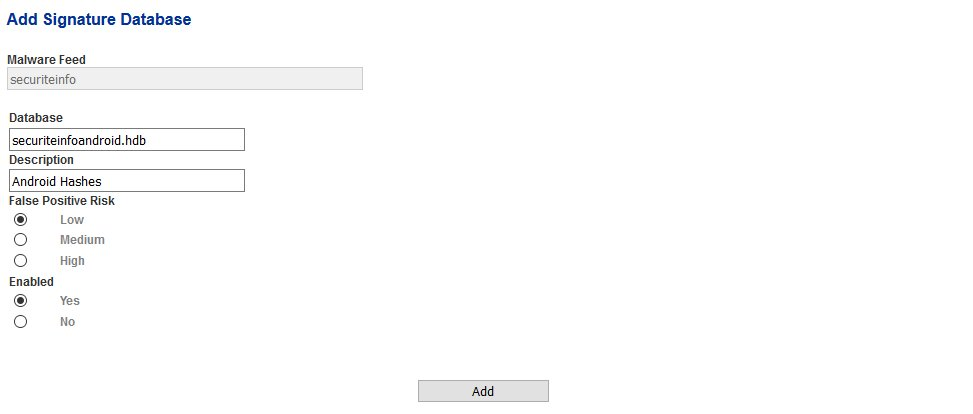
3. On the **Add Signature Database** page, under the **Database** field, enter the signature you wish to add, under the **Description** field enter a description for the database, under the **False Positive Risk** field select a risk level and under the **Enabled** field select whether to enable to disable the signature and then click the **Add** button (**Figure 12**). **Note that signatures can be added by not necessarilly enabled**.
**Figure 20**
[](https://docs.deeztek.com/uploads/images/gallery/2021-01/image-1609597683716.png)
4. Continue adding signature databases as needed. When finished, click on the **Back to Feed Configuration** button to return to the **SecuriteInfo Feed Configuration** page (**Figure 21**).
**Figure 21**
[](https://docs.deeztek.com/uploads/images/gallery/2021-01/image-1609597692315.png)
4. Back on the **SecuriteInfo Feed Configuration** page, click on the **Apply Settings** button on the bottom of the page to save the new database signature(s) you just added to the configuration (**Figure 22**).
**Figure 22**
[](https://docs.deeztek.com/uploads/images/gallery/2021-01/image-1609597699226.png)
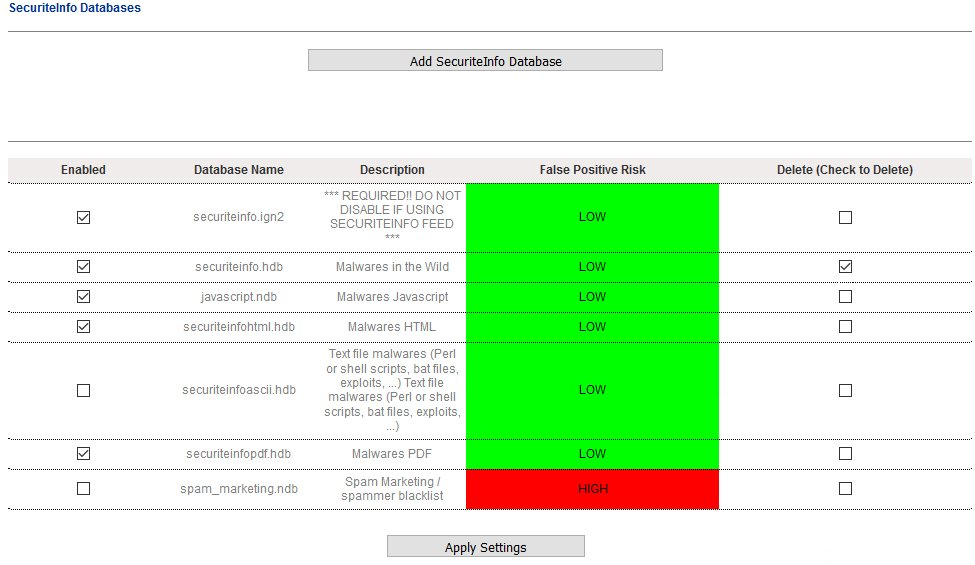
**Delete or disable SecuriteInfo Databases**
Deleting a database will completely remove all the database signatures from the ClamAV configuration. Note that if you delete all of the database for a particular feed, the feed will be effectively disabled.
Disabling a database will prevent the system from downloading signature updates for that particular database on the Signature Feed update interval. However, the signatures (albeit old ones) will still be part of the ClamAV configuration.
1. Place a checkmark on the checkbox under **Enabled** column if you wish to disable a database or the **Delete (Check to Delete)** column if you wish to delete the database of one or more database(s) (**Figure 23**). **Note that you should NEVER disable or remove the securiteinfo.ign2 signature database from the configuration or the SecuriteInfo feed will stop working.**
**Figure 23**
[](https://docs.deeztek.com/uploads/images/gallery/2021-01/image-1609597708239.png)
2. Click on the **Apply Settings** button on the bottom of the database listing to apply your setting to the ClamAV configuration (**Figure 24**) .
**Figure 24**
[](https://docs.deeztek.com/uploads/images/gallery/2021-01/image-1609597717203.png)
### YaraRules
This project covers the need of a group of IT Security Researches to have a single repository where different Yara signatures are compiled, classified and kept as up to date as possible, and begin as an open source community for collecting Yara rules. The Yara ruleset is under the GNU-GPLv2 license and open to any user or organization, as long as you use it under this license. More information can be found at [https://github.com/Yara-Rules/rules](https://github.com/Yara-Rules/rules).
**Enable YaraRules feed and adjust update interval**
1. Click on the[](https://docs.deeztek.com/uploads/images/gallery/2021-01/image-1609597726940.png)icon under the **Configure** column of the **yararules** entry.
2. On the **YaraRules Feed Configuration** page under the **YaraRules Feed** section, ensure **Enabled** is selected (YaraRules is enabled by default).
3. Under the **YaraRules Database Update Interval**, adjust the update interval as needed. The default is **24 hours**. Change the interval with caution, because some feeds will ban your IP address if you connect for updates too often (**Figure 25**).
**Figure 25**
[](https://docs.deeztek.com/uploads/images/gallery/2021-01/image-1609597744435.png)
4. Click on the **Apply Settings** button on the bottom of the page to apply your changes (**Figure 26**).
**Figure 26**
[](https://docs.deeztek.com/uploads/images/gallery/2021-01/image-1609597752176.png)
**Add YaraRules Databases**
Hermes SEG already comes preconfigured with the safest YaraRules signatures (Low False Positive Risk). Additional YaraRules signatures at the [YaraRules Github Page](https://github.com/Yara-Rules/rules). It's important to note that when adding database signatures from the YaraRules Githug page, that you include the directory it's under if applicable. For example, consider the following database signature: **Malicious\_Documents/Maldoc\_APT\_OLE\_JSRat.yar**. If you were to add that to the YaraRules configuration, ensure you include **Malicious\_Documents/** part before the database signature .
**Note: Adding or enabling databases that have a False Positive Risk of Medium or High can lead to false positives. Use those databases with caution.**
1. Click on the[](https://docs.deeztek.com/uploads/images/gallery/2021-01/image-1609597759972.png)icon under the **Configure** column of the **yararules** entry.
2. On the **YaraRules Feed Configuration** page click on the **Add YaraRules Database** button (**Figure 27**).
**Figure 27**
[](https://docs.deeztek.com/uploads/images/gallery/2021-01/image-1609597772493.png)
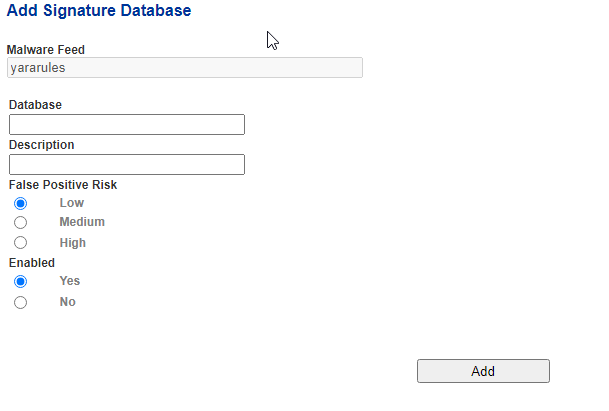
3. On the **Add Signature Database** page, under the **Database** field, enter the signature you wish to add, under the **Description** field enter a description for the database, under the **False Positive Risk** field select a risk level and under the **Enabled** field select whether to enable to disable the signature and then click the **Add** button (**Figure 28**). **Note that signatures can be added by not necessarilly enabled**.
**Figure 28**
[](https://docs.deeztek.com/uploads/images/gallery/2021-01/image-1609597937549.png)
4. Continue adding signature databases as needed. When finished, click on the **Back to Feed Configuration** button to return to the **Linux Malware Detect Feed Configuration** page (**Figure 29**).
**Figure 29**
[](https://docs.deeztek.com/uploads/images/gallery/2021-01/image-1609597963691.png)
4. Back on the **Linux Malware Detect Feed Configuration** page, click on the **Apply Settings** button on the bottom of the page to save the new database signature(s) you just added to the configuration (**Figure 30**).
**Figure 30**
[](https://docs.deeztek.com/uploads/images/gallery/2021-01/image-1609597970663.png)
**Delete or disable YaraRules Databases**
Deleting a database will completely remove all the database signatures from the ClamAV configuration. Note that if you delete all of the database for a particular feed, the feed will be effectively disabled.
Disabling a database will prevent the system from downloading signature updates for that particular database on the Signature Feed update interval. However, the signatures (albeit old ones) will still be part of the ClamAV configuration.
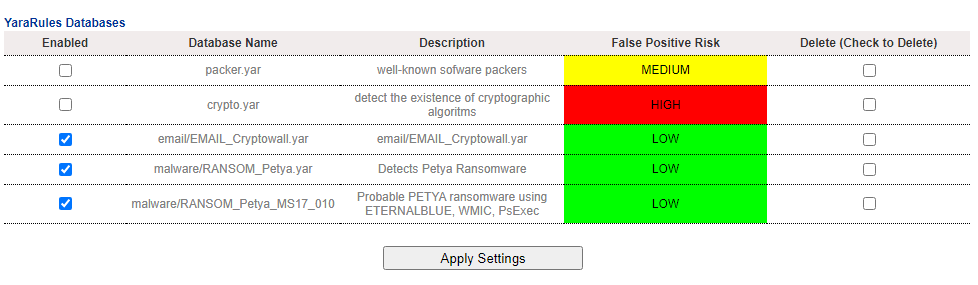
1. Place a checkmark on the checkbox under **Enabled** column if you wish to disable a database or the **Delete (Check to Delete)** column if you wish to delete the database of one or more database(s).
2. Click on the **Apply Settings** button to apply your setting to the ClamAV configuration (**Figure 31**).
**Figure 31**

[](https://docs.deeztek.com/uploads/images/gallery/2021-01/image-1609597991992.png)
# Antivirus Signature Bypass
In this page, you can manage problematic Antivirus Signatures that cause too many false positives.
Determining a problematic signature is as simple as looking at a blocked email’s headers which would yield the actual signature that was used to block the email. For example:
```
Return-Path:
Delivered-To: virus-quarantine
X-Envelope-To:
X-Envelope-To-Blocked:
X-Quarantine-ID:
X-Amavis-Alert: INFECTED, message contains virus: Heuristics.Encrypted.PDF
X-Spam-Flag: NO
X-Spam-Score: 0
X-Spam-Level:
X-Spam-Status: No, score=x tag=-999 tag2=3.6 kill=12 tests=[]
```
Assuming, this was a legitimate email and you wished to bypass the signature that caused this email to be blocked, you would simply bypass the **Heuristics.Encrypted.PDF** signature.
Alternatively, looking at the System Logs and searching for the keyword **INFECTED** will also yield the actual signature. For example:
```
(04239-07) Blocked INFECTED (Porcupine.Junk.40181.UNOFFICIAL) {NoBounceInbound,Quarantined}, [66.23.206.148]:47676 [66.23.206.148] -> , quarantine: virus/5/5i10CvwECO5J, Queue-ID: EF090403BB, Message-ID: <0.0.0.18.1D3017FAF7702E0.172DE7@mail.wholesalekostco.com>, mail_id: 5i10CvwECO5J, Hits: -, size: 6800, dkim_sd=dkim:wholesalekostco.com, 272 ms
```
Assuming, this was a legitimate email and you wished to bypass the signature that caused this email to be blocked, you would simply bypass the **Porcupine.Junk.40181.UNOFFICIAL** signature.
### Add Antivirus Signature Bypass
1. In the **Add Antivirus Signature Bypass** section, below the **Signature** field enter the signature you wish to bypass and click the **Add Signature Bypass** button (**Figure 1**).
**Figure 1**
[](https://docs.deeztek.com/uploads/images/gallery/2021-01/image-1609598076792.png)
2. As you add signatures, they will show up under the **Existing Antivirus Signature Bypasses** section (**Figure 2**).
**Figure 2**
[](https://docs.deeztek.com/uploads/images/gallery/2021-01/image-1609598083299.png)
### Delete Antivirus Signature Bypass
1. Under **Existing Antivirus Signature Bypasses** section, place a checkmark in the checkbox under the **Delete** column of the signatures you wish to delete.
2. Click the **Delete Signature bypass(es)** button below (**Figure 3**).
**Figure 3**
[](https://docs.deeztek.com/uploads/images/gallery/2021-01/image-1609598090223.png)
# Antispam Settings
**NOTE: This section requires any saved changes to be applied by clicking the Apply Settings button on the bottom of the page.**
### User Portal Address
This is the address for the users to reach the User Self-Service Portal. This is the address Hermes SEG uses to generate the links in the Daily Quarantine Reports. It should be set to a URL that can be resolved from the Internet and the URL must end with /users/.
Example: **https://hermes.domain.tld/users/**
### Spam Filter Uses Distributed Checksum Clearninghouse (DCC)
A Distributed Checksum Clearninghouse is a method of sharing checksums of incoming email to a Clearinghouse. The clearinghouse responds with the number of times those checksums have been received by other systems. If the checksums have appeared multiple times, then it's a good chance the incoming email is bulk email. It's recommended that this setting is set to **Enabled**.
### Spam Filter Uses Vipul's Razor V2
Before enabling this setting, you must first have initialized Vipul's Razor by going to **Content Checks --> Initialize Vipul's Razor**.
Vipul's Razor is a distributed, collaborative, spam detection and filtering network. Through user contribution, Razor establishes a distributed and constantly updating catalogue of spam in propagation that is consulted by email clients to filter out known spam. Detection is done with statistical and randomized signatures that efficiently spot mutating spam content. User input is validated through reputation assignments based on consensus on report and revoke assertions which in turn is used for computing confidence values associated with individual signatures. It's recommended that this setting is set to **Enabled**.
### Spam Filter Uses Pyzor
Before enabling this setting, you must first have initialized Vipul's Razor by going to **Content Checks --> Initialize Pyzor**.
Pyzor is a collaborative, networked system to detect and block spam using digests of messages. It's recommended that this setting is set to **Enabled**.
### Spam Message Modified Subject String
In Hermes SEG there are two types of Spam emails. Spam emails that get tagged as Spam but still passed to the user mailbox and Spam emails that the system quarantines and does NOT pass to the user mailbox.
This is the string that Hermes SEG will append to the subject of an email that it has determined to be Spam and pass to the user mailbox. This setting has no effect on Spam emails that the Hermes SEG quarantines. The default setting is **\[SUSPECTED SPAM\]**. Adjust as necessary to your requiments.
### Virus Messages Action to take
This setting configures which action Hermes SEG should take with Virus Emails. The Quarantine Only action will simply quarantine the email and not pass to the user mailbox. The Quarantine & Send DSN to Sender will quarantine the email and send notice back to the sender that the messages was blocked. Normally, it's recommended to NOT send a notice back to the sender that the message was blocked in order to reduce backscatter. It's recommended that this setting is set to **Quarantine Only**.
### Banned File Message Action to take
This setting configures which action Hermes SEG should take with emails with banned attachments. The Quarantine Only action will simply quarantine the email and not pass to the user mailbox. The Quarantine & Send DSN to Sender will quarantine the email and send notice back to the sender that the messages was blocked. Normally, it's recommended to NOT send a notice back to the sender that the message was blocked in order to reduce backscatter. It's recommended that this setting is set to **Quarantine Only**.
### Spam Messages Action to take
This setting configures which action Hermes SEG should take with Spam emails that the system quarantines. The Quarantine Only action will simply quarantine the email and not pass to the user mailbox. The Quarantine & Send DSN to Sender will quarantine the email and send notice back to the sender that the messages was blocked. Normally, it's recommended to NOT send a notice back to the sender that the message was blocked in order to reduce backscatter. It's recommended that this setting is set to **Quarantine Only**.
### Bad-Header Messages Action to take
This setting configures which action Hermes SEG should take with emails with bad-headers that the system quarantines. The Quarantine Only action will simply quarantine the email and not pass to the user mailbox. The Quarantine & Send DSN to Sender will quarantine the email and send notice back to the sender that the messages was blocked. Normally, it's recommended to NOT send a notice back to the sender that the message was blocked in order to reduce backscatter. It's recommended that this setting is set to **Quarantine Only**.
### Bayes Database
The Bayes Database tries to identify Spam by looking at words or short character sequences that are commonly found in Spam or Non-Spam email.
This settings configures Hermes SEG whether to use or not use the Bayes Database to determine Spam email. Please note, that if this setting was previouly set to Enabled and you created **Custom Antispam Filter Tests**, settings this setting to **Disabled** will clear out all the Custom Antispam Filter Tests you previously set. It's recommended that this setting is set to **Enabled**.
### Bayes Database Auto Learn
**Note: This setting will have no effect unless the Bayes Database setting above is set to Enabled.**
This feature will configure Hermes SEG to automatically train the Bayes Database with Spam or Non-Spam Emails. In the course of scanning an incoming email, the system will assign a Spam probability score to that email. The higher the score, the higher the probability the email is Spam. This setting will configure the system to automatically train the Bayes Database with the incoming email being Spam or Non-Spam based on the **Bayes Database Auto Learn Spam Threshold Score** and the **Bayes Database Auto Learn Non-Spam Threshold Score** values below. Normally, we do NOT recommend enabling this setting. Allowing the system to automatically train the Bayes Database can exaggerate problems over time, thus we always recommend that the Bayes Database should ONLY be trained by humans under **Content Checks --> Message History & Archive**. It's recommended that this setting is set to **Disabled**.
### Bayes Database Auto Learn Spam Threshold Score
**Note: This setting will have no effect unless the Bayes Database Auto Learn setting above is set to Enabled.**
This setting configures Hermes SEG to automatically train the Bayes Database with incoming emails that have a score of equal or greater than the value set below as Spam. The default value of this setting is set to **15**.
### Bayes Database Auto Learn Non-Spam Threshold Score
**Note: This setting will have no effect unless the Bayes Database Auto Learn setting above is set to Enabled.**
This setting configures Hermes SEG to automatically train the Bayes Database with incoming emails that have a score of equal or less than the value set below as Non-Spam. The default value of this setting is set to **-5**.
# Custom Antispam Filter Tests
This page allows you to customize Spam filter tests scores to fit your needs. If you have problems with certain email getting tagged as Spam or Non-Spam because of a particular test not scoring properly and training the Bayes Database does not yield the results you need, customizing the Spam filter tests scores may be the best option. The tests the Spam filter performs can be found in the headers of incoming emails. For example, take a look at the following headers of an obvious Spam email:
```
X-Spam-Status: Yes, score=14.528 tag=-999 tag2=3.6 kill=12
tests=[BAYES_60=1.5, DCC_CHECK=1.1, DIGEST_MULTIPLE=0.293,
HTML_MESSAGE=0.001, RAZOR2_CF_RANGE_51_100=0.5,
RAZOR2_CF_RANGE_E8_51_100=1.886, RAZOR2_CHECK=0.922,
RCVD_IN_SBL_CSS=3.335, RDNS_NONE=0.793, SPF_HELO_PASS=-0.001,
SPF_PASS=-0.001, URIBL_BLACK=1.7, URIBL_DBL_SPAM=2.5]
autolearn=disabled
```
As you can see the following tests with their corresponding scores were performed:
- BAYES\_60=1.5
- DCC\_CHECK=1.1
- DIGEST\_MULTIPLE=0.293
- HTML\_MESSAGE=0.001
- RAZOR2\_CF\_RANGE\_51\_100=0.5
- RAZOR2\_CF\_RANGE\_E8\_51\_100=1.886
- RAZOR2\_CHECK=0.922
- RCVD\_IN\_SBL\_CSS=3.335
- RDNS\_NONE=0.793
- SPF\_HELO\_PASS=-0.001
- SPF\_PASS=-0.001
- URIBL\_BLACK=1.7
- URIBL\_DBL\_SPAM=2.5
You can take any of those tests and configure the system to either completely disable the test (by setting the value to 0) or adjust the score to your needs.
**Note: Customizing Spam Filter Tests can have very bad consequences for your Spam detection, thus it should ONLY be performed by qualified individuals that have a clear understanding of those consequences.**
### Add Custom Spam Filter Test
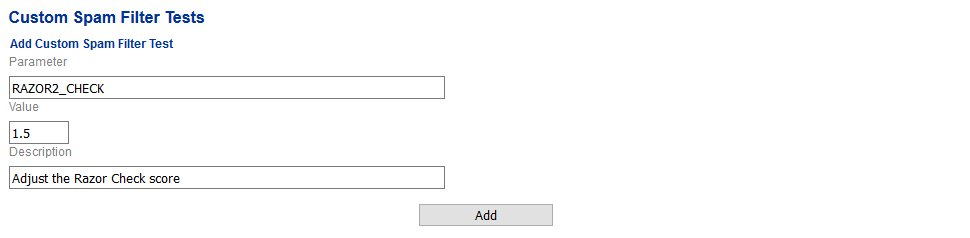
1. Under the **Add Custom Spam Filter Test** section, under the **Parameter** field, enter the test you wish to customize without the = or the score part.
2. Under the **Value** field, enter the score you wish to assign to that test (Setting the value to 0 will effectively completely disable the test).
3. Under the **Description** field, enter a short description for that test.
4. Click the **Add** button (**Figure 1**).
**Figure 1**
[](https://docs.deeztek.com/uploads/images/gallery/2021-01/image-1609598189566.png)
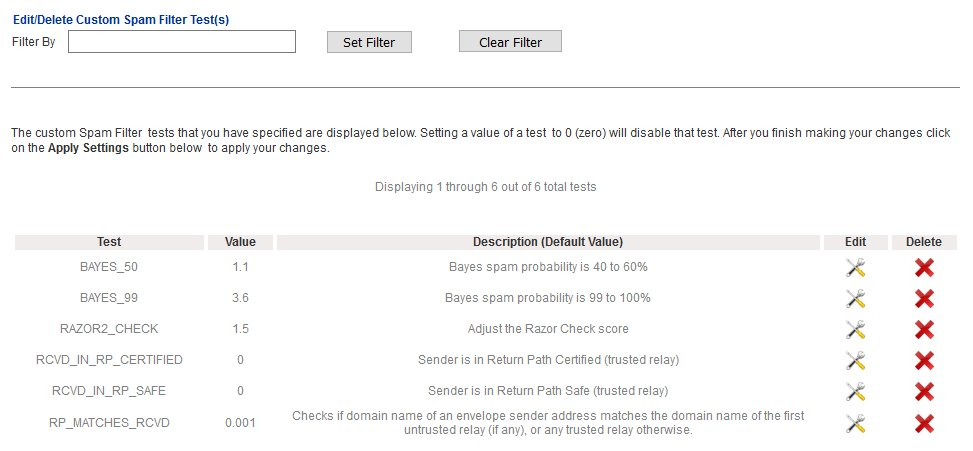
5. As you add entries, they will show up under the **Edit/Delete Custom Spam Filter Test(s)** section (**Figure 2**).
**Figure 2**
[](https://docs.deeztek.com/uploads/images/gallery/2021-01/image-1609598196646.png)
6. Continue adding entries as needed. When finished, click on the **Apply Settings** button on the bottom of the page for your changes to take effect (**Figure 3**).
**Figure 3**
[](https://docs.deeztek.com/uploads/images/gallery/2021-01/image-1609598205243.png)
### Edit Custom Spam Filter Test
1. Under the **Edit/Delete Custom Spam Filter Test(s)** section, click on the[](https://docs.deeztek.com/uploads/images/gallery/2021-01/image-1609598213330.png)icon of the entry you wish to edit.
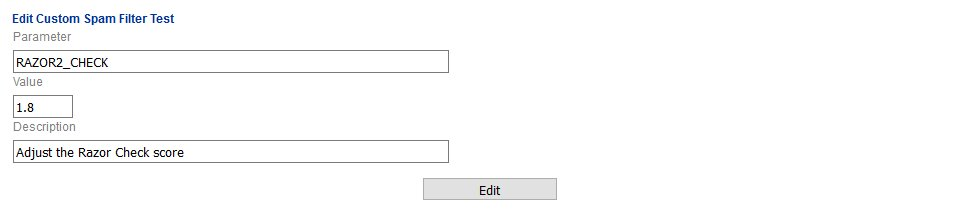
2. On the Edit Custom Spam Filter Test page, adjust the Parameter, the Value or the Description as needed and click the **Edit** button (**Figure 4**).
**Figure 4**
[](https://docs.deeztek.com/uploads/images/gallery/2021-01/image-1609598227327.png)
3. You will be automatically returned to the **Custom Spam Filter Tests** page.
4. Click on the **Apply Settings** button on the bottom of the page for your changes to take effect (**Figure 5**).
**Figure 5**
[](https://docs.deeztek.com/uploads/images/gallery/2021-01/image-1609598234558.png)
### Delete Custom Spam Filter Test
1. Under the **Edit/Delete Custom Spam Filter Test(s)** section, click on the[](https://docs.deeztek.com/uploads/images/gallery/2021-01/image-1609598241383.png)icon of the entry you wish to edit.
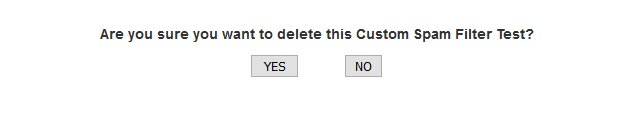
2. On the delete confirmation page, click on the **Yes** button to delete the entry or press the **No** button to cancel (**Figure 6**).
**Figure 6**
[](https://docs.deeztek.com/uploads/images/gallery/2021-01/image-1609598254033.png)
3. You will be automatically returned to the **Custom Spam Filter Tests** page.
4. Click on the **Apply Settings** button on the bottom of the page for your changes to take effect (**Figure 7**).
**Figure 7**
[](https://docs.deeztek.com/uploads/images/gallery/2021-01/image-1609598259537.png)
# Initialize Pyzor
Pyzor is a collaborative, networked system to detect and block spam using digests of messages.Pyzor must be initialized before Hermes SEG can utilize it. Initialization of Pyzor should only have to be done once per system.
Click on the **Initialize Pyzor** button to initialize (**Figure 1**).
**Figure 1**
[](https://docs.deeztek.com/uploads/images/gallery/2021-01/image-1609598297082.png)
# Initialize Vipul's Razor
Vipul's Razor is a distributed, collaborative, spam detection and filtering network. Vipul's Razor must be initialized before Hermes SEG can utilize it. Initialization of Vipul's Razor should only have to be done once per system. Clicking the **Initialize Razor** button will create a new Razor configuration and register your server using an automaticaly assigned username/password.
**Before attempting to initialize Vipul's Razor, ensure the Hermes SEG has outbound Internet access. Initialization can take a few minutes to complete, so please be patient.**
Click on the **Initialize Razor** button to initialize (**Figure 1**).
**Figure 1**
[](https://docs.deeztek.com/uploads/images/gallery/2021-01/image-1609598340332.png)
# Clear Bayes Database
Occasionally, the Bayes Database can become corrupted or poisoned due to bad database training or other factors. Please press the **Clear Database** button to clear your database in order to start fresh training your Bayes Database again (**Figure 1**).
**Figure 1**
[](https://docs.deeztek.com/uploads/images/gallery/2021-01/image-1609598386750.png)
# Custom File Extensions
File Extensions are helpful in identifying files contained in incoming email attachments. File extensions are used in File Rules which in turn are used in Spam/Virus/File Policies. Utlimately Spam/Virus/File Policies are assigned to Internal Recipients in order to block or allow incoming email attachments on a per recipient basis.
Hermes SEG comes already pre-configured with dozens of file extensions but it's impossible for the existing File Extensions to encompass every possible file in existence. In this page, you can add or delete additional File Extensions as required.
### Add Custom File Extension
1. In the **Add Custom File Entension** section, under the **Enter a File Extension in the box ....** field, enter the file extension you wish to add, ensuring you enter a (**.**) dot in front of the extension. For example, if you were adding the file extension for Microsoft Word document you would enter **.doc**.
2. Under the **Select below whether you want the file extension to be case sensitive or case insensitive ....**select either **Case Insensitive** or **Case Sensitive**. It's recommended that you always select the Case Insensitive option unless you have a specific reason not to.
3. Under the **Select the type of File Extension you are adding in terms of risk...** select either **File Extension** or **High Risk File Extension**. The High Risk File Extension option should be selected for File Extensions that are prone to carrying malware payloads.
4. Under the **Enter a description for your new File Extension...** enter a brief description.
5. Click the **Add** button (**Figure 1**).
**Figure 1**
[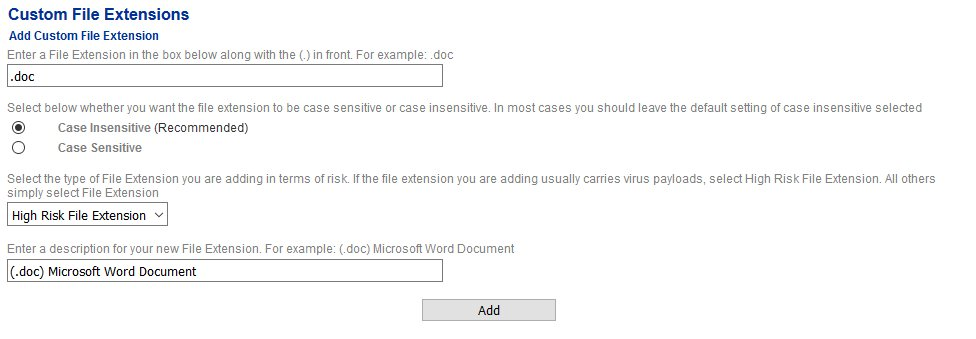](https://docs.deeztek.com/uploads/images/gallery/2021-01/image-1609598427137.png)
6. As you add Custom File Extensions, they will show up under the **Delete Custom File Extensions** section (**Figure 2**).
**Figure 2**
[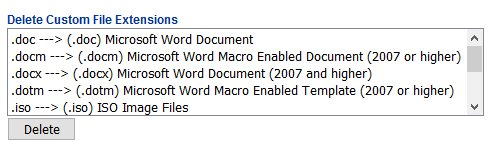](https://docs.deeztek.com/uploads/images/gallery/2021-01/image-1609598434559.png)
### Delete Custom File Extension
**Note: If a file extension is part of a file rule, the system will NOT allow you to delete it. If that's the case, the file extension must first be removed from the file rule under Content Checks --> File Rules.**
1. Under the **Delete Custom File Extensions** section, select the File Extension entry you wish to delete and click the **Delete** button (**Figure 3**). **Note that only one entry can be selected at a time.**
**Figure 3**
[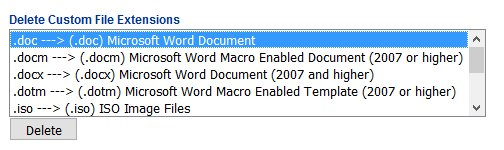](https://docs.deeztek.com/uploads/images/gallery/2021-01/image-1609598441319.png)
# Custom File Expressions
File Expressions are helpful in identifying files contained in incoming email attachments. File expressions are used in File Rules which in turn are used in Spam/Virus/File Policies. Utlimately Spam/Virus/File Policies are assigned to Internal Recipients in order to block or allow incoming email attachments on a per recipient basis.
File Expressions are created utilizing the Regular Expression (regexp) format. A good place to start and test the Regular Expression you create is the [regular expressions 101](https://regex101.com/) website.
For example, suppose you want to identify all Microsoft Office Word and Excel files that have the word "invoice" or the word "scan" in their filename. The Regular Expression would look like: **(invoice|scan){1,}.\*(doc|xls|docx|xlsx){1,}**. If you were to test the regexp at the regular expression website 101 you would see that the regexp would match on the "invoice.doc", "invoice 7892.docx" and the "scan for you.xls" files (**Figure 1**).
**Figure 1**
[](https://docs.deeztek.com/uploads/images/gallery/2021-01/image-1609598480295.png)
Regular Expressions can be confusing at first however, there are lots of resources on the Internet to help you along. A good place to start is the [RegexOne](https://regexone.com/) website.
### Add Custom File Expression
1. In the **Add Custom File Expression** section, under the **Enter a File Expression in the box below...** field, enter the Regular Expression you wish to use.
2. Under the **Select below whether you want the file expression to be case sensitive or case insensitive ....**select either **Case Insensitive** or **Case Sensitive**. It's recommended that you always select the Case Insensitive option unless you have a specific reason not to.
3. Under the **Enter a description for your new File Expression...** enter a brief description.
4. Click the **Add** button (**Figure 2**).
**Figure 2**
[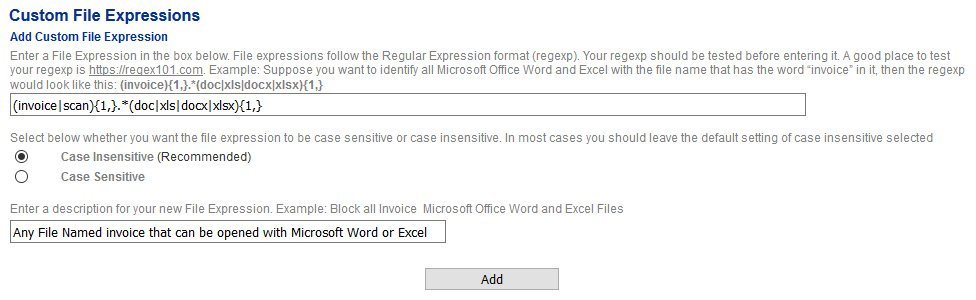](https://docs.deeztek.com/uploads/images/gallery/2021-01/image-1609598487223.png)
1. As you add Custom File Expressions, they will show up under the **Delete Custom File Expressions** section (**Figure 3**).
**Figure 3**
[](https://docs.deeztek.com/uploads/images/gallery/2021-01/image-1609598495045.png)
### Delete Custom File Expression
**Note: If a file expression is part of a file rule, the system will NOT allow you to delete it. If that's the case, the file expresion must first be removed from the file rule under Content Checks --> File Rules.**
1. Under the **Delete Custom File Expressions** section, select the File Expression entry you wish to delete and click the **Delete** button (**Figure 4**). **Note that only one entry can be selected at a time.**
**Figure 4**
[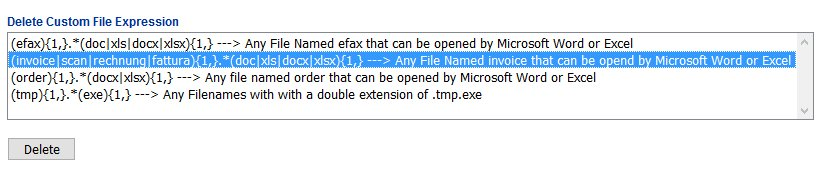](https://docs.deeztek.com/uploads/images/gallery/2021-01/image-1609598501796.png)
# Message Rules
**NOTE: This feature is only available with Hermes SEG Pro License.**
**NOTE: This section requires any saved changes to be applied by clicking the Apply Settings button on the bottom of the page.**
Message Rules are useful is fine tuning the Hermes SEG Spam Filter when the Custom Spam Filter Tests, Sender Checks Bypass, IP & Network Override or Bayes Database training are not sufficient. Message Rules allow you to write completely custom message Regular Expression (Regex) rules to look for strings in the Body or the Headers of messages and assigning positive or negative scores based on them. A sufficiently high positive score will ensure the message is tagged as Spam and a sufficiently low negative score will ensure the message is NOT tagged as Spam. Ensure that you refer to the **Content Checks --> SVF Policies** in order to determine what scores to assign to ensure Spam or No Spam tagging.
Note that assigning a score of 0 will effectively disable a rule.
The following rule types can be created:
- **Body** - Searches the body of a message for a string
- **Header** - Searches any message header for a string
- **URI** - Searches for text strings in URIs of plain or HTML sections of messages
- **Rawbody** - Searches the body of a message looking for HTML tags or HTML comments
Hermes SEG comes pre-configured with Message Rule templates for every Message Rule type. These pre-configured rules have a score of 0 assigned to them thus rendering them disabled. Best way to start is by copying one of the pre-configured Message Rules and customizing to your needs. A good resource for testing Regular Expressions is the [RegularExpressions101](https://regex101.com/) website.
### Message Body, URI or Rawbody Rule
1. Under the **Rule Type** field select either **Message Body Rule, URI Rule or Message Rawbody Rule**.
2. Under the **Rule Name** field, enter a name for this rule ensuring that you only use letters, numbers, dashes and underlines only.
3. Under the **Rule Description** field, enter a description for the rule.
4. Under the **Rule Regex** field, enter the Regular Expression for this rule.
5. Under the **Spam Score** field, enter a positive or negative numeric value to assign to the message if the rule matches.
6. Click the **Add Rule** button (**Figure 1**).
**Figure 1**
[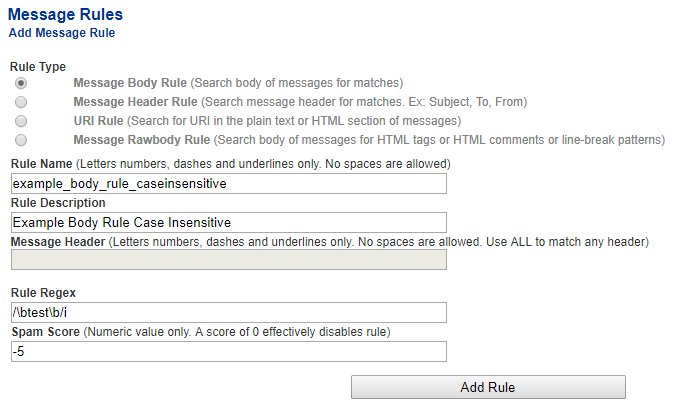](https://docs.deeztek.com/uploads/images/gallery/2021-01/image-1609598564833.png)
7. As you add rules, they will appear under the **Existing Message Rules** section (**Figure 2**).
**Figure 2**
[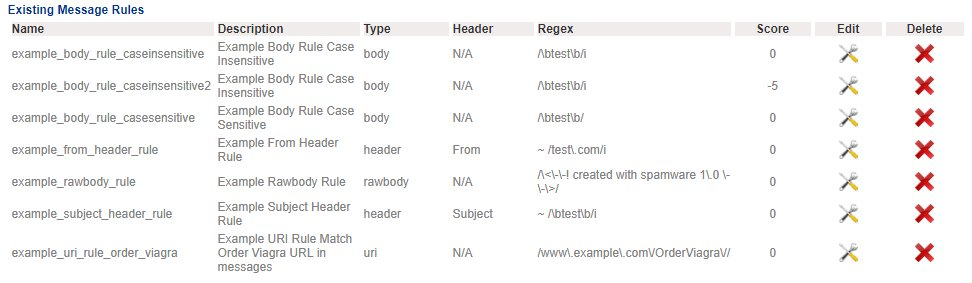](https://docs.deeztek.com/uploads/images/gallery/2021-01/image-1609598573204.png)
7. Add as many rules as needed. When finished, click on the **Apply Settings** button at the bottom of the page to apply the rules (**Figure 3**).
**Figure 3**
[](https://docs.deeztek.com/uploads/images/gallery/2021-01/image-1609598580513.png)
### Message Header Rule
1. Under the **Rule Type** field select **Message Header Rule**. Note, that selecting the Message Header Rule type, will enable the Message Header field below.
2. Under the **Rule Name** field, enter a name for this rule ensuring that you only use letters, numbers, dashes and underlines only.
3. Under the **Rule Description** field, enter a description for the rule.
4. Under the **Message Header** field enter the message header you wish this rule to search (subject, from, to, return-path etc.). It can be any legitimate header of a message.
5. Under the **Rule Regex** field, enter the Regular Expression for this rule.
6. Under the **Spam Score** field, enter a positive or negative numeric value to assign to the message if the rule matches.
7. Click the **Add Rule** button (**Figure 3**).
**Figure 3**
[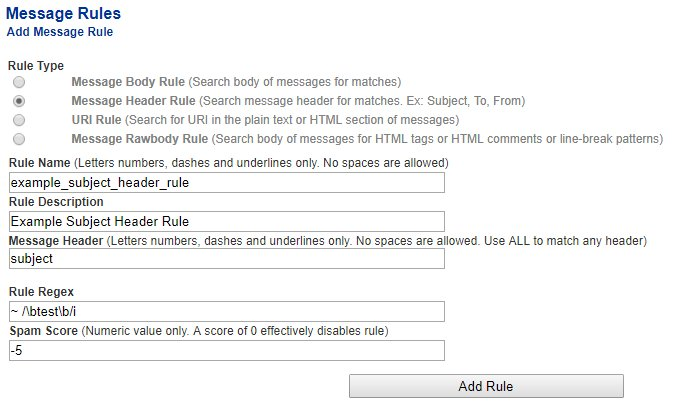](https://docs.deeztek.com/uploads/images/gallery/2021-01/image-1609598588408.png)
7. As you add rules, they will appear under the **Existing Message Rules** section (**Figure 4**).
**Figure 4**
[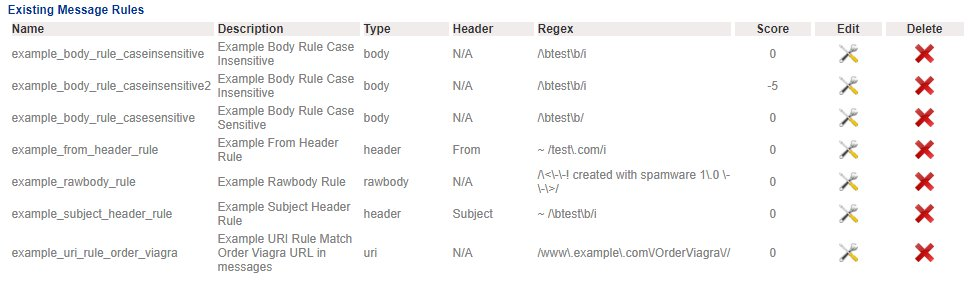](https://docs.deeztek.com/uploads/images/gallery/2021-01/image-1609598596870.png)
7. Add as many rules as needed. When finished, click on the **Apply Settings** button at the bottom of the page to apply the rules (**Figure 5**).
**Figure 5**
[](https://docs.deeztek.com/uploads/images/gallery/2021-01/image-1609598604521.png)
# File Rules
File Rules allow you to create rules containing either block or allow actions for file extensions, file types or file expressions. File rules are assigned to Spam/Virus/File Policies which in turn are assigned to Internal Recipients.
**Hermes SEG file rules are processed from the top down fashion**. In other words, as a file rule gets processed, block/allow actions on the to of the rule get processed first. If a match is found then the action is taken and all further processing of the rule stops.
### Default System File Rule
Hermes SEG already comes pre-configured with a **Default** System File Rule which is assigned to all the system Spam/Virus/File Policies. The Default System File Rule cannot be edited, it can only be viewed or copied in order to be used as a starting point in creating custom file rules (**Figure 1**).
**Figure 1**
[](https://docs.deeztek.com/uploads/images/gallery/2021-01/image-1609598667051.png)
### View Default File Rule
**Note: You cannot make any changes to the Default file rule**.
1. Under the **System File Rules** section click on the[](https://docs.deeztek.com/uploads/images/gallery/2021-01/image-1609598674847.png)icon under the **Actions** column of the **Default** file rule.
2. On the **View File Rule** page, you will see a listing of file types and corresponding actions for those file types (**Figure 2**).
**Figure 2**
[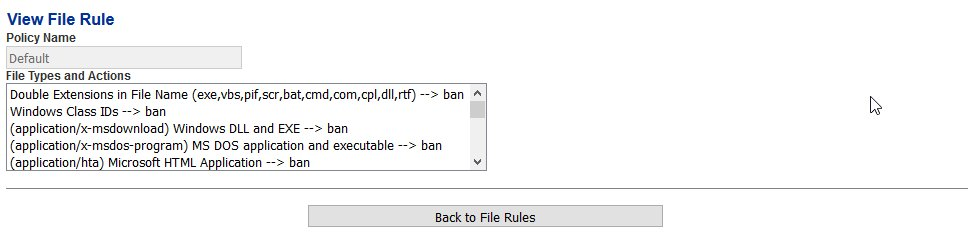](https://docs.deeztek.com/uploads/images/gallery/2021-01/image-1609598685905.png)
3. Click on the **Back to File Rules** button on the bottom of the page to return to the File Rules page (**Figure 3**).
**Figure 3**
[](https://docs.deeztek.com/uploads/images/gallery/2021-01/image-1609598693114.png)
### Create Custom File Rule by copying Default File Rule or any Custom File Rule
This method will allow you to copy the **Default** File Rule or any **Custom File Rule** (assuming there are existing custom file rules) and using it as a starting point for a new custom file rule.
1. Under the **System File Rules** section or the **Custom File Rules** (if there are already existing custom file rules) section, click on the[](https://docs.deeztek.com/uploads/images/gallery/2021-01/image-1609598701594.png)icon under the **Actions** column of the file rule you wish to copy. You will be redirected to the **Copy File Rule** page in order to create and customize a new file rule based on the file rule you choose (**Figure 4**).
**Figure 4**
[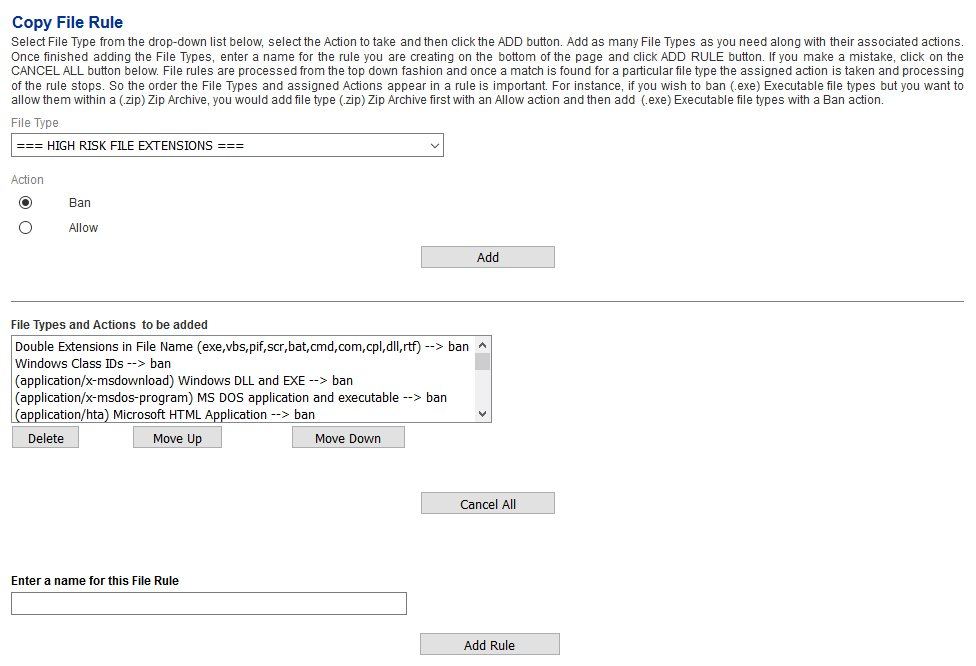](https://docs.deeztek.com/uploads/images/gallery/2021-01/image-1609598713214.png)
**Add File Types**
2. On the **Copy File Rule** page, under the **File Type** drop-down field, select a file type. Note that the **File Type** drop-down is organized in sections of HIGH-RISK FILE EXTENSIONS, HIGH RISK FILE TYPES, HIGH RISK MIME TYPES, FILE EXTENSIONS, FILE TYPES, MIME TYPES, OTHER TYPES and CUSTOM-EXPRESSIONS (**Figure 5**).
**Figure 5**
[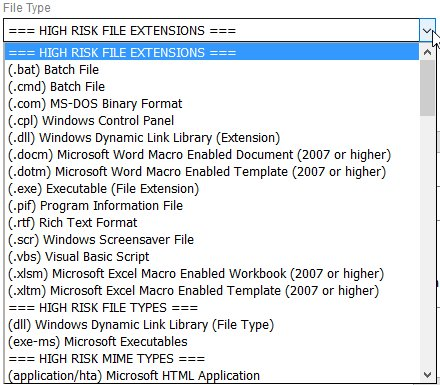](https://docs.deeztek.com/uploads/images/gallery/2021-01/image-1609598724470.png)
3. Under the **Action** field, select either a **Ban** or **Allow** action and then click on the **Add** button (**Figure 6**).
**Figure 6**
[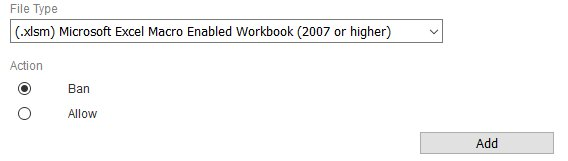](https://docs.deeztek.com/uploads/images/gallery/2021-01/image-1609598733741.png)
4. As you add File Types and their associated actions, they show up on the bottom of the **File Types and Actions** to be added section (**Figure 7**).
**Figure 7**
[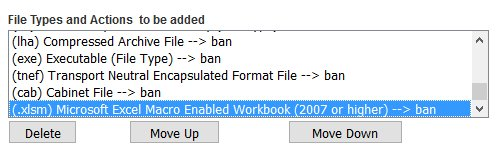](https://docs.deeztek.com/uploads/images/gallery/2021-01/image-1609598740135.png)
5. Continue adding File Types as needed.
**Re-order File Types**
6. Under the **File Types and Actions to be added** section, adjust the order the File Types that appear in the file rule by selecting each file type at a time the clicking on the **Move Up** or **Move Down** buttons as necessary to adjust the order (**Figure 8**).
**Figure 8**
[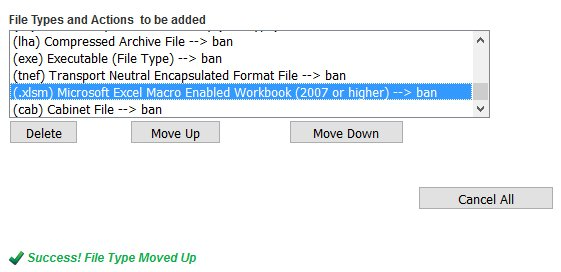](https://docs.deeztek.com/uploads/images/gallery/2021-01/image-1609598747724.png)
**Delete File Types**
7. Under the **File Types and Actions to be added** section, delete file types by selecting each file type at a time the clicking on delete button (**Figure 8**).
**Create File Rule Name**
8. Under the **Enter a name for this File Rule** field, enter a unique name for this rule and click the **Add Rule** button below (**Figure 9**). You will be redirected back to the **File Rules** page.
**Figure 9**
[](https://docs.deeztek.com/uploads/images/gallery/2021-01/image-1609598760167.png)
9. Back at the **File Rules** page, the new rule will appear under the **Custom File Rules** section (**Figure 10**).
**Figure 10**
[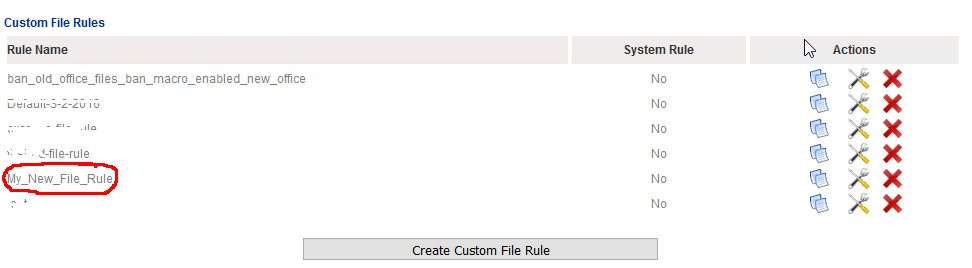](https://docs.deeztek.com/uploads/images/gallery/2021-01/image-1609598768192.png)
### Create Custom File Rule
This method will allow you to create a new blank Custom File Rule.
1. Under the **Custom File Rules** section, click on Create Custom File Rule button (**Figure 11**).
**Figure 11**
[](https://docs.deeztek.com/uploads/images/gallery/2021-01/image-1609598776616.png)
2. You will be redirected to the **Create File Rule** page in order to create and customize a new file rule (**Figure 12**).
**Figure 12**
[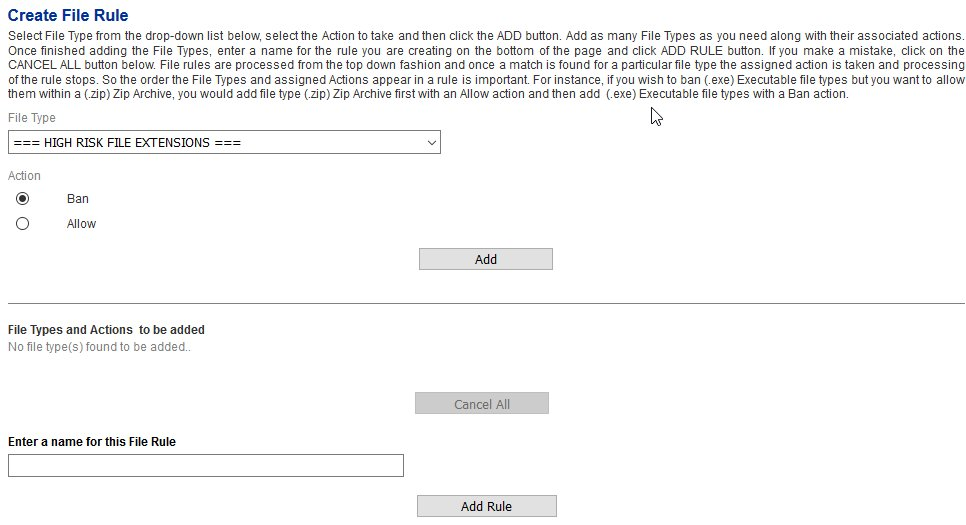](https://docs.deeztek.com/uploads/images/gallery/2021-01/image-1609598783553.png)
**Add File Types**
3. On the **Create File Rule** page, under the **File Type** drop-down field, select a file type. Note that the **File Type** drop-down is organized in sections of HIGH-RISK FILE EXTENSIONS, HIGH RISK FILE TYPES, HIGH RISK MIME TYPES, FILE EXTENSIONS, FILE TYPES, MIME TYPES, OTHER TYPES and CUSTOM-EXPRESSIONS (**Figure 13**).
**Figure 13**
[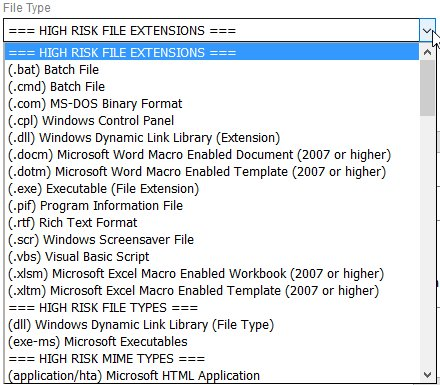](https://docs.deeztek.com/uploads/images/gallery/2021-01/image-1609598793558.png)
4. Under the **Action** field, select either a **Ban** or **Allow** action and then click on the **Add** button (**Figure 14**).
**Figure 14**
[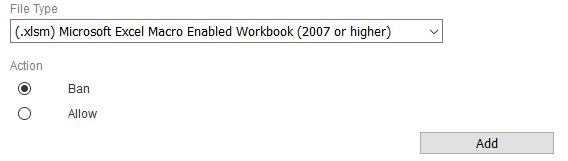](https://docs.deeztek.com/uploads/images/gallery/2021-01/image-1609598802692.png)
5. As you add File Types and their associated actions, they show up on the bottom of the **File Types and Actions** to be added section (**Figure 15**).
**Figure 15**
[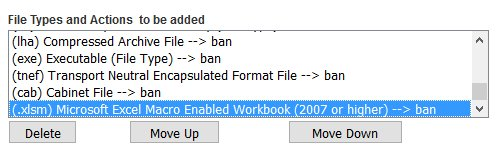](https://docs.deeztek.com/uploads/images/gallery/2021-01/image-1609598810455.png)
6. Continue adding File Types as needed.
**Re-order File Types**
7. Under the **File Types and Actions to be added** section, adjust the order the File Types that appear in the file rule by selecting each file type at a time the clicking on the **Move Up** or **Move Down** buttons as necessary to adjust the order (**Figure 16**).
**Figure 16**
[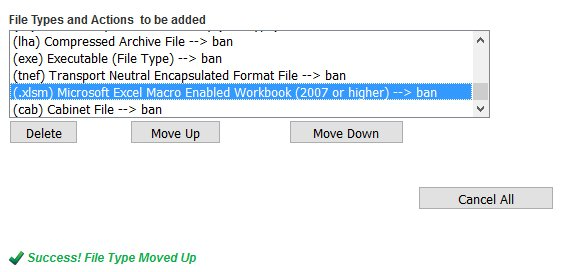](https://docs.deeztek.com/uploads/images/gallery/2021-01/image-1609598817185.png)
**Delete File Types**
8. Under the **File Types and Actions to be added** section, delete file types by selecting each file type at a time the clicking on delete button (**Figure 16**).
**Create File Rule Name**
9. Under the **Enter a name for this File Rule** field, enter a unique name for this rule and click the **Add Rule** button below (**Figure 17**). You will be redirected back to the **File Rules** page.
**Figure 17**
[](https://docs.deeztek.com/uploads/images/gallery/2021-01/image-1609598826327.png)
10. Back at the **File Rules** page, the new rule will appear under the **Custom File Rules** section (**Figure 18**).
**Figure 18**
[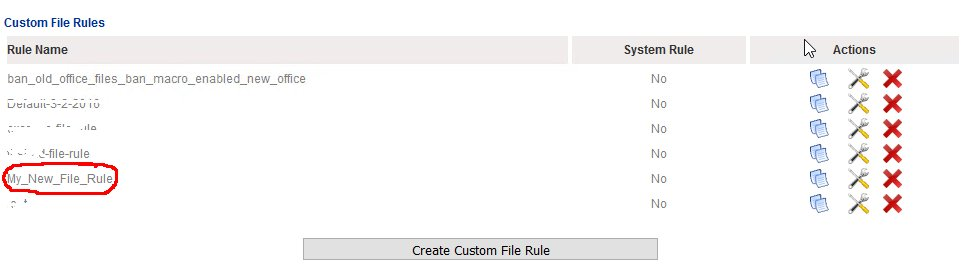](https://docs.deeztek.com/uploads/images/gallery/2021-01/image-1609598832491.png)
### Edit Custom File Rule
**Note: ONLY Custom File Rules can be edited.**
1. Under the **Custom File Rules** section, click on the[](https://docs.deeztek.com/uploads/images/gallery/2021-01/image-1609598839739.png)icon of the Custom File Rule you wish to edit.
2. You will be redirected to the **Edit File Rule** page in order to customize the file rule (**Figure 19**).
**Figure 19**
[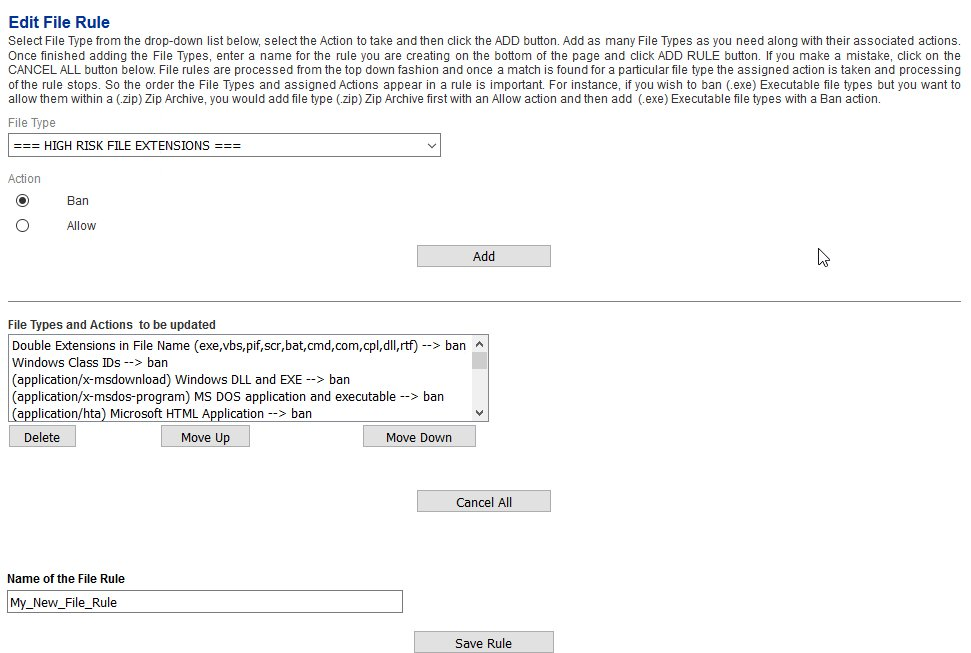](https://docs.deeztek.com/uploads/images/gallery/2021-01/image-1609598852022.png)
**Add File Types**
3. On the **Edit File Rule** page, under the **File Type** drop-down field, select a file type. Note that the **File Type** drop-down is organized in sections of HIGH-RISK FILE EXTENSIONS, HIGH RISK FILE TYPES, HIGH RISK MIME TYPES, FILE EXTENSIONS, FILE TYPES, MIME TYPES, OTHER TYPES and CUSTOM-EXPRESSIONS (**Figure 20**).
**Figure 20**
[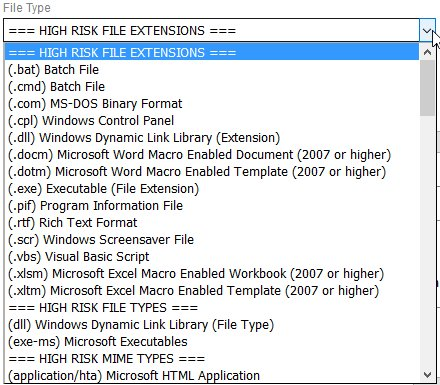](https://docs.deeztek.com/uploads/images/gallery/2021-01/image-1609598864209.png)
4. Under the **Action** field, select either a **Ban** or **Allow** action and then click on the **Add** button (**Figure 21**).
**Figure 21**
[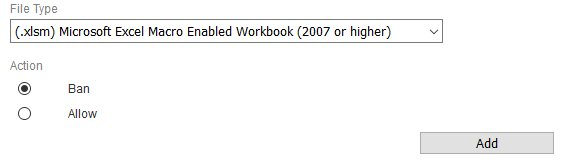](https://docs.deeztek.com/uploads/images/gallery/2021-01/image-1609598870906.png)
5. As you add File Types and their associated actions, they show up on the bottom of the **File Types and Actions** to be added section (**Figure 22**).
**Figure 22**
[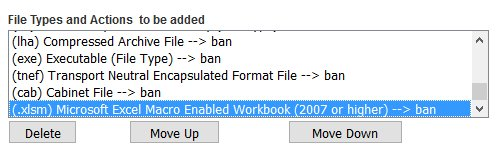](https://docs.deeztek.com/uploads/images/gallery/2021-01/image-1609598876674.png)
6. Continue adding File Types as needed.
**Re-order File Types**
7. Under the **File Types and Actions to be added** section, adjust the order the File Types that appear in the file rule by selecting each file type at a time the clicking on the **Move Up** or **Move Down** buttons as necessary to adjust the order (**Figure 23**).
**Figure 23**
[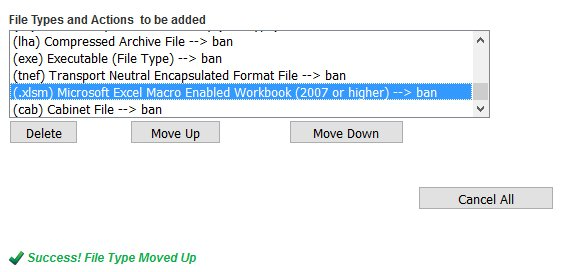](https://docs.deeztek.com/uploads/images/gallery/2021-01/image-1609598884097.png)
**Delete File Types**
8. Under the **File Types and Actions to be added** section, delete file types by selecting each file type at a time the clicking on delete button (**Figure 23**).
**Edit File Rule Name**
9. Under the **Name of the File Rule** field, enter a unique name for this rule and click the **Save Rule** button below (**Figure 24**). You will be redirected back to the **File Rules** page.
**Figure 24**
[](https://docs.deeztek.com/uploads/images/gallery/2021-01/image-1609598894060.png)
10. Back at the **File Rules** page, the new rule will appear under the **Custom File Rules** section (**Figure 25**).
**Figure 25**
[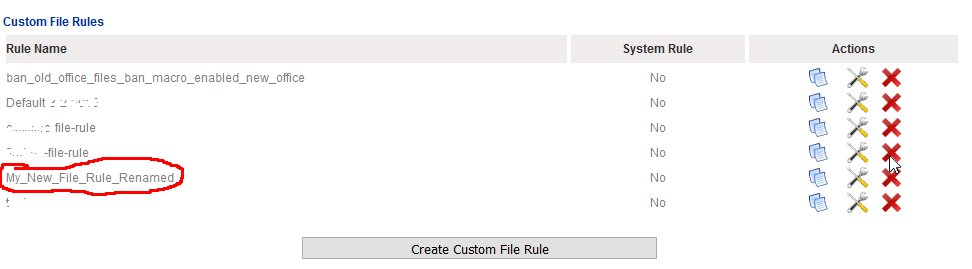](https://docs.deeztek.com/uploads/images/gallery/2021-01/image-1609598900893.png)
### Delete Custom File Rule
**Note: ONLY Custom File Rules that are NOT associated with with a File/Virus/Spam Policy can be deleted. When deleting a Custom File Rule, the system will NOT prompt you to confirm, it will be deleted immediately.**
1. Under the **Custom File Rules** section, click on the[](https://docs.deeztek.com/uploads/images/gallery/2021-01/image-1609598915468.png)icon of the Custom File Rule you wish to delete.
2. The system will delete the Custom File Rule and re-direct you back to the File Rules page (**Figure 26**)
**Figure 26**
[](https://docs.deeztek.com/uploads/images/gallery/2021-01/image-1609598909166.png)
# SVF Policies
SVF (Spam/Virus/File) Policies contain settings that determine the behavior of Hermes SEG in terms of spam, viruses and attached files of incoming email. SVF Policies get assigned on a per Internal Recipient basis.
Hermes SEG already comes pre-configured with five System SVF policies.
By default, the **Default** SVF System Policy is the policy which automatically gets assigned to newly added **Internal Recipients** (**Figure 1**). This behavior can be changed by editing an existing System Policy or by creating a Custom Policy and assigning that policy as the Default Policy.
All SVF System polcies exist as templates. The SVF System Policies cannot be edited, they can only be viewed or copied in order to be used as a starting point in creating SVF Custom Policies (**Figure 1**).
**Figure 1**
[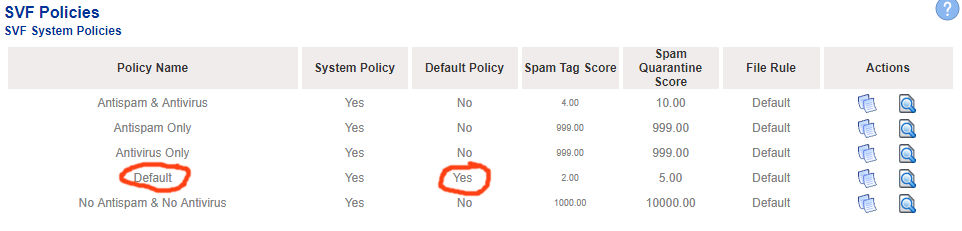](https://docs.deeztek.com/uploads/images/gallery/2021-01/image-1609678453522.png)
### View Default SVF System Policy
1. Under the **SVF System Policies** section click on the[](https://docs.deeztek.com/uploads/images/gallery/2021-01/image-1609678514841.png)icon under the **Actions** column of the **Default** SVF System Policy.
2. On the **View SVF Policy** page, you will see all the settings can be set with a SVF policy. Note, the that the **Default File Rule** is associated with the **Default SVF Policy** (**Figure 2**):
**Figure 2**
[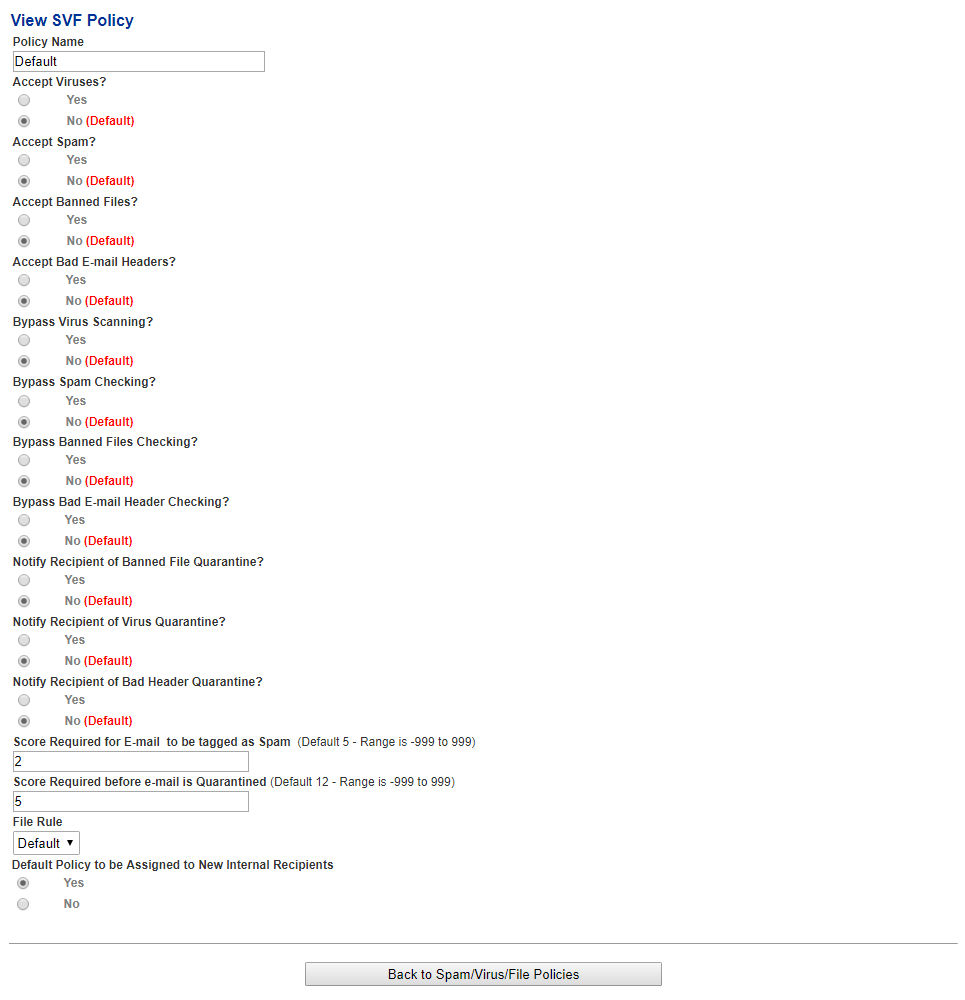](https://docs.deeztek.com/uploads/images/gallery/2021-01/image-1609678473835.png)
3. Click on the **Back to Spam/Virus/file Policies** button on the bottom of the page to return to the **SVF Policies** page (**Figure 3**).
**Figure 3**
[](https://docs.deeztek.com/uploads/images/gallery/2021-01/image-1609678486181.png)
### Create SVF Custom Policy by copying the Default SVF Policy or any SVF Custom Policy
This method will allow you to copy the **Default** **SVF Policy** or any **SVF Custom Policy** (assuming there are existing custom SVF Policies) and using it as a starting point for a new custom SVF policy.
1. Under the **SVF System Policies** section or the **SVF Custom Policies** (if there are already existing SVF custom policies) section, click on the[](https://docs.deeztek.com/uploads/images/gallery/2021-01/image-1609678497171.png)icon under the **Actions** column of the policy you wish to copy. You will be redirected to the **Copy SVF Policy** page in order to create and customize a new SVF Custom Policy based on the existing SVF Policy you choose.
2. Under the **Policy Name** field enter a unique name.
3. Under the **Accept Viruses** field, select **Yes** to accept virus infected email or **No** if you do not want to accept virus infected email. **The default setting for this field is No**.
4. Under the **Accept Spam** field, select **Yes** to accept spam email or **No** if you do not want to accept spam email. **The default setting for this field is No**.
5. Under the **Accept Banned Files** field, select **Yes** to accept email with banned file attachments or **No** if you do not want to accept email with banned file attachments. **The default setting for this field is No**.
6. Under the **Accept Bad Headers** field, select **Yes** to accept email with bad headers or **No** if you do not want to accept email with bad headers. **The default setting for this field is No**.
7. Under the **Bypass Virus Checks** field, select **Yes** to bypass checks for virus email attachments or **No** if you do not want to bypass checks for virus email attachments. Note that if this setting is set to Yes, the **Accept Viruses** setting from **Step 3** will not have any effect. **The default setting for this field is No**.
8. Under the **Bypass Spam Checks** field, select **Yes** to bypass checks for spam email or **No** if you do not want to bypass checks for spam email. Note that if this setting is set to Yes, the **Accept Spam** setting from **Step 4** will not have any effect. **The default setting for this field is No.**
9. Under the **Bypass Banned Files Checks** field, select **Yes** to bypass checks for banned file attachments in email or **No** if you do not want to bypass checks for banned file attachments in email. Note that if this setting is set to Yes, the **Accept Banned Files** setting from **Step 5** will not have any effect. **The default setting for this field is No**.
10. Under the **Bypass Bad Header Checks** field, select **Yes** to bypass checks for bad headers in email or **No** if you do not want to bypass checks for bad headers in email. Note that if this setting is set to Yes, the **Accept Bad Headers** setting from **Step 6** will not have any effect. **The default setting for this field is No**.
11. Under the **Notify Recipient of Banned File Quarantine** field, select **Yes** to to configure the system to send a notification to the intended recipient every time an email with a banned file attachment is quarantined or **No** if you do not want a notification sent. **The default setting for this field is No**.
12. Under the **Notify Recipient of Virus Quarantine** field, select **Yes** to to configure the system to send a notification to the intended recipient every time an email with a virus is quarantined or **No** if you do not want a notification sent. **The default setting for this field is No**.
13. Under the **Notify Recipient of Bad Header Quarantine** field, select **Yes** to to configure the system to send a notification to the intended recipient every time an email with a bad header is quarantined or **No** if you do not want a notification sent. **The default setting for this field is No**.
14. Under the **Score Required for E-mail to be tagged as Spam** field, enter the score that an incoming email needs to hit in order for the system to tag it as spam and still deliver to the user . **The default setting for this field is 5**.
15. Under the **Score Required before e-mail is Quarantined** field, enter the score that an incoming email needs to hit in order for the system to tag it as spam but NOT deliver to the user and instead quarantine it . **The default setting for this field is 12**.
16. Under the **File Rule** drop-down field, select an existing file rule that you want to associate with this SVF policy.
17. Under the **Default Policy to be Assigned to New Internal Recipients** field, select **Yes** or **No** depending on your requirements**.**
18. Click the **Submit** button on the bottom of the page to create your new policy.
19. You will be redirected back to the **SVF Policies** page. Your new policy will now be listed under the **SVF Custom Policies** section . **(Figure 4)**.
**Figure 4**
[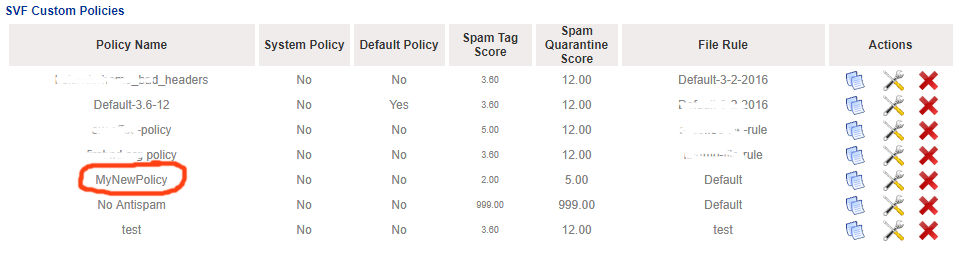](https://docs.deeztek.com/uploads/images/gallery/2021-01/image-1609678767770.png)
### Edit SVF Custom Policy
**Note: ONLY SVF Custom Policies can be edited.**
1. Under the **SVF Custom Policies** section, click on the [ ](https://docs.deeztek.com/uploads/images/gallery/2021-01/image-1609678779031.png)icon under the **Actions** column of the policy you wish to edit. You will be redirected to the **Edit SVF Policy** page.
2. Under the **Policy Name** field change the policy name as required.
3. Under the **Accept Viruses** field, select **Yes** to accept virus infected email or **No** if you do not want to accept virus infected email. **The default setting for this field is No**.
4. Under the **Accept Spam** field, select **Yes** to accept spam email or **No** if you do not want to accept spam email. **The default setting for this field is No**.
5. Under the **Accept Banned Files** field, select **Yes** to accept email with banned file attachments or **No** if you do not want to accept email with banned file attachments. **The default setting for this field is No.**
6. Under the **Accept Bad Headers** field, select **Yes** to accept email with bad headers or **No** if you do not want to accept email with bad headers. **The default setting for this field is No**.
7. Under the **Bypass Virus Checks** field, select **Yes** to bypass checks for virus email attachments or **No** if you do not want to bypass checks for virus email attachments. Note that if this setting is set to Yes, the **Accept Viruses** setting from **Step 3** will not have any effect. **The default setting for this field is No**.
8. Under the **Bypass Spam Checks** field, select **Yes** to bypass checks for spam email or **No** if you do not want to bypass checks for spam email. Note that if this setting is set to Yes, the **Accept Spam** setting from **Step 4** will not have any effect. **The default setting for this field is No**.
9. Under the **Bypass Banned Files Checks** field, select **Yes** to bypass checks for banned file attachments in email or **No** if you do not want to bypass checks for banned file attachments in email. Note that if this setting is set to Yes, the **Accept Banned Files** setting from **Step 5** will not have any effect. **The default setting for this field is No**.
10. Under the **Bypass Bad Header Checks** field, select **Yes** to bypass checks for bad headers in email or **No** if you do not want to bypass checks for bad headers in email. Note that if this setting is set to Yes, the **Accept Bad Headers** setting from **Step 6** will not have any effect. **The default setting for this field is No**.
11. Under the **Notify Recipient of Banned File Quarantine** field, select **Yes** to to configure the system to send a notification to the intended recipient every time an email with a banned file attachment is quarantined or **No** if you do not want a notification sent. **The default setting for this field is No**.
12. Under the **Notify Recipient of Virus Quarantine** field, select **Yes** to to configure the system to send a notification to the intended recipient every time an email with a virus is quarantined or **No** if you do not want a notification sent. **The default setting for this field is No**.
13. Under the **Notify Recipient of Bad Header Quarantine** field, select **Yes** to to configure the system to send a notification to the intended recipient every time an email with a bad header is quarantined or **No** if you do not want a notification sent. **The default setting for this field is No**.
14. Under the **Score Required for E-mail to be tagged as Spam** field, enter the score that an incoming email needs to hit in order for the system to tag it as spam and still deliver to the user . **The default setting for this field is 5**.
15. Under the **Score Required before e-mail is Quarantined** field, enter the score that an incoming email needs to hit in order for the system to tag it as spam but NOT deliver to the user and instead quarantine it . **The default setting for this field is 12**.
16. Under the **File Rule** drop-down field, select an existing file rule that you want to associate with this SVF policy.
17. Under the **Default Policy to be Assigned to New Internal Recipients** field, select **Yes** or **No** depending on your requirements**.**
18. Click the **Save Changes** button on the bottom of the page to save the policy.
19. If you are done making changes to the policy, click the **Back to SpamVirus/File Policies** button to return to the **SVF Policies** page.
### Delete SVF Custom Policy
**Note: ONLY SVF Custom Policies that are NOT associated with with Internal Recipients can be deleted. When deleting a SVF Custom Policy, the system will NOT prompt you to confirm, it will be deleted immediately.**
1. Under the **SVF Custom Policies** section, click on the [](https://docs.deeztek.com/uploads/images/gallery/2021-01/image-1609679568319.png)icon under the **Actions** column of the policy you wish to delete.
2. The system will delete the SVF Custom Policy and re-direct you back to the SVF Policies page (**Figure 5**) .
**Figure 5**
[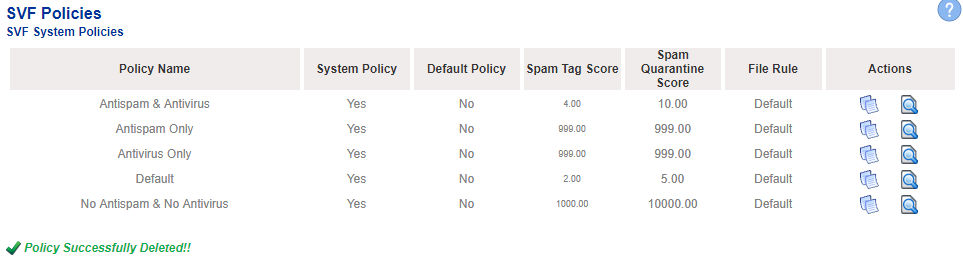](https://docs.deeztek.com/uploads/images/gallery/2021-01/image-1609679602400.png)
### Filter Internal Recipients to Policies Mappings
Setting a filter will assist you in narrowing down specific recipients by email address or domain in order to manage the assigned policies easily.
1. In the **Filter By** field, enter a complete or partial email address or domain and click the **Set Filter** button. If any matches are found, the **Recipients to Policies Mappings** listing will be populated with **only the entries matching the filter you set** (**Figure 6**.
**Figure 6**
[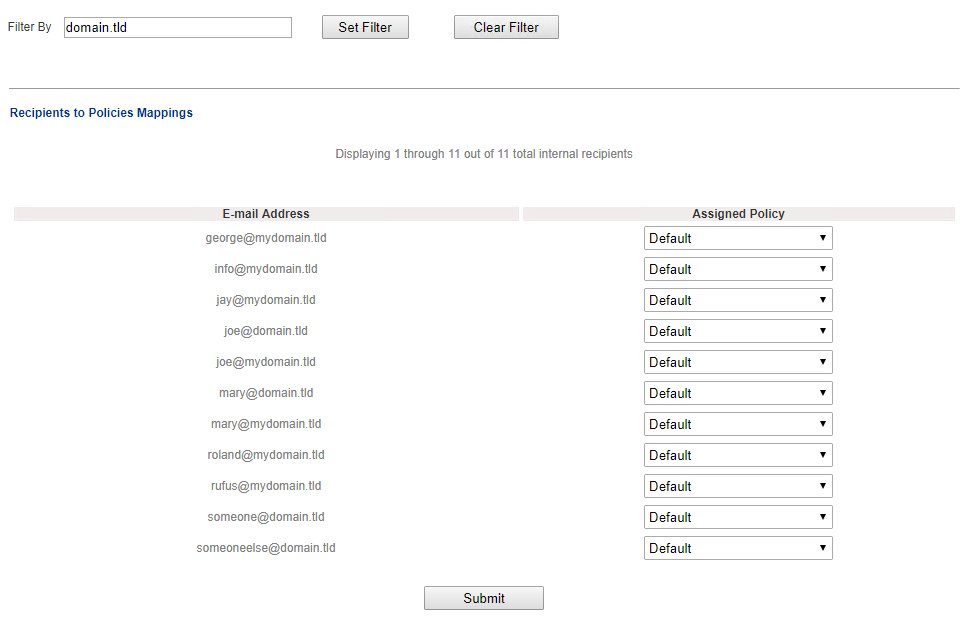](https://docs.deeztek.com/uploads/images/gallery/2021-01/image-1609679628126.png)
2. You can clear a filter you set by clicking the **Clear Filter** button at any time.
### Assign Internal Recipients to Policies
**Note: The Default SVF System Policy is the policy which automatically gets assigned to newly added Internal Recipients. SVF Policies whether System or Custom can be assigned on a per Internal Recipient basis. Additionally, if the Recipients to Policies Mappings listing contains more than 50 entries, the system will paginate the listings automatically. However, if you assign policies to recipients on a specific page and then click either on the Next 50 Recipients or the Previous 50 Recipients links on that page without clicking the Submit button on the bottom of the page, your changes will be lost.**
1. Under the **Recipients to Policies Mappings** section, you will see a listing of all the Internal Recipients and the assigned policy assigned to each recipient (**Figure 7**).
**Figure 7**

[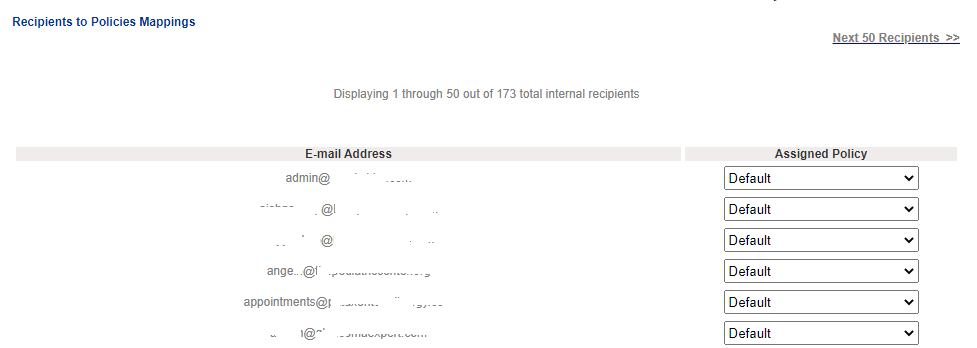](https://docs.deeztek.com/uploads/images/gallery/2021-01/image-1609679967036.png)
2. Under the **Assigned Policy** column of the recipient you wish to modify, select the new policy you wish to assign from the drop-down box (**Figure 8**).
**Figure 8**
[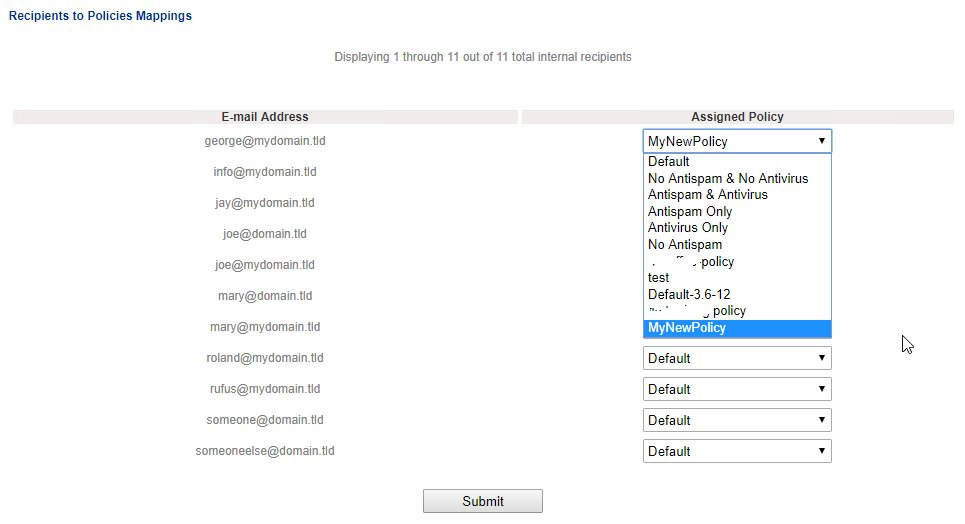](https://docs.deeztek.com/uploads/images/gallery/2021-01/image-1609680059902.png)
3. Continue modifying recipient policies as needed. When finished, click on the **Submit** button to save your changes.

# Message History
Hermes SEG keeps a log and a copy of each email message it sends and receives for archiving purposes. The number of log entries and actual messages the system keeps depends on the amount of storage space available on the system. The system automatically starts purging the oldest email logs and email messages once the internal storage reaches 95% capacity.
For a low to medium traffic system, an email archive of up to 5 years is possible assuming that no Email Archive job has been setup in order to free up space. If an email Archive job has been setup, the email archive can become virtually unlimited since the email messages will be stored off the local storage.
#### Message History Date/Time Range and Message Results Limit
- By default, Message History displays the latest **1000** messages from the day before to the current day. Please note that if your system has processed more than 1000 messages during that time period, the displayed messages will not necessarily encompass that entire date/time rage. The date/time range as well as the number of messages to be displayed can be adjusted by setting the **Start Date/Time**, **End Date/Time**, **Search Results Limit** fields and clicking the **Fetch Messages** button (**Figure 1**). Please note setting the Search Results Limit to 10000 or 15000 messages will **significantly** increase the page loading time. It's best to have approximate dates and times if you wish to search for specific messages.
**Figure 1**
[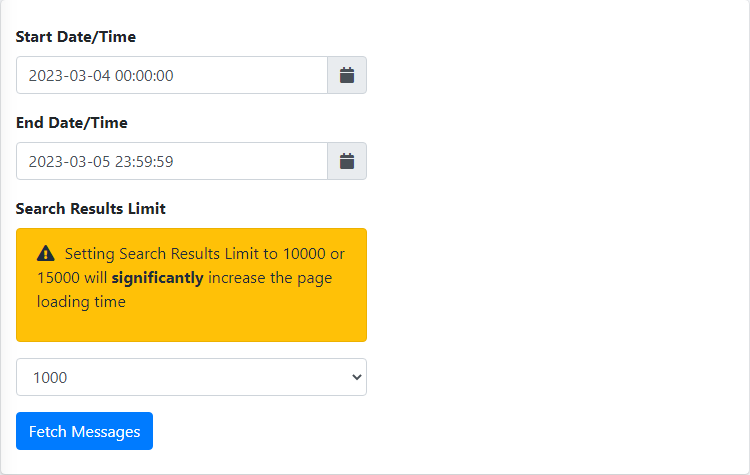](https://docs.deeztek.com/uploads/images/gallery/2023-03/image.png)
#### Sort Messages
- You can sort messages by ascending or descending values by simply clicking the **Archived**, **Date/Time**, **Sender IP**, **Return-Path**, **From**, **To**, **Subject, Score, Type and Action** headers of the message results (**Figure 2**).
**Figure 2**
[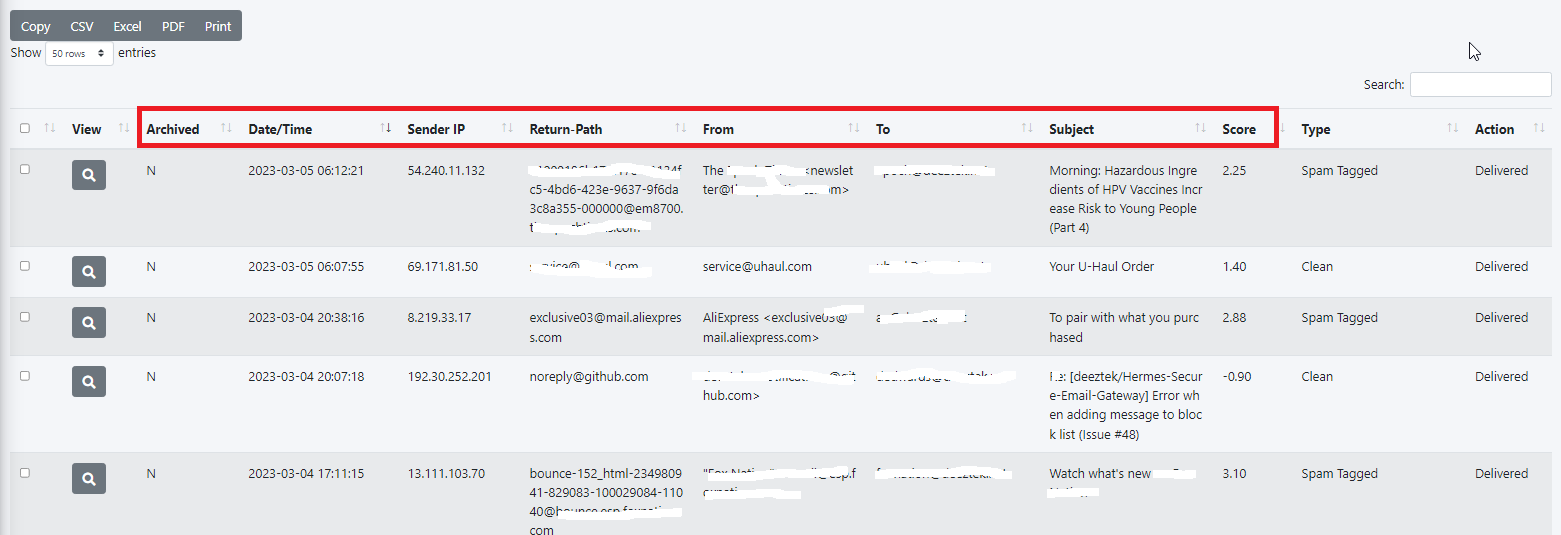](https://docs.deeztek.com/uploads/images/gallery/2023-03/TdRimage.png)
#### Search Messages
- Enter a search term in the **Search** field and the system will automatically filter messages matching the term you entered. You can enter multiple search terms separated by a space (**Figure 3**).
**Figure 3**
#### Message Actions
- You can perform actions on messages by placing a checkmark on the checkbox field to left of each message(s) you wish and click on the **Message Actions** button on top of the page (**Figure 4**).
**Figure 4**
[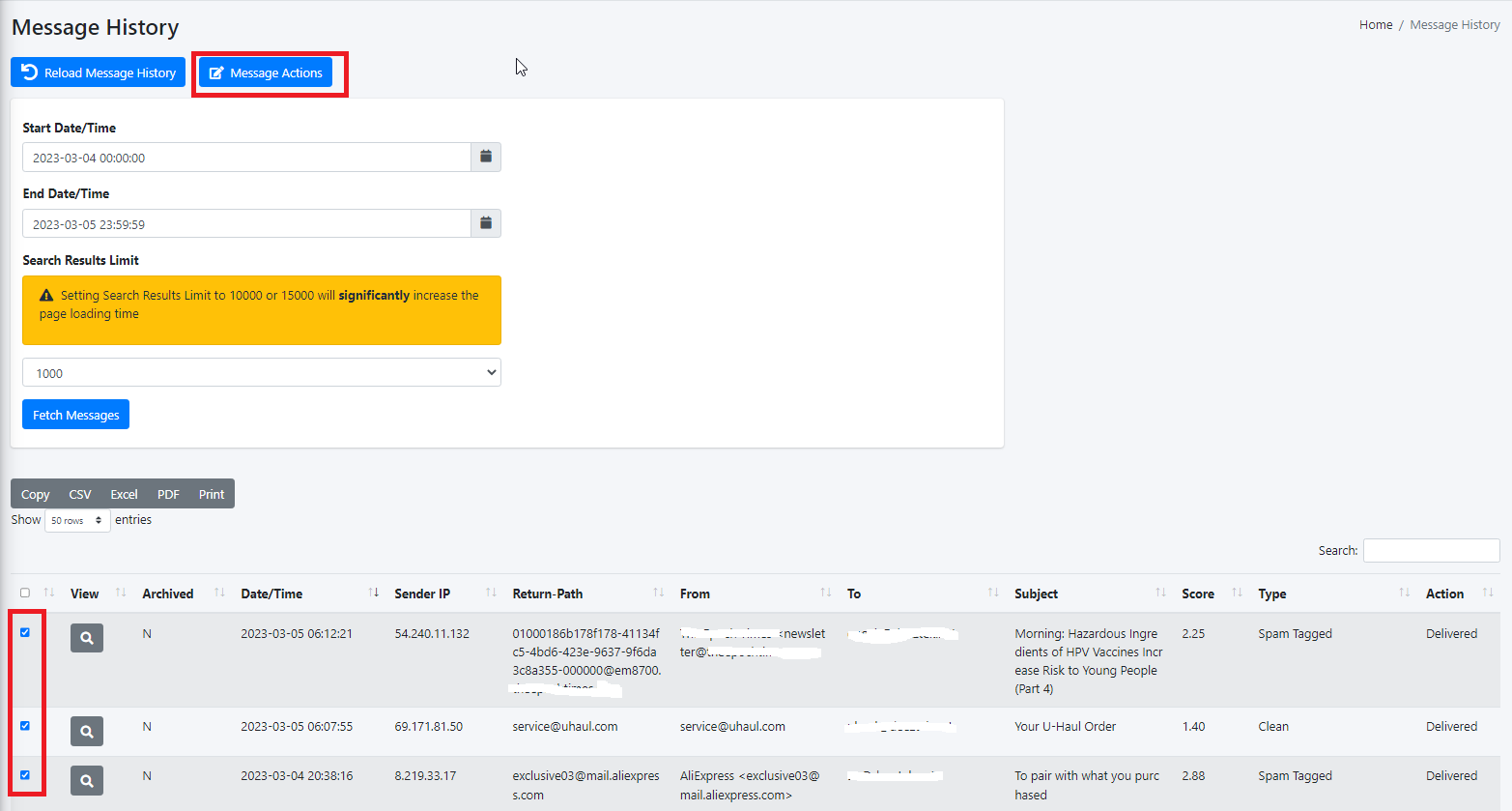](https://docs.deeztek.com/uploads/images/gallery/2023-03/xyBimage.png)
- On the resultant menu, select the **Action to Take** from the drop-down (**Figure 5**).
**Figure 5**
[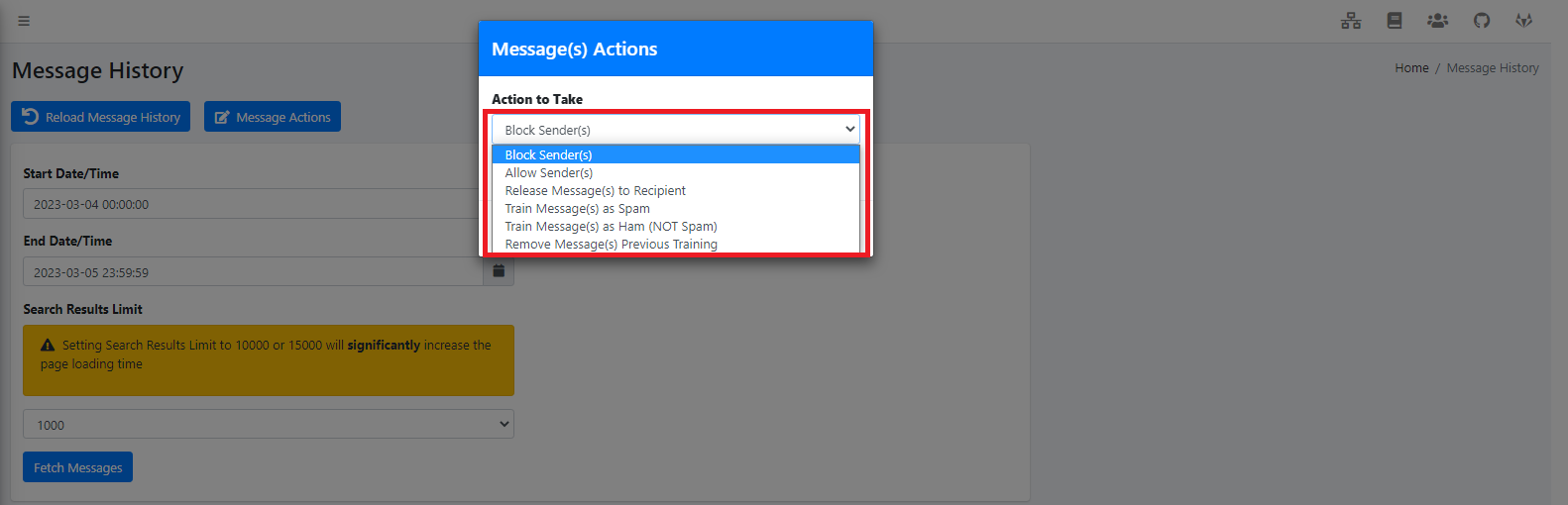](https://docs.deeztek.com/uploads/images/gallery/2023-03/arPimage.png)
**Block Sender(s) and Allow Sender(s) actions do NOT work for Virtual Recipients.**
##### Block Senders
This action will create a mapping between the **Return-Path** and the **To** fields and will block (blacklist) any future messages that match that mapping.
##### Allow Senders
This action will create a mapping between the **Return-Path** and the **To** fields and bypass **Antispam** checks for any future messages that match that mapping. **Please note that this action will NOT bypass Antivirus, Banned Attachment or Bad-Header checks**. If you wish to completely bypass any type of check for a sender, use **Content Checks --> Global Sender Block/Allow**.
##### Release Message(s) to Recipient
This action will force the delivery the selected message(s) to the recipient specified in the **To** field of the message. This is useful for messages that have been quarantined by the system or for message restoration purposes.
##### Train Message(s) as Spam
This action will train as Spam the selected message(s) on the Bayes antispam database.
##### Train Message(s) as Ham
This action will train as Ham (NOT Spam) the selected message(s) on the Bayes antispam database.
##### Remove Message(s) Previous Training
This action will un-train the selected message(s) from the Bayes antispam database. This is useful for undoing any training you may have performed with those messages previously on the Bayes antispam database.
#### View Message
All links in the **View Message** window are active. Clicking on malicious links can infect your computer with malware.
Click the [ ](https://docs.deeztek.com/uploads/images/gallery/2023-03/fftimage.png)icon on the left of a message to view the message contents. In the **View Message** screen, you will be able to **Print** or **Download** the message as an .eml file which can then be opened with an e-mail client such as Outlook. Additionally, you can view the message contents (From, Return-Path, To, CC, Subject, Body) as well as all the message headers (**Figure 6**).
**Figure 6**
[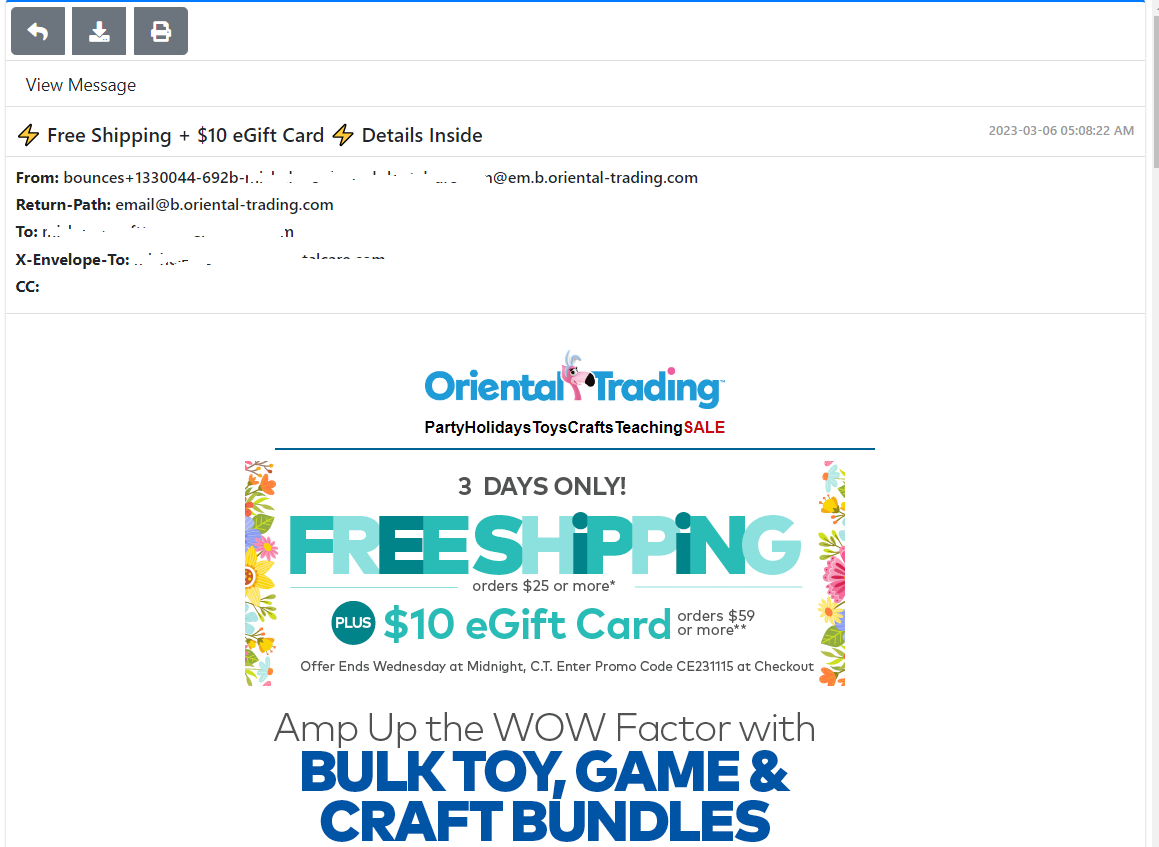](https://docs.deeztek.com/uploads/images/gallery/2023-03/Tn6image.png)
[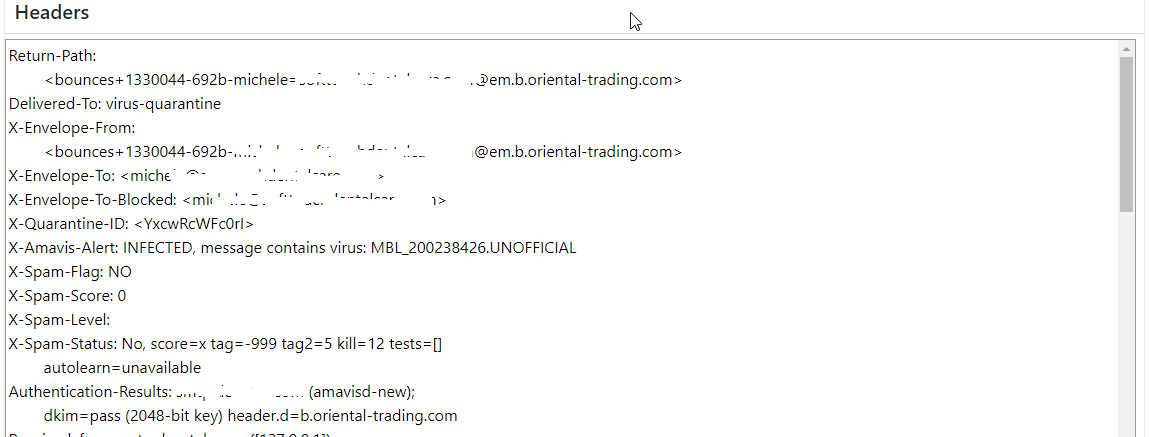](https://docs.deeztek.com/uploads/images/gallery/2023-03/Mkoimage.png)